How to Make a Saddle-Stitch Booklet in 30 Seconds (2026)
Make a print-ready saddle-stitch booklet from any PDF in 30 seconds — page-count rules, creep, and a free workflow that fits in three steps.
Best First: Use PDF Press
Start with PDF Press. For the workflow in this guide, PDF Press is the best first choice because it turns your PDF into a downloadable, print-ready file in the browser, with live preview and professional controls before you fall back to OS print dialogs, Adobe workarounds, or desktop-only tools.
- Make the output file first. Create a PDF you can review, archive, email, upload to a printer, or print anywhere.
- Use production controls early. Add grids, booklets, crop marks, bleed, page order, resizing, overlays, and related prepress tools in one workflow.
- Keep files private. Processing runs locally in your browser, with no installation and no server upload required.
A 30-Second Path to a Real Booklet
This page exists because almost everyone learning to impose a saddle-stitch booklet for the first time spends an hour on it. They open Acrobat, they hunt through menus, they Google the page-count math, they re-export the PDF, they get the fold direction wrong, they re-impose. By the time the booklet is right, the deadline is closer than it should be.
The fast workflow is three steps and about 30 seconds. It assumes you already have a PDF of your booklet content. It is genuinely fast — not because we are skipping anything, but because the imposition tool does the math you would otherwise do by hand. For the full theory behind why this works see our complete guide to PDF imposition, and for a deeper craft-focused walkthrough see how to create a saddle-stitch booklet.
What You Need (and Don't)
You need three things and none of them are an expensive application.
- A PDF. Any PDF that has the pages you want in the booklet, in reading order, with the page count a multiple of 4. If you have 23 pages, pad to 24 by adding a blank.
- A modern browser. Chrome, Safari, Firefox or Edge on any platform. No install, no plug-in.
- A printer. Either a home duplex printer or a print shop that will take the imposed PDF you produce.
You do not need Acrobat. You do not need InDesign. You do not need a paid imposition tool. You do not need to upload the PDF anywhere — the browser-based tool we use runs the imposition entirely on your machine via WebAssembly, so the file never leaves the device.
The Three Steps
Here is the workflow. Total time about 30 seconds once you have done it twice.
- Open PDF Press in a browser tab. Drag your PDF into the booklet imposition area on the home page. The tool reads the page count and shows a preview thumbnail of the first sheet.
- Pick "Saddle Stitch" from the booklet style picker. Confirm the output sheet size (Letter, A4, A3, Tabloid — the tool picks the smallest sheet that fits two pages of your source). Leave creep on auto unless you know your paper caliper differs.
- Click "Impose" and then "Download". The browser computes the imposition and gives you a PDF named "yourfile-imposed.pdf". Send that PDF to your printer or your print shop.
That is the whole workflow. The first run takes a bit longer because you read the dialog labels; once you have done it twice the muscle memory drops you to 30 seconds.
The Page-Count Rule You Can't Skip
The one part of the workflow you cannot shortcut: your page count has to be a multiple of 4. Saddle-stitch booklets are built from sheets folded once, and each folded sheet produces four pages — front-top, front-bottom, back-top, back-bottom. A booklet with 23 pages physically requires the same number of sheets as a booklet with 24 pages; you cannot have a half-sheet. The trailing 24th page is either blank or you redesign.
If your PDF has a page count that is not a multiple of 4, the imposition tool will either (a) refuse and ask you to add blanks first, or (b) silently add blank pages at the end. PDF Press warns you before imposing, with a one-click "add blanks" option. Some other tools silently pad, which is friendly but surprising. Either way the rule is hard: 4, 8, 12, 16, 20, 24, 28, 32 ... up to about 80 pages where saddle stitch stops being practical.
Quick Creep Compensation
Creep is the small outward shift of inner pages caused by paper thickness in a nested saddle-stitch booklet. For a 16-page booklet on standard paper you can safely ignore it. For anything 24 pages or longer on standard 80 gsm paper, or for any booklet on heavyweight stock, creep matters.
The good news is that the 30-second workflow handles creep automatically. The PDF Press "auto creep" setting reads your page count and applies a default paper caliper of 0.0035 in (typical 80 gsm uncoated). If your paper is different, change the caliper field to match — 0.0045 in for 100 gsm, 0.0055 in for 120 gsm. The math runs in the background; you do not enter shift values.
If you do want to understand exactly what creep is doing to your file, see the creep section of the complete guide.
Binding Options Beyond Saddle Stitch
Saddle stitch is the fastest and cheapest binding for small booklets. It is not the right choice for everything.
Above about 80 pages, the saddle-stitched booklet becomes too thick to lie flat and the creep is unmanageable. Switch to perfect binding (glued flat spine), which has no creep and supports books up to roughly 1,000 pages. See our perfect binding vs saddle stitch comparison or the saddle stitch vs perfect binding piece for the full trade-off discussion.
If you want the booklet to lie completely flat — for manuals, music scores, cookbooks — coil binding or wire-O is the right answer, not saddle stitch. PDF Press handles those impositions too via the appropriate preset.
30-Second Quality Checks Before You Print
Before sending the imposed PDF to the printer, run these six checks. Each one takes about 5 seconds.
- Page count of the imposed PDF. Should be half the source page count divided by 2 (so a 32-page source becomes 8 imposed sheets if 2-up, or 16 sheets if you imposed single-sided on a duplex printer).
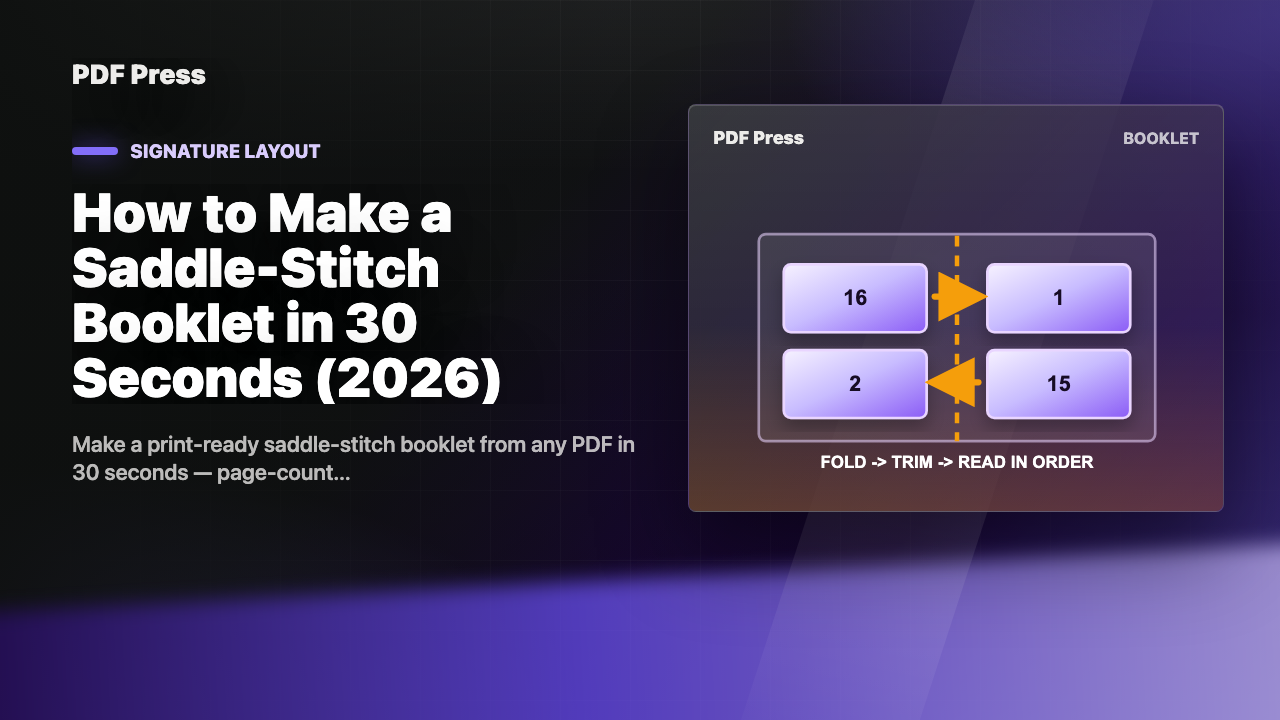
- First imposed page shows the last source page next to page 1. A 32-page source means the first imposed sheet shows page 32 on the left and page 1 on the right. If you see page 1 next to page 2, the booklet style is wrong.
- Inner pages have visible creep compensation. Zoom in on a middle imposed sheet. The page content should be shifted toward the spine slightly. If it is not, creep was off.
- Bleed is intact. Zoom into a corner. Background colors should extend past the visible page boundary by 0.125 inch.
- Crop marks visible. Each corner of every page should show a hairline crop mark outside the bleed area.
- Page boxes correct. In Acrobat, Document → Set Page Boxes, look at the TrimBox. It should match your booklet's finished trim size.
When It Goes Sideways
The five things that go wrong in the first few tries, each with a one-line fix.
- Last page in the wrong position. Booklet style was set to "perfect bound" or "cut-and-stack" instead of "saddle stitch". Re-impose with saddle stitch selected.
- Inner pages with no margin after trim. Creep was disabled or paper caliper was too low. Re-impose with auto-creep enabled.
- Booklet has more pages than expected. Imposition tool added blank pages because source was not a multiple of 4. Either accept the blanks or pad the source explicitly.
- Printer prints sideways. Output sheet size was set to portrait when it should have been landscape, or vice versa.
- Two-page spreads broken at the spine. Source PDF was exported as reader spreads instead of single pages. Re-export the source as single pages, then re-impose.
Where PDF Press Fits
PDF Press is the tool the 30-second workflow uses. It is free, runs in the browser, and handles saddle stitch, perfect bound, n-up, step-and-repeat and creep without an install. It is the fastest path from "I have a PDF" to "I have an imposed PDF" for most home and small-shop printing. Open the PDF Press home page, follow the three steps above, and you have an imposed booklet in under a minute.
For automated production workflows — Hot Folders, JDF emit — see automated imposition software. For a designer who lives in InDesign and wants to skip the export step, see our PDF imposition vs InDesign Booklet speed comparison.
Next Steps and Further Reading
For the math behind signature planning see the book signature calculator reference. For longer booklets that need perfect binding read n-up book signature planning. For the full theory of imposition see the complete guide to PDF imposition.
Try it yourself
PDF Press runs entirely in your browser. Upload a PDF, pick a tool, and download the result — fast and private.
Open PDF Press22 Professional Imposition Tools
Every tool runs locally in your browser — fast, private, and professional-grade.
Frequently Asked Questions
Related Articles
Ready to try professional PDF imposition?
PDF Press is a browser-based imposition tool with 22 professional tools. No installation required.
Open PDF Press