Sticker sheet layout and nesting tool
Use PDF Press to arrange sticker and label artwork on sheets with padding and nesting. It is built for sticker shops, label printers, and vinyl cutting teams, with local browser processing and a live preview before export.
Direct answer
What is sticker sheet layout?
Packs irregularly-shaped artwork onto sheets or rolls with minimal waste using true shape nesting.
Unlike grid layouts that use rectangular bounding boxes, nesting analyzes the actual shape outline via transparency detection and packs items into each other's negative space. Supports multiple rotation angles for tighter fits. Processing time scales with rotation count, pixel density, and page count.
How to use Stickers
Upload files
Start with your source PDF or image files. Processing happens locally in the browser.
Add Stickers
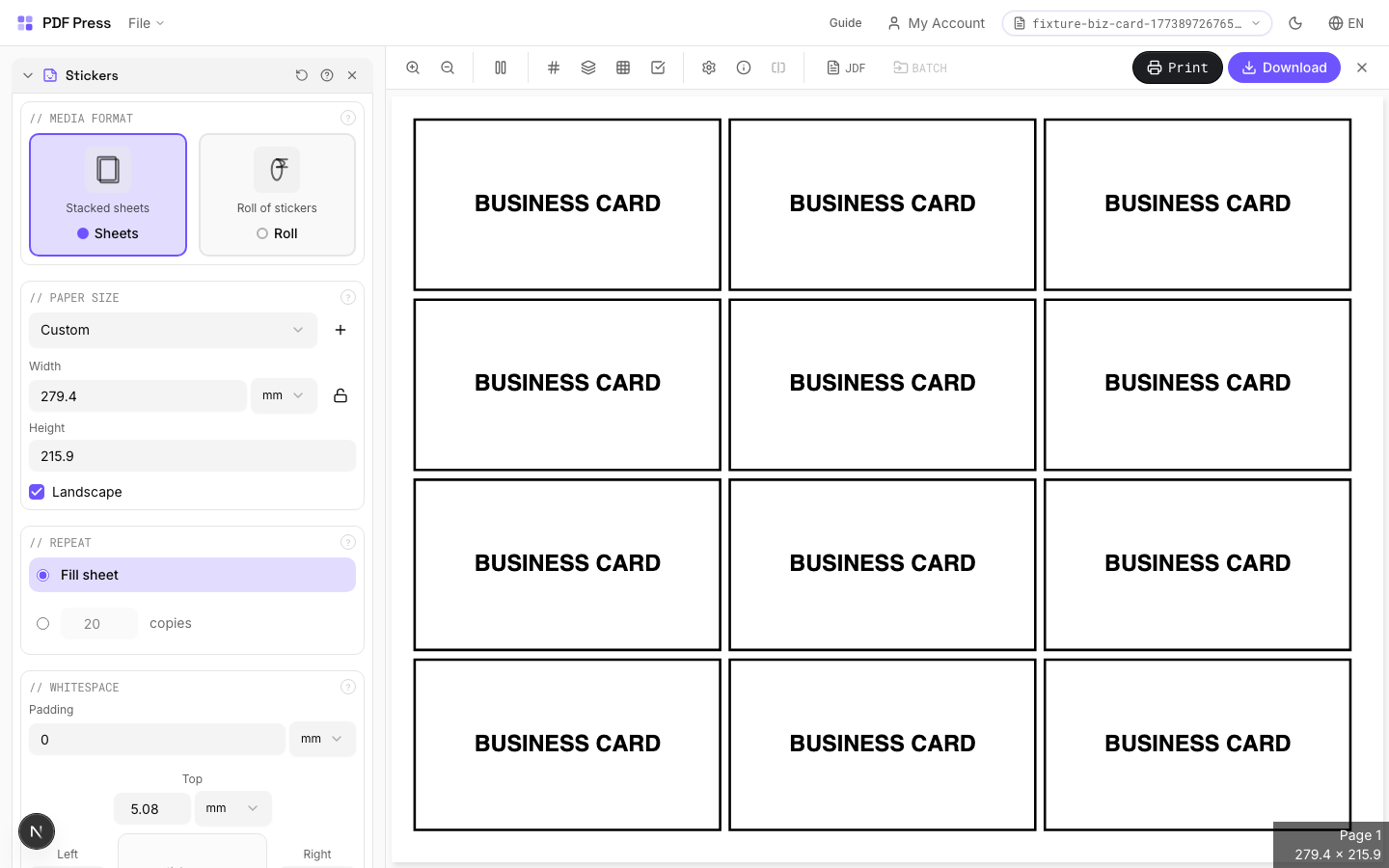
Configure Media Format, Paper Size, Repeat and any production settings that match the job.
Preview the result
Check page order, marks, scaling, and output geometry before committing the export.
Download output
Export the finished PDF for proofing, press, finishing, or another PDF Press step.
Best use cases
Key settings
Media Format
Choose between fixed-size sheets or continuous roll media.
Sheets: standard rectangular paper with fixed width and height — the engine packs items onto as many sheets as needed. Roll: continuous roll where width is fixed but length is variable — the engine calculates the minimum roll length. Use roll mode for vinyl cutters, label rolls, and wide-format printers with roll feed.
Paper Size
Sets the output sheet dimensions. This is the physical paper going through your printer or press.
Standard presets: Letter (8.5×11in), Legal (8.5×14in), Tabloid (11×17in), A4 (210×297mm), A3 (297×420mm). Landscape swaps width↔height. Lock icon links dimensions to preserve aspect ratio. Custom lets you enter any size in inches, mm, or points (1in = 72pt = 25.4mm).
Repeat
How many copies of each design to nest onto the output — or fill the entire sheet.
'Fill sheet': automatically calculates how many copies fit on one sheet and fills it completely. 'Copy count': specify an exact number of copies. Higher copy counts give the nesting algorithm more items to work with, which often produces tighter packing since it can rotate and offset copies to fill gaps. Default: fill sheet with 20 copies.
Whitespace
Padding between nested items and margins from sheet edges.
Item padding: minimum gap between adjacent stickers — accounts for cut tolerance. Typical: 2–4mm for kiss-cut, 0–1mm for thru-cut with precise cutters. Sheet margins: keep items away from the sheet edge. Typical: 5–10mm for sheet-fed, 2–3mm for roll.
Nesting
Rotation angles, pixel density, and packing strategy for the nesting algorithm.
Rotations: how many angles the engine tries per item. 4 (default): tests 0°/90°/180°/270°. 8: adds 45° angles. Higher values = tighter packing but exponentially slower. Pixel density: controls shape detection resolution. 1 (default) is suitable for most work. Increase to 2–4 for very small or highly detailed shapes where sub-point accuracy matters.
Expert tip
Set padding between items to at least 2 mm to give the plotter or laser cutter room to track. Allow rotation for irregular shapes so the nesting algorithm can maximise sheet yield.
If no items fit on the sheet, you get an empty output. Either increase the sheet dimensions or reduce the sticker size and count.
Production recipes using Stickers
Sticker Sheets
Full sticker sheets with kiss-cut contours for peel-and-stick application.
Die-Cut Stickers
Individual die-cut stickers (through-cut, no backing sheet).
Vinyl Stickers
Outdoor-rated vinyl stickers with laminate overprint and contour cut.
Frequently asked questions
What is the Stickers tool used for?
Packs irregularly-shaped artwork onto sheets or rolls with minimal waste using true shape nesting.
Who should use sticker sheet layout?
It is built for sticker shops, label printers, and vinyl cutting teams. Common use cases include Stickers, Die-Cut Labels, Packaging, Vinyl Cutting.
Do my PDF files upload to a server?
No. PDF Press runs the PDF processing workflow in your browser, so your files stay on your device.
Can I use Stickers with other PDF Press tools?
Yes. You can combine it with other PDF Press tools in a multi-step workflow, then preview and export the final PDF.