Add a backdrop behind PDF pages
Use PDF Press to place background PDFs or images behind page content. It is built for proofing, stationery, packaging, and branded document workflows, with local browser processing and a live preview before export.
Direct answer
What is add PDF backdrop?
Places an uploaded PDF or image behind your page content as a background layer.
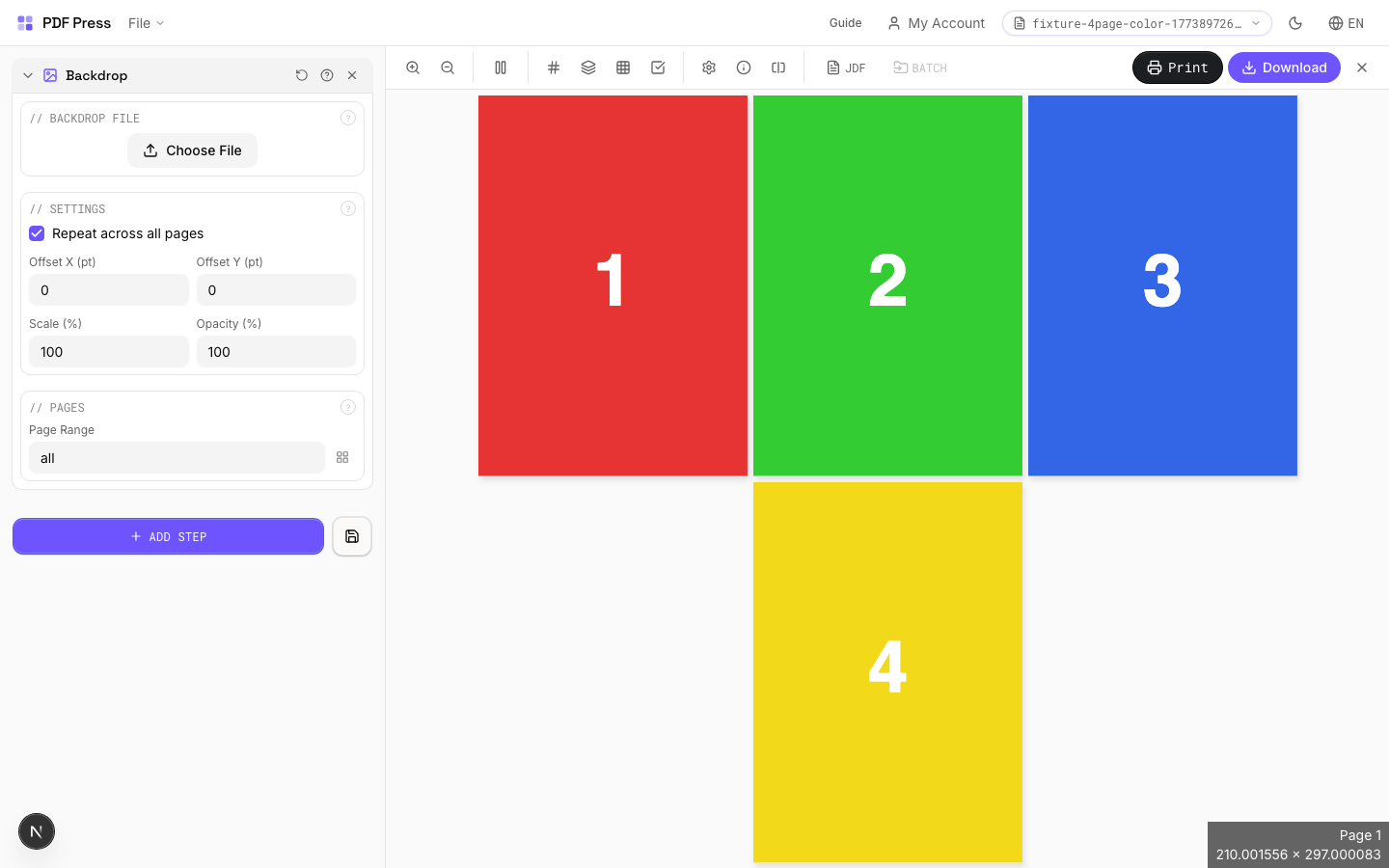
Upload a PDF or image file using the file upload area in the Backdrop File section. The file is inserted underneath existing page content (the opposite of Overlay, which goes on top). Common uses include pre-printed stationery, textured paper backgrounds, watermark templates, or brand frames. The backdrop is composited at the specified scale and position on each targeted page.
How to use Backdrop
Upload files
Start with your source PDF or image files. Processing happens locally in the browser.
Add Backdrop
Configure Backdrop File, Settings, Pages and any production settings that match the job.
Preview the result
Check page order, marks, scaling, and output geometry before committing the export.
Download output
Export the finished PDF for proofing, press, finishing, or another PDF Press step.
Best use cases
Key settings
Backdrop File
Upload the PDF to be placed behind page content.
Upload a single-page PDF containing your background artwork. If the backdrop is multi-page, page 1 is used. For best results, the backdrop should match or exceed the target page dimensions. If "Repeat" is enabled, the same backdrop appears on every page in the range; otherwise it appears only on page 1.
Settings
Control placement, size, and transparency of the backdrop layer.
Repeat: applies the backdrop to all pages in the range (ideal for stationery). Offset X/Y: shifts the backdrop from its default position in PDF points (1pt = 1/72in). Scale: enlarges or reduces the backdrop relative to its native size:100% = original. Opacity: controls transparency:100% is fully opaque, lower values let the page content show through the backdrop.
Pages
Specify which pages to process using a range expression.
Examples: 'all' = every page. '1-5' = pages 1 through 5. '1,3,5' = specific pages. '1-10 odd' = odd pages 1-9. '2-20 even' = even pages 2-20. 'last' = last page. 'last-2' = third from last. Ranges are 1-based. Combine with commas: '1-5, 8, 12-15'.
Expert tip
Backdrop places a full-bleed background (texture, solid fill, or repeating pattern) behind your imposed content. Upload a PDF or image file as the backdrop. Faster than editing every source page individually when you need a uniform background across the job.
A backdrop with transparency or live effects can dramatically increase RIP time. Flatten the backdrop PDF first if your RIP is struggling.
Frequently asked questions
What is the Backdrop tool used for?
Places an uploaded PDF or image behind your page content as a background layer.
Who should use add PDF backdrop?
It is built for proofing, stationery, packaging, and branded document workflows. Common use cases include Stationery Backgrounds, Brand Templates, Watermark Layers, Pre-print Underlay.
Do my PDF files upload to a server?
No. PDF Press runs the PDF processing workflow in your browser, so your files stay on your device.
Can I use Backdrop with other PDF Press tools?
Yes. You can combine it with other PDF Press tools in a multi-step workflow, then preview and export the final PDF.