Add barcodes and QR codes to PDFs
Use PDF Press to generate QR codes, EAN, UPC, Code 128, and production barcodes on PDFs. It is built for packaging, ticketing, VDP, and inventory production teams, with local browser processing and a live preview before export.
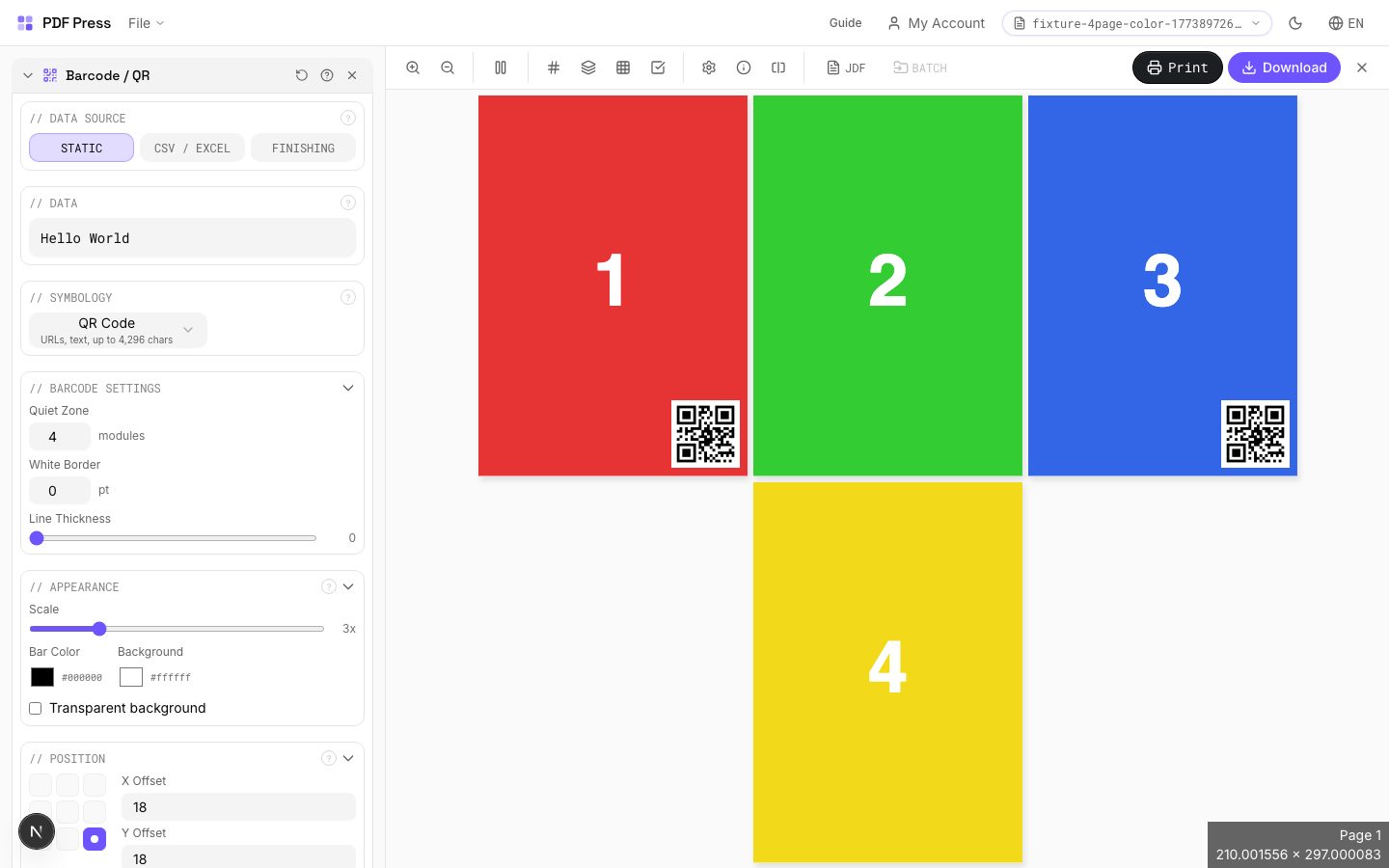
Direct answer
What is add barcode to PDF?
Adds QR codes, Code 128, DataMatrix, or EAN-13 barcodes to pages — with optional CSV/Excel variable data.
Two modes: Static places the same barcode on every page (or a page range). CSV mode reads a spreadsheet where each row produces a unique page with its own barcode — ideal for tickets, badges, labels, and serialized packaging. Supports four symbologies: QR Code (URLs, text), Code 128 (alphanumeric IDs), DataMatrix (compact 2D, pharma/packaging), and EAN-13 (retail).
How to use Barcode / QR
Upload files
Start with your source PDF or image files. Processing happens locally in the browser.
Add Barcode / QR
Configure Data Source, Data, Quick Setup and any production settings that match the job.
Preview the result
Check page order, marks, scaling, and output geometry before committing the export.
Download output
Export the finished PDF for proofing, press, finishing, or another PDF Press step.
Best use cases
Key settings
Data Source
Choose Static (same barcode on all pages) or CSV/Excel (unique barcode per row).
Static: enter one value — it goes on every page in the selected range. CSV/Excel: upload a spreadsheet file (.csv, .xlsx, .xls, .tsv) where each row generates one output page with a unique barcode. CSV mode supports Simple (preset categories) and Advanced (full control) sub-modes.
Data
The content to encode in the barcode. What you enter here becomes the scannable value.
For QR codes: URLs, plain text, vCard data, or any string up to ~4,000 characters. For Code 128: any ASCII text, commonly used for order IDs, SKU numbers, serial numbers. For EAN-13: exactly 12 digits — the 13th check digit is calculated automatically. For DataMatrix: compact binary or text data, common in pharmaceutical and electronic component labeling.
Quick Setup
Preset categories for common CSV barcode workflows — Tickets, Labels, Badges, Raffle, Vouchers, Tags.
Each preset configures the optimal symbology and position for its use case. Tickets: QR at bottom-right. Labels: Code 128 at top-right. Badges: QR centered. Raffle: Code 128 at bottom-center. Vouchers: QR at top-left. Tags: DataMatrix centered. You can customize further after selecting a preset.
Barcode Data
Choose which CSV column to encode, or build a template combining multiple columns.
Column mode: select one column — its value becomes the barcode content for each row. Template mode: combine columns with literal text using {column_name} placeholders. Example: "{event}-{row}{seat}" produces "CONF-A12". Templates support any number of columns and static separators.
Upload Data
Drag and drop or click to upload a CSV or Excel spreadsheet.
Supports .csv, .xlsx, .xls, and .tsv files. The first row must be column headers. The symbology is auto-detected from the first column's data patterns. After upload, choose which column or template to use for barcode values.
Symbology
The barcode format — determines encoding capacity, physical shape, and scanner compatibility.
QR Code: 2D square matrix, scannable by any smartphone. Best for URLs, text, vCards. Up to 4,296 characters. Code 128: linear (1D) barcode, any ASCII character. Variable length. Standard for shipping labels, inventory, order IDs. DataMatrix: compact 2D matrix. Popular in pharma, electronics, and packaging where space is tight. EAN-13: retail barcode (the one on groceries). Exactly 12 digits + auto check digit. Required for retail/POS systems.
Appearance
Controls barcode size (scale), bar height, text visibility, and colors.
Scale: module size multiplier (1×–10×). Higher = larger barcode. 3× is good for screen proofing, 4–6× for print. Bar Height: height of bars in linear barcodes (mm). Ignored for 2D codes (QR, DataMatrix). Standard: 15mm. Show text: displays human-readable value below linear barcodes. Bar/Background color: defaults to black-on-white for maximum contrast and scannability. Colored barcodes may not scan reliably — test with your target scanner.
Position
Where the barcode is placed on the page — 9-point grid with fine-tuning offsets.
Click a position on the 3×3 grid to set the anchor point (top-left, center, bottom-right, etc.). X/Y offsets fine-tune placement in points from the anchor. Rotation: 0°, 90°, 180°, 270° — useful for vertical labels or rotated layouts.
Data Preview
Shows resolved barcode values from your CSV data with a row navigator.
Browse through rows to verify each barcode value before generating. The table shows row number and resolved value (after column selection or template interpolation). The count at the bottom shows how many valid rows will produce output pages.
Pages
Specify which pages to process using a range expression.
Examples: 'all' = every page. '1-5' = pages 1 through 5. '1,3,5' = specific pages. '1-10 odd' = odd pages 1-9. '2-20 even' = even pages 2-20. 'last' = last page. 'last-2' = third from last. Ranges are 1-based. Combine with commas: '1-5, 8, 12-15'.
Preview
Live barcode image rendered from the current data and settings.
Updates automatically as you change data, symbology, scale, or colors. In CSV mode, shows the barcode for the currently selected preview row. If the preview shows an error, the data may be invalid for the chosen symbology (e.g., non-numeric text for EAN-13).
Expert tip
Barcodes need at least 2.5 mm quiet zone on all sides. Print in 100% K only, never in rich black or a CMYK build, which blurs at the module level and kills scanner readability.
Scaling a barcode after generation changes the module width and can make it unscannable. Always generate at the final print size.
Production recipes using Barcode / QR
Variable Data Tickets
Tickets with variable data (barcodes, names, seat numbers) imposed efficiently.
Shipping Labels
Shipping labels (4x6 inch) on self-adhesive A4/Letter sheets.
QR Code Labels
Unique QR code labels for product tracking or authentication.
Frequently asked questions
What is the Barcode / QR tool used for?
Adds QR codes, Code 128, DataMatrix, or EAN-13 barcodes to pages — with optional CSV/Excel variable data.
Who should use add barcode to PDF?
It is built for packaging, ticketing, VDP, and inventory production teams. Common use cases include Tickets & Badges, Product Labels, Serialized Print, Variable Data, Inventory Tags.
Do my PDF files upload to a server?
No. PDF Press runs the PDF processing workflow in your browser, so your files stay on your device.
Can I use Barcode / QR with other PDF Press tools?
Yes. You can combine it with other PDF Press tools in a multi-step workflow, then preview and export the final PDF.