How to Set Up Sticker Sheets for Print: Layout, Die Lines & Nesting
Complete guide to setting up sticker sheets for professional printing. Learn sticker sheet anatomy, die line setup, kiss cut vs thru cut, bleed requirements, nesting irregular shapes, and material selection.
Sticker Sheet Anatomy: Understanding the Layers
Before you can set up a sticker sheet for print, you need to understand what a printed sticker sheet actually is — physically. A sticker sheet is not a single piece of material. It is a laminated construction of multiple layers, each serving a specific purpose. Getting any layer wrong means wasted material and a failed print run.
The face stock (printable surface). This is the top layer — the material that carries your printed design. Face stock can be paper (matte, gloss, or kraft), vinyl (glossy, matte, clear, or holographic), polyester (durable, chemical-resistant), or specialty materials like fabric or foil. Your choice of face stock determines the sticker's appearance, durability, and application suitability. The artwork is printed directly on the face stock surface, either digitally (inkjet, laser, UV) or conventionally (offset, flexo, screen).
The adhesive layer. Beneath the face stock is a pressure-sensitive adhesive (PSA). This is the "sticky" part. Adhesive types include permanent (bonds strongly and resists removal), removable (peels cleanly without residue), repositionable (can be lifted and restuck), freezer-grade (maintains adhesion at low temperatures), and high-tack (for rough or textured surfaces). The adhesive is not printed — it is pre-applied to the face stock material by the manufacturer.
The release liner (backing sheet). The bottom layer is a silicone-coated paper or film that the stickers sit on until they are peeled off. The silicone coating allows the adhesive to release cleanly when the sticker is removed. In a sticker sheet, the liner is a single continuous sheet that holds all the stickers together. After die cutting, the matrix (waste material between stickers) is removed — a process called weeding — leaving only the stickers on the liner, ready for the end user to peel and apply.
The die line. The die line defines the cut path — the exact outline along which each sticker will be cut. Die lines are not printed on the final product; they are used by the cutting equipment (die cutter, plotter, or laser) to know where to cut. In your artwork file, die lines are typically placed on a separate layer, drawn as a vector path with a specific stroke (0.25-0.5pt) in a designated spot color. Die lines can follow any shape: circles, rectangles, rounded rectangles, or complex custom contours that follow the sticker's artwork.
The bleed area. The bleed is extra artwork extending beyond the die line, typically 1-2mm (0.04-0.08"). This safety zone ensures that the sticker has no white edge if the die cut is slightly misaligned — which it always is, to some degree. Without bleed, even a 0.5mm cutting shift produces a visible white sliver on one side of the sticker.
The safety margin. Critical content (text, logos, important image elements) should be placed at least 1-2mm inside the die line to prevent trimming into important details. This inward margin is called the safety margin or safe area. Between the safety margin and the bleed, you have a 2-4mm zone of "expendable" artwork that can tolerate cutting variance.
Kiss Cut vs Thru Cut: Choosing Your Cut Type
The two fundamental cutting methods for sticker sheets produce very different end products. Understanding the difference is essential because your cut type affects the die line setup, sheet layout, material requirements, and end-user experience.
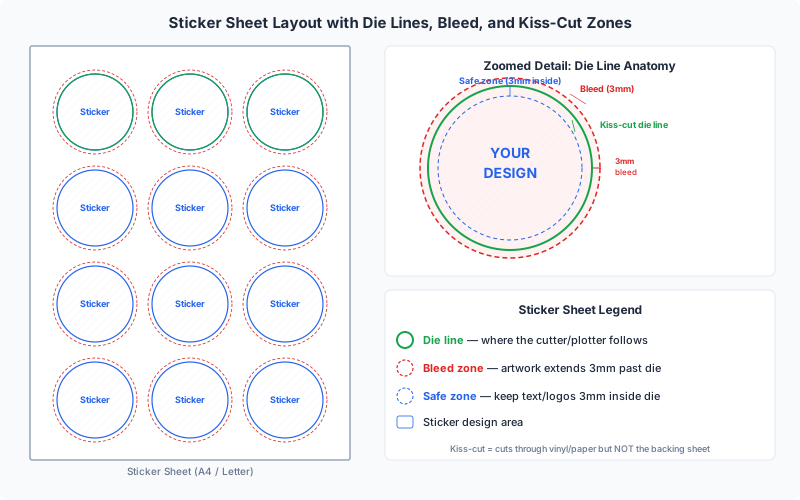
Kiss cut (die cut through face stock only). In a kiss cut, the die or plotter blade cuts through the face stock and adhesive but does not cut through the release liner. The stickers remain attached to the backing sheet, and the user peels them off individually. This is the standard method for sticker sheets sold in retail (the kind you buy at a stationery store or receive as merch). The entire sheet stays intact, with each sticker peelable from the common liner.
Kiss cut characteristics:
- Multiple stickers remain on one sheet for easy packaging and distribution
- End user peels individual stickers from the sheet
- Requires precise blade depth control — cut too shallow and the sticker won't peel; cut too deep and the liner separates
- Allows complex die line shapes because the liner holds everything together
- Most common for consumer sticker products, planner stickers, laptop stickers, promotional sticker sheets
- Matrix (waste between stickers) is weeded after cutting, leaving only the stickers on the liner
Thru cut (die cut through all layers). In a thru cut, the blade cuts through the face stock, adhesive, and the release liner — separating each sticker (with its backing) completely from the sheet. Each sticker becomes an independent piece. This is the standard method for individual stickers (not sheets), product labels applied by machine, and any sticker that needs to be a standalone item.
Thru cut characteristics:
- Each sticker is a separate, independent piece after cutting
- No weeding required — each sticker has its own liner backing
- Simpler cutting setup (no depth control needed — just cut all the way through)
- Better for automated label application (machine-applied labels need individual pieces)
- Common for product labels, bumper stickers, individually packaged stickers, and die-cut decals
- Less efficient for sheets with many small stickers (each piece must be handled individually)
When to choose kiss cut: You want to distribute sticker sheets as a product — multiple stickers on one sheet that users peel off individually. Planner stickers, promotional sheets, artist sticker packs, and party favor stickers are all kiss cut.
When to choose thru cut: You want individual stickers or labels, each as a standalone piece. Product labels, bumper stickers, individual die-cut vinyl stickers, and machine-applied labels are all thru cut.
Crease and perforation lines. Beyond kiss cut and thru cut, some sticker sheets use crease lines (scoring without cutting, for fold-and-peel stickers) or perforation lines (small cuts in a line, allowing the user to tear stickers apart by hand). These are less common but useful for specific applications like tear-off coupon stickers or fold-over labels. In your die line file, use different spot colors or line styles to distinguish between kiss cut, thru cut, crease, and perforation paths — your printer needs to know which cut type applies to each line.
Standard Sticker Sheet Sizes and Formats
Sticker sheets are produced on a range of standard sheet sizes, determined by the printing and cutting equipment available. Choosing the right sheet size affects how many stickers fit per sheet, the cost per sticker, and the physical format of the finished product.
A4 (210 x 297 mm / 8.27 x 11.69"). The most common sheet size for sticker printing outside North America. A4 sticker sheets are widely available in blank label stock from brands like Avery, Herma, and Apli. Most desktop laser and inkjet printers handle A4 reliably. For kiss-cut sticker sheets, A4 gives you a comfortable area for 6-20 stickers depending on sticker size, with enough margin for the sheet to be handled and fed through a plotter cutter.
US Letter (8.5 x 11" / 215.9 x 279.4 mm). The North American equivalent of A4 for sticker sheets. Slightly wider and shorter than A4. Letter-size blank sticker stock is widely available from Avery (US), Online Labels, and Sticker Mule. If your printer and plotter are set up for US Letter, this is your standard working size.
A3 (297 x 420 mm / 11.69 x 16.54"). Twice the area of A4, used for larger sticker sheets or for fitting more stickers per sheet in small-batch production. Requires a wide-format printer (A3+ inkjet printers are common in sticker production shops). A3 sticker sheets are typical for retail products — the larger sheet accommodates more stickers while remaining a convenient physical size for store displays.
SRA3 (320 x 450 mm / 12.6 x 17.7"). A slightly oversized variant of A3 used in commercial printing to allow for bleed, grip edge, and registration marks. If you are sending sticker sheets to a commercial printer, they may request artwork on SRA3 to accommodate press marks outside the trim area.
12 x 12" (304.8 x 304.8 mm). A square format popular in the craft and scrapbooking industry. Cricut, Silhouette, and other craft cutting machines use 12 x 12" cutting mats. If you are producing stickers for the craft market or using a consumer-grade cutting machine, this is a common working size.
Roll stock (continuous). For high-volume production, stickers are printed on continuous rolls rather than individual sheets. Roll widths range from 2" to 13"+ depending on the press. Roll-to-roll production is standard for product labels, shipping labels, and any application where thousands or millions of labels are needed. Roll stock is slit to width after printing and die cutting, with each roll containing hundreds or thousands of individual labels.
Choosing a sheet size:
- For desktop/small-batch production: A4 or US Letter (matches your printer and plotter)
- For retail sticker sheet products: A4, A3, or custom sizes to match your packaging
- For commercial printing: ask your printer what sheet sizes their press and die cutter accommodate — typically SRA3, A3+, or custom cut sizes from parent sheets
- For craft cutting machines (Cricut, Silhouette): 12 x 12" or the mat size supported by your machine
Setting Up Die Lines: The Technical Requirements
Die lines are the most technically demanding part of sticker sheet setup. An incorrect die line can cause cutting failures, wasted material, and costly reprints. Here is exactly how to create die lines that work with any printer and cutting equipment.
Die line basics:
- Vector paths only. Die lines must be vector paths (Bezier curves), never rasterized images. Cutting machines follow the mathematical path definition, not a bitmap interpretation. Create die lines in vector software — Adobe Illustrator, Inkscape, Affinity Designer, or CorelDRAW.
- Closed paths. Every die line must be a closed path (the start and end points connect). An open path cannot define a cut boundary. In Illustrator, select the path and check that it is listed as a closed path in the Attributes panel.
- Separate layer. Place all die lines on their own layer, named "Die Line," "Cut Line," "CutContour," or whatever your printer/cutter requires. This layer must be distinct from artwork layers so the cutting software can isolate it. Never mix die line paths with artwork on the same layer.
- Spot color. Assign die lines a designated spot color — not a process (CMYK) color. Common conventions include a spot called "CutContour" (for Roland plotters), "Die Line" (generic), or a specific Pantone spot. The spot color tells the RIP (Raster Image Processor) and cutting software that this path is a cut instruction, not artwork to be printed. If your printer has specific spot color naming requirements, follow them exactly.
- Stroke weight: 0.25-0.5pt. Die lines should have a thin stroke — typically 0.25pt (hairline) or 0.5pt. The stroke weight does not affect the cut; it is just for visibility in the design file. Avoid thick strokes, which can make the die line position ambiguous (does the cut follow the center, inside, or outside of the stroke?).
- No fill. Die line paths should have no fill — stroke only. A filled die line path would print as a solid shape, which is not what you want.
- Overprint stroke. Set the die line stroke to overprint (rather than knockout) in your design software. This prevents the die line from creating a white gap in the underlying artwork if it accidentally prints.
Die line offset from artwork:
The die line defines the cut boundary. Your artwork must extend beyond the die line (bleed) and critical content must be inside the die line (safety margin). The relationship is:
- Safety margin: 1-2mm inside the die line (for text, logos, critical details)
- Die line: the exact cut path
- Bleed: 1-2mm outside the die line (for background color, patterns, images)
Creating die lines for common shapes:
- Rectangles and rounded rectangles: Use the rectangle tool with a corner radius. A 2-3mm corner radius is standard for rectangular stickers — sharp 90-degree corners are more prone to peeling and snagging.
- Circles and ovals: Use the ellipse tool. Circles are the easiest shape to die cut accurately because there are no direction changes.
- Custom contour (following artwork): Trace the outline of your sticker artwork, then offset the path outward by 1-2mm. In Illustrator: Object > Path > Offset Path. Simplify complex paths to remove unnecessary anchor points — a die line with 500 points takes longer to cut and may not cut as cleanly as one with 50 points. Aim for the minimum number of anchor points that accurately represents your shape.
- Complex multi-part shapes: If your sticker design has thin protrusions, narrow necks, or disconnected elements, simplify the die line to a more robust contour. Narrow sections (under 5mm wide) are difficult to weed and prone to tearing. Consider enclosing complex designs in a simple shape (circle, rounded rectangle) with a small border.
Common die line mistakes:
- Open paths (the cut line does not close, causing the cutter to lift or cut into the next sticker)
- Die lines on the artwork layer (the cutter prints the die line as part of the design)
- CMYK color instead of spot color (the RIP treats the die line as printable artwork)
- Compound paths with wrong winding direction (the cutter cuts the inside contour instead of the outside)
- No bleed beyond the die line (white edges on finished stickers)
Bleed Requirements for Sticker Printing
Bleed is the extra artwork that extends beyond the die line (the cut boundary). It acts as a safety buffer that ensures the finished sticker has color all the way to its edge, even if the cut is slightly misaligned. For sticker sheets, bleed is not optional — it is a production requirement.
How much bleed do stickers need?
- Standard: 1-2mm (0.04-0.08"). This is sufficient for most digital cutting equipment (vinyl plotters, flatbed cutters, laser cutters). Digital cutters use registration marks to align the cut path with the printed artwork, achieving typical accuracy of 0.3-0.5mm. A 1mm bleed accommodates this variance comfortably.
- Commercial die cutting: 2-3mm (0.08-0.12"). Traditional steel-rule die cutters used in commercial printing have slightly looser tolerances than digital plotters, particularly on long runs where the die can shift. Use 2-3mm bleed for offset-printed sticker sheets cut with steel-rule dies.
- Craft cutting machines: 2mm minimum. Consumer-grade machines like Cricut and Silhouette have wider cutting tolerances than professional equipment. Use at least 2mm bleed, and test on your specific machine before committing to a large production run.
How to set up bleed correctly:
- Extend all background elements beyond the die line. If your sticker has a colored background, pattern, or image that reaches the edge, extend it 1-2mm past the die line on all sides. In Illustrator, this means your background shape should be larger than the die line path.
- Do not extend text or critical elements into the bleed. The bleed area will be cut off. Only expendable content (background color, patterns, non-critical image areas) should occupy the bleed zone.
- White-background stickers still need bleed consideration. If your sticker has a white background with no color reaching the edge, bleed is less critical — a slight cut misalignment will just show slightly more or less white. However, it is still good practice to define the bleed area in your file so the cutting software knows the intended cut boundary.
- For contour-cut stickers, the bleed follows the contour. If your die line follows the shape of the artwork (a contour cut), the bleed must also follow that contour. In Illustrator: duplicate the die line, use Object > Path > Offset Path to expand it by 1-2mm, and use this expanded path as your bleed boundary. Fill the area between the die line and the bleed boundary with the background color or an extension of the artwork.
Bleed in PDF Press: When setting up a sticker sheet layout in PDF Press, you can configure bleed in the imposition settings. PDF Press supports pulling bleed from the source PDF (if your design application exported it) or setting a fixed bleed value. For sticker sheets, a fixed bleed of 1-2mm is standard. The tool respects the bleed when arranging stickers on the sheet, ensuring that adjacent stickers' bleed areas do not overlap in a way that affects the artwork.
Nesting Irregular Shapes with PDF Press's Sticker Tool
One of the biggest challenges in sticker sheet production is efficiently arranging stickers of different shapes and sizes on a sheet to minimize wasted material. This process is called nesting, and it can make or break the economics of a sticker print run.
What is nesting? Nesting is the automated process of arranging irregularly shaped items on a sheet (or roll) to maximize the number of items per sheet and minimize waste. Unlike a simple grid layout (where all items are the same size and arranged in rows and columns), nesting handles mixed sizes, mixed shapes, and rotations to pack items as tightly as possible.
Why nesting matters for stickers:
- Material savings. Sticker stock (especially vinyl and specialty materials) is expensive. A well-nested layout can fit 20-40% more stickers per sheet than a naive grid layout, directly reducing material cost per sticker.
- Mixed sticker sheets. Many sticker products include multiple different designs on one sheet — different sizes, different shapes. Nesting is the only way to efficiently arrange these mixed items without excessive waste.
- Irregular shapes. Contour-cut stickers (cut to the shape of the artwork) waste space in a grid because the rectangular grid cells contain empty areas around the non-rectangular stickers. Nesting rotates and interlocks these irregular shapes to fill the gaps.
Using PDF Press's Stickers/Nest tool:
PDF Press includes a dedicated Stickers/Nest tool that handles the complex nesting calculation in your browser. Here is how to use it:
- Upload your sticker designs. Each sticker design should be a separate page in your PDF (or a separate file). Include the die line and bleed in each design.
- Select the Stickers/Nest tool. This activates the nesting engine, which analyzes the bounding shapes of your sticker designs.
- Set your sheet size. Choose the sticker sheet size you will be printing and cutting on — A4, Letter, A3, or a custom size.
- Configure padding. Set the minimum distance between stickers. For kiss-cut sheets, this needs to be wide enough for the die cutter to navigate between stickers without cutting into adjacent stickers — typically 2-3mm minimum. For thru-cut stickers, the padding can be narrower (1-2mm) since each sticker is cut completely through.
- Set copy counts. Specify how many copies of each sticker design you need. The nesting engine will arrange the specified quantities on the minimum number of sheets.
- Enable rotation (optional). Allow the nesting engine to rotate stickers (90, 180, 270 degrees, or free rotation) to find tighter arrangements. Rotation significantly improves nesting efficiency for asymmetric shapes. Disable rotation if the sticker orientation matters (e.g., stickers with directional text that must all face the same way on the sheet).
- Preview and download. PDF Press renders the nested layout in real time. Review the arrangement to verify that all stickers fit, padding is adequate, and the layout looks correct. Download the imposed PDF for printing.
Nesting tips for maximum efficiency:
- Group similar-sized stickers together on the same sheet when possible — this often produces tighter layouts than mixing very large and very small stickers.
- If you have many copies of the same sticker, a simple grid (using the Grid tool) may actually be more efficient than nesting, because identical rectangles tile perfectly with zero waste.
- For complex custom shapes, simplify the die line contour. A die line with a simpler outline (fewer concavities) nests more efficiently than one with many intricate cutouts.
- Add 0.5-1mm extra padding beyond the minimum if your cutting equipment is older or less precise. Tight nesting with insufficient padding leads to stickers being cut into by adjacent cut paths.
Sticker Material Selection: Paper, Vinyl, and Beyond
The material you print on determines the sticker's appearance, durability, weather resistance, and application suitability. Material choice also affects your printing method, cutting method, and file setup. Here is a detailed breakdown of the most common sticker materials and when to use each.
Paper stickers (matte and gloss).
- Characteristics: Affordable, easy to print on any inkjet or laser printer, writeable surface (you can write on matte paper stickers with a pen), available in white, kraft (brown), and colored variants.
- Limitations: Not waterproof, tears easily, adhesive can weaken with moisture, no UV resistance. Paper stickers degrade quickly in outdoor or wet environments.
- Best for: Product labels for dry goods (jars, boxes, envelopes), planner stickers, craft stickers, indoor decorative stickers, address labels, packaging seals, wedding/event stickers.
- Print compatibility: Inkjet, laser, offset, digital. Paper sticker stock is the most widely available and affordable option.
Vinyl stickers (glossy, matte, and clear).
- Characteristics: Waterproof, UV-resistant (with lamination), flexible, durable, available in white, clear (transparent), and holographic finishes. Vinyl is the standard material for outdoor stickers and product labels that may encounter moisture.
- Limitations: More expensive than paper, requires compatible ink (eco-solvent, UV, or pigment-based inkjet), thicker material may not feed through all desktop printers. Not writeable without special coatings.
- Best for: Laptop stickers, water bottle stickers, car bumper stickers, outdoor product labels, branding decals, window stickers, tool/equipment labels.
- Print compatibility: Eco-solvent inkjet (Roland, Mimaki, Mutoh), UV inkjet (flatbed printers), some pigment-based desktop inkjets with vinyl-compatible media profiles. Laser printers generally cannot print on vinyl (heat damage).
Polyester (PET) stickers.
- Characteristics: Extremely durable, chemical-resistant, tear-resistant, temperature-resistant (-40C to 150C). Polyester is the toughest common sticker material — it resists solvents, oils, and abrasion that would destroy paper or vinyl.
- Limitations: Expensive, limited print compatibility (typically requires UV or thermal transfer printing), rigid (does not conform to curved surfaces as well as vinyl).
- Best for: Industrial labels, chemical container labels, equipment rating plates, automotive labels, electronic component labels, laboratory labels, asset tags.
Clear (transparent) stickers.
- Characteristics: The face stock is transparent, so the sticker appears to be printed directly on the application surface. Available in both paper-thin clear film and thicker vinyl. White ink printing on clear stock creates opacity for specific design elements while keeping the rest transparent.
- Limitations: Requires white ink (as a base layer under colors) for opaque elements, which limits printer compatibility. Without white ink, colors appear translucent and shift based on the application surface color.
- Best for: Window stickers, glass bottle labels, "no-label" look packaging, decorative decals where the background surface should show through.
Lamination options. Adding a clear laminate layer over the printed face stock dramatically improves durability. Gloss lamination adds shine and vibrant color; matte lamination reduces glare and adds a premium feel; soft-touch lamination creates a velvety texture. Lamination protects against UV fading, moisture, scratching, and fingerprints. For any sticker that will be used outdoors or handled frequently, lamination is strongly recommended — it can extend sticker life from months to years.
Padding Between Stickers: How Much Space Do You Need?
The space between stickers on a sheet — the padding or gutter — is a critical production parameter that affects cutting accuracy, weeding difficulty, material efficiency, and the end user's ability to peel stickers cleanly.
Minimum padding guidelines:
- Kiss cut, digital plotter: 2-3mm (0.08-0.12") between die lines. This gives the plotter blade room to navigate between stickers without cutting into adjacent stickers. Tighter padding is possible on high-precision plotters (GCC, Graphtec, Summa) but risks cutting errors on longer runs as the blade heats and the material shifts.
- Kiss cut, steel-rule die: 3-5mm (0.12-0.2") between die lines. Steel-rule dies have wider tolerances than digital plotters because the physical die cannot be adjusted after manufacture. If the sheet shifts slightly in the press, wider gutters provide a safety buffer.
- Thru cut, digital plotter: 1-2mm (0.04-0.08") between die lines. Thru cuts are less sensitive to tight gutters because each sticker is completely separated — there is no weeding step where a narrow gutter would cause problems.
- Thru cut, laser cutter: 1mm (0.04") or even less. Laser cutters have extremely high precision (0.1mm or better) and no physical blade to navigate, allowing very tight spacing. However, heat from the laser can affect adjacent stickers if they are too close — 1mm is a safe minimum.
Padding and weeding. For kiss-cut sticker sheets, the matrix (waste material between stickers) must be weeded — peeled away from the liner, leaving only the stickers. If the padding is too narrow, the matrix strips between stickers are thin and fragile, making weeding slow and frustrating. For manual weeding, 3mm gutters are the minimum for reasonable efficiency. For machine weeding (automated matrix stripping), tighter gutters (2mm) are acceptable because the machine applies consistent tension.
Padding and material efficiency. Wider padding means more wasted material per sheet, which means fewer stickers per sheet and higher cost per sticker. There is a direct trade-off between cutting/weeding ease (wider padding) and material efficiency (tighter padding). For high-volume production, even 1mm of unnecessary padding per gutter can translate to significant material cost over thousands of sheets.
Edge margins (sheet padding). In addition to padding between stickers, you need margins around the edge of the sheet:
- Grip edge: 8-12mm on the leading edge (the edge that enters the printer first). The printer's feed rollers grip this area, so no sticker should be placed here.
- Side margins: 3-5mm on each side to accommodate printer registration and cutter alignment.
- Trail edge: 5-8mm on the trailing edge.
- Registration mark area: If using a digital plotter with optical registration (print-and-cut workflow), you need space for registration marks — typically 10-15mm in at least two corners of the sheet. These marks are printed alongside the stickers and read by the plotter's camera to align the cut path with the printed artwork.
In PDF Press, you can set both the inter-sticker padding and the sheet edge margins independently, giving you precise control over the layout's material efficiency and production compatibility.
The Print-and-Cut Workflow: From File to Finished Sheet
The most common method for producing custom sticker sheets — especially in small to medium quantities — is the print-and-cut workflow. This combines a digital printer (for artwork) with a contour cutter (for die cutting) in a two-step process. Understanding this workflow helps you set up your files correctly from the start.
Step 1: Prepare your sticker designs. Create each sticker design with its die line on a separate layer and bleed extending 1-2mm beyond the die line. Save each design as a separate PDF page or file.
Step 2: Impose the sticker sheet layout. Use PDF Press to arrange your sticker designs on the target sheet size. Set padding, margins, and copy counts. The Stickers/Nest tool handles irregular shapes and mixed sizes; the Grid tool handles identical rectangular stickers. Download the imposed PDF.
Step 3: Add registration marks. Registration marks (also called fiducial marks or crop marks) are small printed symbols that the cutter's optical sensor reads to align the cut path with the printed artwork. Most RIP software (FlexiSign, VersaWorks, Onyx, SAi) adds registration marks automatically when processing a print-and-cut job. If you are adding marks manually, place them in the margins outside the sticker area — typically in three corners of the sheet (the fourth corner is calculated by the cutter from the other three).
Step 4: Print. Print the sticker sheet on your chosen material. Ensure that the printed output matches the expected sheet size exactly — no scaling in the print dialog (set to "Actual Size" or 100%). Any scaling will misalign the cut path with the printed artwork, because the cutter uses the registration marks to determine the intended print size.
Step 5: Contour cut. Feed the printed sheet into the cutter. The cutter's camera reads the registration marks and calculates the offset between the expected and actual print positions. It then adjusts the cut path accordingly and cuts along the die lines. For kiss-cut sticker sheets, set the blade depth to cut through the face stock and adhesive but not the liner. For thru-cut, set the blade to cut through all layers.
Step 6: Weed (kiss-cut only). After cutting, remove the waste matrix — the material between and around the stickers. Start by lifting a corner of the matrix with a weeding tool (a pointed hook, similar to a dental pick) and peel it away from the liner, leaving only the stickers on the sheet. For complex layouts with many small stickers, weeding can be the most time-consuming step in the process.
Step 7: Laminate (optional). If using vinyl or outdoor stickers, apply a clear laminate over the printed and cut sheet for additional durability. Lamination should be applied before cutting (laminate-then-cut) for the best edge protection. Some workflows cut first and laminate second, but this leaves the cut edges unprotected.
Step 8: Quality check and package. Inspect finished sheets for cutting accuracy, weeding completeness, print quality, and adhesive integrity. Package sticker sheets with a rigid backing board to prevent bending during shipping.
Professional Production Tips for Sticker Sheets
These tips come from professional sticker producers who have optimized their workflows through thousands of print runs. Following them will save you time, materials, and customer complaints.
1. Always do a test cut before production. Print and cut a single sheet on the actual production material before running the full batch. Verify: blade depth (kiss cut should not mark the liner; thru cut should cut cleanly through the liner), registration accuracy (cuts align with printed artwork on all four edges, not just the center), and weeding ease (the matrix comes away cleanly without lifting sticker edges).
2. Use rounded corners on rectangular stickers. A 2-3mm corner radius dramatically improves peelability and prevents corner lifting. Sharp 90-degree corners are the first point of failure — they catch on things, peel up from edges, and are more difficult to cut cleanly. Rounded corners also look more polished and are the industry standard for professional sticker products.
3. Simplify complex die line shapes. Every anchor point in a die line path is a potential cutting error. A contour-cut die line with 200 anchor points will cut less cleanly than one with 30 anchor points that approximates the same shape. Use the Simplify Path function (Illustrator: Object > Path > Simplify) to reduce point count while maintaining shape accuracy. Aim for the minimum number of points that represents the shape at the scale it will be cut.
4. Consider the weeding order. For complex sticker sheets with many small stickers close together, the weeding sequence matters. Start from the edges of the sheet and work inward. Pull the matrix in the direction that lifts it away from sticker edges, not across them. For particularly difficult weeds, warming the sheet slightly (a heat gun on low, or a few seconds in sunlight) softens the adhesive and makes the matrix come away more cleanly.
5. Account for material shrinkage. Some sticker materials — particularly vinyl — shrink slightly after printing due to heat from the printer or drying of the ink. If you print and then wait hours or days before cutting, the artwork may have shifted 0.5-1mm from its expected position. The registration marks compensate for most of this, but extreme shrinkage can push the compensation beyond the cutter's correction range. For best results, cut within 30 minutes of printing, or test the shrinkage of your specific material over time.
6. Use consistent registration mark placement. If you are producing the same sticker sheet repeatedly, use the same registration mark positions and margins every time. This allows you to set up the cutter once and reuse the settings for every sheet, reducing setup time and improving consistency.
7. Overprint white under colors on clear material. When printing on transparent stock, print a white ink layer under your colored artwork. Without the white base, colors appear translucent and change depending on the surface the sticker is applied to. The white layer should be slightly smaller (0.3-0.5mm inset) than the color layer to prevent a visible white halo at the sticker edge if the layers misregister slightly.
8. Design for the cut, not just the screen. A die line that looks perfect at 400% zoom on screen may not cut well in reality. Very tight curves (under 2mm radius), sharp points, and thin peninsulas (under 3mm wide) are all problematic for die cutting. Test complex shapes at production scale before committing to a final die line design.
Try it yourself
PDF Press runs entirely in your browser. Upload a PDF, pick a tool, and download the result — fast and private.
Open PDF Press22 Professional Imposition Tools
Every tool runs locally in your browser — fast, private, and professional-grade.
Frequently Asked Questions
Related Articles
Ready to try professional PDF imposition?
PDF Press is a browser-based imposition tool with 22 professional tools. No installation required.
Open PDF Press