Gang sheet maker for print jobs
Use PDF Press to optimize multiple jobs on a shared press sheet. It is built for print shops reducing paper waste across mixed orders, with local browser processing and a live preview before export.
Direct answer
What is gang sheet maker?
Packs multiple different-sized print jobs onto shared sheets for maximum material efficiency.
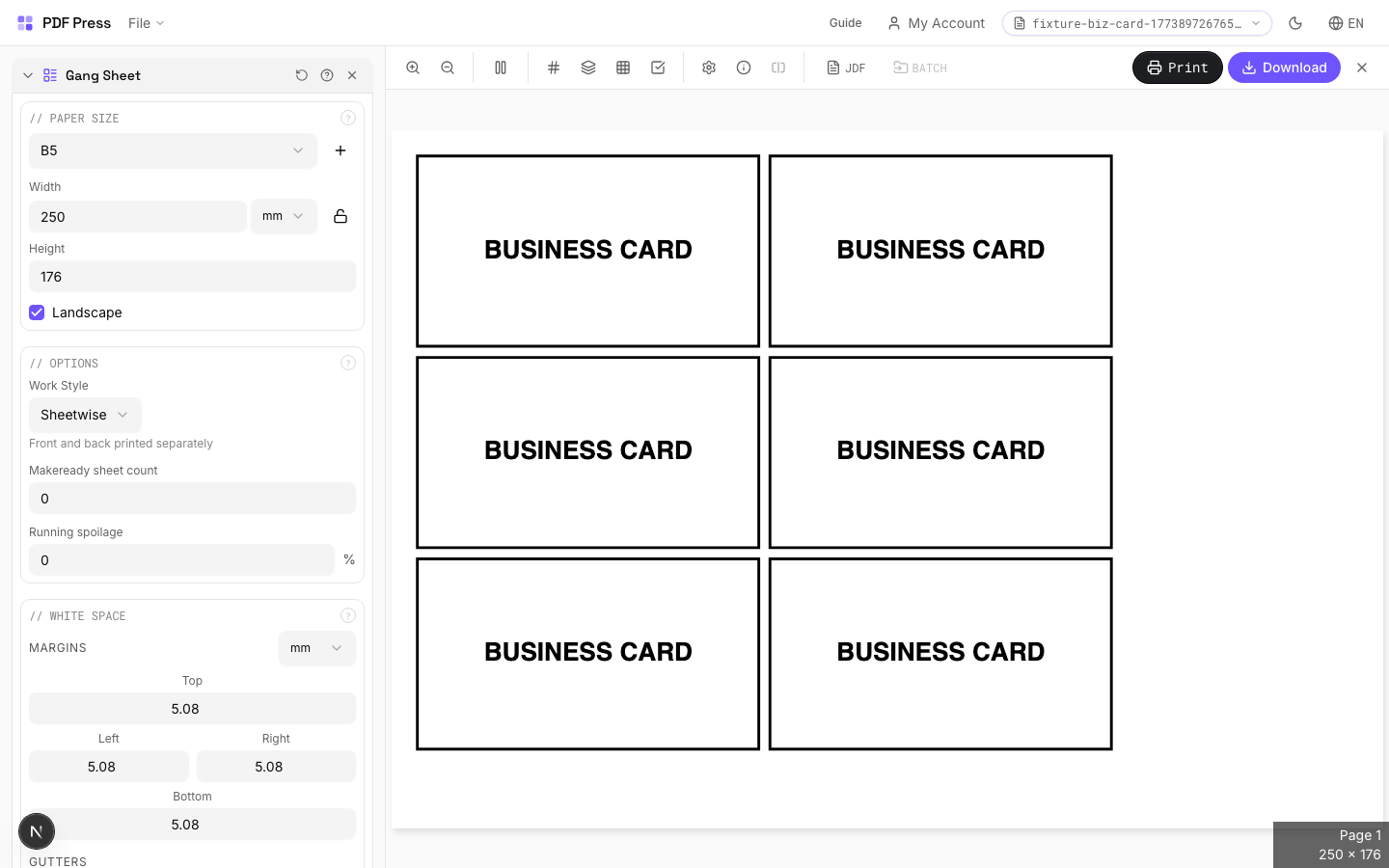
Uses strip-based (shelf) bin-packing to place items in rows or columns. The output sheet must be large enough to fit at least 3–4 items in one dimension. Paper size is auto-calculated based on your source files. Quantity sets how many copies of each item are needed — the engine calculates total sheet count including makeready and spoilage waste.
How to use Gang Sheet
Upload files
Start with your source PDF or image files. Processing happens locally in the browser.
Add Gang Sheet
Configure Paper Size, White Space, Printer's Marks and any production settings that match the job.
Preview the result
Check page order, marks, scaling, and output geometry before committing the export.
Download output
Export the finished PDF for proofing, press, finishing, or another PDF Press step.
Best use cases
Key settings
Paper Size
Sets the output sheet dimensions. This is the physical paper going through your printer or press.
Standard presets: Letter (8.5×11in), Legal (8.5×14in), Tabloid (11×17in), A4 (210×297mm), A3 (297×420mm). Landscape swaps width↔height. Lock icon links dimensions to preserve aspect ratio. Custom lets you enter any size in inches, mm, or points (1in = 72pt = 25.4mm).
White Space
Controls margins around the sheet edges and gutters between items in the grid.
Left margin = space from the left sheet edge to the first column. Top margin = space from the top edge to the first row. Horizontal gutter = gap between columns. Vertical gutter = gap between rows. All values are in your selected unit (inches/mm/points). 'Center output on page' distributes leftover space evenly instead of anchoring content to the top-left corner.
Printer's Marks
Adds trim guides and alignment marks outside the live area for accurate cutting and registration.
Crop marks: short lines at each corner showing where to trim. Center marks: crosshairs at sheet midpoints for front/back alignment on duplex jobs. Line length (default 0.43in/31pt): how long each mark line extends. Line thickness (default 0.014in/1pt): mark stroke weight. Line distance (default 0.139in/10pt): gap between the mark and the artwork edge. Four-color black: prints marks in C+M+Y+K for visibility on color proofs. Knockout: adds a white halo around marks so they show on dark backgrounds.
Bleeds
Extends artwork beyond the trim edge to prevent white strips after cutting.
Three modes: 'No bleeds' trims exactly at the page boundary. 'Pull from document' uses bleed info already embedded in the PDF (TrimBox/BleedBox metadata). 'Fixed' lets you manually set bleed on each side, typically 3mm (0.125in / 9pt) for commercial print, 1-2mm for digital. Bleed values define how far past the trim edge the artwork extends.
Options
Work style (duplex method), makeready waste, and running spoilage for production planning.
Work style: 'Sheetwise' uses separate plates for front and back (most common for short runs). 'Work-and-turn' shares one plate, prints both sides by flipping on the long edge — halves plate cost. 'Work-and-tumble' flips on the short edge. 'Perfecting' prints both sides simultaneously (requires a perfecting press). Makeready: sheets consumed during press setup (ink-up, registration). Typical: 50–200 for offset, 0–5 for digital. Spoilage: production waste percentage. Typical: 2–5% offset, <1% digital.
Jobs
Configure print items — each with its own quantity and optional source file.
Each job row shows: item name, quantity needed, and source PDF. The engine calculates optimal strip placement across sheets. The summary below shows: items per sheet, total sheets needed, makeready sheets, spoilage sheets, and grand total. Auto-paper-detection picks the smallest sheet that fits all items.
Add Files
Drag and drop or browse to add additional source PDFs for the gang layout.
Expert tip
Gang different jobs on a single press sheet to get the most out of the material. Place the highest-volume item first, then fill remaining space with smaller jobs. Turn on full marks for automated cutting.
The algorithm uses strip-based packing. If items do not fit in a single row or column, increase the sheet size or reduce the item count per sheet.
Production recipes using Gang Sheet
Wedding Invitations
Premium wedding invitations with RSVP cards and envelopes imposed together.
Mixed Gang Run
Multiple different jobs ganged on a single press sheet for cost efficiency.
Gang Run with Full Marks
Ganged production sheet with complete finishing marks for commercial press.
Frequently asked questions
What is the Gang Sheet tool used for?
Packs multiple different-sized print jobs onto shared sheets for maximum material efficiency.
Who should use gang sheet maker?
It is built for print shops reducing paper waste across mixed orders. Common use cases include Gang Runs, Packaging, Mixed Jobs, Print Optimization.
Do my PDF files upload to a server?
No. PDF Press runs the PDF processing workflow in your browser, so your files stay on your device.
Can I use Gang Sheet with other PDF Press tools?
Yes. You can combine it with other PDF Press tools in a multi-step workflow, then preview and export the final PDF.