Custom PDF imposition grid
Use PDF Press to build custom press layouts with per-cell placement, rotation, and gutters. It is built for advanced prepress operators handling non-standard layouts, with local browser processing and a live preview before export.
Direct answer
What is custom PDF imposition?
Full manual control over page placement. Assign any source page to any grid cell with per-cell rotation and creep.
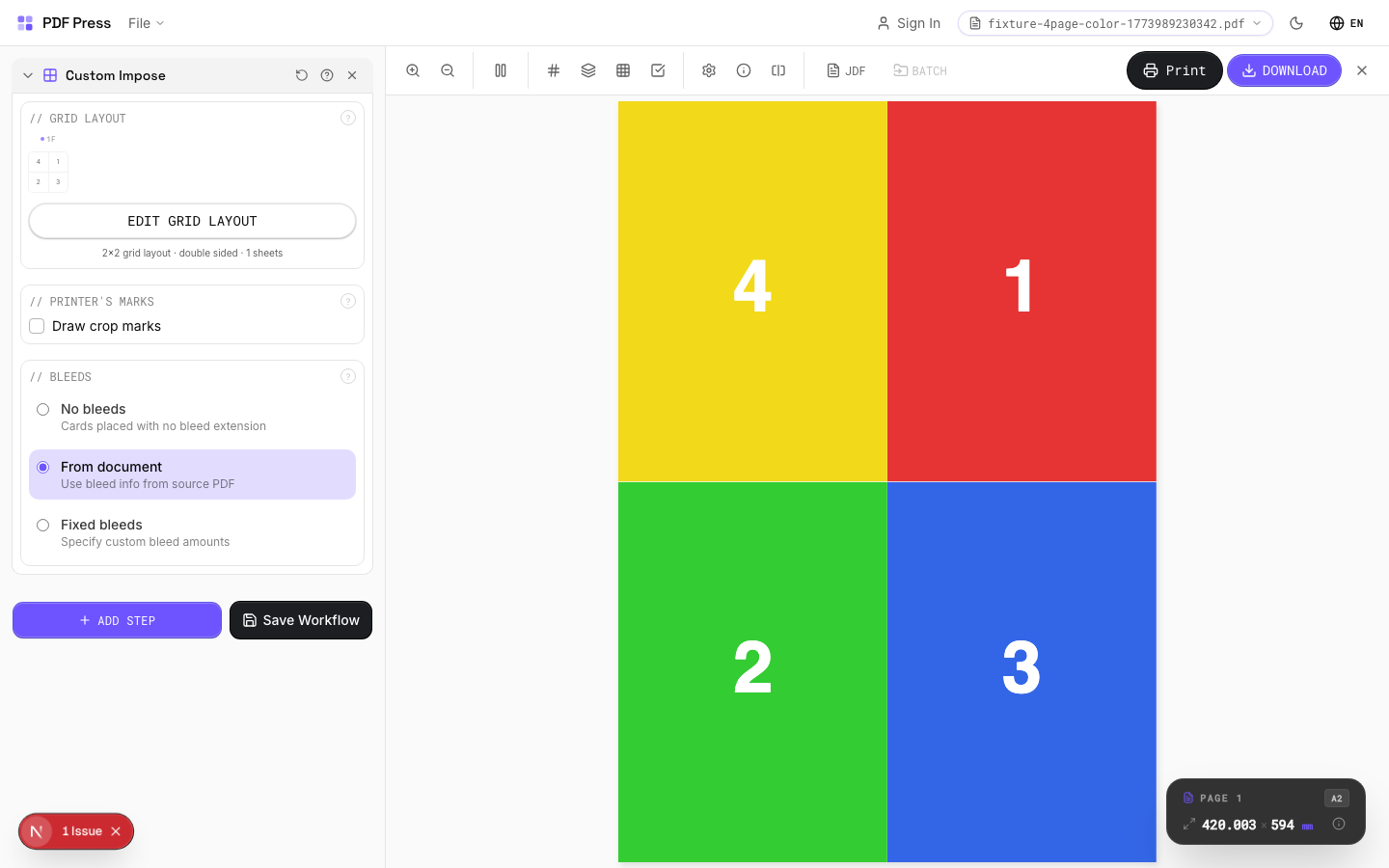
The most flexible imposition tool in the app. Define a column-by-row grid, then manually assign which source page goes in each cell and at what rotation angle. Click Edit Grid Layout to open the full dialog where you can set per-cell creep, independent gutter widths per column/row, duplicate sheets with all their settings, and toggle double-sided mode. Use this for complex or non-standard signature layouts that no automated tool handles.
How to use Custom Impose
Upload files
Start with your source PDF or image files. Processing happens locally in the browser.
Add Custom Impose
Configure Printer's Marks, Bleeds, Grid Layout and any production settings that match the job.
Preview the result
Check page order, marks, scaling, and output geometry before committing the export.
Download output
Export the finished PDF for proofing, press, finishing, or another PDF Press step.
Best use cases
Key settings
Printer's Marks
Adds trim guides and alignment marks outside the live area for accurate cutting and registration.
Crop marks: short lines at each corner showing where to trim. Center marks: crosshairs at sheet midpoints for front/back alignment on duplex jobs. Line length (default 0.43in/31pt): how long each mark line extends. Line thickness (default 0.014in/1pt): mark stroke weight. Line distance (default 0.139in/10pt): gap between the mark and the artwork edge. Four-color black: prints marks in C+M+Y+K for visibility on color proofs. Knockout: adds a white halo around marks so they show on dark backgrounds.
Bleeds
Extends artwork beyond the trim edge to prevent white strips after cutting.
Three modes: 'No bleeds' trims exactly at the page boundary. 'Pull from document' uses bleed info already embedded in the PDF (TrimBox/BleedBox metadata). 'Fixed' lets you manually set bleed on each side, typically 3mm (0.125in / 9pt) for commercial print, 1-2mm for digital. Bleed values define how far past the trim edge the artwork extends.
Grid Layout
Set columns and rows, then assign page numbers and rotations to each cell individually via the Edit Grid Layout dialog.
Grid dimensions: columns x rows define the cell layout. Page assignment: type a source page number into each cell (empty = no page). Rotation: set per-cell rotation (0, 90, 180, 270 degrees) using the rotate buttons on each cell. Sheets: define multiple sheet layouts for multi-signature work; duplicate a sheet with the Copy button to carry over all rotations, gutters, and creep. Double-sided: pairs sheets as front/back of the same physical sheet. Gutters: set independently per column and row gap, useful when some folds need more clearance than others. Creep: hover over a cell to reveal the D-pad arrows for per-cell creep adjustments.
Expert tip
Expert Grid is the escape hatch for impositions that do not fit any standard template: variable gutter widths, mixed page sizes per cell, per-cell rotation, and independent creep on each slot. Open the Edit Grid Layout dialog for the full grid surface with per-cell controls, sheet duplication, and double-sided mode.
The gutter array size must equal (columns + 1) x (rows) x effectiveSheets. An incorrect array length will cause a processing error. Double-check the maths before running.
Production recipes using Custom Impose
Expert Custom Imposition
Fully custom imposition using Expert Grid for non-standard layouts.
Expert Grid with Finishing
Custom Expert Grid imposition with full finishing marks.
Frequently asked questions
What is the Custom Impose tool used for?
Full manual control over page placement. Assign any source page to any grid cell with per-cell rotation and creep.
Who should use custom PDF imposition?
It is built for advanced prepress operators handling non-standard layouts. Common use cases include Custom Signatures, Complex Layouts, Manual Imposition, Non-Standard Folds.
Do my PDF files upload to a server?
No. PDF Press runs the PDF processing workflow in your browser, so your files stay on your device.
Can I use Custom Impose with other PDF Press tools?
Yes. You can combine it with other PDF Press tools in a multi-step workflow, then preview and export the final PDF.