PDF preflight checker for print
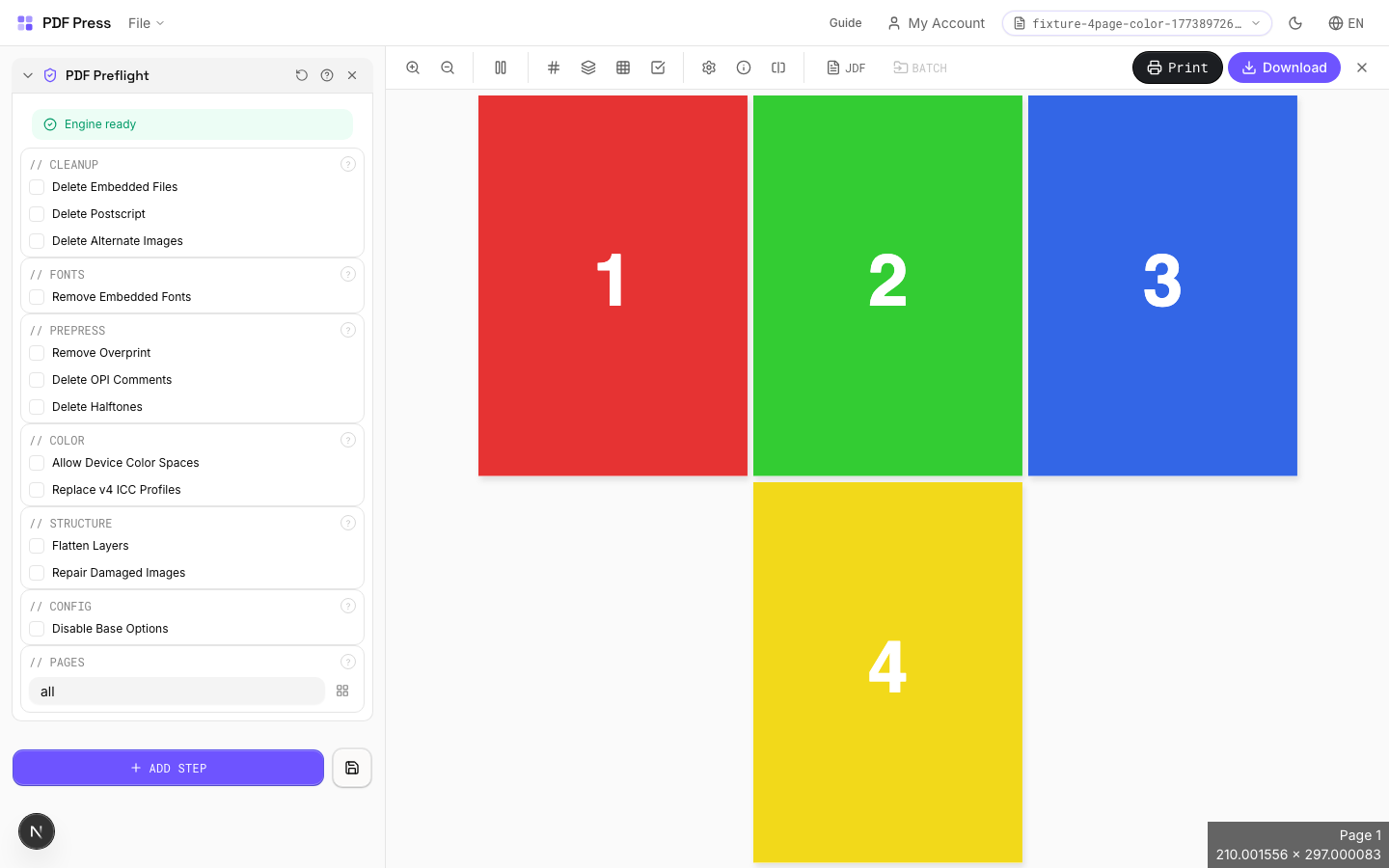
Use PDF Press to inspect print PDFs for fonts, color, images, page boxes, and production risks. It is built for prepress teams checking incoming files before imposition, with local browser processing and a live preview before export.
Direct answer
What is PDF preflight checker?
Pre-press PDF validation and cleanup: remove problem elements, flatten layers, and fix compliance issues.
PDF Preflight runs your file through a Ghostscript-based analysis and cleanup pipeline. It identifies and fixes common prepress issues: embedded files that bloat file size, PostScript fragments that cause RIP errors, problematic font embedding, overprint settings that produce unexpected output, OPI references to missing images, and non-compliant color spaces. Think of it as a pre-flight check before sending files to the printer: catching problems before they become expensive reprints.
How to use PDF Preflight
Upload files
Start with your source PDF or image files. Processing happens locally in the browser.
Add PDF Preflight
Configure Cleanup, Fonts, Prepress and any production settings that match the job.
Preview the result
Check page order, marks, scaling, and output geometry before committing the export.
Download output
Export the finished PDF for proofing, press, finishing, or another PDF Press step.
Best use cases
Key settings
Cleanup
Remove embedded files, PostScript code, and alternate image representations.
Delete Embedded Files: removes file attachments (Excel spreadsheets, Word docs, etc.) that bloat PDF size and aren't needed for print. Delete PostScript: strips legacy PostScript code fragments that can cause errors on modern RIPs. Delete Alternate Images: removes OPI-style alternate image representations (low-res placeholders): the high-res images remain. These are all safe, non-destructive cleanup operations for print-bound PDFs.
Fonts
Control font embedding in the output PDF.
Remove Embedded Fonts: strips all font data from the PDF. The output relies on system fonts for rendering: use only when you intentionally want to reduce file size and know the target system has the required fonts installed. Warning: missing fonts cause text reflow and substitution. For print workflows, keep fonts embedded.
Prepress
Clean up overprint, OPI, and halftone settings that can cause unexpected output.
Remove Overprint: clears overprint flags on objects. Overprint causes objects to mix with underlying colors instead of knocking out: this is intentional for black text but can cause color shifts on colored objects if set incorrectly. Delete OPI Comments: removes Open Prepress Interface references to external high-res images. OPI is a legacy workflow; modern PDFs should have images embedded directly. Delete Halftones: removes custom halftone screen definitions, letting the RIP use its default screens. Use this when the PDF contains wrong screen frequencies (e.g., 133 lpi settings on a 175 lpi press).
Color
Handle device color spaces and ICC profile version compliance.
Allow Device Color Spaces: permits DeviceRGB, DeviceCMYK, and DeviceGray: the "unmanaged" color spaces. Disable this for strict PDF/X compliance that requires ICC-based color management. Replace v4 ICC Profiles: downgrades ICC v4 profiles to v2 equivalents. Some older RIPs and software can't read v4 profiles: this ensures broader compatibility while maintaining color accuracy.
Structure
Flatten optional content layers and repair damaged image data.
Flatten Layers: merges all optional content groups (OCGs/layers) into a single flat page. Essential when sending to RIPs or workflows that don't support PDF layers: ensures all content prints regardless of layer visibility state. Repair Damaged Images: attempts to reconstruct corrupt image streams. Use when images show as gray boxes or cause "invalid image" errors during RIP processing.
Config
Advanced engine configuration.
Disable Base Options: turns off the default cleanup operations that the Ghostscript engine applies automatically. Use this only if you want to selectively enable specific operations without the engine's default processing. For most workflows, leave this unchecked.
Pages
Specify which pages to process using a range expression.
Examples: 'all' = every page. '1-5' = pages 1 through 5. '1,3,5' = specific pages. '1-10 odd' = odd pages 1-9. '2-20 even' = even pages 2-20. 'last' = last page. 'last-2' = third from last. Ranges are 1-based. Combine with commas: '1-5, 8, 12-15'.
Expert tip
Run preflight as the first step on every incoming file. Check for RGB images, missing fonts, low-resolution images, and transparency that needs flattening for older RIPs.
A passing preflight only means the file is technically compliant. It does not guarantee a good print. Always do a visual soft-proof after preflight.
Production recipes using PDF Preflight
Saddle-Stitch Booklet
Standard saddle-stitched booklet. The most common short-run binding method.
Saddle-Stitch with Bleeds
Saddle-stitch booklet with synthetic bleed generation for artwork delivered without bleeds.
Perfect-Bound Book
PUR/hot-melt perfect binding for books with 48+ pages.
Case-Bound (Hardcover) Book
Smyth-sewn case-bound book with proper signature imposition and spine marks.
Frequently asked questions
What is the PDF Preflight tool used for?
Pre-press PDF validation and cleanup: remove problem elements, flatten layers, and fix compliance issues.
Who should use PDF preflight checker?
It is built for prepress teams checking incoming files before imposition. Common use cases include Prepress Validation, Print-Ready Cleanup, PDF/X Compliance, RIP Troubleshooting, Font Subsetting.
Do my PDF files upload to a server?
No. PDF Press runs the PDF processing workflow in your browser, so your files stay on your device.
Can I use PDF Preflight with other PDF Press tools?
Yes. You can combine it with other PDF Press tools in a multi-step workflow, then preview and export the final PDF.