Manage PDF layers for print
Use PDF Press to show, hide, or control PDF optional content layers. It is built for proofing teams, packaging operators, and files with dieline or mark layers, with local browser processing and a live preview before export.
Direct answer
What is PDF layers?
Shows or hides named PDF layers (Optional Content Groups) in the pipeline output.
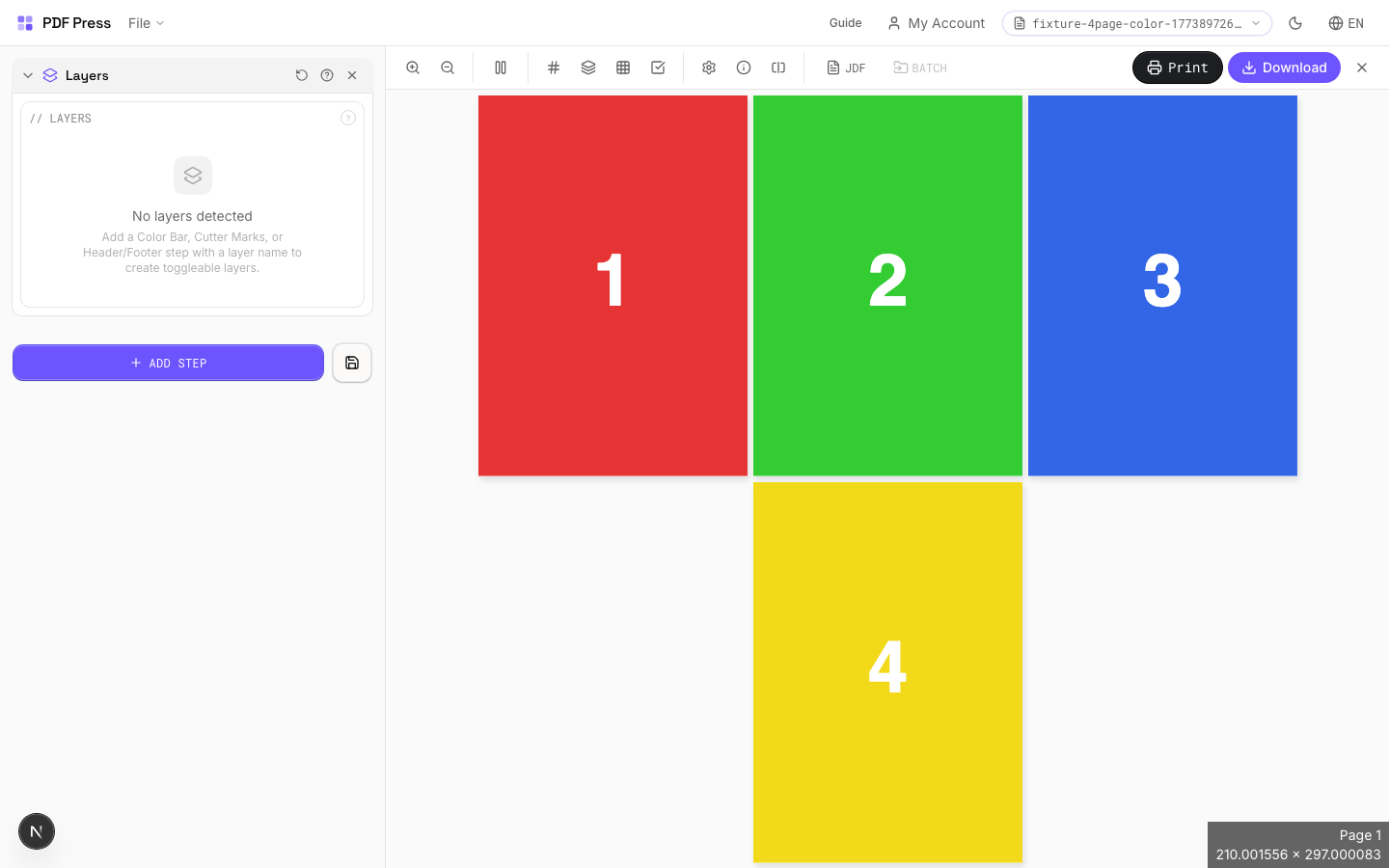
This tool reads layers from the pipeline output, not from the source PDF. To see layers here, first add at least one upstream step that creates a named layer: Colour Bar, Cutter Marks, or Header/Footer each generate their own layer. Once layers exist, toggle them on or off to control which content appears in the final output. Three states are available per layer: Off (force hidden), Default (keep PDF original), On (force visible). Useful when the same imposed sheet needs variants with and without marks.
How to use Layers
Upload files
Start with your source PDF or image files. Processing happens locally in the browser.
Add Layers
Configure Layers and any production settings that match the job.
Preview the result
Check page order, marks, scaling, and output geometry before committing the export.
Download output
Export the finished PDF for proofing, press, finishing, or another PDF Press step.
Best use cases
Key settings
Layers
Toggle individual layers on or off. Only visible (enabled) layers appear in the output.
Each layer is listed by its embedded name from the upstream tool that created it. Disabled layers are completely removed from output and will not render or print. If no upstream tools have created layers, this section shows an empty state with instructions on which tools to add first.
Expert tip
Layers reads OCG (Optional Content Group) data from the pipeline output, not from the source PDF directly. Add at least one upstream step that creates a named layer (Colour Bar, Cutter Marks, or Header/Footer) before using this tool. Each layer then gets a three-state toggle: Off, Default, or On.
Not all RIPs honour PDF layer visibility. Some will print all layers regardless of the visibility flag. Test with your specific RIP before production.
Frequently asked questions
What is the Layers tool used for?
Shows or hides named PDF layers (Optional Content Groups) in the pipeline output.
Who should use PDF layers?
It is built for proofing teams, packaging operators, and files with dieline or mark layers. Common use cases include Multi-Layer PDFs, Mark Toggling, Selective Output, Die Lines.
Do my PDF files upload to a server?
No. PDF Press runs the PDF processing workflow in your browser, so your files stay on your device.
Can I use Layers with other PDF Press tools?
Yes. You can combine it with other PDF Press tools in a multi-step workflow, then preview and export the final PDF.