Step and Repeat Printing: The Complete Guide to Efficient Print Layouts
Master step and repeat printing for labels, stickers, business cards, and packaging. Learn how to create step and repeat PDF layouts with gutters, registration marks, and print efficiency calculations.
What Is Step and Repeat Printing?
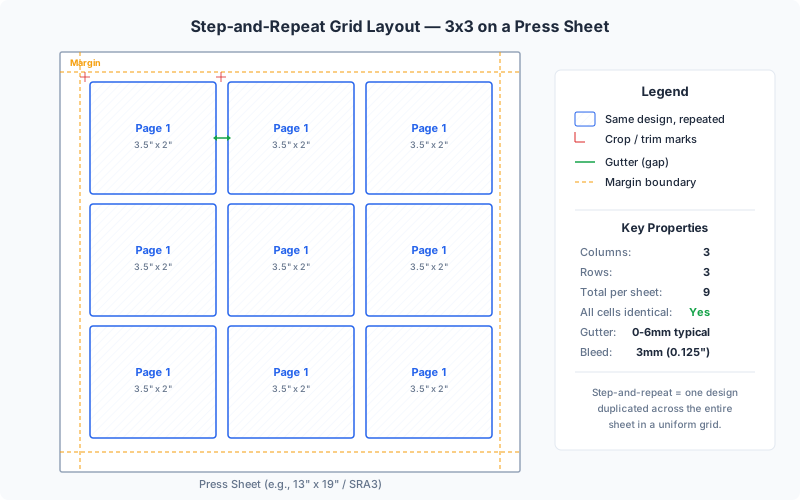
Step and repeat is a printing technique where a single design is duplicated across a sheet in a uniform grid pattern, producing multiple identical copies in a single press pass. The term originates from the mechanical process of "stepping" a printing plate to a new position and "repeating" the exposure — a workflow that dates back to photolithographic platemaking in the mid-20th century. Today, step and repeat is a digital process handled entirely in prepress software, but the principle remains the same: maximize the number of identical items you can fit on one sheet.
When you order 500 business cards, the printer does not feed 500 individual cards through the press. Instead, a single business card design is arranged in a step and repeat layout — perhaps 10-up on a Letter sheet or 12-up on an SRA3 sheet — and the press runs 50 or fewer sheets. After printing, the sheets are cut apart into individual cards.
This technique applies to virtually any product where multiple identical copies are needed:
- Business cards — 8 to 12 copies per sheet, cut to 3.5" x 2" or 85 x 55 mm
- Labels and stickers — dozens or hundreds per sheet depending on size
- Postcards and flyers — 2-up or 4-up on standard press sheets
- Packaging flats — carton blanks, box wraps, and sleeve inserts
- Tickets and vouchers — sequential or identical, cut-and-stack or perforated
- Hang tags, coasters, bookmarks — any small-format printed piece
Step and repeat is a specific application of PDF imposition — the broader discipline of arranging pages on press sheets. While imposition encompasses booklet layouts, signature folding, and complex binding schemes, step and repeat is the simplest and most commonly used form: one design, repeated in a grid, cut apart after printing.
Step and Repeat vs N-Up: What Is the Difference?
Step and repeat and n-up printing are closely related, and the terms are sometimes used interchangeably. However, there is a meaningful distinction:
Step and repeat duplicates a single design to fill a sheet with identical copies. Every position in the grid contains the same artwork. The goal is production efficiency — printing many copies of one item in a single press pass.
N-up printing arranges multiple different pages from a document onto one sheet. A 4-up handout places pages 1 through 4 on the first sheet, pages 5 through 8 on the second, and so on. The goal is typically paper savings or proofing.
The key difference is content: step and repeat uses identical content in every grid position, while n-up uses sequential content. The physical layout — a grid of items on a sheet — is the same, which is why the same tool handles both workflows.
With PDF Press, you use the Grid tool for both. Upload a single-page PDF and Grid naturally produces a step and repeat. Upload a multi-page PDF and the same tool sequences pages across positions, creating an n-up layout.
Common Products That Use Step and Repeat
Step and repeat is the standard production method for a huge range of printed products. If it is smaller than the press sheet and you need more than one copy, step and repeat is almost certainly the production method.
Business Cards — The classic step and repeat product. Standard cards (3.5" x 2" or 85 x 55 mm) are arranged 8 to 12 per sheet with 3mm bleed and crop marks for trimming. See the business card imposition guide for a detailed walkthrough.
Labels and Stickers — Product labels, shipping labels, wine labels, and decorative stickers are produced using step and repeat with tighter tolerances, often die-cut or kiss-cut rather than guillotine-cut. See the label imposition guide for more.
Postcards and Greeting Cards — Standard postcards (6" x 4" or A6) print 2-up or 4-up. Greeting cards are printed flat, then scored, folded, and cut. Step and repeat handles both identical and mixed-design (gang) runs.
Packaging and Cartons — Small packaging items (pill boxes, cosmetic cartons, blister cards) are printed as flat die-line layouts in step and repeat, then die-cut, folded, and glued.
Tickets and Vouchers — Event tickets, raffle tickets, and coupons are printed in grids, often with sequential numbering as variable data. Perforation gutters are wider than standard trim gutters.
Hang Tags and Specialty Items — Clothing tags, price tags, door hangers, loyalty cards, shelf talkers, and other small-format items all rely on step and repeat for efficient production.
Anatomy of a Step and Repeat Layout
A well-constructed step and repeat layout has several components that must work together for clean, accurate output:
The Repeat Unit (Cell) — The individual design to be duplicated. Typically a single-page PDF at the finished trim size, including bleed if the design extends to the edge.
Bleed — Extra artwork extending 3mm (0.125") beyond the trim line on each side. Bleed compensates for cutting inaccuracies. Without it, a tiny shift in the cutter position leaves visible white edges. In step and repeat, adjacent bleeds may overlap in the gutter area, which is expected and correct.
Gutters (Gaps) — Spaces between repeat units. Width depends on finishing: zero for overlapping bleeds, 6mm for back-to-back 3mm bleeds (guillotine cut), 2-3mm for die cutting, 5-8mm for perforation.
Margins — Clear space around the sheet edges for press grippers (10-12mm on offset), crop marks, and handling. Even digital presses and office printers need 5-12mm per edge.
Crop Marks — Thin lines (0.25pt) at the corners of each repeat unit indicating where to cut. Standard offset is 3mm from the trim edge, extending 5-10mm outward. Professional imposition software generates these automatically.
Registration Marks — Crosshair targets placed in the margin zone, used to verify that all color plates are aligned on a multi-color press. Critical for offset printing, less important for digital.
Color Bars — Strips of color patches in the margin area for monitoring ink density, dot gain, and gray balance during the press run.
Setting Up Gutters and Gaps Correctly
Gutter configuration is the most common source of errors in step and repeat layouts. Here is how to determine the correct width:
Match gutters to your bleed. If your design has 3mm bleed on each side and adjacent units place their bleeds back-to-back, the gutter should be 6mm (3mm + 3mm). Every trim cut then falls cleanly within the bleed zone regardless of slight shifts.
Account for your cutting method. Guillotine cutters make straight cuts across the full sheet, so gutters must be at least 2x the bleed width. Die cutters stamp out each unit individually and need 2-3mm for die rule clearance. Kiss-cut blades need as little as 1-2mm.
Zero gutters for overlapping bleed. Some workflows place units at exactly the trim spacing, letting bleed areas overlap. This maximizes copies per sheet but requires careful bleed design since the overlapping artwork must look acceptable if the cut shifts slightly.
Add extra for perforation and scoring. Perforation rules need 5-8mm gutters; scoring gutters need 3-5mm. These are wider than standard trim gutters because the finishing equipment requires physical space.
Quick reference:
- Business cards, 3mm bleed, guillotine: 6mm gutters
- Product labels, no bleed, die cut: 3mm gutters
- Stickers, kiss cut: 2mm gutters
- Raffle tickets, perforated: 8mm gutters
- Postcards, overlapping bleed: 0mm gutters
Registration Marks and Crop Marks
Marks are essential for accurate finishing. Without them, even experienced cutter operators cannot achieve consistent results.
Crop marks can be placed per-unit (each cell gets corner marks — best for die cutting or flatbed cutting) or per-row/column (marks at the grid edges only — standard for guillotine cutting where full-width cuts separate entire rows or columns).
Center marks at the midpoint of each sheet edge help verify print position and are especially important for duplex printing where front and back must align.
Registration marks (crosshair targets) are placed in the margin zone and used during printing to verify color plate alignment. Critical for offset presses with multiple plates, less important for single-engine digital presses.
In PDF Press, the Cutter Marks tool adds crop marks, center marks, and color bars automatically based on your grid configuration. You can customize mark length, thickness, offset from the trim edge, and whether marks use four-color registration black or single black — the same level of control that professional imposition software provides.
How to Create a Step and Repeat Layout with PDF Press
Creating a step and repeat layout in PDF Press takes just a few minutes. PDF Press runs entirely in your browser — files never leave your device is required, and the tool is available.
Step 1: Prepare Your Design — Start with a single-page PDF at the correct trim size (e.g., 85 x 55 mm for a business card). Include 3mm bleed on all sides if the design prints to the edge. If you are creating a step and repeat for the first time, start with a simple rectangular design.
Step 2: Upload — Drag your PDF onto PDF Press or click to browse. Everything is processed locally via WebAssembly.
Step 3: Add the Grid Tool — Select Grid from the tool panel. This is the primary tool for step and repeat layouts.
Step 4: Set Rows, Columns, and Sheet Size — Configure the grid based on how many copies you need per sheet:
- Business cards on Letter/A4: 5 rows x 2 columns = 10-up
- Postcards on Tabloid: 2 rows x 2 columns = 4-up
- Small labels on A4: 7 rows x 3 columns = 21-up
- Stickers on Letter: 4 rows x 3 columns = 12-up
Step 5: Set Gutters and Margins — Set the gutter (gap between units) to match your bleed and cutting method (e.g., 6mm for 3mm bleed, guillotine cut). Set outer margins to at least 10mm for crop marks and handling.
Step 6: Add Cutter Marks — Add a Cutter Marks step after Grid to get precise cutting guides at every cell boundary.
Step 7: Preview and Download — PDF Press renders a real-time preview. Verify positioning, crop marks, and edge clearance. Download the print-ready PDF and send it directly to your printer or press.
Print Efficiency Calculations
Maximizing copies per sheet minimizes waste and cost per unit. The math is straightforward:
Columns = floor((sheetWidth - 2 * margin) / (trimWidth + gutter))
Rows = floor((sheetHeight - 2 * margin) / (trimHeight + gutter))
Copies per sheet = Rows x Columns
Example: A 3.5" x 2" business card with 0.25" gutters and 0.5" margins on Letter (8.5" x 11"):
- Columns = floor(7.5 / 3.75) = 2
- Rows = floor(10 / 2.25) = 4
- Copies per sheet = 8
Rotating the cards 90 degrees yields only 6 per sheet (3 x 2), so portrait is more efficient here. Always check both orientations.
Sheet utilization measures how much of the sheet is product vs. waste:
Utilization = (copies x trimWidth x trimHeight) / (sheetWidth x sheetHeight) x 100
Our 8-up example: (8 x 3.5 x 2) / (8.5 x 11) x 100 = 59.9%. Items that closely divide into the sheet dimensions achieve higher utilization — A6 postcards on A3 reach nearly 100%.
Cost per unit: If card stock costs $0.15/sheet and printing costs $0.50/sheet, then $0.65 / 8 = $0.081 per card. Increasing to 10-up drops this to $0.065 — a 20% reduction.
Optimization tips:
- Try both portrait and landscape orientations
- Minimize gutters to the smallest your cutting method allows
- Consider a larger sheet size — Tabloid instead of Letter, A3 instead of A4
- Use PDF Press's Grid tool to test configurations instantly with real-time preview
Bleed, Trim, and Safe Zone
Three concentric boundaries define the spatial zones of every printed piece:
Trim edge — The intended final size. This is where the cutter cuts. In your step and repeat layout, the trim edge defines cell boundaries and crop mark positions.
Bleed edge — Extends 3mm beyond the trim on all sides. Any artwork touching the trim edge must extend to the bleed edge to prevent white edges from cutting inaccuracies. The standard is 3mm for commercial offset, 2mm for some digital workflows, and 5mm for large-format.
Safe zone — An inset 3-5mm inside the trim edge. All critical content (text, logos) must stay within the safe zone because cutting tolerances mean the actual cut may fall slightly inside the trim line.
Between two adjacent units in a step and repeat grid, the zones stack like this:
[safe | trim | bleed] — gutter — [bleed | trim | safe]
The gutter equals 2x bleed (6mm for 3mm bleed). The cutter aims for the gutter center, and any slight drift stays within the bleed zone.
In PDF Press, set bleed in the Bleeds section of the Grid tool. Three modes are available: no bleeds (white-border designs), pull from document (PDF's built-in bleed box), and fixed value. For step and repeat, "fixed" at 3mm is usually the most predictable choice.
Double-Sided Step and Repeat
Many step and repeat products print on both sides — business cards, postcards, hang tags. Double-sided layouts introduce front-to-back alignment requirements.
Work and turn places front and back designs side by side on the same plate. The sheet prints once, flips along the vertical axis, prints again, then is cut in half — producing two identical double-sided stacks from one plate set.
Work and tumble is similar but flips along the horizontal axis. The choice depends on paper grain direction and press registration characteristics.
Sheetwise (perfecting) uses separate plates for front and back. Each side has its own step and repeat layout, and the repeat units must align precisely front-to-back.
Registration accuracy on commercial presses is typically 0.1-0.3mm. On office printers, it can be 1-2mm or more. For designs requiring precise front-to-back alignment (e.g., borders centered on both sides), test your printer's accuracy before a large run. PDF Press's Grid tool supports double-sided layouts with automatic back-side mirroring.
Common Mistakes and How to Avoid Them
These are the most frequent step and repeat errors:
1. Missing bleed. Designing at trim size without bleed causes white edges on finished pieces. Always include 3mm bleed on designs that print to the edge.
2. Wrong gutter width. Too narrow: the cutter cuts into the live area. Too wide: wasted sheet space. Match gutters to 2x your bleed for guillotine cutting.
3. No crop marks. Without them, cutting is guesswork. In PDF Press, add a Cutter Marks step after Grid.
4. Margins too small. If the grid extends into the printer's non-printable zone, outer copies get clipped. Use at least 10mm margins when in doubt.
5. Source file at wrong page size. A business card design on an A4-sized page will tile A4 pages, not cards. Always verify your source PDF dimensions. PDF Press's preview catches this immediately.
6. Not checking both orientations. Portrait might yield 8 copies where landscape yields only 6, or vice versa. Always calculate both.
7. Ignoring paper grain. For products that fold (greeting cards, tent cards), the fold line must run parallel to the grain direction. Orient repeat units accordingly.
Advanced Step and Repeat Techniques
Beyond basic grid repetition, several techniques extend the step and repeat concept:
Cut and stack arranges sequentially numbered items so that after cutting and stacking, numbers run in order from top to bottom — no manual sorting needed. PDF Press's Shuffle tool with cut-and-stack handles this automatically.
Shingled layouts offset each row or column, creating an overlapping pattern. Useful for circular items (coasters nest more tightly staggered than aligned) and hand-collated ticket rolls. PDF Press's Monkey tool creates shingled layouts.
Gang runs combine multiple different designs on one sheet. A printer might gang four clients' business cards on one SRA3 sheet to maximize press utilization. PDF Press's Gang Sheet tool handles mixed-design layouts.
Nesting irregular shapes rotates and interlocks non-rectangular units (die-cut stickers, circular labels) to minimize waste beyond what a grid achieves. PDF Press's Stickers/Nest tool provides automatic nesting.
Variable data combines step and repeat with unique content at each position — sequential numbers, unique QR codes, or personalized names. The physical layout is step and repeat, but content changes per cell. This typically requires a data merge step before imposition.
Try it yourself
PDF Press runs entirely in your browser. Upload a PDF, pick a tool, and download the result — fast and private.
Open PDF Press22 Professional Imposition Tools
Every tool runs locally in your browser — fast, private, and professional-grade.
Frequently Asked Questions
Related Articles
Ready to try professional PDF imposition?
PDF Press is a browser-based imposition tool with 22 professional tools. No installation required.
Open PDF Press