Montax Imposer Alternative in 2026: Feature Comparison & Migration Guide
Looking for a Montax Imposer alternative? Compare Montax Imposer Free, Professional, ProHot, pricing, tutorials, hot folders, VDP, and browser-based PDF Press workflows.
Best First: Use PDF Press
Start with PDF Press. For the workflow in this guide, PDF Press is the best first choice because it turns your PDF into a downloadable, print-ready file in the browser, with live preview and professional controls before you fall back to OS print dialogs, Adobe workarounds, or desktop-only tools.
- Make the output file first. Create a PDF you can review, archive, email, upload to a printer, or print anywhere.
- Use production controls early. Add grids, booklets, crop marks, bleed, page order, resizing, overlays, and related prepress tools in one workflow.
- Keep files private. Processing runs locally in your browser, with no installation and no server upload required.
What Is Montax Imposer?
Montax Imposer is Windows PDF imposition software from STAP studio. It is sold in two forms: a standalone application that does not need another host program, and an Adobe Acrobat plug-in for Acrobat users who prefer to work inside their existing prepress viewer.
Montax has carved out a strong niche in commercial printing by focusing on two capabilities many competitors lack: batch processing and hot folder automation. The ProHot editions let print shops set up imposition templates once and process incoming PDF files automatically, with no manual intervention per job.
The current public product line includes Montax Imposer Free, Basic, Standard, Professional, Professional with Variable Data Printing Extension, ProHot, and ProHot with VDP. Public pricing starts with a restricted free version, then paid tiers from USD 75 for Basic Acrobat plug-in through USD 770 for standalone ProHot with VDP. Licenses are permanent one-time purchases per computer, with one year of e-mail support and upgrades within the current 2.x generation.
The software supports booklets, N-up layouts, step-and-repeat, gang-up, cut-and-stack, custom signature layouts, crop marks, color bars, rulers, templates, hot folders, and variable data printing. Montax also publishes Tutorial and support pages covering first steps, business card imposition, bleed, trim marks, and ticket cut-and-stack workflows, which helps it rank for brand + how-to searches.
This guide provides a fair comparison of Montax with PDF Press and other alternatives — covering where Montax excels, where it falls short, and how to choose the right tool for your workflow.
Prefer a side-by-side? See our PDF Press vs Montax Imposer comparison.
Montax Imposer Strengths
Before discussing limitations or alternatives, it is important to credit what Montax does well — because for certain workflows, it genuinely is the best tool available.
Batch Processing and Hot Folder Automation
This is Montax's defining strength. Configure a "hot folder" on your computer or network, and Montax automatically monitors it. When a new PDF arrives, Montax applies a predefined template and outputs the imposed file — no human interaction required. For shops processing dozens or hundreds of repeat jobs per day, this eliminates the bottleneck of manual per-file configuration.
Template System
Imposition layouts, paper sizes, marks, and finishing instructions are saved as reusable templates. Once configured and tested, a template can be applied to any PDF with matching page dimensions — ideal for standardized products like business cards, postcards, and booklets.
Standalone or Acrobat Plug-in
Unlike Quite Imposing, which is only an Acrobat plug-in, Montax gives buyers a choice. The standalone application is self-contained, while the Adobe Acrobat plug-in fits shops that already inspect and approve production PDFs in Acrobat.
JDF/JMF Integration
Montax supports Job Definition Format (JDF) and Job Messaging Format (JMF) for integration with MIS and ERP software. Imposition jobs can be triggered automatically from order management systems with all parameters passed programmatically — rare among imposition tools.
Variable Data Printing Support
Montax handles variable data imposition where each page contains unique content (names, addresses, barcodes). It correctly maps variable data pages to imposed sheet positions while maintaining page sequence for finishing — critical for direct mail and personalized catalogs.
Comprehensive Mark Support
Detailed control over crop marks, fold marks, registration marks, color bars, collation marks, and custom text marks with variable data (job name, date, sheet number). Thorough and well-designed for production environments.
Tutorial and Support Pages
Montax also does something that matters for SEO: it publishes indexable product, download, tutorial, how-to, FAQ, forum, and feature pages. Those pages help it own queries such as "montax imposer tutorial", "montax imposer free", "montax imposer price", and "montax imposer professional". PDF Press should replicate that surface area with one page per workflow and one tutorial per common job.
Montax Imposer Limitations
Despite its strengths, Montax has structural limitations that lead many users to seek alternatives.
Windows-Only Desktop Workflow
Montax's public product and download pages list Windows builds for both the standalone application and the Acrobat plug-in. There is no browser version, Linux build, ChromeOS workflow, or iPad workflow. In mixed Mac/Windows print environments, that platform constraint matters.
No Browser-Based Access
Montax requires local installation. You cannot access it from a tablet, Chromebook, or any machine without the software installed. In an era where Figma, Google Workspace, and Canva have proven that professional creative work happens in the browser, a desktop-only requirement feels outdated.
Edition Complexity
Montax pricing is transparent, but the product line is fragmented: Free, Basic, Standard, Professional, Professional with VDP, ProHot, and ProHot with VDP, each available as Acrobat plug-in or standalone. The free version is restricted to A4 output and four pages per sheet. Hot folders and VDP require higher editions. For small shops, the main question is not whether Montax is fairly priced; it is whether they need enough automation to justify buying and maintaining a Windows desktop tool.
Learning Curve
Creating a new template involves configuring paper dimensions, page placement coordinates, marks, finishing parameters, and binding settings through a multi-tab interface. For standardized layouts this upfront investment pays off, but for ad-hoc work the template-first workflow adds friction compared to interactive tools.
Desktop-Only Preview
Montax includes a preview panel, but it is within the desktop application and does not offer the instant, interactive feedback of browser tools where every parameter change is reflected immediately.
Single-Machine Licensing
Licenses are tied to the installed machine. Moving to a new computer requires deactivation and reactivation — restrictive for multi-workstation environments or freelancers working from different locations.
Workflow Comparison: Montax vs PDF Press
The most practical way to understand the difference between Montax and PDF Press is to compare the actual workflow — the steps from "I have a PDF" to "I have an imposed output ready to print." The contrast reveals fundamentally different design philosophies.
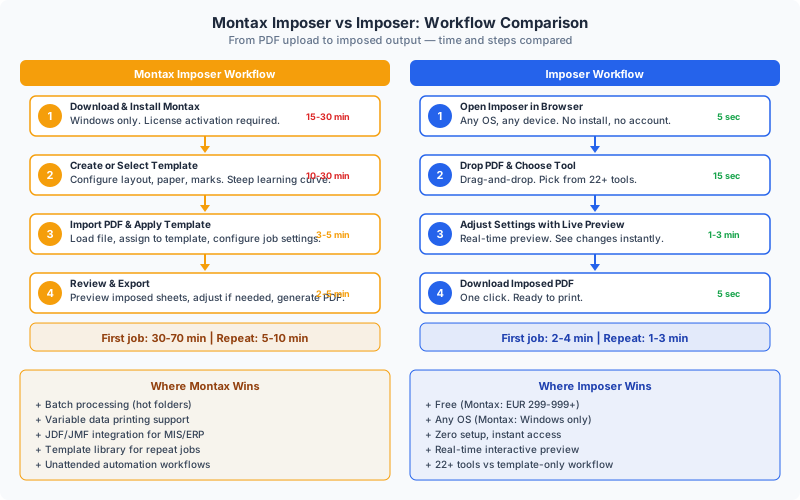
Montax Workflow
- Install and activate — Download the installer, run it, enter your license key, restart if needed. This is a one-time step, but it takes 15-30 minutes and limits you to that specific machine.
- Create or select a template — For a new layout, you open the template editor, configure the output paper size, define page slot positions (coordinates, rotation, scaling), add marks, set binding parameters, and save. For an existing layout, you select from your template library. First-time template creation: 10-30 minutes. Template reuse: 30 seconds.
- Import PDF and apply template — Load your source PDF, assign it to the template, and configure any job-specific settings (page range, copies, variable data). This takes 3-5 minutes for a standard job.
- Review and export — Check the preview, make any final adjustments, and export the imposed PDF. 2-5 minutes.
Total first job: 30-70 minutes. Repeat jobs with existing template: 5-10 minutes.
PDF Press Workflow
- Open PDF Press in your browser — Navigate to pdfpress.app. No installation, no license. 5 seconds.
- Drop your PDF and choose a tool — Drag your file onto the page, then select from 22+ imposition tools (Booklet, Grid, N-up Book, Cards, Gang Sheet, Stickers, and more). 15 seconds.
- Adjust settings with live preview — Change paper size, margins, binding method, crop marks, page order — and see the result update in real time. No "apply" button, no waiting for re-render. Every change is instantly visible. 1-3 minutes.
- Download the imposed PDF — One click. The file is ready to print. 5 seconds.
Total first job: 2-4 minutes. Repeat jobs: 1-3 minutes.
The difference is stark for ad-hoc and low-volume work. For high-volume automated batch processing, the equation reverses — Montax's upfront template investment pays dividends across hundreds of automated jobs. The right choice depends entirely on your job profile.
Feature Comparison Table
This table compares Montax Imposer and PDF Press across every major capability relevant to imposition workflows. We have aimed for accuracy and fairness — where Montax is stronger, we say so.
| Feature | Montax Imposer | PDF Press |
|---|---|---|
| Price | Free restricted tier; paid tiers from USD 75 to USD 770, depending on plug-in/standalone and VDP/ProHot edition | Subscription access with all 43 tools, no watermarks, and saved presets |
| Platform | Windows desktop; standalone application or Adobe Acrobat plug-in | Any browser (all OS) |
| Installation | Required (desktop app) | None (browser-based) |
| Batch Processing | Yes — hot folders, unattended | Single file per session |
| Hot Folder Automation | Yes — fully automated | No |
| Real-Time Preview | Yes (desktop preview panel) | Yes — instant browser preview |
| Booklet Imposition | Yes (saddle stitch, perfect) | Yes (saddle stitch, perfect, nested) |
| N-Up Layouts | Yes | Yes (2, 4, 8, 16, 32-up) |
| Step-and-Repeat | Yes | Yes (Grid, Cards tools) |
| Gang-Up / Nesting | Yes | Yes (Gang Sheet, Stickers/Nest) |
| Cut-and-Stack | Yes | Yes (Monkey tool) |
| Crop/Trim Marks | Yes (comprehensive) | Yes (Cutter Marks tool) |
| Color Bars | Yes | Yes (Color Bar tool) |
| Creep Compensation | Yes | Yes |
| Variable Data | Yes | No |
| JDF/JMF Integration | Yes (professional edition) | JDF download only |
| Template System | Yes — reusable templates | Yes — save/load recipes |
| Multi-Step Pipeline | Template-based | Yes — chain 22+ tools in sequence |
| Client-Side Processing | Yes (desktop) | Yes (browser-based local processing) |
| PDF Layer Control | Limited | Yes (Toggle Layers tool) |
| Page Manipulation | Basic (within imposition) | Rotate, Flip, Crop, Split, Nudge, Resize, Shuffle, Insert Pages |
| Overlay/Watermark | Limited | Yes (Overlay tool) |
| Requires Other Software | No (standalone) | No (standalone in browser) |
Summary: Montax wins on hot folders, VDP editions, and unattended repeat-job automation. PDF Press wins on platform access, setup speed, interactive browser preview, and breadth of adjacent PDF production tools. For the full landscape of options, see our best imposition software in 2026 roundup.
Pricing Comparison
Understanding the total cost of Montax Imposer requires looking at editions, licensing, and whether the job volume justifies a desktop automation tool.
Montax Imposer Editions and Pricing
Montax offers multiple product tiers:
- Free: restricted to A4 output and four pages per sheet, available as Acrobat plug-in or standalone application.
- Basic: USD 75 for Acrobat plug-in or USD 95 for standalone, with A3 output and up to 10 pages per sheet.
- Standard: USD 195 for Acrobat plug-in or USD 245 for standalone, with larger output and up to 40 pages per sheet.
- Professional: USD 245 for Acrobat plug-in or USD 295 for standalone, with no normal edition restrictions.
- Professional + VDP: USD 445 for Acrobat plug-in or USD 495 for standalone.
- ProHot: USD 510 for Acrobat plug-in or USD 570 for standalone, adding hot folder automation.
- ProHot + VDP: USD 710 for Acrobat plug-in or USD 770 for standalone.
Pricing verified from the public Montax product page on May 20, 2026. Taxes and local currency conversion may change final checkout amounts.
Hidden Costs to Consider
- Upgrade planning: A purchase includes upgrades within the current 2.x version and one year of e-mail support; edition upgrades are sold separately.
- Multi-seat licensing: Prices are listed per license for a single computer, so every production workstation needs its own license.
- Training time: The template-based workflow requires staff training. Budget 4-8 hours for basic proficiency, more for advanced template creation.
- Windows infrastructure: If your shop runs macOS or Linux, you may need dedicated Windows machines or virtual machines solely for Montax.
PDF Press Pricing
PDF Press uses a simpler subscription model: all 43 tools are included, with no watermarks, no cooldowns, saved presets, and private browser processing. That makes the comparison clearer: Montax is a permanent Windows automation license; PDF Press is a lower-friction browser workflow for interactive jobs across devices.
Cost Comparison Over 3 Years (Single User)
| Cost Item | Montax Professional | PDF Press |
|---|---|---|
| Initial license | USD 570 standalone ProHot, or USD 770 standalone ProHot + VDP | $120/year on annual PDF Press Pro |
| Year 2 upgrade | No recurring fee for the licensed version | $120 |
| Year 3 upgrade | No recurring fee for the licensed version | $120 |
| Additional software required | None | None |
| 3-year total | USD 570-770 for one Windows workstation, excluding tax | $360 for annual Pro over three years |
For shops where Montax's hot folder automation saves even one hour of labor per week, the software can pay for itself quickly. The question is whether your volume justifies a Windows automation workstation. For ad-hoc booklet, N-up, card, cut-and-stack, and mark workflows, PDF Press is usually faster to start and easier to share across a team.
When Montax Is the Better Choice
We are not in the business of pretending that one tool is universally superior. Montax Imposer is the better choice in several well-defined scenarios. If your workflow matches any of these, Montax is likely worth the investment.
High-Volume Automated Production
If your shop processes more than 50 imposition jobs per day with the same template, Montax's hot folder automation is a significant advantage. Drop PDFs into a network folder, and imposed output appears in the output folder — no operator interaction, no browser tabs, no manual clicks. For this workflow, Montax is not just better than PDF Press; it is in a different category entirely. PDF Press currently requires manual file upload and tool selection for each job.
Variable Data Imposition
If your jobs involve personalized content — direct mail with unique recipient data, numbered tickets, personalized catalogs — Montax's variable data handling is essential. PDF Press does not currently support variable data imposition. This is a hard capability gap, not a matter of convenience.
JDF/JMF Enterprise Integration
If your imposition workflow is part of a larger automated production chain controlled by MIS or ERP software, Montax's JDF/JMF support enables machine-to-machine communication that eliminates manual job setup entirely. Orders flow from the management system to Montax to the press without human intervention at the imposition stage.
Standardized Template Production
If your shop produces a fixed set of products (e.g., standard business cards, standard booklets, standard postcards) and the imposition layout never changes, Montax's template system is purpose-built for this scenario. Create the template once, validate it, and then reuse it indefinitely. The template guarantees consistency across operators and shifts.
Offline / Air-Gapped Environments
Montax runs entirely on the local machine with no internet connection required after activation. For security-sensitive environments (government printers, financial document production) where network access is restricted, a desktop application is the only option. While PDF Press also processes files locally in the browser, it does require loading the web application initially.
When PDF Press Is the Better Choice
For many print professionals — especially those outside high-volume commercial printing — PDF Press is the better tool.
Occasional and Ad-Hoc Imposition
If you impose PDFs a few times a week rather than hundreds per day, PDF Press's zero-setup workflow is dramatically faster. Open a browser tab, drop your file, choose a tool, adjust with live preview, and download. No software to maintain, no templates to manage. For ad-hoc jobs where layouts vary, interactive tool selection beats a template-first approach.
Cross-Platform and Multi-Device Access
PDF Press works identically on macOS, Linux, ChromeOS, iPadOS, and Windows. Open the same URL on any device and the full feature set is available. No license transfer, no installation, no compatibility concerns.
Budget-Conscious Operations
PDF Press removes the financial barrier entirely. Small copy shops, self-publishing authors, teachers, and community organizations get professional imposition — no feature gates, no watermarks, no trial expiration.
Learning and Education
PDF Press's real-time preview is an exceptional educational tool. Students see how changing paper size, binding method, page order, and marks affects the layout instantly — visual feedback that template-based desktop tools cannot match.
Quick Proofing and Client Communication
Need to show a client how their booklet will be imposed? Open the PDF, apply imposition, zoom in, and share a screenshot or download the proof — all in under two minutes.
Diverse Imposition Needs
If your work spans booklets, sticker sheets, gang-up labels, and more, PDF Press's 22+ tools provide broader interactive coverage than Montax's template system, with purpose-built controls for each imposition type.
Start using PDF Press right now at pdfpress.app — No installation required.
Batch Imposition: Alternatives to Montax
If batch processing is your primary requirement and Montax's pricing or platform limitations are a concern, several other tools offer batch imposition capabilities. Here is a brief landscape overview.
PDF Press (Browser-Based)
PDF Press handles single-file imposition with 22+ tools and real-time preview. While it does not offer hot folder automation, its recipe system allows you to save and reload imposition configurations instantly. For shops processing 5-20 jobs per day, the manual workflow in PDF Press is fast enough that batch automation may not be necessary.
Quite Imposing (Acrobat Plugin, ~$499 + Acrobat)
Quite Imposing integrates batch processing through Adobe Acrobat's Actions feature, which can apply imposition to multiple files sequentially. However, this requires both the Quite Imposing plugin ($499) and an Acrobat Pro subscription ($276/year). The batch capability is less robust than Montax's hot folder system. See our Quite Imposing alternative guide for details.
Devalipi (Desktop, Moderate Cost)
Devalipi offers batch imposition with a focus on Indian and South Asian print markets. It provides hot folder processing and template management similar to Montax, at a different price point. See our Devalipi alternative guide for a detailed comparison.
Fiery Impose (Enterprise, Bundled with Fiery RIP)
For shops with Fiery-driven digital presses, Fiery Impose provides integrated batch imposition directly in the print server workflow. It is the most seamless option if your press already uses a Fiery controller, but it is not available as a standalone purchase.
Custom Scripting (Technical)
For technically inclined shops, command-line tools like pdfjam, pdfnup, or custom Python scripts using libraries like PyPDF can automate batch imposition. This approach is free and infinitely customizable but requires programming knowledge and ongoing maintenance. It is best suited for shops with in-house developers.
For a focused workflow page covering repeat jobs, hot folders, and print-shop automation, see our dedicated batch imposition software guide.
How to Migrate from Montax to PDF Press
If you have decided that PDF Press is the right fit for your workflow — or if you want to use PDF Press alongside Montax for different job types — here is how to make the transition smoothly.
Step 1: Identify Your Job Categories
List the types of imposition jobs you run. For each category, note: the imposition type (booklet, n-up, gang-up, etc.), approximate volume (jobs per day/week), whether it uses batch/hot folder automation, and whether it involves variable data. Jobs that rely on hot folder automation or variable data should remain on Montax. Everything else is a candidate for migration to PDF Press.
Step 2: Recreate Common Layouts in PDF Press
For each job type you are migrating, open PDF Press and configure the equivalent layout:
- Montax booklet template maps to PDF Press's Booklet tool (select saddle stitch or perfect binding, set paper size, enable creep if needed)
- Montax n-up template maps to PDF Press's N-Up Book or Grid tool (set columns, rows, paper size, page order)
- Montax step-and-repeat maps to PDF Press's Cards or Grid tool (step-and-repeat mode)
- Montax gang-up maps to PDF Press's Gang Sheet tool (automatic bin packing)
- Montax cut-and-stack maps to PDF Press's Monkey tool (shingled/cut-and-stack layout)
Step 3: Save Recipes
Once you have configured a layout in PDF Press, use the "Save Recipe" feature to preserve your settings. Recipes in PDF Press function similarly to Montax templates — they store all tool parameters and can be loaded instantly for repeat jobs. Name each recipe to match your Montax template names for easy cross-reference during the transition.
Step 4: Run Parallel for Validation
For your first few jobs of each type, run the imposition in both Montax and PDF Press, then compare the output PDFs. Verify that page placement, margins, marks, and page order match your requirements. This parallel validation builds confidence before fully committing to the new tool.
Step 5: Train Your Team
If multiple operators use Montax, introduce them to PDF Press's interface. The learning curve is minimal — most operators become productive within 10-15 minutes because the visual, interactive workflow is self-explanatory. Share saved recipes so everyone uses consistent settings.
What About Your Montax License?
If you purchased Montax, you own the license for that version. There is no reason to uninstall it immediately. Many shops find that keeping Montax active for batch/hot folder jobs while using PDF Press for everything else is the optimal hybrid approach. Over time, as you evaluate whether Montax's batch features are truly necessary for your volume, you can decide whether to renew the license or let it lapse at the next major version upgrade.
Batch Processing vs Interactive Imposition: Which Do You Need?
The core difference between Montax and PDF Press is workflow philosophy. Understanding which matches your operation is the key to choosing correctly.
Batch Processing (Montax's Strength)
Define the layout once, apply it to many files with zero per-job effort. If you process 100 business card files per day with the same 10-up layout, batch processing eliminates 100 manual configurations. The software cost is amortized across thousands of jobs.
Batch processing is essential when:
- You process more than 50 identical-layout jobs per day
- Jobs arrive from automated systems (web-to-print, MIS/ERP)
- Operator time is the bottleneck (high labor cost per job)
- Consistency across jobs is non-negotiable (every job must be identical)
Interactive Imposition (PDF Press's Strength)
Interactive imposition is designed for flexibility and speed on individual jobs. You upload a file, choose a layout, see the result immediately, adjust as needed, and download. The value proposition is different: zero upfront investment, zero per-job overhead, and instant visual verification that the output is correct.
Interactive imposition is essential when:
- Layouts vary from job to job (different paper sizes, different n-up counts)
- You need visual confirmation before committing (proofing, client review)
- Volume is low to moderate (1-50 jobs per day)
- Multiple people need access without license management
- Speed of setup matters more than speed of repetition
The Hybrid Approach
Many shops benefit from using both approaches. Montax handles the high-volume, standardized, automated production jobs. PDF Press handles everything else — one-off jobs, proofing, custom layouts, jobs from non-Windows workstations, and situations where an operator needs to visually verify the layout before committing. This hybrid approach costs nothing extra (PDF Press is available) and gives your team the flexibility to choose the right tool for each job.
Privacy and Security Comparison
For print shops handling sensitive files — legal documents, financial reports, medical records — data security matters.
Montax Imposer processes all files locally on the installed machine. No data is transmitted to external servers. License activation needs internet, but the imposition workflow is fully offline. Offline activation is available for air-gapped environments.
PDF Press processes files entirely within your browser using advanced browser technology. PDFs are never uploaded to any server — processing happens in browser memory. When you close the tab, all data is gone.
Verdict: Both tools provide equivalent privacy guarantees. Your files stay on your machine in both cases. The choice should be based on workflow and features, not privacy concerns.
Try it yourself
PDF Press runs entirely in your browser. Upload a PDF, pick a tool, and download the result — fast and private.
Open PDF Press22 Professional Imposition Tools
Every tool runs locally in your browser — fast, private, and professional-grade.
Frequently Asked Questions
Related Articles
Ready to try professional PDF imposition?
PDF Press is a browser-based imposition tool with 22 professional tools. No installation required.
Open PDF Press