How to Impose a PDF Without Adobe Acrobat (2026 Guide)
Most imposition tools — Quite Imposing, Montax, PitStop — are Adobe Acrobat plugins, so they need a paid Acrobat subscription to run. Here's how to impose booklets, n-up and gang sheets with no Acrobat at all: browser tools, standalone apps, and free command-line options.
Best First: Use PDF Press
Start with PDF Press. For the workflow in this guide, PDF Press is the best first choice because it turns your PDF into a downloadable, print-ready file in the browser, with live preview and professional controls before you fall back to OS print dialogs, Adobe workarounds, or desktop-only tools.
- Make the output file first. Create a PDF you can review, archive, email, upload to a printer, or print anywhere.
- Use production controls early. Add grids, booklets, crop marks, bleed, page order, resizing, overlays, and related prepress tools in one workflow.
- Keep files private. Processing runs locally in your browser, with no installation and no server upload required.
The Acrobat trap: why so much imposition software needs Adobe
If you have shopped for imposition software, you have probably noticed an awkward pattern: the most established tools are not standalone programs at all — they are plugins that only run inside Adobe Acrobat Pro. That means before you can spend a cent on the imposition tool, you already need a paid Acrobat subscription.
The big names that are Acrobat-dependent:
- Quite Imposing / Quite Imposing Plus — an Acrobat plugin. No Acrobat, no Quite.
- Montax Imposer — an Acrobat plugin, Windows-focused.
- Enfocus PitStop — an Acrobat plugin (and it does preflight, not imposition, but people still hit this wall).
This is a real cost-and-access trap. Adobe Acrobat Pro is itself a recurring subscription, so the true price of "Quite Imposing" is Quite + Acrobat, every year. And if you are on a Chromebook, a locked-down work PC, or simply refuse to subscribe to Acrobat, these tools are off the table entirely.
The good news: you do not need Adobe Acrobat to impose a PDF. There are three solid Acrobat-free paths — browser-based, standalone desktop, and command-line — and for most people the browser route is the fastest and cheapest.
Which imposition tools need Acrobat — and which don't
Use this table to see, at a glance, what depends on Adobe and what is free of it:
| Tool | Type | Needs Adobe Acrobat? |
|---|---|---|
| PDF Press | Browser (WebAssembly) | No |
| PDF Snake | Browser | No |
| Devalipi Imposition Studio | Standalone desktop (Win/Mac) | No |
| pdfjam / pdfbook | Command line | No |
| Quite Imposing Plus | Acrobat plugin | Yes |
| Montax Imposer | Acrobat plugin | Yes |
| Enfocus PitStop (preflight) | Acrobat plugin | Yes |
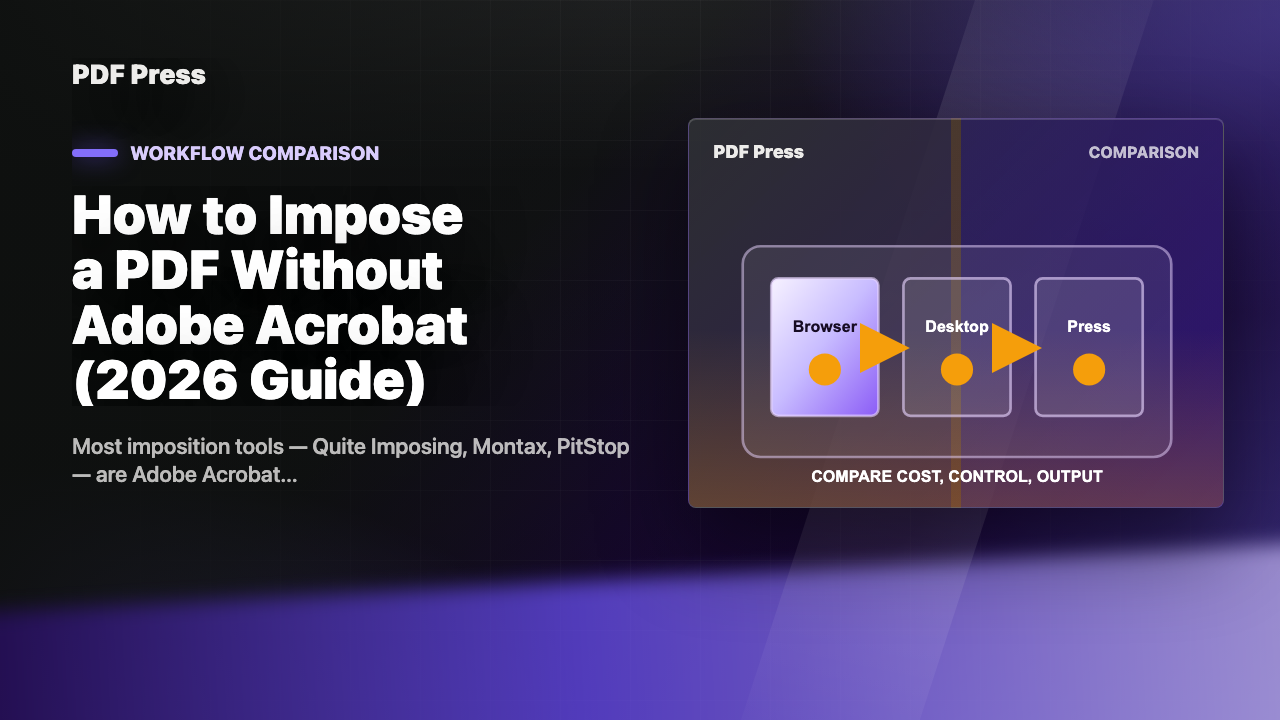
So the Acrobat-free options fall into three groups: browser tools (no install, any OS), standalone desktop apps (a real install, Windows/Mac only), and command-line tools (free, scriptable, no GUI). Let's take them in order of how most people should choose.
Option 1: Browser-based imposition (best for most people)
A browser-based imposition tool runs as a web app and processes your PDF locally using WebAssembly — no Acrobat, no install, no admin rights. If your device runs a modern browser, it can impose.
Why this is the default recommendation:
- Zero Adobe dependency and zero install: open a URL and go. Works on Windows, macOS, Linux, and ChromeOS alike.
- Privacy: with a local-processing tool, your PDF never leaves your device — nothing is uploaded.
- Full feature set: the leading browser tool covers the same core jobs the Acrobat plugins do.
PDF Press is the most capable option here. Without Acrobat — or any install — it gives you booklets (saddle stitch and perfect binding with creep compensation), n-up, step-and-repeat, cut-and-stack, gang sheets, grids, crop/registration/fold marks, bleed handling, colour conversion, and variable data from CSV/Excel. That is everything most Quite Imposing or Montax users actually use, minus the Adobe tax. PDF Snake is a lighter second option with fewer layout types.
Option 2: Standalone desktop apps (no Acrobat, but an install)
If you prefer (or need) a locally-installed program and you are on Windows or macOS, a standalone imposition app avoids Acrobat while giving you offline, heavyweight features.
Devalipi Imposition Studio is the main example — a full standalone desktop application (Windows and macOS) that needs no Acrobat. It is a one-time purchase (starts around $199) and is aimed at serious offset/digital shops, with CTP output, hot-folder automation and JDF in higher editions. Variable data is a separately licensed add-on (vdpXpro).
When to choose this: you run high-volume production, need offline batch automation or CTP/JDF, and are happy to install software and pay a larger one-time fee. When to skip it: you are on ChromeOS or a locked-down machine, you want to start free, or you just need everyday booklet/n-up work — in which case the browser route is simpler and cheaper. See our PDF Press vs Imposition Studio comparison for the full breakdown.
Option 3: Free command-line imposition (pdfjam, pdfbook)
For technical users who want a free, scriptable, Acrobat-free path — ideal for batch jobs and servers — LaTeX-based command-line tools do the job. They have no GUI and no preview, but they are powerful and completely free.
# Install (Debian/Ubuntu/WSL/Crostini)
sudo apt install texlive-extra-utils

# Saddle-stitch booklet on A4
pdfjam --booklet true --landscape --paper a4paper input.pdf

# 2-up on Letter
pdfjam --nup 1x2 --landscape --paper letterpaper input.pdf

# 4-up on A4
pdfjam --nup 2x2 --paper a4paper input.pdf

# pdfbook is a booklet-focused shortcut
pdfbook --short-edge input.pdf
Limitations: no visual preview (generate and open to check), no crop/registration marks, no gang-sheet nesting or creep compensation, and a LaTeX install of 1–2 GB. Great for automation pipelines; not great for interactive, visual layout work.
The cost difference of going Acrobat-free
The reason this matters is money. Here is the realistic annual picture for the imposition step alone:
| Approach | Adobe Acrobat needed? | Approx. cost |
|---|---|---|
| Quite Imposing Plus | Yes | ~$469 one-time + Acrobat Pro subscription every year |
| Montax Imposer | Yes | Plugin cost + Acrobat Pro subscription every year |
| PDF Press (browser) | No | Free, then $12/mo or $120/yr — nothing else required |
| Imposition Studio (standalone) | No | ~$199 one-time, no Acrobat |
| pdfjam (CLI) | No | Free |
Going Acrobat-free removes an entire recurring subscription from the equation. Verify current prices with each vendor, but the structural saving — no mandatory Adobe subscription underneath your imposition tool — is the whole point.
Step-by-step: impose a booklet without Acrobat
The fastest Acrobat-free method, start to finish, using PDF Press in the browser:
- Open pdfpress.app in any browser — no Acrobat, no install.
- Drag your PDF in. It is processed locally and never uploaded.
- Choose Booklet; the preview shows the imposed layout.
- Pick the sheet size (A4 for an A5 booklet; Letter for half-letter).
- Turn on creep compensation for 20+ page booklets.
- Add crop marks if trimming on oversized stock; otherwise leave off for print-to-size.
- Check the preview, then Download the print-ready PDF.
- Print duplex (short-edge flip for landscape booklets) at 100% scale, fold and staple.
No Adobe account, no plugin licence, no subscription stacking — just an imposed booklet.
Try it yourself
PDF Press runs entirely in your browser. Upload a PDF, pick a tool, and download the result — fast and private.
Open PDF Press22 Professional Imposition Tools
Every tool runs locally in your browser — fast, private, and professional-grade.
Frequently Asked Questions
Related Articles
Ready to try professional PDF imposition?
PDF Press is a browser-based imposition tool with 22 professional tools. No installation required.
Open PDF Press