Step and repeat PDF layouts online
Use PDF Press to repeat one PDF page or artwork across a press sheet for labels, cards, stickers, flyers, packaging tests, and short-run print jobs. It is built for digital printers, label producers, designers, packaging teams, and copy shops, with local browser processing and a live preview before export.
Direct answer
What is step and repeat PDF?
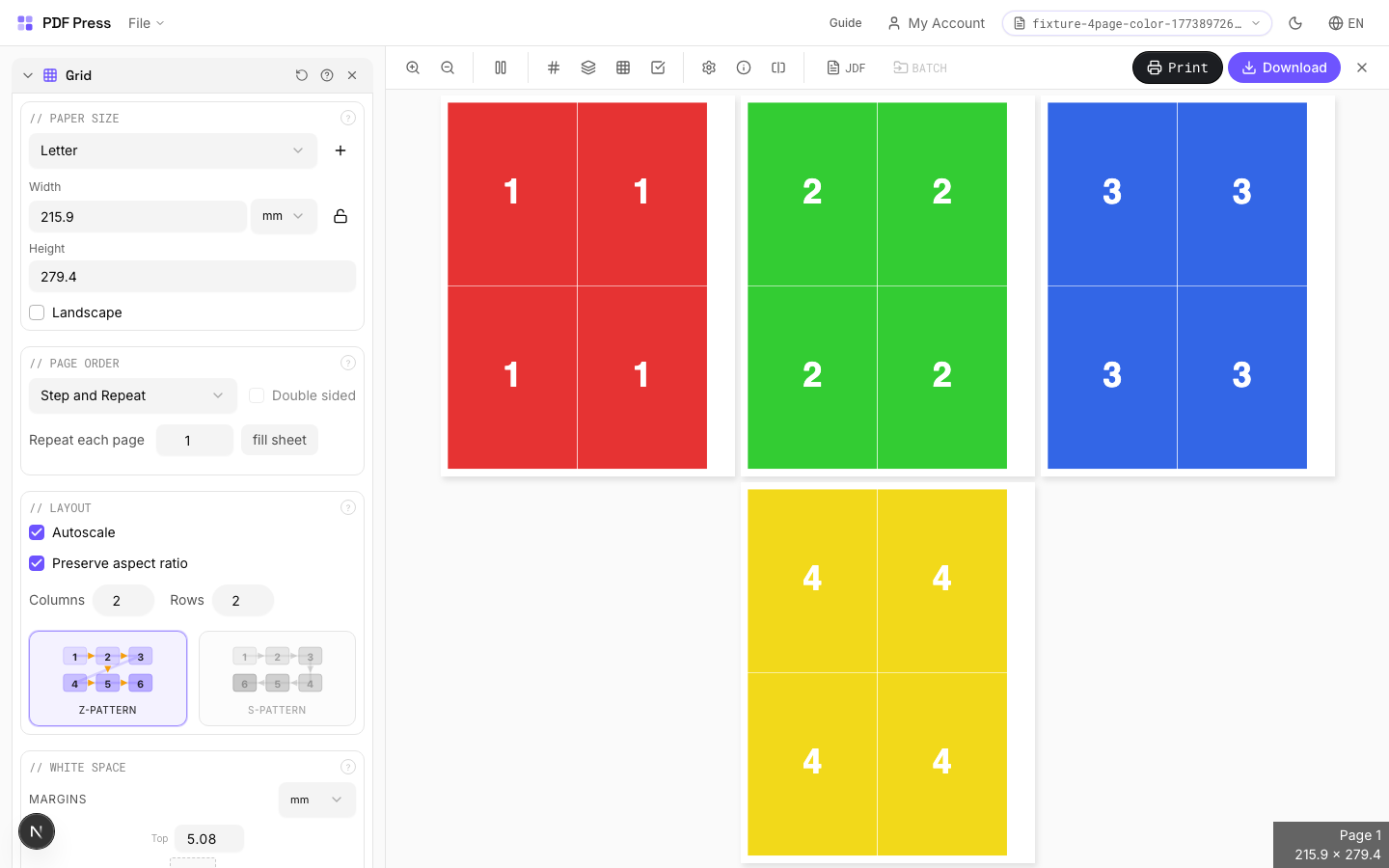
Step and Repeat PDF in PDF Press helps you repeat one PDF page or artwork across a press sheet for labels, cards, stickers, flyers, packaging tests, and short-run print jobs.
How to use Step and Repeat PDF
Upload files
Start with your source PDF or image files. Processing happens locally in the browser.
Add Step and Repeat PDF
Configure Paper Size, White Space, Printer's Marks and any production settings that match the job.
Preview the result
Check page order, marks, scaling, and output geometry before committing the export.
Download output
Export the finished PDF for proofing, press, finishing, or another PDF Press step.
Best use cases
Key settings
Paper Size
Sets the output sheet dimensions. This is the physical paper going through your printer or press.
Standard presets: Letter (8.5×11in), Legal (8.5×14in), Tabloid (11×17in), A4 (210×297mm), A3 (297×420mm). Landscape swaps width↔height. Lock icon links dimensions to preserve aspect ratio. Custom lets you enter any size in inches, mm, or points (1in = 72pt = 25.4mm).
White Space
Controls margins around the sheet edges and gutters between items in the grid.
Left margin = space from the left sheet edge to the first column. Top margin = space from the top edge to the first row. Horizontal gutter = gap between columns. Vertical gutter = gap between rows. All values are in your selected unit (inches/mm/points). 'Center output on page' distributes leftover space evenly instead of anchoring content to the top-left corner.
Printer's Marks
Adds trim guides and alignment marks outside the live area for accurate cutting and registration.
Crop marks: short lines at each corner showing where to trim. Center marks: crosshairs at sheet midpoints for front/back alignment on duplex jobs. Line length (default 0.43in/31pt): how long each mark line extends. Line thickness (default 0.014in/1pt): mark stroke weight. Line distance (default 0.139in/10pt): gap between the mark and the artwork edge. Four-color black: prints marks in C+M+Y+K for visibility on color proofs. Knockout: adds a white halo around marks so they show on dark backgrounds.
Bleeds
Extends artwork beyond the trim edge to prevent white strips after cutting.
Three modes: 'No bleeds' trims exactly at the page boundary. 'Pull from document' uses bleed info already embedded in the PDF (TrimBox/BleedBox metadata). 'Fixed' lets you manually set bleed on each side, typically 3mm (0.125in / 9pt) for commercial print, 1-2mm for digital. Bleed values define how far past the trim edge the artwork extends.
Page Order
Controls the reading direction and page assignment order in the grid.
Left-to-right: fills cells in Western reading order (top-left first). Right-to-left: starts from the top-right corner: for RTL languages (Arabic, Hebrew) or specific finishing workflows. Direction affects both single-sided and double-sided layouts.
Layout
Set columns, rows, page filling pattern, and scaling behavior.
Sequential: pages fill cells left→right, top→bottom, then next sheet. Stack (cut-and-stack): reorders pages so that after printing, cutting into strips, and stacking, pages are in reading order — saves manual collation. Step-and-repeat: fills the entire sheet with copies of each page before moving to the next (like Cards but within Grid's framework). Double-sided pairs sheets for front/back printing.
Expert tip
For step-and-repeat work (labels, tags), set columns and rows to maximise sheet utilisation. Turn on auto-scale so the engine fits the most repeats without manual arithmetic.
Double-sided is not available in step-and-repeat mode. If you need back-printing, switch to N-up Book or Expert Grid.
Production recipes using Step and Repeat PDF
A5 Saddle-Stitch 2-Up on SRA3
Commercial A5 booklet workflow: impose on SRA4 flats, then repeat two copies on SRA3.
Playing Cards
Full deck of playing cards imposed for sheet-fed printing.
Door Hangers
Multi-up door hangers with die-cut hook hole.
Numbered Tickets
Sequential numbered tickets with cut-and-stack imposition.
Frequently asked questions
What is Step and Repeat PDF used for?
Places different source pages into a grid layout: each cell holds a different page.
Who should use step and repeat PDF?
It is built for digital printers, label producers, designers, packaging teams, and copy shops. Common use cases include Proofing, Contact Sheets, Multi-Page Layouts, N-up Printing.
Do my PDF files upload to a server?
No. PDF Press runs the PDF processing workflow in your browser, so your files stay on your device.
Can I use Step and Repeat PDF with other PDF Press tools?
Yes. You can combine it with other PDF Press tools in a multi-step workflow, then preview and export the final PDF.