How to Print Multiple Pages Per Sheet: Every Method Explained
Learn how to print multiple pages per sheet using your OS print dialog, Adobe Acrobat, InDesign, and free online tools. Complete guide to 2-up, 4-up, and custom layouts with page ordering, scaling, and pro tips.
Why Print Multiple Pages Per Sheet?
Printing multiple pages per sheet is one of the simplest ways to save paper, reduce costs, and create more practical printed materials. Whether you call it n-up printing, multi-up, or simply "pages per sheet," the idea is straightforward: instead of dedicating an entire sheet of paper to a single page, you arrange two, four, eight, or more pages in a grid on a single physical sheet.
The benefits are immediate and measurable:
- Paper savings of 50-94%. Printing 2-up cuts your paper use in half. Printing 4-up reduces it by 75%. Printing 16-up saves 94% of the paper you would otherwise use. For organizations that print thousands of pages monthly, this translates directly to lower supply costs and a smaller environmental footprint.
- Faster document review. When proofing a long document, seeing 4 or 8 pages at a glance reveals layout inconsistencies, spacing problems, and visual flow issues that are invisible when viewing one page at a time. Designers, editors, and art directors routinely print multi-up proofs to evaluate pagination and spread design.
- Better handouts. Conference slides printed 2-up or 3-up with note lines give attendees a compact reference that is easy to carry and annotate. A 60-slide deck becomes a manageable 15-page handout at 4-up.
- Production printing. Business cards, postcards, labels, event tickets, and flyers are all printed multiple-up on larger sheets and then cut to size. This is fundamental to how the commercial printing industry works — almost nothing is printed one-up on its final size.
- Reduced shipping weight. For direct mail campaigns, fewer sheets per envelope can mean lower postage rates. Printing a 4-page flyer 2-up on a single sheet instead of four separate sheets can move you to a lighter weight class.
The challenge is that every operating system, application, and printer handles multi-page-per-sheet printing slightly differently. Some approaches give you fine control over layout, margins, and page ordering; others offer only basic "pages per sheet" dropdowns with no preview. This guide walks through every major method — from the simplest (your OS print dialog) to the most powerful (dedicated imposition tools like PDF Press) — so you can choose the right approach for your specific situation.
Method 1: Using Your OS Print Dialog (Mac and Windows)
The fastest way to print multiple pages per sheet is through the built-in print dialog on your operating system. Both macOS and Windows include multi-page printing as a standard feature that works with any application and any printer — no extra software needed.
macOS (any application):
- Open the document you want to print and press Cmd+P to open the Print dialog.
- If the dialog appears in its compact form, click "Show Details" in the bottom-left corner to expand it.
- From the dropdown menu in the center of the dialog (which initially shows the application name), select "Layout".
- Find the "Pages per Sheet" dropdown and choose your desired count: 1, 2, 4, 6, 9, or 16.
- Set the "Layout Direction" to control how pages are ordered on the sheet. The four icons represent left-to-right then down, left-to-right then up, top-to-bottom then right, and top-to-bottom then left.
- Optionally enable "Border" to draw a thin line around each page for visual separation.
- Click Print.
Windows 10/11 (any application):
- Open the document and press Ctrl+P.
- Select your printer, then click "Printer Properties" or "Preferences".
- Look for a "Pages Per Sheet" or "Multiple Pages" option. The location varies by printer driver — check the Layout, Finishing, or Effects tab.
- Select 2, 4, 6, 9, or 16 pages per sheet.
- Some drivers offer a "Page Order" dropdown: Right then Down, Down then Right, Left then Down, or Down then Left.
- Click OK to close the properties dialog, then click Print.
Advantages of the OS print dialog method:
- Works instantly with any application — no extra software to install or learn
- Available on every Mac and Windows computer
- Simple interface with minimal options to configure
Limitations:
- No PDF output. The layout is applied at print time — you cannot save the multi-up arrangement as a new PDF file. The output goes directly to the printer (or to a PDF printer driver, if you have one set up).
- No crop marks. There are no cutting guides, which makes this method unsuitable for items that need to be trimmed (business cards, postcards, tickets).
- Limited grid choices. You are restricted to the preset values (2, 4, 6, 9, 16). You cannot create a 3-up or 8-up layout, nor can you specify custom row and column counts.
- No margin control. You cannot set the spacing between pages or the outer margins of the sheet beyond what the printer driver allows.
- No real-time preview. macOS shows a small preview thumbnail, but it is too small to verify details. Windows printer dialogs typically show no preview at all.
The OS print dialog is best for quick, low-stakes multi-up printing — draft proofs, internal documents, or meeting handouts where precision does not matter. For anything more demanding, use one of the methods below.
Method 2: Adobe Acrobat's Multiple Pages Per Sheet
Adobe Acrobat (both Pro and the free Reader) offers a "Multiple" option in its print dialog that arranges PDF pages in a grid on each sheet. This is a step up from the OS dialog because it operates on the PDF directly and gives you a few more options.
Step-by-step in Adobe Acrobat:
- Open your PDF in Adobe Acrobat Pro or Adobe Acrobat Reader.
- Go to File → Print (or press Ctrl+P / Cmd+P).
- In the "Page Sizing & Handling" section, click "Multiple".
- Set "Pages per sheet" to 2, 4, 6, 9, or 16. Alternatively, select "Custom" and enter specific column and row values — this is something the OS dialog cannot do.
- Choose a "Page order": Horizontal, Horizontal Reversed, Vertical, or Vertical Reversed. These correspond to different reading patterns (Z-pattern, reverse-Z, column-first, and reverse-column).
- Optionally check "Print page border" to draw thin lines around each page.
- The preview pane on the left updates to show the approximate layout.
- Click Print.
Advantages over the OS dialog:
- Custom row and column counts (not limited to preset values)
- Four page ordering options instead of two or three
- Small preview pane showing the approximate layout
- Page border option for visual separation
Limitations of Acrobat's approach:
- Still print-only. Like the OS dialog, Acrobat's "Multiple" sends the layout directly to the printer. You cannot save the multi-up arrangement as a new PDF file without routing through a PDF printer driver (like "Microsoft Print to PDF" on Windows or "Save as PDF" on Mac). This extra step is clunky and can introduce quality loss.
- No crop marks or trim marks. If you are printing business cards, postcards, or any item that will be cut, Acrobat provides no cutting guides whatsoever.
- No bleed support. Acrobat does not pull bleed from the source PDF or allow you to extend artwork beyond the trim boundary — critical for professional print production.
- No gap control. You cannot set the spacing between pages in the grid. Acrobat spaces them automatically, and the result may not match your needs.
- Scaling is automatic and opaque. Acrobat scales pages to fit the grid cells, but you cannot manually set the scale factor or choose between fit, fill, and actual-size modes.
- Requires Acrobat. While Reader can do basic multi-up, some options are only available in Acrobat Pro ($23+/month). This is a significant cost for a feature that free tools handle better.
Acrobat's multi-up is adequate for quick office printing, but it falls short of what designers, print shops, and anyone doing production work actually needs. For full control — custom grids, crop marks, bleed, precise margins, and a downloadable imposed PDF — use a dedicated imposition tool.
Method 3: PDF Press's Grid Tool (Most Control, Free)
PDF Press is a browser-based imposition tool that gives you complete control over multi-page-per-sheet layouts. Unlike the OS dialog or Adobe Acrobat, PDF Press produces a new imposed PDF that you can save, share, send to a commercial printer, or print on any device. Your files are processed entirely in your browser — nothing is uploaded to any server.
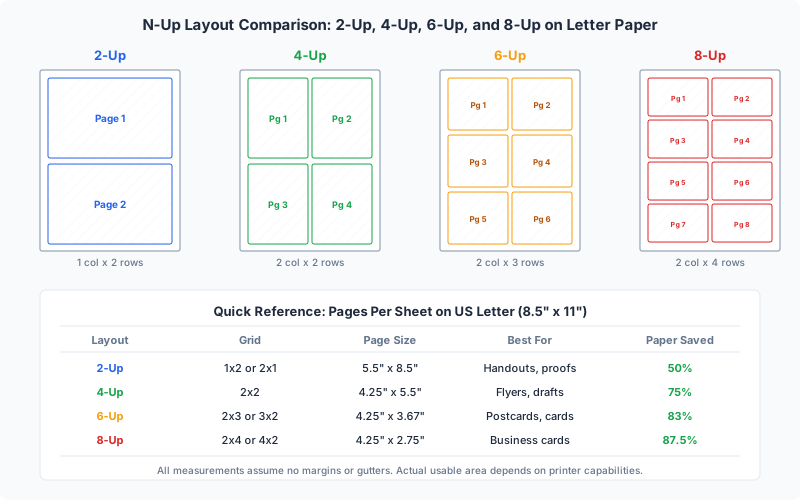
Step-by-step with PDF Press:
- Open PDF Press. Navigate to pdfpress.app in any modern browser. No installation, no login.
- Upload your PDF. Drag and drop your file onto the upload area, or click to browse. PDF Press accepts any standard PDF, as well as PNG and JPEG images.
- Add the Grid tool. From the tool palette, select "Grid" (also called N-Up). This is the tool for arranging multiple pages in a regular grid on each sheet.
- Set rows and columns. Enter any combination you need:
- 2-up: 1 row x 2 columns (or 2 rows x 1 column for landscape sources)
- 4-up: 2 rows x 2 columns
- 6-up: 2 rows x 3 columns
- 8-up: 2 rows x 4 columns (or 4 rows x 2 columns)
- Any custom combination: 3x3, 5x4, 7x2, etc.
- Choose your paper size. Select from standard sizes (Letter, Legal, Tabloid, A4, A3, A2, and more) or enter a custom width and height. The paper size determines the physical sheet that pages will be arranged on.
- Configure page ordering. Choose how pages flow across the grid — left-to-right top-to-bottom (Z-pattern), column-first (N-pattern), or other arrangements. More on this in the Page Ordering section below.
- Set margins and gaps. Control the outer margins (space between the grid and the sheet edge) and the gaps between individual pages in the grid. For items that will be cut, set gaps to zero and enable crop marks instead.
- Enable crop marks (optional). If your items will be trimmed, enable crop marks from the Cutter Marks tool. These add thin lines at the corners of each page boundary — essential for precise cutting. You can customize the line length, thickness, and distance from the trim edge.
- Preview the result. PDF Press renders a live preview of every output sheet. Scroll through all sheets to verify page placement, ordering, margins, and crop marks. This is the single biggest advantage over Acrobat and the OS dialog — you see exactly what will print, before you print.
- Download the imposed PDF. Click Download to save the multi-up PDF. This file is completely self-contained and ready to print on any printer, or to send to a commercial print shop.
Why PDF Press is the best method for multi-page-per-sheet printing:
- Any grid size. Not limited to preset values — use any combination of rows and columns.
- Crop marks and printer marks. Essential for production work and anything that will be trimmed.
- Bleed support. Pull bleed from the source PDF or set fixed bleed values — critical for edge-to-edge designs.
- Precise margins and gaps. Control in points, millimeters, or inches.
- PDF output. Download a new imposed PDF, rather than sending directly to a printer. This means you can review, archive, email, or upload the file to a print-on-demand service.
- Live preview. See every sheet before committing to print.
- Free and private. affordable, and files never leave your device.
- Tool chaining. Combine Grid with other tools — add page numbers, rotate pages, resize, or add an overlay in a single pipeline.
For a deeper dive into all n-up configurations, see our dedicated N-Up Printing Guide.
Method 4: Adobe InDesign's Print Booklet Feature
Adobe InDesign, the industry-standard page layout application, includes a "Print Booklet" feature that can also be used for multi-up layouts. However, it is primarily designed for booklet imposition (saddle stitch and perfect binding), and using it for simple n-up requires some workarounds.
Using InDesign for multi-up:
- Open your InDesign document or place a PDF into an InDesign file.
- Go to File → Print Booklet.
- Under Booklet Type, the closest option for n-up is "2-up Consecutive", which places pages side by side in reading order (as opposed to 2-up Saddle Stitch, which reorders pages for folding).
- Click "Print Settings" to choose your printer and paper size.
- Configure margins in the "Setup" area.
- Click "Preview" to see the imposed layout.
- Print directly, or route to a PostScript/PDF file for later use.
Limitations of the InDesign approach:
- Only 2-up layouts. InDesign's Print Booklet is limited to 2-up arrangements. For 4-up, 8-up, or other grids, you would need to use InDesign's step-and-repeat features manually or use a third-party plug-in.
- Requires InDesign ($23+/month). InDesign is a professional tool with a professional price tag. Using it solely for multi-up printing is cost-ineffective when free alternatives like PDF Press exist.
- Complex workflow. InDesign's Print Booklet was built for designers who already work in InDesign. If your source is a PDF from another application, you must first place it into an InDesign document — adding unnecessary steps.
- No direct PDF output. Like Acrobat, InDesign's Print Booklet sends to a printer or a PostScript file. Creating a press-ready imposed PDF requires additional steps (print to PostScript, distill to PDF).
InDesign is the right tool if you are already designing your document in InDesign and need a quick 2-up output as part of your production workflow. For everyone else — especially those working with existing PDFs — a dedicated imposition tool is faster, cheaper, and more capable.
Page Ordering Options: Z, N, C, and Custom Patterns
When you arrange multiple pages on a single sheet, the page ordering — the sequence in which pages are placed into the grid cells — determines how the final output reads. Choosing the wrong ordering can make a handout confusing or a cut-and-stack workflow fall apart. Here are the standard patterns:
Z-Pattern (Left-to-Right, Top-to-Bottom)
This is the most common ordering and the default in most tools. Pages fill the grid the way you read English text — left to right across the first row, then left to right across the second row, and so on. For a 2x2 grid: positions are 1 (top-left), 2 (top-right), 3 (bottom-left), 4 (bottom-right). This is the natural choice for handouts and proofing layouts where the reader will look at the sheet from top-left to bottom-right.
N-Pattern (Column-First, Top-to-Bottom)
Pages fill down the first column before moving to the next column. For a 2x2 grid: 1 (top-left), 2 (bottom-left), 3 (top-right), 4 (bottom-right). This pattern is sometimes called "vertical" ordering. It is used in specific commercial printing workflows, particularly for cut-and-stack jobs where sheets will be cut into columns and the columns will be stacked.
C-Pattern (Right-to-Left, Top-to-Bottom)
A mirrored version of the Z-pattern. Pages fill right to left across each row. For a 2x2 grid: 1 (top-right), 2 (top-left), 3 (bottom-right), 4 (bottom-left). This is the standard ordering for right-to-left languages like Arabic, Hebrew, and Persian, and is used in manga printing.
Reverse N-Pattern (Column-First, Bottom-to-Top)
Pages fill up the first column before moving to the next. This pattern is uncommon in everyday use but appears in certain bindery and finishing workflows where the physical stacking order after cutting requires a bottom-to-top sequence.
Cut-and-Stack Ordering
For numbered items like raffle tickets, event tickets, or sequential forms, a special "cut-and-stack" ordering ensures that after printing multiple sheets, cutting them into rows or columns, and stacking the cut pieces, the items end up in sequential order. This is not a simple row-or-column pattern — the page assignment to grid positions follows a formula based on the total number of sheets and the grid size. PDF Press supports cut-and-stack ordering through its Monkey (shingled/cut-and-stack) tool, which calculates the correct page placement automatically.
Choosing the right ordering:
- For handouts and proofing: use Z-pattern (default)
- For right-to-left documents: use C-pattern
- For column-cut workflows: use N-pattern
- For numbered tickets and sequential items: use cut-and-stack
When in doubt, use Z-pattern. It matches the reading expectation of most audiences and is the safest default for general-purpose multi-up printing.
Scaling: Fit, Fill, and Actual Size
When multiple pages are placed on a single sheet, each page occupies a fraction of the available area. How the original page content maps to this smaller area is controlled by the scaling mode. Getting this right is the difference between a clean, professional output and a layout with awkward white gaps or clipped content.
Fit (Shrink to Fit)
The page is scaled down proportionally until it fits entirely within its grid cell, preserving the original aspect ratio. If the cell's aspect ratio does not match the page's aspect ratio, white space appears on two sides. This is the safest and most common scaling mode — no content is ever clipped, and proportions are always maintained. Use Fit for proofing, handouts, and any situation where seeing all content matters more than filling every pixel of space.
Fill (Scale to Fill)
The page is scaled proportionally until it completely fills its grid cell. If the aspect ratios do not match, the excess content is cropped. This produces a grid with no white gaps between cells, which looks cleaner but can clip content near the edges. Fill is useful for photo grids, contact sheets, and visual layouts where edge-to-edge coverage matters more than showing every last millimeter of content.
Actual Size (No Scaling)
The page is placed at its original dimensions — no scaling up or down. If the page is larger than the grid cell, content is clipped. If smaller, white space surrounds it. This mode is essential when precise physical dimensions matter: business cards that must be exactly 3.5" x 2", labels that must match a template, or items that will be measured after printing. Use Actual Size when dimensional accuracy is more important than filling the grid.
Auto Scale (Best Fit)
Some tools, including PDF Press, offer an auto-scale mode that analyzes the source page dimensions, target sheet size, and grid configuration, then calculates the optimal scale factor to maximize page size within each cell without clipping. This is similar to Fit, but more intelligent — it can adjust the grid spacing to achieve a better balance between page size and margin space.
Practical scaling tips:
- For business cards on card stock: use Actual Size to maintain exact 3.5" x 2" (or 85 x 55 mm) dimensions.
- For presentation handouts: use Fit to ensure no slide content is cut off.
- For photo contact sheets: use Fill for edge-to-edge thumbnails.
- For proofing layouts: use Fit with generous margins for annotation space.
- When printing on pre-cut label sheets: use Actual Size and verify alignment with a test print before running the full batch.
Custom vs Automatic Layout Configuration
Multi-page-per-sheet tools generally fall into two categories: those that give you a "pages per sheet" dropdown and handle everything automatically, and those that let you configure every parameter manually. Understanding the trade-off helps you pick the right tool for each job.
Automatic layout (OS dialog, Acrobat)
You choose "4 pages per sheet" and the tool decides the grid arrangement (2x2), scaling (fit), page ordering (Z-pattern), and margins (automatic). This is fast and simple — three clicks and you are printing. The downside is that you cannot override any of these decisions. If the automatic layout produces slightly too much margin, or if you need a 3x2 grid instead of 2x3, you are stuck. Automatic layout is perfect for casual office printing and terrible for anything that needs precision.
Custom layout (PDF Press, professional imposition tools)
You set rows, columns, paper size, margins, gaps, scaling, page ordering, crop marks, bleed, and more — each independently. This takes more time to configure but gives you the exact result you need. For production printing (business cards, labels, tickets, postcards), custom layout is not optional — it is required. A business card that is 1mm too wide or too narrow looks unprofessional. A label grid that does not align with the pre-cut sheet is unusable.
When to use automatic:
- Quick draft proofs for internal review
- Presentation handouts for a meeting in 10 minutes
- Any situation where "close enough" is fine
When to use custom:
- Business cards, postcards, labels, tickets — anything that will be cut
- Print production for a commercial press or print-on-demand service
- Matching a pre-cut label or sticker sheet (Avery, Herma, etc.)
- Any job with specific margin, bleed, or trim requirements
- Creating reusable templates for repeated jobs
PDF Press bridges both worlds: you can start with sensible defaults (which work like automatic mode) and then fine-tune any parameter you need. This makes it equally suitable for a quick 2-up handout and a precise 10-up business card layout with crop marks and bleed.
How to Print 2 Pages Per Sheet (2-Up)
Printing 2 pages per sheet is the most popular multi-up configuration. It is used daily in offices, classrooms, and homes worldwide, primarily for handouts, draft proofs, and paper savings. Here is everything you need to know about doing it well.
The basics. A 2-up layout places two source pages side by side on a single sheet. If your source pages are portrait-oriented (taller than wide) and your output sheet is also portrait, the two pages will appear in a 1-row-by-2-column arrangement — each page filling roughly half the sheet width. If your source pages are landscape-oriented (wider than tall), a 2-row-by-1-column arrangement often works better, with each page filling roughly half the sheet height.
2-up for presentation slides. This is the most common 2-up use case. Presentation slides are typically landscape (16:9 or 4:3), while paper is portrait. Printing two landscape slides on a portrait sheet produces a natural layout where each slide is large enough to read comfortably. For a 40-slide deck, 2-up reduces the handout from 40 pages to 20, saving 50% on paper.
2-up for A5 booklets on A4 paper. If you have an A5-sized document (148 x 210 mm), printing it 2-up on A4 paper (210 x 297 mm) places two A5 pages side by side at nearly their original size. This is an efficient way to proof A5 publications without changing paper stock. The same logic applies to half-letter documents on US Letter paper.
Method comparison for 2-up:
- OS print dialog: Select "2 pages per sheet." Fastest option, no crop marks or PDF output.
- Adobe Acrobat: File → Print → Multiple → 2 pages per sheet. Adds page order control but still no crop marks or PDF output.
- PDF Press: Grid tool, 1 row x 2 columns (or 2x1). Full control over margins, gaps, crop marks, and bleed. Produces a downloadable PDF. Detailed 2-up instructions here.
Pro tips for 2-up printing:
- For duplex (double-sided) 2-up handouts, each physical sheet carries 4 source pages — further halving your paper use.
- If adding note lines next to slides (3-up with lines), most presentation applications (PowerPoint, Keynote, Google Slides) have built-in handout export modes that are easier than doing n-up manually.
- When 2-up pages will be cut apart, add crop marks and use zero gap between pages in PDF Press. The crop marks provide the cutting guide; the gap would waste sheet space.
How to Print 4 Pages Per Sheet (4-Up)
Printing 4 pages per sheet arranges source pages in a 2x2 grid, reducing paper use by 75%. This is the sweet spot for proofing multi-page documents — pages are large enough to read but compact enough to see four at a glance.
Common 4-up use cases:
- Document proofing. Print a 100-page manuscript 4-up to produce a 25-page proof packet. This lets you review the overall flow, chapter breaks, heading consistency, and figure placement in a compact format. Many editors prefer 4-up proofs because they reveal pagination problems that are invisible when scrolling one page at a time.
- Quarter-page flyers. Design a flyer at A6 or quarter-letter size, then print it 4-up on A4 or Letter paper. Cut the sheets into four, and you have four identical flyers per sheet. This is the most economical way to produce small-format promotional materials on a desktop printer.
- Photo contact sheets. Photographers use 4-up layouts to create proof sheets — four images per page for client review and selection. With PDF Press's fill scaling mode, each photo fills its cell completely for maximum visual impact.
- Reference cards. Print study notes, cheat sheets, or quick-reference guides 4-up on card stock, then cut into pocket-sized cards.
4-up across different paper sizes:
- A4 source on A4 output: each page is reduced to approximately A6 size (105 x 148 mm). Text at 10pt in the original becomes roughly 5pt — readable but small.
- A4 source on A3 output: each page is approximately A5 size (148 x 210 mm). Text at 10pt becomes roughly 7pt — comfortably readable. If you have access to an A3 or Tabloid printer, this is a better option for proofing.
- Letter source on Tabloid output: each page is approximately half-letter size (5.5 x 8.5"). Same as A4-on-A3 in readability terms.
Quick method for 4-up in PDF Press:
- Upload your PDF to PDF Press.
- Add the Grid tool.
- Set rows to 2, columns to 2.
- Select your output paper size.
- Preview and download.
For a complete walkthrough of all n-up configurations from 2-up through 16-up, see the N-Up Printing Guide.
Tips for Best Results When Printing Multiple Pages Per Sheet
Multi-page-per-sheet printing is straightforward in concept but has enough subtleties that a few practical tips can save you significant time and materials:
1. Always print a single test sheet first. Before printing 50 copies of a 4-up layout, print one sheet and verify that pages are in the correct order, nothing is clipped, margins are adequate, and the overall size is acceptable. For items that will be cut, actually cut one sheet and check the dimensions with a ruler. For duplex layouts, verify front-back alignment. This five-minute test can prevent hours of reprinting.
2. Match your grid to your paper. A 3x2 grid of landscape pages on portrait paper is very different from a 2x3 grid. Think about whether your source pages are portrait or landscape, and whether your output paper is portrait or landscape, before setting row and column counts. The wrong combination produces awkward layouts with excessive white space.
3. Account for printer margins. Every printer has a non-printable margin — typically 5-12mm around each edge. If your multi-up layout places content too close to the sheet edge, it will be clipped by the printer. In PDF Press, set outer margins of at least 10mm (or 0.4") to stay within the printable area of most desktop printers. For borderless-capable printers, you can reduce this to zero.
4. Use crop marks for anything that will be cut. Crop marks are thin lines printed at the corners of each page boundary that show exactly where to cut. Without them, cutting is guesswork — especially for multi-up layouts with many items. In PDF Press, add the Cutter Marks tool to your pipeline after the Grid tool. You can customize the mark style (lines, crosses, circles), length, thickness, and offset from the trim edge.
5. Consider bleed for edge-to-edge designs. If your source pages have color or imagery that extends to the very edge (no white border), you need bleed — extra image area beyond the trim line, typically 3mm (0.125"). Without bleed, the slightest cutting inaccuracy produces a white sliver at the edge. Set up bleed in your design application before exporting to PDF, then enable bleed in PDF Press's imposition settings.
6. Use heavier paper for items that will be handled. Business cards, postcards, and tickets benefit from heavier stock. Standard 80gsm office paper feels flimsy for cards. Use 250-350gsm card stock for business cards, 200-300gsm for postcards, and at least 120gsm for event tickets. Heavier stock also feeds more reliably through most printers in multi-up configurations.
7. Save your settings as a recipe. If you regularly produce the same multi-up layout (e.g., 10-up business cards on Letter card stock with crop marks), save the configuration as a recipe in PDF Press. This eliminates the setup time for repeat jobs and ensures consistency across print runs.
8. Verify color consistency across cells. When printing multiple identical items on one sheet, look for color variation between cells. On inkjet printers, items near the sheet edges may have slightly different color than center items due to ink coverage patterns. If color consistency is critical, leave wider margins at the edges and cluster items toward the center of the sheet.
Method Comparison: Which Approach Should You Use?
Each method for printing multiple pages per sheet has distinct strengths and weaknesses. Here is a direct comparison to help you choose:
| Feature | OS Print Dialog | Adobe Acrobat | PDF Press | InDesign |
|---|---|---|---|---|
| Cost | Free (built-in) | Free (Reader) / $23+/mo (Pro) | Free | $23+/mo |
| Grid options | 2, 4, 6, 9, 16 | 2, 4, 6, 9, 16, Custom | Any rows x columns | 2-up only |
| PDF output | No (print only) | No (print only) | Yes | No (print/PostScript) |
| Live preview | Minimal | Small thumbnail | Full preview, all sheets | Basic preview |
| Crop marks | No | No | Yes (customizable) | Yes |
| Bleed support | No | No | Yes | Yes |
| Margin control | No | No | Yes (per-side) | Yes |
| Page ordering | 2-4 options | 4 options | Multiple + cut-and-stack | 2 options |
| Privacy | Local | Local | Local (browser-based) | Local |
| Best for | Quick office prints | Simple multi-up from PDFs | Production work, precision | InDesign-native docs |
Summary recommendation:
- For quick, casual multi-up (handouts, drafts, internal docs): use your OS print dialog. It is the fastest option and works with any application.
- For PDF-specific multi-up with page order control: use Adobe Acrobat's Multiple option. It adds a few useful options over the OS dialog.
- For production work, commercial printing, or any job requiring precision: use PDF Press. It is the only free method that produces an imposed PDF with crop marks, bleed, custom grids, and a full preview. No installation, affordable.
- For InDesign-native documents needing 2-up output: use InDesign's built-in feature for convenience, but switch to PDF Press for more complex layouts.
Try it yourself
PDF Press runs entirely in your browser. Upload a PDF, pick a tool, and download the result — fast and private.
Open PDF Press22 Professional Imposition Tools
Every tool runs locally in your browser — fast, private, and professional-grade.
Frequently Asked Questions
Related Articles
Ready to try professional PDF imposition?
PDF Press is a browser-based imposition tool with 22 professional tools. No installation required.
Open PDF Press