How to Create a Brochure Layout for Print: Folds, Panels & Imposition
Learn how to create print-ready brochure layouts including bi-fold, tri-fold, z-fold, and gate fold designs. Covers panel sizing rules, standard brochure sizes, bleed across panels, folding order, and brochure imposition with PDF Press.
What Is a Brochure Layout and Why Does It Matter?
A brochure is a folded sheet of paper used to present information in a compact, portable format. Unlike a flyer (a single flat sheet) or a booklet (multiple bound pages), a brochure is defined by its folds. The number and position of folds divide the sheet into panels, each functioning as a discrete content area. A tri-fold brochure, for example, has six panels (three on each side) created by two parallel folds.
Brochure layout is the process of arranging content across these panels while accounting for the physical constraints of folding and printing. This is more complex than it might seem at first glance. The panels are not all the same width. The folding order determines which panel the reader sees first. Bleed artwork must extend across fold lines without creating visible misalignment. And when the brochure is printed commercially, the flat sheet must be imposed correctly on a press sheet, often with multiple brochures arranged side by side to maximize press efficiency.
Getting the brochure layout wrong leads to panels that do not fold cleanly, content that appears in the wrong reading order, images that break awkwardly across folds, or artwork that shifts visibly at the fold line. These are not subtle defects. A poorly laid out brochure looks and feels unprofessional the moment the reader picks it up.
This guide covers every aspect of brochure layout for print production: fold types, panel sizing rules, standard brochure sizes, designing with folds in mind, bleed considerations, imposition strategies, and how to use PDF Press to create print-ready brochure layouts quickly and accurately.
Brochure Fold Types: Bi-Fold, Tri-Fold, Z-Fold, Gate Fold, and More
The fold type defines the fundamental structure of a brochure. Each fold type produces a different number of panels, a different reading experience, and different panel sizing requirements. Understanding the common fold types is the starting point for any brochure layout.
Bi-Fold (Single Fold / Half Fold)
The simplest brochure: one fold down the center, creating four panels (two front, two back). The sheet is folded in half, producing a booklet-like format. All four panels are identical in width. Bi-fold brochures are commonly used for event programs, menus, product sheets, and corporate profiles. The standard bi-fold uses a Letter (8.5 x 11") or A4 sheet folded to approximately 5.5 x 8.5" or 148 x 210mm (A5). Because all panels are equal width, bi-fold is the easiest brochure type to lay out.
Tri-Fold (Letter Fold / C-Fold)
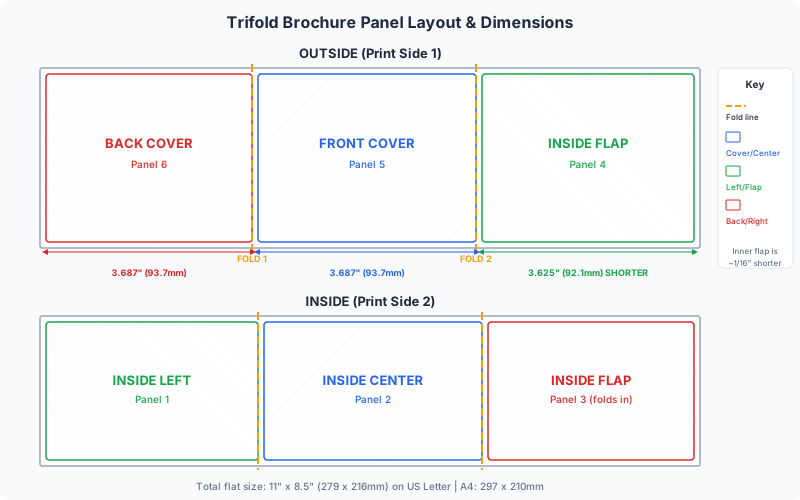
The most popular brochure format. Two parallel folds divide the sheet into three panels on each side (six panels total). The sheet folds inward in a "C" shape: the right panel folds left over the center panel, then the left panel folds right on top. This creates a compact piece that fits in a #10 business envelope. The tri-fold is the standard format for marketing brochures, service menus, tourist guides, and informational handouts. The critical layout detail is that the inside right panel must be slightly narrower than the other two panels to fold cleanly without buckling (more on this in the panel sizing section).
Z-Fold (Accordion Fold)
Like a tri-fold, the z-fold divides the sheet into three panels per side with two parallel folds. The difference is the folding direction: instead of folding inward in a "C," the folds alternate direction, creating a zigzag or "Z" shape when viewed from the edge. All three panels can be the same width because no panel tucks inside another. Z-fold brochures are often used for maps, step-by-step instructions, timelines, and any content that benefits from a panoramic unfolded view. The z-fold opens to a full flat sheet more naturally than a tri-fold, making it ideal for content that spans all three panels as a single visual. For detailed z-fold imposition techniques, see the z-fold imposition guide.
Gate Fold
A gate fold has two panels that fold inward from opposite sides to meet at the center, like a pair of gates closing. The sheet is divided into four sections: two narrow outer "gate" panels and one wide center panel (which is covered by the gates when closed). When the reader opens the gates, they reveal a dramatic wide interior panel, making this fold ideal for high-impact reveals, real estate brochures, luxury product presentations, and event invitations. Gate folds require precise panel sizing: the two gate panels must each be exactly half the width of the center panel, or slightly less, so they meet at the center without overlapping. For gate fold imposition specifics, see the gate fold imposition guide.
Accordion Fold (4+ Panels)
An extension of the z-fold with three or more parallel folds, creating four or more panels per side. Each fold alternates direction, and the sheet fans out like an accordion. Common panel counts are 4 (three folds), 5 (four folds), or 6 (five folds). Accordion folds are used for pocket-sized guides, museum gallery maps, instruction cards, and long-format timelines. All panels are typically equal width.
Roll Fold (Barrel Fold)
A roll fold has three or more parallel folds, with each panel folding inward over the previous one, like rolling the sheet into a cylinder. In a four-panel roll fold, the rightmost panel folds left, then the next panel folds left over it, and so on. Each successive panel must be progressively narrower (by approximately 1-2mm) so the inner panels nest without buckling. Roll folds are used for multi-step instructions, pricing tables, and menus with many categories.
Double Parallel Fold (French Fold)
The sheet is folded in half, then folded in half again in the same direction. This produces a piece one-quarter the size of the flat sheet, with four panels on each side (eight panels total, though typically only the four visible exterior panels are designed, with the interior panels hidden). French folds are used for greeting cards, invitations, and decorative pieces where a thick, luxurious feel is desired.
Cross Fold (Right-Angle Fold)
The sheet is folded in half, then folded in half again at a 90-degree angle to the first fold. This produces a compact piece one-quarter the original size. Cross folds are common for maps, technical specification sheets, and any content that needs to fit in a small pocket or envelope. The layout is more complex because the second fold changes the reading direction relative to the first fold.
Panel Sizing Rules: Why the Inner Panel Must Be Shorter
The single most important technical detail in brochure layout is panel sizing. In any fold type where one panel tucks inside another, the inner panel must be slightly narrower than the outer panels. If all panels are the same width, the inner panel will buckle, push against the outer fold, and create a sloppy, unprofessional result that will not sit flat.
Tri-Fold Panel Sizing
In a standard tri-fold (letter fold / C-fold), the right panel folds inward first, tucking inside the center panel. The left panel then folds over the top. This means:
- The left panel (outside when folded, folds on top) = standard width
- The center panel = standard width
- The right panel (tucks inside) = standard width minus 2-3mm (or 1/16" to 1/8")
For a Letter-sized sheet (8.5" wide), the standard tri-fold panel widths are approximately:
- Left panel: 3.687" (93.7mm)
- Center panel: 3.687" (93.7mm)
- Right panel (inner): 3.625" (92.1mm) — approximately 1/16" (1.6mm) narrower
The exact reduction depends on the paper weight and thickness. Heavier paper stocks (100lb cover, 300gsm) need a larger reduction (up to 3mm) because the fold radius is larger and the tucked panel occupies more space. Lighter stocks (80lb text, 120gsm) can get away with a 1-2mm reduction. When in doubt, use 2mm for text-weight paper and 3mm for cover-weight paper.
Why This Matters in Layout
When you design the brochure in your page layout software (InDesign, Illustrator, Canva, etc.), you must create the inner panel at the narrower width. Content placed at the full panel width will be clipped or hidden behind the fold. Many designers make the mistake of creating three equal-width panels and then struggling with the fold during finishing. The width reduction should be designed in from the start.
Z-Fold Panel Sizing
Z-folds do not tuck, so all panels can be equal width. The zigzag folding pattern means no panel ever sits inside another. This makes z-fold layout simpler from a sizing perspective, though the alternating fold direction requires attention to the reading order.
Gate Fold Panel Sizing
In a gate fold, the two outer "gate" panels fold inward to meet at the center. Each gate panel must be exactly half the width of the center section, or 1-2mm less than half. If the gate panels are too wide, they will overlap at the center and buckle. If they are too narrow, there will be a visible gap at the center seam when closed. Precision matters here more than in any other fold type, because the visual impact of a gate fold depends on the two panels meeting cleanly at the center line.
Roll Fold Panel Sizing
Each panel in a roll fold must be progressively narrower from outside to inside. For a four-panel roll fold:
- Panel 1 (outermost): full width
- Panel 2: full width minus 1mm
- Panel 3: full width minus 2mm
- Panel 4 (innermost): full width minus 3mm
The incremental reduction is typically 1-1.5mm per panel, depending on paper thickness. Commercial printers can provide exact panel dimensions for their specific paper stocks and folding equipment.
Practical Tip
If you are uncertain about panel sizing for a specific paper stock, ask your printer for a folding dummy. This is an unprinted sample folded on the actual paper stock, showing the exact panel dimensions that work on their folding equipment. Many printers will provide a dummy at no charge, and it eliminates all guesswork about panel widths.
Standard Brochure Sizes: US, Metric, and Custom
Standard brochure sizes are defined by the flat sheet size (the unfolded dimension) and the finished size (the folded dimension). Choosing the right size depends on your content volume, distribution method (mailing, rack display, handout), and printing efficiency. Here are the most common brochure sizes used in commercial printing.
US Standard Brochure Sizes
| Flat Size | Fold Type | Finished Size | Common Use |
|---|---|---|---|
| 8.5 x 11" (Letter) | Tri-fold | 3.67 x 8.5" | Marketing brochures, menus, service lists |
| 8.5 x 11" (Letter) | Bi-fold | 5.5 x 8.5" | Programs, product sheets, presentations |
| 8.5 x 14" (Legal) | Tri-fold | 3.67 x 8.5" | Extended content brochures, travel guides |
| 8.5 x 14" (Legal) | Z-fold | 4.67 x 8.5" | Maps, step-by-step guides |
| 11 x 17" (Tabloid) | Bi-fold | 8.5 x 11" | Catalogs, corporate reports |
| 11 x 17" (Tabloid) | Tri-fold | 3.67 x 11" | Large-format brochures, portfolios |
| 11 x 25.5" | 4-panel accordion | 6.375 x 11" | Restaurant menus, gallery guides |
ISO / Metric Brochure Sizes
| Flat Size | Fold Type | Finished Size | Common Use |
|---|---|---|---|
| A4 (210 x 297mm) | Tri-fold | 99 x 210mm | Standard marketing brochure |
| A4 (210 x 297mm) | Bi-fold | 148 x 210mm (A5) | Programs, product brochures |
| A3 (297 x 420mm) | Bi-fold | 210 x 297mm (A4) | Large presentations, catalogs |
| A3 (297 x 420mm) | Tri-fold | 99 x 297mm | Tall-format brochures, rack cards |
| DL (99 x 210mm) | None (flat) | 99 x 210mm | Rack card, slim brochure |
Choosing the Right Size
Consider these factors when selecting your brochure size:
- Mailing: If the brochure will be mailed, it must fit a standard envelope. A tri-fold Letter brochure fits a #10 business envelope. A tri-fold A4 fits a DL envelope. Oversized brochures require custom envelopes or self-mailer formats (folded and sealed with a wafer seal).
- Rack display: Literature racks have standard pocket widths, typically 4" (100mm) or 9" (230mm). A tri-fold Letter brochure at 3.67" wide fits the 4" rack pocket perfectly. Design your finished size to match your distribution channel.
- Content volume: A tri-fold Letter provides six panels, each approximately 3.5 x 8" of usable space. If your content requires more area, move up to a Legal tri-fold (taller panels), a Tabloid bi-fold (larger panels), or an accordion fold (more panels).
- Press efficiency: Commercial printers run standard press sheet sizes. A Letter tri-fold prints 2-up on a Tabloid sheet or 4-up on a 23 x 35" parent sheet. Consult your printer about the most efficient layout for their press size.
Custom Sizes
Non-standard brochure sizes are common for premium and specialty projects. Square brochures (8 x 8" flat, folding to 4 x 8"), narrow rack cards (3.5 x 8.5"), and oversized presentation pieces (12 x 18") are all used regularly. Custom sizes offer visual distinction but cost more due to paper waste and custom folding setups. When using custom sizes, always confirm with your printer that their folding equipment can handle the dimensions before committing to the design.
Designing Content with Folds in Mind
Brochure design is fundamentally different from page design. In a book or flyer, the designer works within a single rectangular frame. In a brochure, the designer must think about how the reader will encounter each panel as they unfold the piece, and how content flows (or intentionally does not flow) across fold lines.
Reading Order and Panel Hierarchy
The reader does not see all panels simultaneously. They see the front cover first, then open to reveal interior panels in a specific sequence that depends on the fold type. Understanding this sequence is essential for effective information architecture.
For a tri-fold brochure (the most common), the reading sequence is:
- Front cover (rightmost panel of the outside) — the first thing the reader sees. This is your hook: headline, hero image, brand identity.
- Back panel (leftmost panel of the outside) — visible when the brochure is face-down or turned over. Typically carries contact information, address, mailing panel, or a call to action.
- Inside flap (the inner panel that tucks under) — revealed when the reader opens the front cover. This panel is seen first when the brochure is opened, before the full interior is visible. Use it for an introduction, table of contents, or a secondary hook that draws the reader to unfold fully.
- Inside spread (the three interior panels viewed together) — the main content area. When fully open, the reader sees the inside flap, center panel, and inside front panel as a continuous spread. This is where the bulk of your information lives.
Content Across Fold Lines
Images and design elements can span across fold lines, creating a panoramic effect when the brochure is fully open. This is a powerful design technique, but it requires precision:
- Background images and colors can cross fold lines freely. A gradient or photographic background that spans all three interior panels creates visual continuity and a sense of expansiveness.
- Text should NOT cross fold lines. Text that breaks at a fold is difficult to read and looks like a design error. Keep text blocks within individual panels.
- Faces and critical image details should not land directly on a fold line. The fold creates a visible crease that disrupts the image. Position important visual elements at least 5mm away from fold lines.
- Registration across folds: When an image spans panels, slight registration shifts during printing can cause visible misalignment at the fold. Use images that are forgiving of a 0.5-1mm shift, such as organic textures, gradients, or wide landscapes. Avoid geometric patterns or straight lines that cross the fold, as even minor shifts become obvious.
Panel-Specific Design Considerations
- Front cover: Keep it simple and high-impact. One strong headline, one compelling image, and your brand logo. The front cover must work at arm's length when displayed in a rack.
- Back panel: Include all practical information: address, phone, email, website, social media, QR code. If the brochure will be mailed as a self-mailer, the back panel needs space for the address block, postage, and barcode (check USPS or Royal Mail requirements for self-mailer specifications).
- Inner panels: Organize content in a logical flow. Use headings, bullet points, icons, and white space to make each panel scannable. Readers often scan brochures rather than reading every word, so visual hierarchy within each panel is critical.
Typography Across Panels
Maintain consistent type sizes, font families, and color schemes across all panels. This creates visual unity even though the panels are physically separated by folds. Body text should be no smaller than 9pt for comfortable reading; 10-11pt is preferable. Headlines should be large enough to establish hierarchy at a glance. Remember that the inner panel is narrower, so text blocks on that panel may need a tighter column width or slightly smaller type size to maintain comfortable line lengths.
Bleed Requirements for Brochures: Edges, Folds, and Full Coverage
Bleed is the extra artwork that extends beyond the trim edge, providing insurance against cutting inaccuracies. In a brochure, bleed requirements are more nuanced than for a single flat sheet because the piece has both cut edges (the four outer edges of the flat sheet) and fold edges (interior fold lines that are folded, not cut).
Bleed at Cut Edges (Outer Perimeter)
The four outer edges of the flat brochure sheet are cut by a guillotine or trimmer. These edges need standard bleed: 3mm (0.125") on all four sides. Any artwork that touches the outer trim edge must extend into the bleed zone. This is identical to bleed on any other printed piece. For a detailed explanation of print bleed, see the print bleed guide.
Bleed at Fold Lines (Interior Folds)
Fold lines are not cut, so they do not technically require bleed in the traditional sense. However, it is critical that artwork extends fully to the fold line with no gap. If a colored panel stops 1mm short of the fold line, a thin white stripe will be visible when the brochure is folded, creating an unprofessional appearance.
Best practice is to extend artwork 2-3mm past the fold line in both directions. This overlap ensures that even if the fold position shifts slightly during finishing, there is no visible gap. The overlap is hidden inside the fold and is never seen by the reader.
Full-Bleed Brochure Setup
For a brochure where color or imagery covers the entire surface (a common design approach), the PDF should be set up as follows:
- Document size: The full flat dimension of the brochure plus bleed on all four outer edges. For an 8.5 x 11" tri-fold, the document size is 8.75 x 11.25" (adding 0.125" bleed per side).
- Fold positions: Marked with guides or fold marks in your design software. These are reference lines within the document, not trim lines.
- Artwork: Extends edge-to-edge across the entire document, including 3mm beyond the outer trim edges and overlapping 2-3mm across each fold line.
Common Bleed Mistakes in Brochure Layout
- No bleed on outer edges: The most basic error. Always add 3mm bleed on all four sides of the flat sheet.
- Artwork stops at fold lines: Leaves visible white stripes at folds. Extend artwork 2-3mm past every fold.
- Different bleed on different edges: Some designers add bleed to the left and right edges but forget the top and bottom. All four outer edges need equal bleed.
- Bleed on inner panels only: The inner (shorter) panel of a tri-fold still needs bleed at the outer edge if it touches that edge. Remember that the inner panel abuts the outer trim on one side and a fold on the other side. Both need proper treatment.
Setting Up Bleed in PDF Press
When you use PDF Press for brochure imposition, the bleed settings in the Bleeds section control how much extra artwork from your source PDF is included beyond the trim boundary. If your source PDF already includes bleed (as it should), select "Pull from Document" or set a fixed bleed value matching your source bleed. PDF Press will preserve the bleed in the imposed output, ensuring your brochure prints with proper bleed at all edges.
Imposition for Brochures: Arranging Multiple Brochures on a Press Sheet
Imposition is the process of arranging pages on a press sheet so that when the sheet is printed, cut, and folded, the pages appear in the correct order and position. For brochures, imposition serves two purposes: placing brochure panels in the correct orientation for folding, and fitting multiple brochures on a single press sheet for production efficiency.
Single Brochure Imposition
A single brochure on a press sheet is the simplest case. The front side (side A) of the press sheet carries the three or four panels that will be visible when the brochure is folded one way, and the back side (side B) carries the remaining panels. The key constraint is that front and back panels must be aligned so that when the sheet is folded, each panel has the correct content on both sides.
For a tri-fold brochure, the front side typically shows panels 6, 1, and 2 (back panel, front cover, and inside flap), and the back side shows panels 3, 4, and 5 (the three interior panels in reading order when fully opened). The exact arrangement depends on the folding direction and which panel folds first. Getting this wrong means reprinting the entire job, so it is essential to create a paper mockup (folding dummy) and verify the panel order before sending to press.
Multiple Brochures on a Press Sheet (2-Up, 4-Up)
Commercial presses run sheets much larger than a single brochure. An offset press with a 23 x 35" sheet can fit four Letter-sized brochures in a 2x2 grid. A digital press running 12 x 18" sheets can fit two Letter brochures side by side. Arranging multiple brochures on one press sheet reduces the per-unit cost by sharing setup time, paper, and press time across more finished pieces.
The imposition layout for multiple brochures must account for:
- Orientation: All brochures on the sheet should be oriented in the same direction so they can be folded on the same equipment in the same pass.
- Gutters: Space between brochures for trim cuts. Brochure gutters are typically wider than business card gutters (8-12mm) to allow for crop marks and cutting tolerance.
- Gripper edge: On offset presses, the leading 10-15mm of the sheet cannot carry printing. The imposition must position brochures away from the gripper edge.
- Front-to-back registration: The front and back of the press sheet must align precisely so that each brochure has its front and back panels in the correct relative position.
Work-and-Turn for Brochures
A common imposition strategy for brochures is work-and-turn. Both the front and back of the brochure are placed on the same side of the press sheet (requiring the sheet to be twice the size of the brochure). The sheet is printed, then turned (flipped horizontally) and printed again on the other side. The result is a sheet with two identical brochures that can be cut apart. Work-and-turn requires only one set of plates, which saves cost on shorter press runs.
Sheetwise for Brochures
On longer press runs, sheetwise imposition uses separate plates for the front and back. The sheet is printed on one side, then flipped and printed on the other side with a second set of plates. Sheetwise is more common for high-volume jobs where the plate cost is a small fraction of the total job cost and the press can maintain tight registration between front and back.
Using PDF Press for Brochure Imposition
In PDF Press, brochure imposition starts with the Grid tool to arrange multiple flat brochure sheets on a press sheet. Set the Grid to 2-up (1 row x 2 columns) or 4-up (2 rows x 2 columns) depending on your press sheet size relative to the flat brochure size. Configure the paper size to match your press sheet, set appropriate gutters and margins, and PDF Press will position the brochures for maximum efficiency. Add Cutter Marks to provide trim guides, and Color Bar for press quality control. The preview shows exactly how the press sheet will look, front and back, before you send the file.
Printing and Folding Order: Getting the Sequence Right
The relationship between printing order and folding order is the source of most brochure layout errors. Understanding how these two processes interact prevents costly mistakes.
The Printing Sequence
A brochure is printed as a flat sheet. Side A and side B are printed separately (or simultaneously on a perfecting press). The printed flat sheet contains all panels of the brochure in their final positions, but in an unfamiliar arrangement. If you lay a printed flat brochure sheet on a table, the panels will appear in a seemingly random order, and some may be upside down. This is correct. The panel positions are determined by the folding sequence, not by the reading order.
The Folding Sequence
After printing and cutting, the flat sheet is folded on a folding machine. Folding machines make one fold at a time, in a specific sequence. For a tri-fold:
- First fold: The right panel folds inward over the center panel (or the left panel folds inward, depending on the folding direction). This is the "letter fold" that gives the tri-fold its name.
- Second fold: The opposite panel folds over the first fold, enclosing the inner panel.
The flat panel layout must be designed so that after these specific folds are made, every panel is right-side-up and in the correct reading position. If the layout is created for a left-first fold and the folding machine folds right-first, the panels will be in the wrong order.
Creating a Folding Dummy
The safest way to verify your brochure layout is to create a folding dummy: take a blank sheet of paper the same size as your brochure, number each panel (1 through 6 for a tri-fold), fold it in the intended sequence, and verify that the panels appear in the correct reading order. Then unfold it and use the panel positions as your layout template. This takes 60 seconds and prevents errors that would cost hundreds or thousands of dollars to reprint.
Panel Numbering Convention
There is no universal standard for numbering brochure panels, which causes confusion when designers and printers use different systems. The clearest approach is to label panels by their function rather than their number:
- Front Cover (FC) — the first panel the reader sees
- Back Cover (BC) — the panel visible when the brochure is face-down
- Inside Flap (IF) — the panel that tucks inside (tri-fold)
- Inside Left (IL), Inside Center (IC), Inside Right (IR) — the three panels visible when fully open
When communicating with your printer, use these functional labels along with a numbered mockup showing exactly which content goes on which panel. This eliminates ambiguity regardless of which numbering convention the printer uses internally.
Common Folding Order Mistakes
- Back panel reversed: The back panel appears upside down because the designer did not account for the sheet being flipped during duplex printing.
- Inside panels swapped: The inside panels appear in the wrong left-to-right order because the designer assumed the wrong folding direction.
- Inner flap content on wrong panel: Content intended for the inner flap (seen first when opening) appears on the center panel instead, because the designer numbered panels in reading order rather than physical position order.
Using PDF Press to Create Brochure Layouts: Step-by-Step
PDF Press provides multiple tools that work together for brochure production workflows. Here is how to use them for the most common brochure scenarios.
Scenario 1: Imposing a Pre-Designed Brochure Flat
If you have already designed your brochure in InDesign, Illustrator, Canva, or another design tool and exported a print-ready PDF of the flat brochure (with correct panel sizes, folds marked, and bleed included), you need to impose this flat onto a press sheet for multi-up printing.
- Upload your flat brochure PDF to PDF Press.
- Add the Grid tool and set rows and columns for multi-up layout (e.g., 1x2 for 2-up, 2x2 for 4-up).
- Set the paper size to your press sheet size (Tabloid, SRA3, or custom).
- Configure gutters (8-12mm for brochure trim) and margins (10-15mm for gripper and marks).
- Add Cutter Marks for trim guides.
- Preview, verify alignment, and download the imposed PDF.
Scenario 2: Creating a Bi-Fold Brochure from Page Spreads
If you have a multi-page PDF where each page represents a panel of the brochure (common when designing in Canva or Google Docs), you need to arrange these pages on a sheet for duplex printing and folding.
- Upload your multi-page PDF (4 pages for a bi-fold).
- Add the Booklet tool and select saddle stitch binding. A 4-page saddle stitch produces a bi-fold brochure.
- Set the paper size to your printing paper (e.g., Tabloid for a Letter-sized bi-fold, A3 for an A4-sized bi-fold).
- The Booklet tool automatically arranges pages 4 and 1 on the front, and pages 2 and 3 on the back, creating the correct folding order.
- Download and print duplex. Fold once at the center.
Scenario 3: Proofing a Tri-Fold Layout
Before sending a brochure to commercial printing, you may want to print a proof on your office printer to check colors, text, layout, and folding. Upload the flat brochure PDF to PDF Press, use the Resize tool if needed to fit your proof paper size, and print. Fold the proof by hand and verify the panel order, content placement, and fold alignment.
Scenario 4: Step and Repeat for Identical Brochures
For short-run digital printing of identical brochures, use the Grid tool to create a step and repeat layout. A single flat brochure repeated 2-up or 4-up on a larger sheet maximizes press utilization. Configure gutters to match your cutting setup, add cutter marks, and send to print.
Key PDF Press Tools for Brochure Work
- Grid — multi-up imposition on press sheets
- Booklet — saddle-stitch and perfect binding page arrangement
- Resize — scale brochure flats to fit different paper sizes
- Rotate — adjust orientation for landscape/portrait fitting
- Cutter Marks — add trim marks, center marks, and registration targets
- Color Bar — add CMYK color control strips for press quality monitoring
- Crop — trim excess margins from source PDFs before imposition
Paper Stock Considerations for Brochure Printing
The choice of paper stock affects not only the visual and tactile quality of the brochure but also the technical requirements of the layout, particularly panel sizing, folding, and bleed behavior.
Text Weight vs. Cover Weight
Brochures are most commonly printed on text weight paper (80-100lb text / 120-170gsm), which is flexible enough to fold cleanly without cracking. Cover weight (65-100lb cover / 200-350gsm) is stiffer and more durable but requires scoring before folding to prevent the paper fibers from cracking along the fold line. If your brochure design uses cover stock, include score lines in your layout at each fold position and confirm with your printer that they will score before folding.
Coated vs. Uncoated
Coated papers (gloss, matte, satin) provide sharper image reproduction and more vibrant colors. The coating creates a smooth surface that holds ink on the surface rather than absorbing it into the fibers, resulting in higher contrast and color saturation. Uncoated papers (offset, bond, laid, linen) have a more natural feel and are easier to write on, making them suitable for brochures that include reply forms or note-taking areas. Coated stocks are more prone to cracking at folds, especially at heavier weights, so scoring is often required even for text-weight coated paper.
Grain Direction
Paper has a grain direction, determined by the alignment of fibers during manufacturing. Folding with the grain (parallel to the fiber direction) produces clean, sharp folds. Folding against the grain (perpendicular to the fiber direction) produces rough, cracked folds and can cause the paper to resist lying flat. Always specify grain long or grain short when ordering paper, and orient your brochure layout so that all fold lines run parallel to the grain direction.
Paper Weight and Panel Adjustment
Heavier paper stocks require more panel width reduction on the inner panel. A 300gsm cover stock may need a 3-4mm reduction on the inner panel, while an 80gsm text stock may need only 1-1.5mm. This is because the fold radius is larger with thicker paper, and the inner panel must travel further to tuck inside the outer fold. If you are printing the same brochure design on different paper stocks (e.g., a premium version on 300gsm and a standard version on 130gsm), you may need two slightly different layouts with different inner panel widths.
Finish and Coatings
UV coating, aqueous coating, and lamination are often applied to brochures for durability and visual impact. However, these finishes can interfere with folding. UV coating in particular creates a stiff, brittle surface that cracks along fold lines. If your brochure will be UV coated, specify that the coating should be omitted from the fold zones (a strip 5-10mm wide along each fold line) or apply the coating after folding. Soft-touch lamination and aqueous coating are more fold-friendly alternatives.
Troubleshooting Common Brochure Layout Problems
Even experienced designers encounter brochure layout problems. Here are the most common issues, their causes, and solutions.
Problem: Panels buckle or do not fold flat
Cause: The inner panel is the same width as the outer panels, leaving no room to tuck inside the fold. Solution: Reduce the inner panel width by 2-3mm (1/16" to 1/8") depending on paper thickness. Create a folding dummy with your actual paper stock to determine the exact reduction needed.
Problem: White stripe visible at fold lines
Cause: Artwork does not extend to the fold line, or separate panel artwork does not overlap across the fold. Solution: Extend all artwork at least 2-3mm past fold lines. If panels are designed as separate elements, ensure they overlap at the fold position.
Problem: Panels appear in the wrong order after folding
Cause: The flat layout was designed with incorrect panel positions, or the folding direction was assumed incorrectly. Solution: Always start with a folding dummy. Number each panel on a blank sheet, fold it in the intended sequence, and use the unfolded dummy as your layout template.
Problem: Content is cut off at the edges
Cause: Critical content (text, logos) is placed too close to the trim edge, and cutting variation clips it. Solution: Keep all critical content at least 5mm (3/16") inside the trim edge on all four sides of the flat sheet. This "safety margin" or "live area" protects content from cutting variation.
Problem: Images misaligned across folds
Cause: An image that spans two panels was positioned precisely at the fold line, and minor printing or folding variation caused visible misalignment. Solution: Use forgiving imagery (gradients, textures, landscapes) across folds rather than geometric patterns or straight lines. Design so that 1mm of shift is visually acceptable.
Problem: Brochure does not fit envelope
Cause: The finished folded size is too large for the target envelope, usually because the flat size was calculated without accounting for fold allowances. Solution: For a #10 envelope (4.125 x 9.5"), the finished brochure must be no larger than 3.875 x 8.75" to allow easy insertion. For DL envelopes (110 x 220mm), the brochure should be no larger than 99 x 210mm. Design to the finished size first, then work backward to the flat dimensions.
Problem: Fold lines crack on coated or heavy stock
Cause: The paper stock is too stiff to fold without pre-scoring, or coating has been applied over the fold area. Solution: Specify scoring at all fold positions when using stock heavier than 170gsm or any coated stock heavier than 130gsm. Request that UV coating be omitted from fold zones.
Brochure Layout Checklist: Pre-Flight Before Printing
Before sending your brochure to print, verify every item on this checklist. Catching errors at the layout stage costs nothing; catching them after printing costs time, money, and reputation.
- Panel widths: Inner (tuck) panel is 2-3mm narrower than outer panels for tri-fold and roll fold designs.
- Bleed: 3mm bleed extends beyond all four outer trim edges. Artwork overlaps 2-3mm across all fold lines.
- Safety margin: All critical content (text, logos, contact info) is at least 5mm inside trim edges and at least 5mm from fold lines.
- Folding dummy verified: A physical dummy confirms panel positions, reading order, and fold directions match the intended design.
- Resolution: All images are 300 DPI at final print size. Check both sides if using different images on front and back.
- Color mode: Artwork is in CMYK (not RGB) for commercial printing. Spot colors are specified if used.
- Fonts: All fonts are embedded or outlined. No missing font warnings in the PDF.
- Finished size fits distribution: The folded brochure fits its target envelope, rack, or display without forcing.
- Crop marks present: Trim marks are positioned at all four corners of the flat sheet, outside the bleed area.
- Paper stock confirmed: Weight, coating, grain direction, and scoring requirements are communicated to the printer.
- Proof printed: A physical proof has been printed, folded, and reviewed for text accuracy, color, and layout.
- Imposition verified: If printing multi-up, the imposed layout has been previewed showing correct positioning, gutters, and marks on the press sheet.
This checklist applies whether you are printing 100 brochures on a digital press or 100,000 on an offset press. The only variable is the consequence of error: a 100-piece digital reprint is an inconvenience; a 100,000-piece offset reprint is a financial disaster. Take the five minutes to check every item.
Try it yourself
PDF Press runs entirely in your browser. Upload a PDF, pick a tool, and download the result — fast and private.
Open PDF Press22 Professional Imposition Tools
Every tool runs locally in your browser — fast, private, and professional-grade.
Frequently Asked Questions
Related Articles
Ready to try professional PDF imposition?
PDF Press is a browser-based imposition tool with 22 professional tools. No installation required.
Open PDF Press