Apply color effects to PDFs
Use PDF Press to apply grayscale, contrast, and press-oriented color adjustments to PDFs. It is built for prepress, proofing, and print quality teams, with local browser processing and a live preview before export.
Direct answer
What is color effects PDF?
Applies brightness, contrast, saturation, and color effects to PDF pages.
Color Grading adjusts the visual appearance of PDF pages through rasterization. It's useful for quick creative adjustments, proof corrections, or converting pages to grayscale/sepia without re-exporting from the design application. Note: this rasterizes targeted pages: vector text and paths become bitmap images. For press-accurate color space conversion, use Color Convert with ICC profiles instead.
How to use Color Effects
Upload files
Start with your source PDF or image files. Processing happens locally in the browser.
Add Color Effects
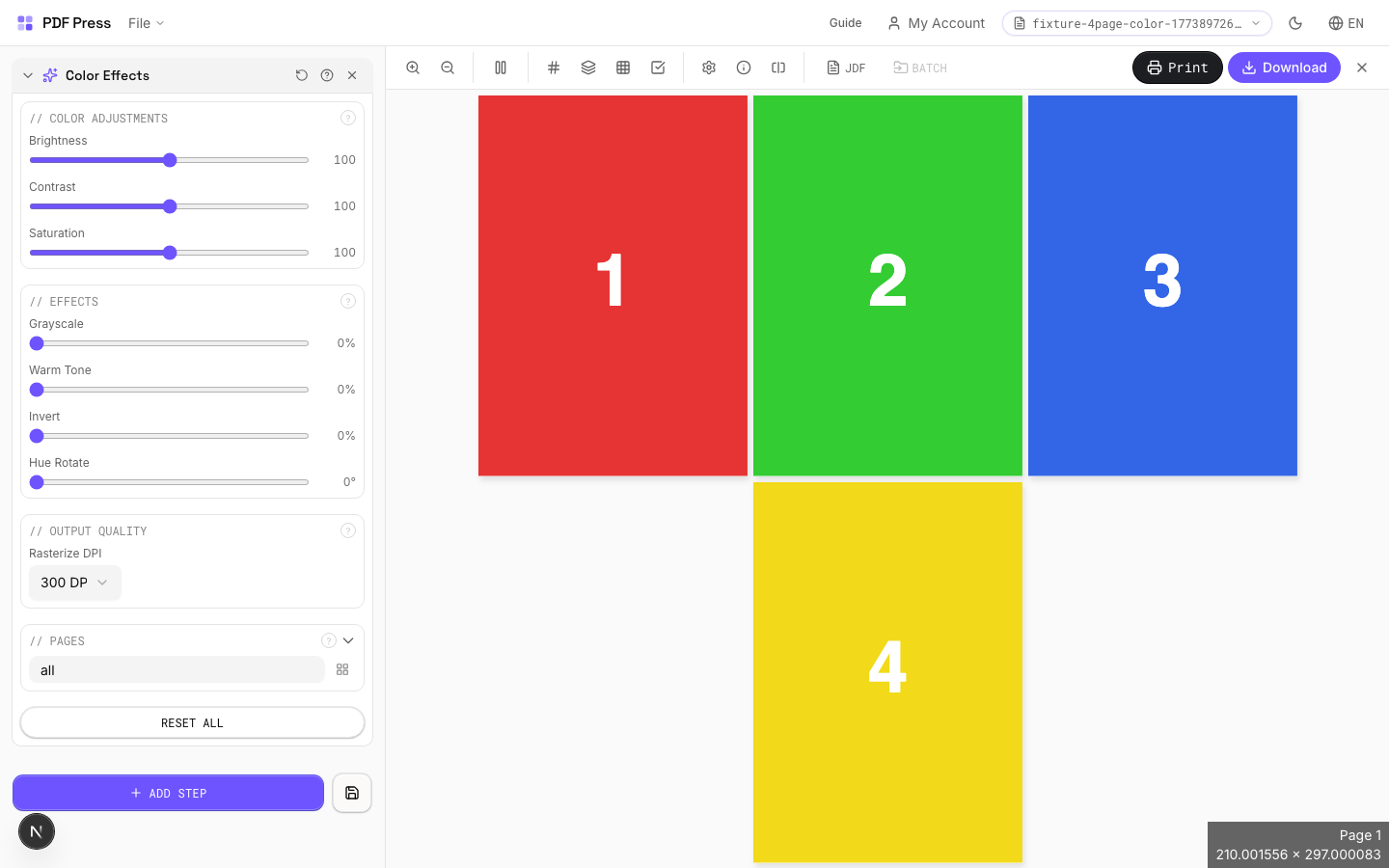
Configure Color Adjustments, Effects, Output Quality and any production settings that match the job.
Preview the result
Check page order, marks, scaling, and output geometry before committing the export.
Download output
Export the finished PDF for proofing, press, finishing, or another PDF Press step.
Best use cases
Key settings
Color Adjustments
Fine-tune brightness, contrast, and saturation of the page content.
Brightness (0–200): 100 = original. Below 100 darkens, above 100 lightens. Contrast (0–200): 100 = original. Higher values increase the difference between light and dark tones: useful for washed-out scans. Saturation (0–200): 100 = original. 0 = fully desaturated (grayscale equivalent). Above 100 boosts color intensity.
Effects
Apply creative color effects: grayscale, warm tone, invert, or hue shift.
Grayscale (0–100%): progressively removes color information. 100% = full grayscale: an alternative to desaturation that uses a luminance-weighted conversion. Warm Tone (0–100%): applies a sepia/warm cast:20–30% adds subtle warmth, 100% is full vintage sepia. Invert (0–100%): reverses tonal values. 100% = full negative. Hue Rotate (0–360°): shifts all colors around the color wheel. 180° inverts hue (red↔cyan, blue↔yellow). Effects are cumulative and applied in order.
Output Quality
Set the rasterization resolution for the color-graded output.
Color grading rasterizes targeted pages: vector content (text, paths, gradients) becomes a bitmap image. Choose DPI based on your output: 150 DPI for screen/web (fast, small files). 300 DPI for standard commercial print. 600 DPI for high-detail fine art or text-heavy pages (large files, slow processing). Warning: if Color Convert is also in the pipeline, pages will be rasterized twice: compounding quality loss.
Pages
Specify which pages to process using a range expression.
Examples: 'all' = every page. '1-5' = pages 1 through 5. '1,3,5' = specific pages. '1-10 odd' = odd pages 1-9. '2-20 even' = even pages 2-20. 'last' = last page. 'last-2' = third from last. Ranges are 1-based. Combine with commas: '1-5, 8, 12-15'.
Expert tip
Colour grading handles press-specific adjustments, such as reducing total ink coverage to 300% or below for heatset web, or boosting saturation for uncoated stock.
Grading applied after imposition also affects marks and colour bars. Apply it to source pages before imposition so your control strips stay accurate.
Frequently asked questions
What is the Color Effects tool used for?
Applies brightness, contrast, saturation, and color effects to PDF pages.
Who should use color effects PDF?
It is built for prepress, proofing, and print quality teams. Common use cases include Quick Color Corrections, Grayscale Conversion, Creative Effects, Proof Adjustments.
Do my PDF files upload to a server?
No. PDF Press runs the PDF processing workflow in your browser, so your files stay on your device.
Can I use Color Effects with other PDF Press tools?
Yes. You can combine it with other PDF Press tools in a multi-step workflow, then preview and export the final PDF.