Add lay marks to PDFs
Use PDF Press to mark gripper and guide edges for sheet-fed press alignment. It is built for press operators and offset prepress departments, with local browser processing and a live preview before export.
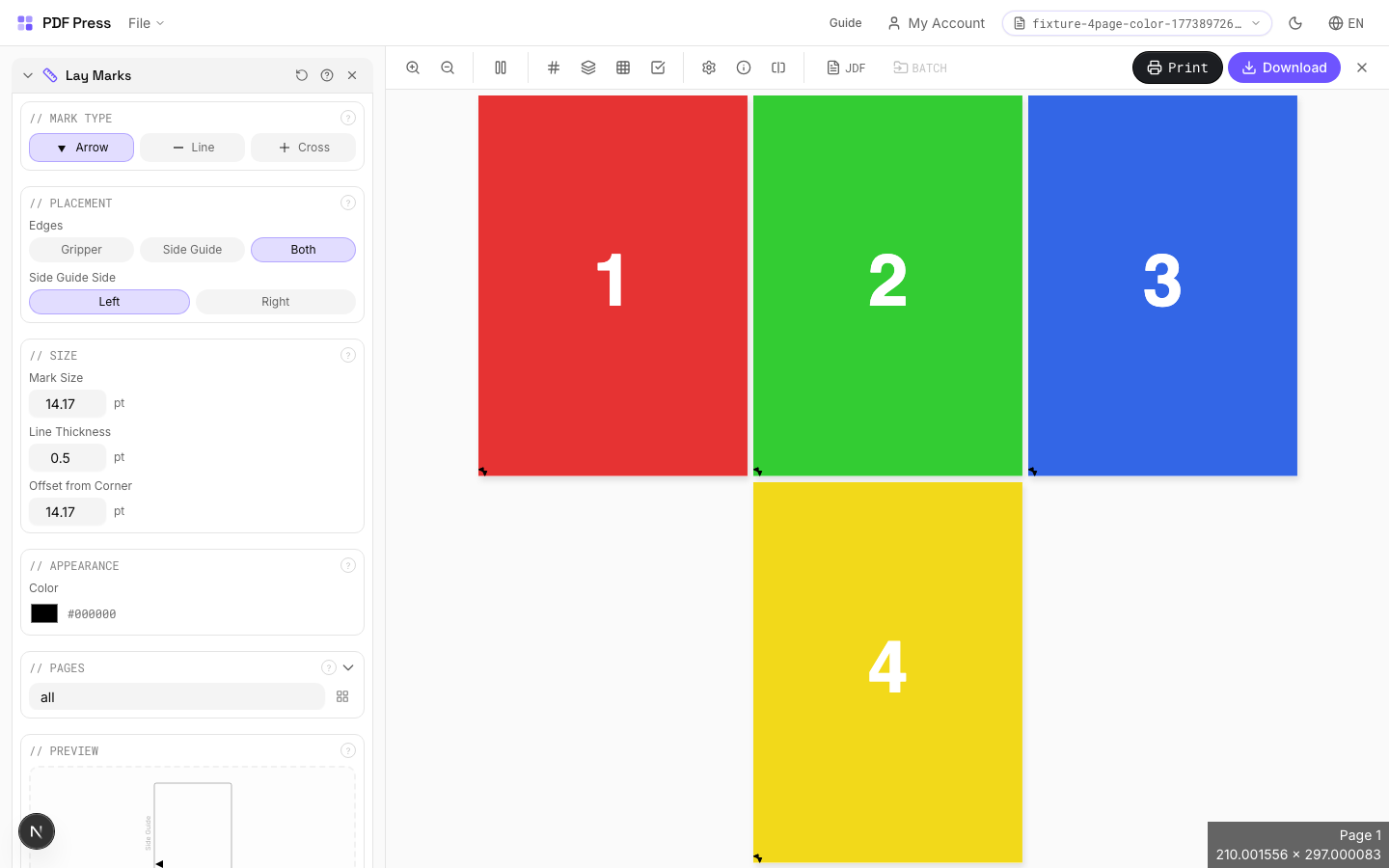
Direct answer
What is add lay marks to PDF?
Adds press sheet alignment marks that guide operators in feeding and positioning sheets on the printing press.
Lay marks indicate the correct orientation and positioning of each press sheet: ensuring consistent alignment throughout the print run. They include front lay (gripper-edge guides), side lay (lateral positioning guides), and orientation indicators (showing which way is "up" and which side is "front"). Essential for maintaining registration between colors and between front and back on duplex jobs.
How to use Lay Marks
Upload files
Start with your source PDF or image files. Processing happens locally in the browser.
Add Lay Marks
Configure Mark Type, Placement, Size and any production settings that match the job.
Preview the result
Check page order, marks, scaling, and output geometry before committing the export.
Download output
Export the finished PDF for proofing, press, finishing, or another PDF Press step.
Best use cases
Key settings
Mark Type
Choose the type of lay mark: front lay, side lay, center mark, or orientation indicator.
Front lay: marks at the gripper edge showing the correct feeding direction: the press operator aligns sheets against front lay stops. Side lay: marks along one side edge for lateral alignment: sheets are jogged against the side guide. Center mark: a crosshair at sheet center for front-to-back registration verification. Orientation: arrows or symbols indicating "this side up" and "front face": prevents sheets from being loaded upside-down or backwards.
Placement
Position lay marks along the appropriate sheet edges.
Front lay marks go on the gripper edge (leading edge). Side lay marks go on the guide side (operator side or drive side depending on press configuration). Center marks are placed at the exact center of both edges for duplex registration. Position all marks outside the trim boundary in the waste area so they don't appear in the finished product.
Size
Set the physical dimensions of each lay mark.
Marks should be visible during high-speed press operation: typically 5–10mm for main alignment marks, 3–5mm for secondary indicators. Line weight: 0.5–1pt for clear visibility. Marks that are too small are useless to press operators working at production speed; marks that are too large waste paper and may interfere with finishing.
Appearance
Configure mark color, line weight, and style.
Standard: process black (K-only) at 100%. Registration color (all plates) is used for duplex-alignment center marks so they appear identically on both front and back. Use a distinct style (solid, dashed, or double-line) to differentiate front lay marks from side lay marks at a glance.
Pages
Specify which pages to process using a range expression.
Examples: 'all' = every page. '1-5' = pages 1 through 5. '1,3,5' = specific pages. '1-10 odd' = odd pages 1-9. '2-20 even' = even pages 2-20. 'last' = last page. 'last-2' = third from last. Ranges are 1-based. Combine with commas: '1-5, 8, 12-15'.
Preview
Live rendering showing lay mark positions and appearance on the press sheet.
Expert tip
Lay marks (side and front lays) tell the operator which edge feeds first and which side rides the guide. Place them at the gripper and guide edges matching your press configuration.
Lay marks placed outside the physical sheet area will not print. Make sure they fall within the actual press sheet dimensions.
Production recipes using Lay Marks
Offset Press Ready
Full offset press preparation with all required finishing marks.
Frequently asked questions
What is the Lay Marks tool used for?
Adds press sheet alignment marks that guide operators in feeding and positioning sheets on the printing press.
Who should use add lay marks to PDF?
It is built for press operators and offset prepress departments. Common use cases include Press Setup, Sheet Alignment, Duplex Registration, Press Makeready.
Do my PDF files upload to a server?
No. PDF Press runs the PDF processing workflow in your browser, so your files stay on your device.
Can I use Lay Marks with other PDF Press tools?
Yes. You can combine it with other PDF Press tools in a multi-step workflow, then preview and export the final PDF.