Gripper Edge Explained: Why This Hidden Margin Matters in Offset Printing
Learn what the gripper edge is, why offset presses need it, and how it affects imposition layout. Covers gripper margin sizing, lay edge, head-to-head vs head-to-foot imposition, printable area calculations, and digital press equivalents.
What Is the Gripper Edge?
The gripper edge is a narrow strip along one edge of a press sheet that the printing press physically grips to pull the paper through the printing unit. This strip — typically 10 to 15 mm (0.4" to 0.6") wide — cannot receive any ink because the press's metal gripper fingers are clamped directly onto the paper surface at that location. It is, for all practical purposes, a non-printable zone that exists on every sheet that passes through a sheet-fed offset press.
Think of it this way: an offset press is a precision machine that transfers ink from a plate to a blanket to paper at speeds of 10,000 to 18,000 sheets per hour. To maintain registration accuracy at those speeds, the press needs a firm mechanical hold on each sheet as it travels through the impression cylinders. The gripper fingers — a row of spring-loaded metal clamps along the leading edge of the impression cylinder — provide that hold. They grab the sheet at the leading edge, pull it around the cylinder, and release it after the impression is made.
The consequence for designers and prepress operators is straightforward but critical: you cannot print anything in the gripper edge area. No images, no text, no bleeds, no marks. Any content placed in the gripper zone will simply not appear on the printed sheet because the gripper fingers physically cover that area during the print pass. This is not a software limitation or a printer setting — it is a mechanical constraint of the press hardware.
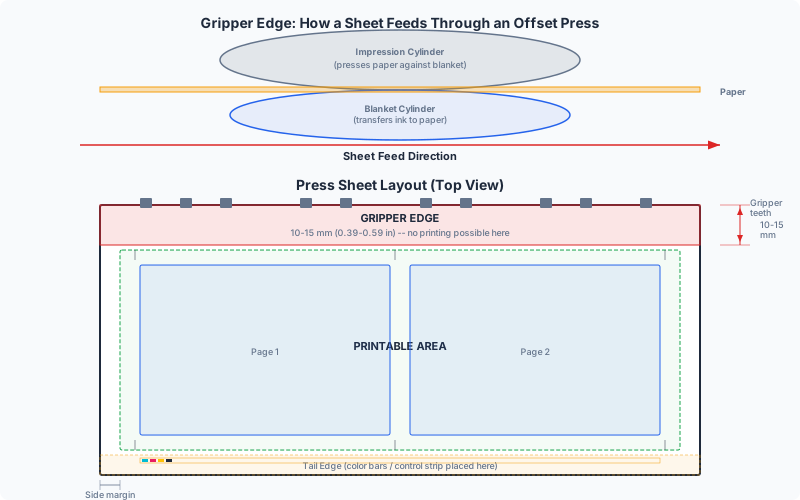
The gripper edge is the single most commonly overlooked constraint in print production. Designers who work primarily with desktop printers or digital presses — where the non-printable margin is typically 3-5 mm and symmetrical on all sides — are often surprised to learn that offset presses have a significantly larger non-printable area on one specific edge. Failing to account for the gripper edge can result in clipped content, failed print runs, and costly reprints.
Why Offset Presses Need a Gripper Edge
The gripper edge exists because of a fundamental requirement of sheet-fed offset lithography: precise, repeatable sheet transport through the press. Understanding why the press needs it helps you appreciate why the constraint cannot simply be engineered away.
Sheet transport mechanism
In a sheet-fed offset press, individual sheets are picked from the feed pile by sucker feet, forwarded through a series of register stops and side guides, and then transferred to the impression cylinder by the gripper fingers. The gripper fingers clamp the leading edge of the sheet approximately 10-12 mm from the edge, holding it tightly as the cylinder rotates. The sheet wraps around the cylinder, receives the ink impression from the blanket, and is released to a chain delivery system that deposits it on the delivery pile.
This entire sequence happens in fractions of a second. At a running speed of 15,000 sheets per hour, each sheet spends about 0.24 seconds on the impression cylinder. The gripper fingers must engage and release with perfect timing, and their grip must be strong enough to prevent the sheet from slipping or skewing during the impression. Any slippage would cause misregistration — a visible shift between color separations that ruins the print quality.
Why 10-15 mm?
The gripper edge width is determined by the physical size of the gripper fingers and the amount of paper surface needed for a secure hold. Smaller grippers would require higher clamping force, which could damage lightweight papers. Larger grippers would waste more paper. The 10-15 mm range represents decades of engineering optimization — wide enough for a reliable grip on papers ranging from 60 gsm bond to 400 gsm board, narrow enough to minimize wasted sheet area.
- Small-format presses (A3+, like Heidelberg GTO or Printmaster): gripper edge of approximately 8-10 mm
- Medium-format presses (B2, like Heidelberg Speedmaster 52/74): gripper edge of approximately 10-12 mm
- Large-format presses (B1, like Heidelberg Speedmaster 102/XL 106): gripper edge of approximately 12-15 mm
Why not print under the grippers?
The gripper fingers press directly against the paper surface. If there were ink in that area, it would transfer to the gripper fingers, contaminate subsequent sheets, and create a spreading mess of misplaced ink throughout the press run. The gripper edge must remain ink-free — it is a mechanical exclusion zone, not merely a margin preference.
Web offset is different
Web offset presses (which print on continuous rolls of paper rather than individual sheets) do not have a gripper edge in the traditional sense. The paper web is held by tension and guide rollers rather than gripper fingers. However, web presses have their own non-printable zones related to web tension, print cylinder circumference, and cut-off length. The gripper edge constraint is specific to sheet-fed offset printing.
Gripper Edge vs Lay Edge: The Two Reference Edges
Every sheet-fed press uses two reference edges to position each sheet precisely: the gripper edge (leading edge) and the lay edge (side guide edge). Together, they define the sheet's position in two dimensions — front-to-back and side-to-side.
Gripper edge (leading edge)
The gripper edge is the edge that enters the press first. The gripper fingers clamp this edge and pull the sheet through the press. As discussed above, 10-15 mm of this edge is non-printable. The gripper edge provides the front-to-back (circumferential) reference for sheet position. Consistent gripper edge registration ensures that the image is placed at the same distance from the leading edge on every sheet.
Lay edge (side guide edge)
The lay edge is the side of the sheet that contacts the side guide (also called the side lay or register stop) during feeding. The side guide pushes the sheet laterally into a precise position before the gripper fingers engage. This provides the side-to-side (lateral) reference. The lay edge requires a much smaller non-printable area — typically 3-5 mm — because the side guide only contacts the very edge of the sheet and does not cover the print surface.
Operator side vs drive side
On most presses, the lay edge is on the operator side (the side where the press operator stands). The opposite edge is the drive side. When specifying a print job, it is important to indicate which side is the lay edge, because it determines the lateral positioning of the image on the sheet. Some jobs are run "operator side lay" and others "drive side lay," depending on the imposition and sheet orientation.
Why this matters for imposition
When imposing pages on a press sheet, you must account for both the gripper edge and the lay edge:
- The gripper edge determines how far from the leading edge your content can begin. No image area, crop mark, or color bar can fall within the gripper zone.
- The lay edge determines the lateral alignment of your content. While the non-printable area is smaller, any content placed too close to the lay edge may be affected by side guide contact marks.
- The tail edge (opposite the gripper) and the far side (opposite the lay) are less constrained — typical non-printable margins of 3-5 mm apply.
In practice, this means the margins around an imposed layout are asymmetric: the gripper edge has a 10-15 mm margin, the lay edge has a 3-5 mm margin, and the remaining two edges have 3-5 mm margins. Imposition software must know which edge is the gripper to position content correctly.
How the Gripper Edge Affects Imposition Layout
The gripper edge has a direct impact on how pages are arranged on a press sheet. Ignoring it leads to content being clipped, pages being positioned incorrectly, or — in the worst case — an entire print run being scrapped because a critical element falls in the gripper zone.
Printable area calculation
The true printable area of a press sheet is smaller than the physical sheet size by the sum of all non-printable margins:
- Printable width = sheet width - lay edge margin (5 mm) - far side margin (5 mm) = sheet width - 10 mm
- Printable height = sheet height - gripper edge margin (12 mm) - tail edge margin (5 mm) = sheet height - 17 mm
For a standard SRA3 sheet (320 x 450 mm), the printable area is approximately 310 x 433 mm. For a B2 sheet (500 x 707 mm), the printable area is approximately 490 x 690 mm. These reductions may seem small, but they become significant when you are trying to maximize the number of items on each sheet.
Gripper edge and page positioning
In a multi-page imposition (2-up, 4-up, 8-up), the pages closest to the gripper edge must be offset inward by the gripper margin. This creates an asymmetric layout where the top row of pages has more space above it than the bottom row has below it (assuming the gripper edge is at the top of the sheet as it feeds into the press).
For example, in a 2-up layout of A4 pages on SRA3 stock with a 12 mm gripper edge:
- Content starts 12 mm from the leading edge, not 5 mm
- The two A4 pages (each 297 mm tall) plus crop marks and color bars must fit within the remaining 438 mm (450 - 12)
- This leaves 438 - (2 x 297) = -156 mm... which obviously does not work. The correct approach is to orient the A4 pages across the sheet (210 mm in the gripper direction), which leaves 450 - 12 - 5 - (2 x 210) = 13 mm for gutters and marks
This example illustrates why imposition planning must account for the gripper edge from the very beginning — it constrains how many items fit in the gripper direction and which sheet orientation is viable.
Color bars and registration marks
Color bars and registration marks are typically placed in the tail margin (opposite the gripper) or in the side margins. They should never be placed in the gripper zone. Standard practice is to position color bars along the tail edge of the sheet where they are accessible to the press operator for densitometer readings without interfering with the gripper mechanism.
Head-to-Head vs Head-to-Foot Imposition and the Gripper Edge
The gripper edge significantly influences the choice between head-to-head and head-to-foot imposition — two fundamental layout orientations that determine how pages are arranged relative to each other on a press sheet.
Head-to-head imposition
In a head-to-head layout, all pages are oriented in the same direction — the "top" of every page faces the same edge of the sheet. This means the gripper edge margin appears at the top of every page position on the sheet. Head-to-head is the simplest layout and is standard for work-and-turn (where the sheet is flipped along its vertical axis for the second printing pass).
Advantages of head-to-head:
- All pages have the same orientation — no confusion during proofing
- Consistent gripper margin position across all page slots
- Simple cutting — all cuts are parallel and perpendicular
Head-to-foot imposition
In a head-to-foot layout, the pages on one half of the sheet are rotated 180 degrees relative to the other half — their "tops" face opposite edges of the sheet. This is the standard layout for work-and-tumble (where the sheet is flipped along its horizontal axis — end over end — for the second printing pass).
Head-to-foot introduces a critical gripper edge consideration: when the sheet is tumbled (flipped end over end), the tail edge of the first pass becomes the gripper edge of the second pass. This means:
- Both the leading and trailing edges must have gripper-width margins (12 mm each instead of 12 mm + 5 mm)
- The total non-printable area in the gripper direction increases from 17 mm to 24 mm
- Available printable height is reduced by 7 mm compared to work-and-turn
This difference can be the deciding factor between fitting a job on one sheet size versus needing the next size up. A layout that fits on SRA3 with head-to-head may require A2+ paper with head-to-foot because of the additional gripper margin on both edges.
Work-and-turn vs work-and-tumble refresher
- Work-and-turn: print side 1, flip sheet left-to-right (like turning a book page), print side 2 from the same plate. The gripper edge remains the same physical edge for both passes. Gripper margin needed on one edge only.
- Work-and-tumble: print side 1, flip sheet top-to-bottom (end over end), print side 2 from the same plate. The gripper edge switches to the opposite physical edge for the second pass. Gripper margin needed on both the leading and trailing edges.
The choice between these methods depends on sheet size, page arrangement, and press capabilities. Work-and-turn is generally preferred because it wastes less paper (one gripper margin instead of two) and maintains better registration (the side guide edge stays the same for both passes).
Calculating the Printable Area with Gripper Margins
Accurate printable area calculation is the foundation of efficient imposition. Getting it wrong by even a few millimeters can mean the difference between a job fitting on a sheet and requiring a costly upgrade to larger stock. Here is the step-by-step method for calculating the actual usable area on a press sheet.
Step 1: Start with the raw sheet size
Use the actual stock size, not the finished trim size. Common press sheet sizes include:
- SRA3: 320 x 450 mm (designed to print A3 with bleed and marks)
- SRA2: 450 x 640 mm (for A2 with bleed and marks)
- B2: 500 x 707 mm (a standard commercial press format)
- B1: 707 x 1000 mm (large-format commercial press)
Step 2: Subtract the gripper margin
Determine the gripper margin for your specific press. If unknown, use 12 mm as a safe default. Subtract this from the sheet dimension that runs in the press feed direction (usually the shorter dimension for portrait-fed stock).
Step 3: Subtract the tail margin
The tail edge (opposite the gripper) requires 3-5 mm. Use 5 mm as a safe default.
Step 4: Subtract the side margins
The lay edge needs 3-5 mm (use 5 mm). The far side needs 3-5 mm (use 5 mm).
Example: SRA3 sheet, work-and-turn
Sheet: 320 x 450 mm, gripper along 320 mm edge (short-edge feed):
- Printable width = 320 - 5 (lay) - 5 (far side) = 310 mm
- Printable height = 450 - 12 (gripper) - 5 (tail) = 433 mm
- Printable area = 310 x 433 mm = 134,230 mm2
- Sheet utilization = 134,230 / (320 x 450) = 93.2%
Example: SRA3 sheet, work-and-tumble
Same sheet, but gripper margin needed on both leading and trailing edges:
- Printable width = 320 - 5 - 5 = 310 mm
- Printable height = 450 - 12 (gripper pass 1) - 12 (gripper pass 2) = 426 mm
- Printable area = 310 x 426 mm = 132,060 mm2
- Sheet utilization = 132,060 / 144,000 = 91.7%
The 1.5% difference may seem negligible, but on a 100,000-sheet run, it can mean the difference between a job that fits and one that needs to be rearranged or moved to larger stock.
Step 5: Subtract space for marks
Within the printable area, you need room for crop marks, registration marks, and color bars. Crop marks typically extend 6 mm from the trim boundary plus a 3 mm offset, requiring about 9 mm of space beyond the outermost trim edge. Color bars need approximately 5-8 mm of height. Factor these into your layout — they reduce the space available for page content.
Digital Presses and Gripper Edge Equivalents
Digital presses (toner-based and inkjet) do not have traditional gripper fingers, but they do have their own non-printable margins that serve a similar practical function. Understanding these "digital gripper equivalents" is important as more commercial print jobs move from offset to digital production.
Toner-based digital presses (e.g., Xerox iGen, HP Indigo, Konica Minolta AccurioPress)
Toner-based digital presses use electrostatic transfer and fusing to apply toner to paper. They do not have gripper fingers, but they do have:
- Lead edge margin: 3-5 mm on the leading edge, where the paper enters the fuser and transfer unit. This area may show inconsistent toner density or registration artifacts.
- Trail edge margin: 3-5 mm on the trailing edge, for similar reasons.
- Side margins: 3-5 mm, determined by the paper path guides and transfer belt width.
Digital toner presses have symmetrical non-printable margins (unlike offset, where the gripper edge is significantly larger than the other edges). This simplifies imposition because you can use the same margin value on all four edges.
Inkjet digital presses (e.g., HP PageWide, Canon ColorStream, Ricoh Pro)
Inkjet presses spray ink from fixed print heads onto the paper surface. Sheet-fed inkjet presses use vacuum transport or belt systems rather than grippers, so they have no traditional gripper edge. The non-printable margins are typically:
- All edges: 3-5 mm, determined by print head positioning and edge detection sensors
- Some high-end inkjet presses offer edge-to-edge printing (zero margin) when using oversized stock that is trimmed after printing
Desktop printers
Consumer and office laser and inkjet printers have non-printable margins of 3-12 mm, depending on the model. These margins are consistent on all edges (no gripper asymmetry) and are specified in the printer's PPD or driver settings. For borderless printing, some desktop printers can print edge-to-edge by slightly overspraying the page boundaries.
Practical implications
When moving a job from offset to digital production, the imposition may need to be adjusted:
- The asymmetric gripper margin (12 mm leading, 5 mm elsewhere) can be replaced with symmetric margins (5 mm all around) on digital presses
- This availables up approximately 7 mm of printable height, which may allow an additional row of items or larger margins between items
- However, the reverse is also true: an imposition designed for digital (5 mm all around) may not work on offset (12 mm leading edge needed). Always design for the most restrictive output device in your workflow.
In PDF Press, you can set custom margins for each edge independently, making it easy to accommodate both offset gripper edges and digital press margins. Set the leading edge margin to 12 mm for offset, or 5 mm for digital, and let the tool handle the page positioning.
How PDF Press Handles Gripper Margins
PDF Press provides several tools and settings that help you account for gripper edge constraints in your imposition layouts, whether you are targeting offset, digital, or desktop printers.
Custom per-edge margins
In the Grid tool and other layout tools, you can set the outer margins for each edge independently — top, bottom, left, and right. For offset printing, set the gripper edge margin (typically the top, depending on press feed direction) to 12-15 mm and the remaining edges to 3-5 mm. This asymmetric margin configuration ensures that no content falls in the gripper zone.
Paper size selection with SRA/RA sizes
PDF Press includes SRA3, SRA2, RA3, and RA2 in its paper size presets. These supplementary raw format A sizes are specifically designed for commercial printing — they are slightly larger than the corresponding A sizes to accommodate bleeds, crop marks, and gripper margins. Selecting SRA3 as your output sheet size signals that you are preparing for offset production and need room for press marks and gripper clearance.
Nudge tool for fine adjustments
If your imposed layout needs a small positional adjustment to clear the gripper zone, the Nudge tool allows you to shift content by an exact amount in any direction. This is useful for last-minute corrections when the prepress check reveals that an element is too close to the gripper edge.
Preview with margin visualization
PDF Press's live preview shows the full output sheet, including margins. You can visually verify that no content extends into the gripper zone before downloading the imposed PDF. The preview accurately represents the final output at the specified paper size, so what you see is what the press will receive.
Chaining tools for complex workflows
For advanced offset imposition, you can chain multiple PDF Press tools:
- Grid — arrange pages in a 2-up or 4-up layout with gripper-aware margins
- Cutter Marks — add crop marks, registration marks, and fold marks outside the trim area
- Color Bar — add ink density control strips in the tail margin (opposite the gripper)
- Header or Footer — add job information (job name, date, plate number) in the margin area
Each tool in the chain operates on the output of the previous tool, building up a production-ready imposed sheet with all necessary marks and clearances.
Common Gripper Edge Mistakes and How to Avoid Them
The gripper edge is one of the most frequent sources of prepress errors. Here are the mistakes that cost print shops and designers the most time and money:
Mistake 1: Designing with symmetric margins
Designers who work primarily on screen or with desktop printers often apply equal margins on all four sides of a press sheet. On offset, this places content too close to the gripper edge. The fix: always ask the print shop for their specific gripper margin requirement and apply it to the correct edge before sending files.
Mistake 2: Placing bleeds on the gripper edge
Full-bleed designs require content to extend beyond the trim boundary. But if the trim boundary is near the gripper edge, the bleed area falls within the gripper zone and will not print. The fix: position the layout so that any bleed edges are on the tail, lay, or far side — never on the gripper edge. If bleed on all sides is required, use a larger sheet so that the gripper zone is entirely outside the bleed area.
Mistake 3: Forgetting gripper on the back side (work-and-tumble)
In work-and-tumble imposition, the tail edge of pass 1 becomes the gripper edge of pass 2. Designers who account for the gripper on the front but not the back end up with clipped content on the reverse side. The fix: apply gripper margins to both the leading and trailing edges when using work-and-tumble. Better yet, use work-and-turn when possible to avoid this issue.
Mistake 4: Putting color bars in the gripper zone
Color bars and registration marks placed near the gripper edge will not print. Even if they are just barely inside the gripper zone, the gripper fingers may smear them. The fix: place color bars along the tail edge or side margins, well clear of the gripper zone.
Mistake 5: Using the wrong sheet orientation
The gripper edge is always on the leading edge as the sheet enters the press — which edge that is depends on how the sheet is loaded. If you design your imposition assuming the gripper is on the short edge but the press feeds long-edge first, your gripper margin is on the wrong side. The fix: confirm the feed direction with the print shop before imposing. Include a note in your job ticket specifying which edge is the gripper.
Mistake 6: Assuming digital margins for offset production
A layout designed for a digital press (5 mm all-around margins) sent to an offset press (12 mm gripper) will have content clipped on the leading edge. This happens frequently when a job is moved between production methods without re-imposing. The fix: always re-check margins when switching from digital to offset or vice versa.
Mistake 7: Not communicating gripper requirements to the designer
Many print shops receive files that do not account for the gripper edge because the designer was never told about it. This leads to last-minute re-imposition, delays, and potential reprints. The fix: include gripper margin specifications in your job submission guidelines and template files. Providing a correctly marked-up template is the most effective way to prevent gripper edge errors.
Gripper Edge Terminology Across the Industry
The gripper edge goes by several names depending on the region, the press manufacturer, and the era. Understanding the terminology helps when reading press specifications, communicating with international print partners, or interpreting legacy documentation.
Common terms for the gripper edge:
- Gripper edge — the most common term in English-speaking countries
- Grip edge — abbreviated variant, same meaning
- Leading edge — the generic term for the edge that enters the press first; equivalent to gripper edge on sheet-fed presses
- Feed edge — used in some digital press documentation to describe the edge that enters the transport mechanism first
- Greiferrand — German term, literally "gripper margin"
- Prise de pince — French term, literally "gripper grip"
- Pinza — Spanish and Italian term for the gripper mechanism
Related terms:
- Lay edge / side lay — the edge that contacts the side guide for lateral registration
- Tail edge / trailing edge — the edge opposite the gripper; last to pass through the press
- Operator side (OS) — the side of the press where the operator stands; usually the lay edge side
- Drive side (DS) — the side opposite the operator; where the press drive mechanisms are located
- Gripper fingers / gripper bars — the mechanical clamps that hold the sheet
- Gripper bite — the depth of paper that the gripper fingers clamp; synonymous with gripper margin
In JDF (Job Definition Format)
The CIP4 JDF standard uses specific attributes to describe the gripper edge in imposition job tickets. The GrainDirection, FrontSpread, and BackSpread elements define sheet orientation relative to the press, and the GripperMargin attribute specifies the non-printable zone explicitly. When generating JDF output from imposition software, the gripper margin is encoded as a named attribute so that the press can verify clearance automatically.
In PDF/X
PDF/X files (the ISO standard for print-ready PDFs) include TrimBox and BleedBox definitions that describe the trim and bleed boundaries of the page. The gripper edge is not explicitly encoded in PDF/X — it is a press-specific constraint that is applied at the imposition stage, not in the individual page files. However, the gap between the BleedBox and the MediaBox on the gripper edge should be at least equal to the gripper margin to ensure no bleed extends into the non-printable zone.
Pre-Flight Checklist for Gripper Edge Compliance
Before sending an imposed file to press, run through this checklist to verify that your layout properly accounts for the gripper edge. Each item takes seconds to check but can save hours (or days) of reprinting and delays.
- Confirm the gripper edge location — ask the print shop which edge of the sheet is the gripper edge and how wide the gripper margin needs to be. Do not assume — different presses have different requirements.
- Verify content clearance — check that no page content, bleed, crop mark, or registration mark falls within the gripper zone. Use your imposition software's preview or a PDF viewer with measurement tools to verify distances from the gripper edge.
- Check color bars and marks placement — color bars should be on the tail edge (opposite the gripper). Registration marks should be outside the gripper zone. Crop marks at the gripper end should have adequate offset to clear the gripper fingers.
- Verify duplex gripper alignment — for double-sided printing, confirm that the gripper edge is accounted for on both sides of the sheet. For work-and-tumble, both the leading and trailing edges need gripper margins.
- Check bleed direction — if any page position has a bleed edge facing the gripper direction, verify that the bleed area does not extend into the gripper zone. Reposition the layout if necessary.
- Confirm sheet size and orientation — verify that the imposed sheet size matches the stock size, and that the feed direction (short-edge or long-edge feed) matches the gripper edge placement in your layout.
- Add gripper edge notation to job ticket — clearly mark which edge is the gripper on your job ticket, imposition layout diagram, or file notes. Include the gripper margin dimension. This communicates your intent to the press operator and prevents misunderstandings.
- Run a soft proof or press proof — for critical jobs, request a digital soft proof (showing the full imposed sheet with marks and margins) or a press proof (a physical sheet from the actual press). Verify the gripper clearance visually before authorizing the full print run.
Following this checklist consistently will eliminate the vast majority of gripper-edge-related errors. For recurring jobs or templates, save your gripper-compliant imposition settings as a preset in PDF Press so you do not have to reconfigure from scratch each time.
Try it yourself
PDF Press runs entirely in your browser. Upload a PDF, pick a tool, and download the result — fast and private.
Open PDF Press22 Professional Imposition Tools
Every tool runs locally in your browser — fast, private, and professional-grade.
Frequently Asked Questions
Related Articles
Ready to try professional PDF imposition?
PDF Press is a browser-based imposition tool with 22 professional tools. No installation required.
Open PDF Press