Add gathering marks to PDFs
Use PDF Press to mark signatures so gathered book sections can be verified at a glance. It is built for book printers, bindery teams, and signature gathering lines, with local browser processing and a live preview before export.
Direct answer
What is add gathering marks to PDF?
Adds gripper-edge marks that verify correct sheet gathering order: a front-of-press quality check.
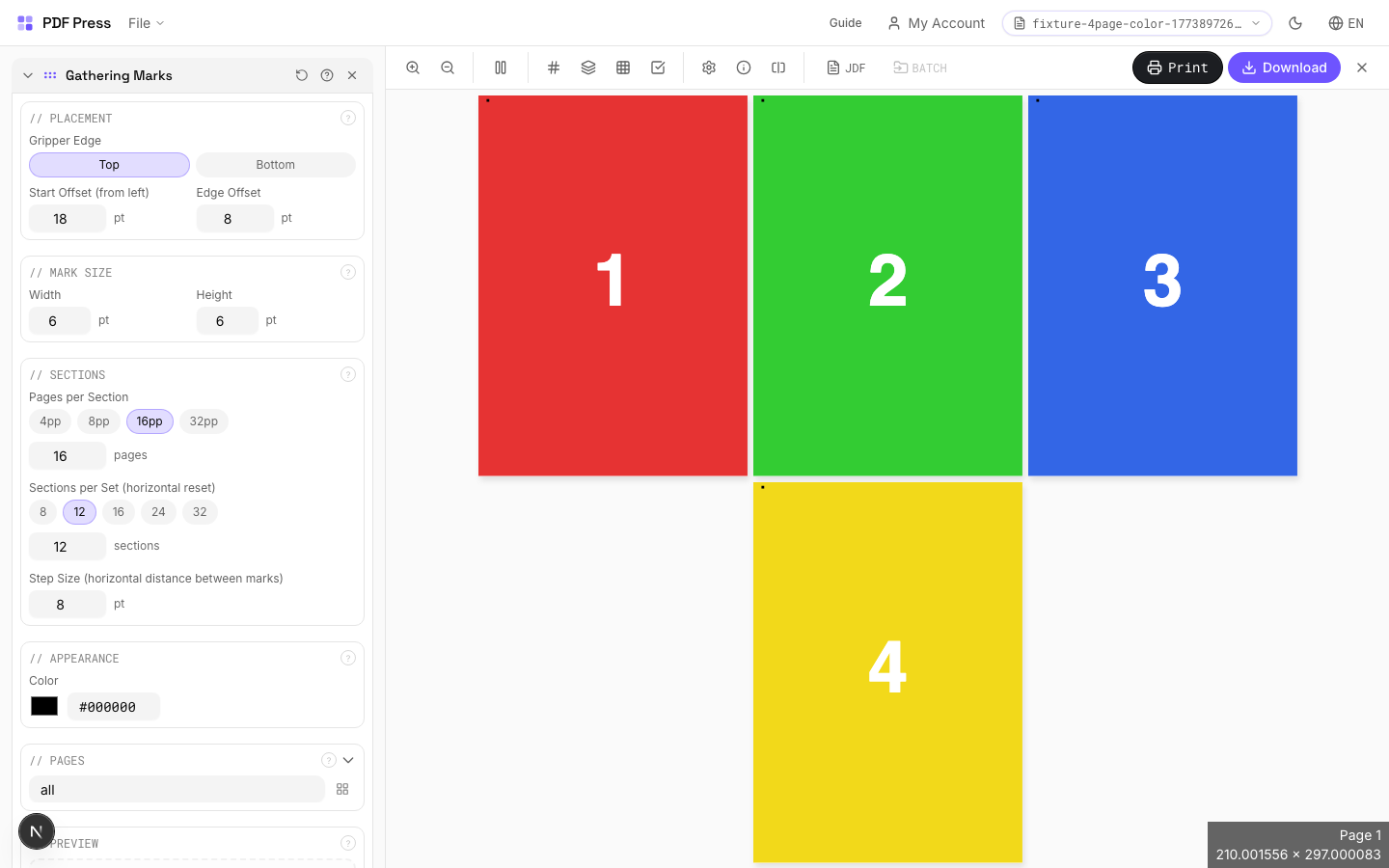
Gathering marks serve a similar purpose to collating marks but are positioned at the gripper edge (the leading edge that the press grippers grab) rather than the spine. After cutting and stacking, a progressive pattern of marks down the stack edge confirms sheets are in the correct sequence. Missing or duplicated marks indicate gathering errors before binding begins: catching problems early saves costly bindery rework.
How to use Gathering Marks
Upload files
Start with your source PDF or image files. Processing happens locally in the browser.
Add Gathering Marks
Configure Placement, Mark Size, Sections and any production settings that match the job.
Preview the result
Check page order, marks, scaling, and output geometry before committing the export.
Download output
Export the finished PDF for proofing, press, finishing, or another PDF Press step.
Best use cases
Key settings
Placement
Position gathering marks along the gripper edge: the leading edge of the press sheet.
Marks are placed along the gripper edge (typically the top or leading edge). Each successive sheet or signature gets a mark at a progressively offset position. The offset direction (left-to-right or top-to-bottom) creates a staircase or diagonal pattern when sheets are stacked. Distance from the sheet edge should clear the gripper zone: typically 10–15mm from the leading edge.
Mark Size
Set the width and height of each gathering mark.
Width and height should be large enough to see at a glance during production: typically 3–5mm. The offset increment between successive marks is usually equal to the mark width to create a clean staircase pattern. Marks must be positioned within the trim waste area so they're removed in the finished product.
Sections
Define the number of sections and sheets per section for the gathering sequence.
Total sections: how many distinct gathering groups make up the job. Sheets per section: how many sheets are in each gathered set. The mark pattern resets and changes appearance after completing one full sequence, allowing multiple books or sets to run consecutively on the same press sheet layout.
Appearance
Configure mark color, style, and visibility settings.
Solid black is standard for maximum contrast against paper. After the staircase pattern completes one cycle, the next cycle uses an alternate appearance (different color or hollow marks) to distinguish consecutive sequences. High-speed press operators need marks visible at arm's length: ensure adequate size and contrast.
Pages
Specify which pages to process using a range expression.
Examples: 'all' = every page. '1-5' = pages 1 through 5. '1,3,5' = specific pages. '1-10 odd' = odd pages 1-9. '2-20 even' = even pages 2-20. 'last' = last page. 'last-2' = third from last. Ranges are 1-based. Combine with commas: '1-5, 8, 12-15'.
Preview
Live rendering showing the gathering mark pattern across the press sheet.
Expert tip
Place gathering marks on the spine of each signature. Each mark shifts position by the paper thickness, forming a visible staircase when signatures are stacked in the correct order.
If the paper weight changes mid-run, recalculate the mark shift. A wrong offset will break the staircase alignment and defeat the purpose of the marks.
Production recipes using Gathering Marks
Case-Bound (Hardcover) Book
Smyth-sewn case-bound book with proper signature imposition and spine marks.
Catalog Signatures
Multi-signature catalog for perfect binding on commercial presses.
Perfect Bind Finishing Marks
Finishing marks for perfect binding operations with gathering verification.
Frequently asked questions
What is the Gathering Marks tool used for?
Adds gripper-edge marks that verify correct sheet gathering order: a front-of-press quality check.
Who should use add gathering marks to PDF?
It is built for book printers, bindery teams, and signature gathering lines. Common use cases include Sheet-Fed Press, Gathering QC, Pre-Bind Verification, High-Volume Books.
Do my PDF files upload to a server?
No. PDF Press runs the PDF processing workflow in your browser, so your files stay on your device.
Can I use Gathering Marks with other PDF Press tools?
Yes. You can combine it with other PDF Press tools in a multi-step workflow, then preview and export the final PDF.