Split PDF pages for print production
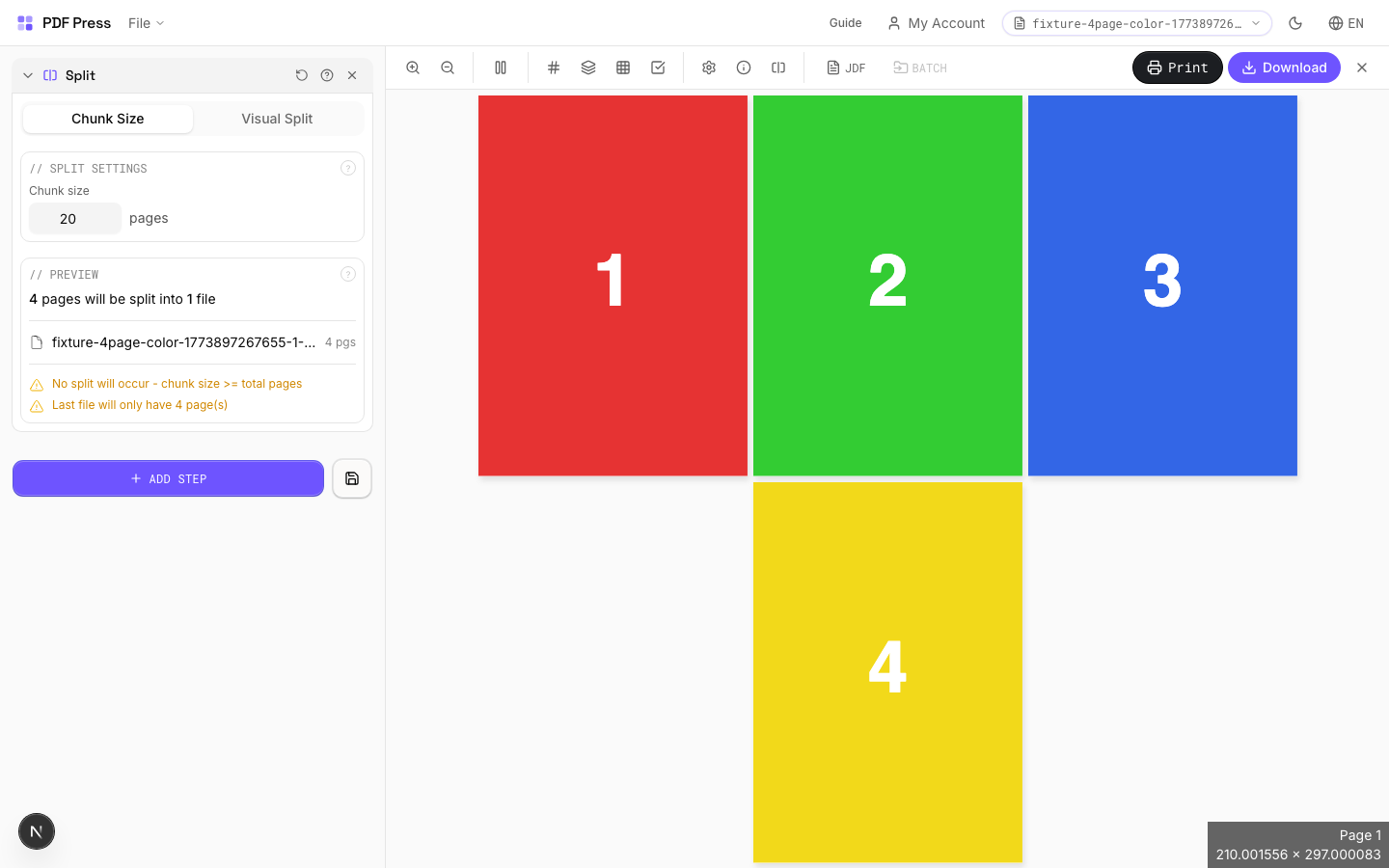
Use PDF Press to split documents into chunks, tiles, or page ranges. It is built for operators separating signatures, spreads, tiles, and production batches, with local browser processing and a live preview before export.
Direct answer
What is split PDF?
Divides a multi-page PDF into smaller files, each containing a set number of pages.
Two modes: Chunk mode splits by fixed page count (a 100-page PDF at chunk size 20 = 5 files). Visual mode lets you click between page thumbnails to place split points exactly where needed. Output downloads as a zip archive of individual PDFs.
How to use Split
Upload files
Start with your source PDF or image files. Processing happens locally in the browser.
Add Split
Configure Split Settings, Preview, Visual Pages and any production settings that match the job.
Preview the result
Check page order, marks, scaling, and output geometry before committing the export.
Download output
Export the finished PDF for proofing, press, finishing, or another PDF Press step.
Best use cases
Key settings
Split Settings
Set how many pages each output file should contain.
Chunk mode: every output file gets the same number of pages (the last file may have fewer if the total doesn't divide evenly). Visual mode: click between page thumbnails to place split boundaries manually — useful when chapters or sections don't have uniform page counts.
Preview
Shows the file split plan — how many output files and the page ranges in each.
Visual Pages
Interactive page thumbnails — click between pages to toggle split points.
Each red line marks a split boundary. Click to add or remove. The resulting files are listed below with their page ranges. Drag to reorder split points is not supported — click to toggle on/off instead.
Action
Download all split files as a single zip archive.
Expert tip
Split large-format pages into press-sheet-sized tiles with 10 mm overlap for accurate reassembly. 10 mm is the standard for most wide-format tiling jobs.
When splitting a booklet spread back into single pages, split at the exact spine position. Even 1 pt off will show as a white line at the bind edge.
Production recipes using Split
Poster Tiling
Large poster split into printable tiles with overlap for assembly.
Banner Printing
Wide-format banners with tiling for roll-fed printers.
Trade Show Panels
Multi-panel trade show displays split for separate printing and assembly.
Vehicle Wrap
Vehicle wrap panels split for contour-cut application.
Frequently asked questions
What is the Split tool used for?
Divides a multi-page PDF into smaller files, each containing a set number of pages.
Who should use split PDF?
It is built for operators separating signatures, spreads, tiles, and production batches. Common use cases include File Splitting, Distribution, Batch Processing.
Do my PDF files upload to a server?
No. PDF Press runs the PDF processing workflow in your browser, so your files stay on your device.
Can I use Split with other PDF Press tools?
Yes. You can combine it with other PDF Press tools in a multi-step workflow, then preview and export the final PDF.