Merge PDFs online for print
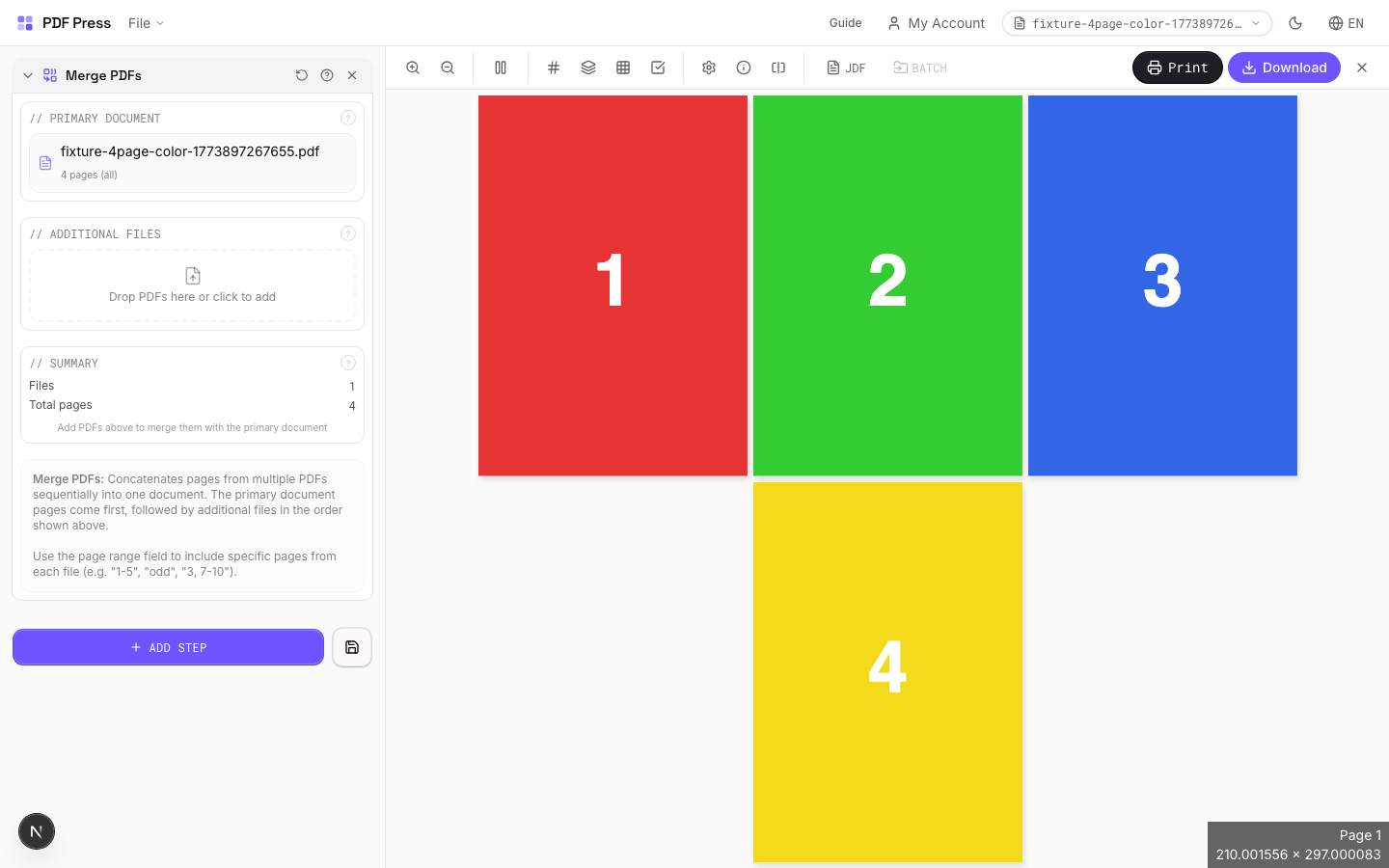
Use PDF Press to combine multiple PDF files into one ordered production document. It is built for print shops, publishers, and anyone preparing multi-file PDF jobs, with local browser processing and a live preview before export.
Direct answer
What is merge PDFs?
Combines multiple PDF files into a single document: merge chapters, sections, or separate print jobs.
Drag and drop additional PDF files alongside your primary document and arrange them in the desired order. The merged output preserves each file's page sizes, fonts, images, and vector content. Use this to assemble multi-chapter books, combine front and back covers with interior pages, or consolidate separate job files into one press-ready PDF.
How to use Merge PDFs
Upload files
Start with your source PDF or image files. Processing happens locally in the browser.
Add Merge PDFs
Configure Primary Document, Additional Files, Summary and any production settings that match the job.
Preview the result
Check page order, marks, scaling, and output geometry before committing the export.
Download output
Export the finished PDF for proofing, press, finishing, or another PDF Press step.
Best use cases
Key settings
Primary Document
The base PDF file: additional files will be appended after this document.
This is the first file in the merged output. Its pages appear at the beginning. All subsequent files are added in the order they appear in the file list below.
Additional Files
Upload or drag extra PDFs to append after the primary document.
Files are merged in list order. Drag to rearrange. Each file retains its original page dimensions: mixed page sizes (e.g., Letter covers with A4 interior) are preserved as-is. Remove files by clicking the delete button next to each entry.
Summary
Shows the total page count and file order of the merged output.
Expert tip
Merge multiple PDFs before imposition so they are treated as one continuous document. File order determines page order in every downstream operation, so double-check the sequence.
Merging files with different page sizes can cause unexpected scaling in layout tools. Resize all inputs to a common size first, or turn on auto-scale in the layout step.
Production recipes using Merge PDFs
Wedding Invitations
Premium wedding invitations with RSVP cards and envelopes imposed together.
Mixed Gang Run
Multiple different jobs ganged on a single press sheet for cost efficiency.
Multi-File Merge
Merge multiple source files into a single document for unified processing.
Frequently asked questions
What is the Merge PDFs tool used for?
Combines multiple PDF files into a single document: merge chapters, sections, or separate print jobs.
Who should use merge PDFs?
It is built for print shops, publishers, and anyone preparing multi-file PDF jobs. Common use cases include Multi-File Assembly, Book Chapters, Job Consolidation, Cover + Interior.
Do my PDF files upload to a server?
No. PDF Press runs the PDF processing workflow in your browser, so your files stay on your device.
Can I use Merge PDFs with other PDF Press tools?
Yes. You can combine it with other PDF Press tools in a multi-step workflow, then preview and export the final PDF.