Convert PDF colors with ICC profiles
Use PDF Press to convert PDF color spaces, soft proof, and check gamut with ICC profiles. It is built for prepress teams preparing RGB, CMYK, and press-profiled PDFs, with local browser processing and a live preview before export.
Direct answer
What is convert PDF colors?
ICC color management: convert between color spaces, soft-proof on screen, and check gamut boundaries.
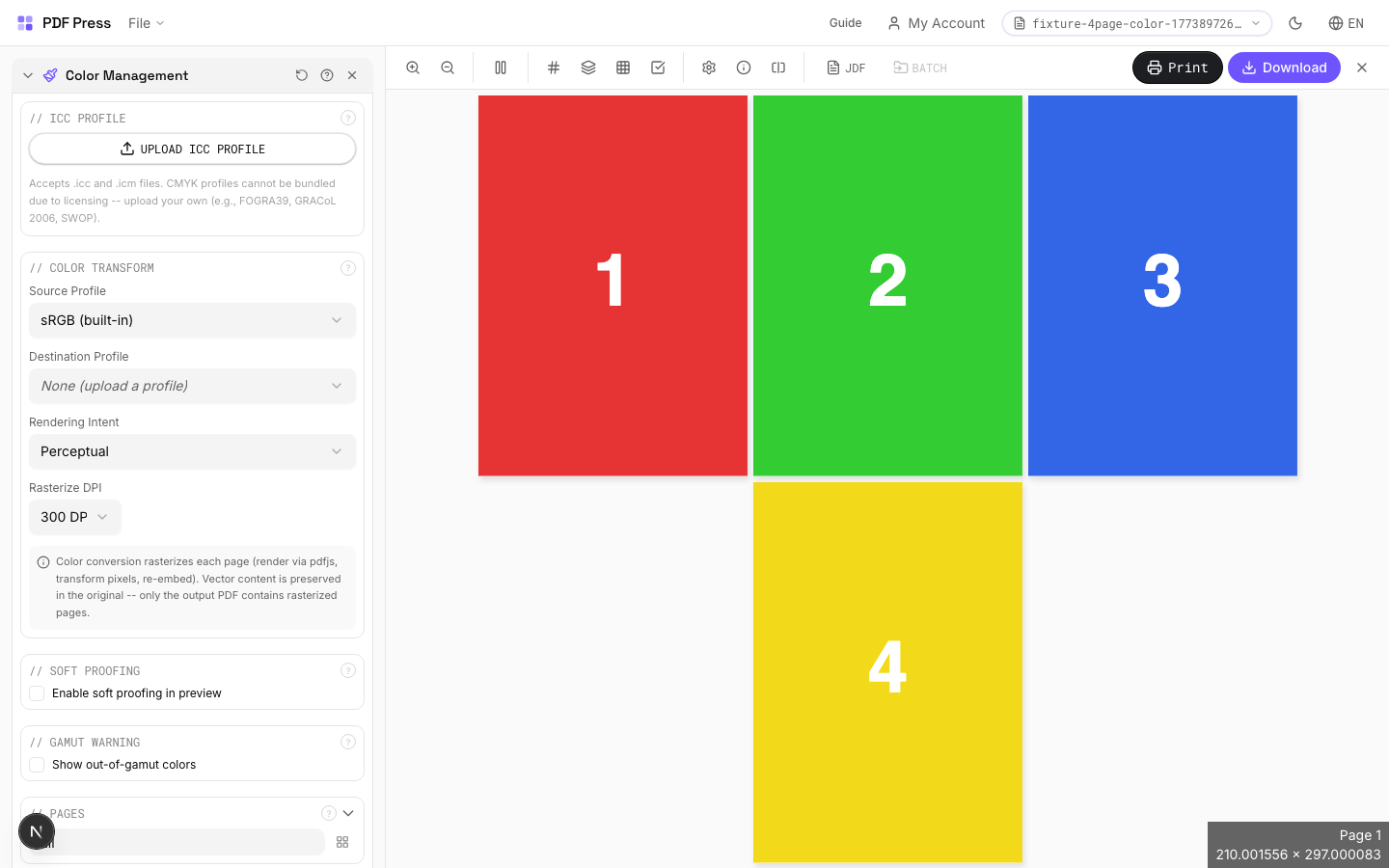
Color Convert uses Little CMS (lcms-wasm) to perform ICC-based color space transformations. Upload your target device ICC profile (FOGRA39, GRACoL, SWOP, or custom) and convert pages from one color space to another using the correct rendering intent. Soft proofing simulates how colors will look on the target device without altering the file. Gamut warning highlights colors that fall outside the destination profile's reproducible range.
How to use Color Management
Upload files
Start with your source PDF or image files. Processing happens locally in the browser.
Add Color Management
Configure ICC Profile, Color Transform, Soft Proofing and any production settings that match the job.
Preview the result
Check page order, marks, scaling, and output geometry before committing the export.
Download output
Export the finished PDF for proofing, press, finishing, or another PDF Press step.
Best use cases
Key settings
ICC Profile
Upload and manage ICC/ICM profiles for color-accurate transformations.
Upload .icc or .icm files from your print provider or download standard profiles (e.g., FOGRA39 for European coated offset, GRACoL 2006 for US sheetfed, SWOP for US web offset, ISO Coated v2 for general commercial). CMYK profiles are not bundled due to licensing: you must upload your own. The built-in sRGB profile covers standard screen color. Multiple profiles can be loaded simultaneously.
Color Transform
Configure the source and destination profiles and rendering intent for the conversion.
Source Profile: the color space your document is currently in (usually sRGB for screen-designed files). Destination Profile: the target device profile to convert into. Rendering Intent: how out-of-gamut colors are handled:Perceptual (compresses all colors proportionally, best for photos), Relative Colorimetric (preserves in-gamut colors exactly, clips out-of-gamut, best for logos/brand colors), Saturation (maximizes saturation, best for charts/graphics), Absolute Colorimetric (preserves colors exactly including paper white simulation, best for proofing). Rasterize DPI: resolution for the pixel-based conversion:300 DPI for print, 150 DPI for proofing speed.
Soft Proofing
Preview how colors will appear on the target device without modifying the file.
Soft proofing renders the preview through the proofing profile to simulate the target output device on your monitor. This is non-destructive: only the canvas preview changes, not the PDF data. Simulate Paper White: accounts for the paper stock's whiteness: important for uncoated stocks where "white" is actually cream/gray. Accurate soft proofing requires a calibrated monitor (ideally with a hardware calibrator like an i1Display or SpyderX).
Gamut Warning
Highlight colors in the preview that cannot be reproduced by the destination profile.
Out-of-gamut colors are replaced with a solid warning color (default: bright green) in the preview so you can see exactly which areas will lose saturation or shift hue during conversion. This is preview-only: the PDF is not modified. Requires a destination profile to be set. Common problem areas: saturated blues/greens in RGB that can't be reproduced in CMYK, and neon/fluorescent colors.
Pages
Specify which pages to process using a range expression.
Examples: 'all' = every page. '1-5' = pages 1 through 5. '1,3,5' = specific pages. '1-10 odd' = odd pages 1-9. '2-20 even' = even pages 2-20. 'last' = last page. 'last-2' = third from last. Ranges are 1-based. Combine with commas: '1-5, 8, 12-15'.
Expert tip
Convert RGB sources to CMYK using your press profile (FOGRA39 for European coated, GRACoL for US sheetfed) before imposition. This keeps colour consistent across all pages.
Converting CMYK-to-CMYK with mismatched profiles will shift your colours. Only re-profile when you are actually changing the target press condition.
Production recipes using Color Management
Comic Book Signatures
Comic book or graphic novel imposed in saddle-stitch or perfect-bound signatures.
Photo Book
Lay-flat photo book with flush-mount or perfect binding.
Corrugated Packaging
Large-format corrugated box or display printed on flatbed or flexo.
Print-Ready Preparation
Standard pre-flight and preparation workflow for incoming files.
Frequently asked questions
What is the Color Management tool used for?
ICC color management: convert between color spaces, soft-proof on screen, and check gamut boundaries.
Who should use convert PDF colors?
It is built for prepress teams preparing RGB, CMYK, and press-profiled PDFs. Common use cases include RGB → CMYK Conversion, Press Profile Matching, Soft Proofing, Gamut Checking, Color Space Normalization.
Do my PDF files upload to a server?
No. PDF Press runs the PDF processing workflow in your browser, so your files stay on your device.
Can I use Color Management with other PDF Press tools?
Yes. You can combine it with other PDF Press tools in a multi-step workflow, then preview and export the final PDF.