Add watermarks to PDFs
Use PDF Press to place proof, draft, confidential, or branded watermarks on PDFs. It is built for proofing, client review, and document control teams, with local browser processing and a live preview before export.
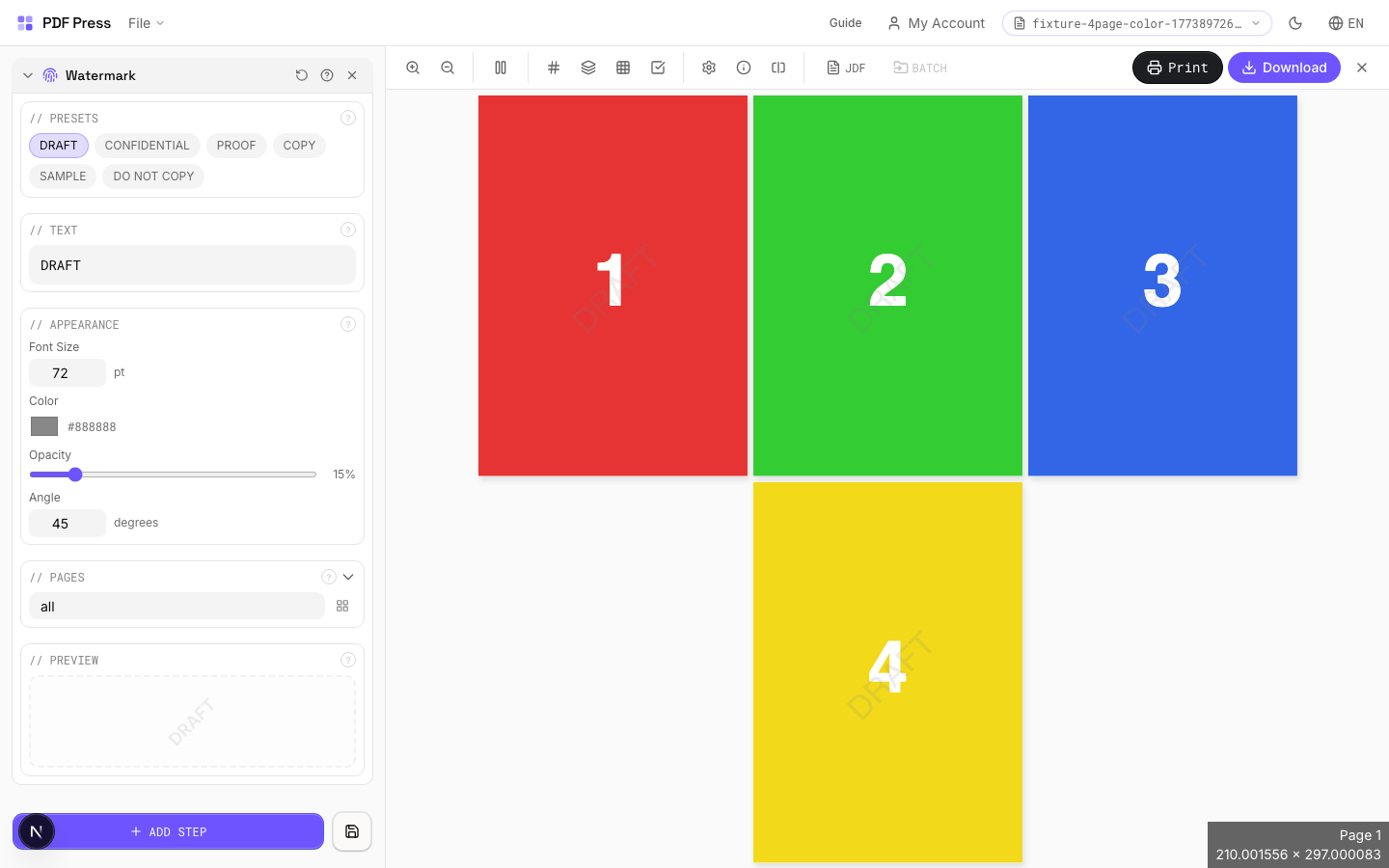
Direct answer
What is add watermark to PDF?
Stamps text across every page — for marking drafts, proofs, confidential documents, or copies.
Generates a transparent text overlay rendered diagonally (or at any angle) across each page. Adjustable font size, color, opacity, and rotation angle. Common presets (DRAFT, CONFIDENTIAL, PROOF, COPY, SAMPLE) are one click away.
How to use Watermark
Upload files
Start with your source PDF or image files. Processing happens locally in the browser.
Add Watermark
Configure Presets, Text, Appearance and any production settings that match the job.
Preview the result
Check page order, marks, scaling, and output geometry before committing the export.
Download output
Export the finished PDF for proofing, press, finishing, or another PDF Press step.
Best use cases
Key settings
Presets
One-click common watermark texts — DRAFT, CONFIDENTIAL, PROOF, COPY, SAMPLE, DO NOT COPY.
Clicking a preset fills the text field. You can further customize after selecting a preset. Presets use the current appearance settings (font size, color, opacity, angle).
Text
The watermark message displayed on every page. Short, all-caps text works best.
Supports any text string. Longer text may need a smaller font size to fit. Common patterns: "DRAFT", "PROOF #3", "CONFIDENTIAL", "FOR REVIEW ONLY", "SAMPLE — NOT FOR DISTRIBUTION".
Appearance
Controls font size, color, opacity, and rotation angle of the watermark text.
Font size: in points — 72pt is typical for full-page diagonal watermarks on Letter/A4. Larger pages may need 96–144pt. Color: any hex color — gray (#888888) is standard for subtle marks, red (#cc0000) for attention-grabbing. Opacity: 10–20% for subtle background marks, 30–50% for clearly visible stamps. Angle: 45° for classic diagonal, 0° for horizontal, 90° for vertical.
Pages
Specify which pages to process using a range expression.
Examples: 'all' = every page. '1-5' = pages 1 through 5. '1,3,5' = specific pages. '1-10 odd' = odd pages 1-9. '2-20 even' = even pages 2-20. 'last' = last page. 'last-2' = third from last. Ranges are 1-based. Combine with commas: '1-5, 8, 12-15'.
Preview
Live preview showing the watermark text at current size, color, opacity, and angle.
Expert tip
For proofs, use 45-degree rotated text at 10-15% opacity across each page. The watermark should be obvious enough to deter unauthorised use but light enough not to obscure the content.
Watermarks at very low opacity (below 5%) may not survive JPEG compression in digital proofing systems. Test visibility on your actual proofing workflow.
Production recipes using Watermark
Watermarked Proof
Draft proof with watermark and job information for client approval.
Branded Proof
Client proof with your shop's branding, job info, and color patches.
Frequently asked questions
What is the Watermark tool used for?
Stamps text across every page — for marking drafts, proofs, confidential documents, or copies.
Who should use add watermark to PDF?
It is built for proofing, client review, and document control teams. Common use cases include Draft Proofs, Confidential Docs, Review Copies, Legal Documents.
Do my PDF files upload to a server?
No. PDF Press runs the PDF processing workflow in your browser, so your files stay on your device.
Can I use Watermark with other PDF Press tools?
Yes. You can combine it with other PDF Press tools in a multi-step workflow, then preview and export the final PDF.