Add sluglines to PDFs
Use PDF Press to place job information outside the live trim area. It is built for press rooms, prepress teams, and proofing departments, with local browser processing and a live preview before export.
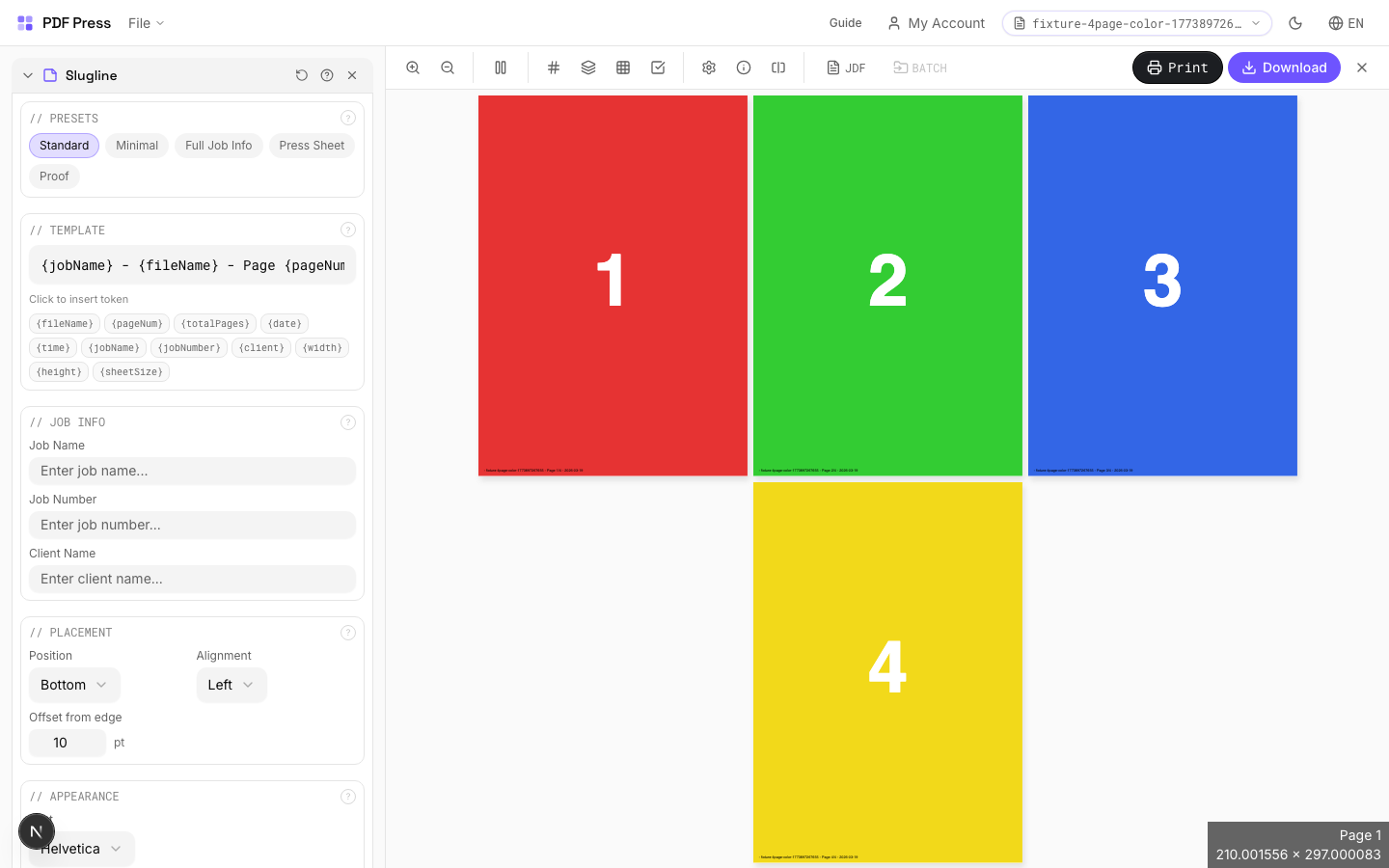
Direct answer
What is add slugline to PDF?
Adds job identification text in the slug area outside the trim edge: essential information for press operators and bindery.
Sluglines carry production metadata: job number, plate color, date, operator name, and instructions: printed outside the trim boundary where it's visible during production but removed after cutting. Supports dynamic variables that auto-fill with document properties. Standard practice in commercial printing to prevent mix-ups between jobs on the press floor.
How to use Slugline
Upload files
Start with your source PDF or image files. Processing happens locally in the browser.
Add Slugline
Configure Presets, Template, Job Info and any production settings that match the job.
Preview the result
Check page order, marks, scaling, and output geometry before committing the export.
Download output
Export the finished PDF for proofing, press, finishing, or another PDF Press step.
Best use cases
Key settings
Presets
Quick-start templates for common slugline formats: press sheet, job ticket, color proof, bindery, and more.
Each preset populates the template and job info fields with industry-standard slugline content. Customize further after selecting. Press preset includes job name, color, date; Bindery preset adds fold/bind instructions; Color proof preset includes proof number and approval fields.
Template
Compose the slug text using free text and dynamic variable tokens that auto-fill at output time.
Available tokens: [file-name] (source filename), [page-number] (current page), [page-count] (total pages), [sheet-number] (sheet index), [timestamp] (date/time). Combine freely: "Job: [file-name]:Sheet [sheet-number] of [sheet-count]:[timestamp:%Y-%m-%d]". Click variable buttons to insert tokens at the cursor position.
Job Info
Structured fields for common production details: job number, client, color, operator.
Fill in the fields relevant to your production workflow. These values are inserted into the template where the corresponding variables appear. Leave unused fields empty: they won't appear in the output. Job number and client name are the most commonly used fields in commercial print workflows.
Placement
Position the slugline along a page edge: typically the bottom or left side, outside the trim area.
Choose which edge of the page receives the slugline. The text is placed in the slug area beyond the bleed boundary, ensuring it's visible on the press sheet but trimmed away in the finished product. Left or bottom edges are most common. Rotation allows vertical text along side edges.
Appearance
Configure font, size, color, and style of the slugline text.
Standard PDF fonts are available (Helvetica, Times, Courier families). Size: 6–8pt is typical for sluglines: small enough not to waste paper but legible for press operators. Color: light gray (#999999) or process black for visibility without being obtrusive. Some shops prefer color-coded sluglines (cyan for job info, magenta for bindery notes).
Pages
Specify which pages to process using a range expression.
Examples: 'all' = every page. '1-5' = pages 1 through 5. '1,3,5' = specific pages. '1-10 odd' = odd pages 1-9. '2-20 even' = even pages 2-20. 'last' = last page. 'last-2' = third from last. Ranges are 1-based. Combine with commas: '1-5, 8, 12-15'.
Preview
Live rendering showing the slugline with sample values filled in, positioned on the page.
Expert tip
Put the job number, version, and date in the slug area. When proofs pile up on the press floor, the slugline is the only reliable way to identify which file version you are looking at.
Some RIPs clip content outside the MediaBox. Make sure sluglines fall inside the bleed or slug box, not beyond it.
Production recipes using Slugline
Full Press Marks
Complete press mark set for commercial offset production.
Gang Run with Full Marks
Ganged production sheet with complete finishing marks for commercial press.
Frequently asked questions
What is the Slugline tool used for?
Adds job identification text in the slug area outside the trim edge: essential information for press operators and bindery.
Who should use add slugline to PDF?
It is built for press rooms, prepress teams, and proofing departments. Common use cases include Commercial Print, Press Identification, Job Tracking, Bindery Instructions.
Do my PDF files upload to a server?
No. PDF Press runs the PDF processing workflow in your browser, so your files stay on your device.
Can I use Slugline with other PDF Press tools?
Yes. You can combine it with other PDF Press tools in a multi-step workflow, then preview and export the final PDF.