Add registration marks to PDFs
Use PDF Press to place alignment targets for color separation and press registration. It is built for offset, screen, flexo, and packaging print teams, with local browser processing and a live preview before export.
Direct answer
What is add registration marks to PDF?
Adds precision alignment targets for multi-color plate registration: ensures each ink layer prints in perfect alignment.
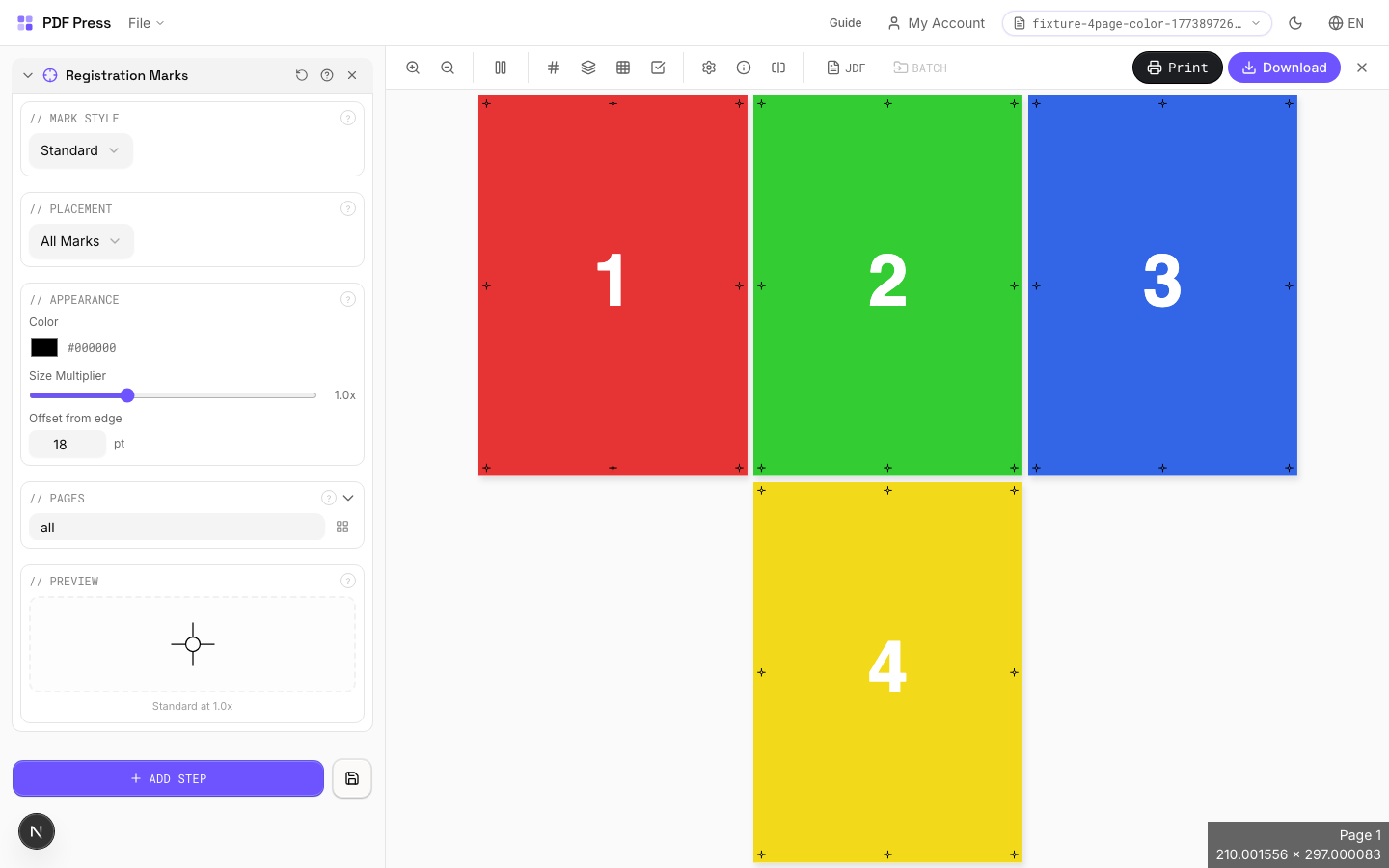
Registration marks are placed outside the trim area and used by press operators to align color separation plates (CMYK and spot colors). Each plate prints through a different impression cylinder; misalignment between plates causes visible color fringing. Standard target marks, crosshairs, and bullseyes provide visual and measurement references for achieving tight registration on press.
How to use Registration Marks
Upload files
Start with your source PDF or image files. Processing happens locally in the browser.
Add Registration Marks
Configure Mark Style, Placement, Appearance and any production settings that match the job.
Preview the result
Check page order, marks, scaling, and output geometry before committing the export.
Download output
Export the finished PDF for proofing, press, finishing, or another PDF Press step.
Best use cases
Key settings
Mark Style
Choose the registration mark design: standard target, crosshair, bullseye, or custom.
Standard target (concentric circles with crosshair): the universal registration mark recognized worldwide, compatible with all press equipment. Crosshair: simple plus-sign: lighter, takes less space, but provides less information about misregistration direction. Bullseye: concentric circles only: primarily decorative, rarely used in commercial production. Each style is printed in registration color (all plates), ensuring it appears identically on every separation.
Placement
Position marks along page edges: typically centered on each edge, outside the bleed area.
Standard placement: one mark centered on each of the four sheet edges. Marks should be positioned outside the bleed area but within the slug zone so they're visible on the press sheet. Distance from trim edge: typically 5–10mm (14–28pt). For large-format sheets, additional mid-span marks may improve registration accuracy.
Appearance
Configure mark size, line weight, and color.
Size: 5–10mm diameter is standard. Larger marks are easier to inspect but consume more slug space. Line weight: 0.25–0.5pt is typical: fine enough for precision but visible to the naked eye. Marks are always printed in registration color (all plates simultaneously), regardless of the color setting here: the color picker affects the on-screen preview appearance.
Pages
Specify which pages to process using a range expression.
Examples: 'all' = every page. '1-5' = pages 1 through 5. '1,3,5' = specific pages. '1-10 odd' = odd pages 1-9. '2-20 even' = even pages 2-20. 'last' = last page. 'last-2' = third from last. Ranges are 1-based. Combine with commas: '1-5, 8, 12-15'.
Preview
Live rendering showing mark positions and appearance on the page.
Expert tip
Place at least three registration targets: two on opposite edges for angle correction and one for position. This gives the press operator enough information to align all colour separations.
Registration marks print on all separations at 100%. Placing them in a high-coverage area will cause ink buildup.
Production recipes using Registration Marks
Playing Cards
Full deck of playing cards imposed for sheet-fed printing.
Sticker Sheets
Full sticker sheets with kiss-cut contours for peel-and-stick application.
Vinyl Stickers
Outdoor-rated vinyl stickers with laminate overprint and contour cut.
Sleeve / Band
Shrink sleeves or belly bands for product packaging.
Frequently asked questions
What is the Registration Marks tool used for?
Adds precision alignment targets for multi-color plate registration: ensures each ink layer prints in perfect alignment.
Who should use add registration marks to PDF?
It is built for offset, screen, flexo, and packaging print teams. Common use cases include Multi-Color Press, Color Separations, Proofing, Plate Alignment.
Do my PDF files upload to a server?
No. PDF Press runs the PDF processing workflow in your browser, so your files stay on your device.
Can I use Registration Marks with other PDF Press tools?
Yes. You can combine it with other PDF Press tools in a multi-step workflow, then preview and export the final PDF.