Add OMR marks to PDFs
Use PDF Press to place optical marks for automated finishing equipment. It is built for mailing, inserting, and high-volume finishing teams, with local browser processing and a live preview before export.
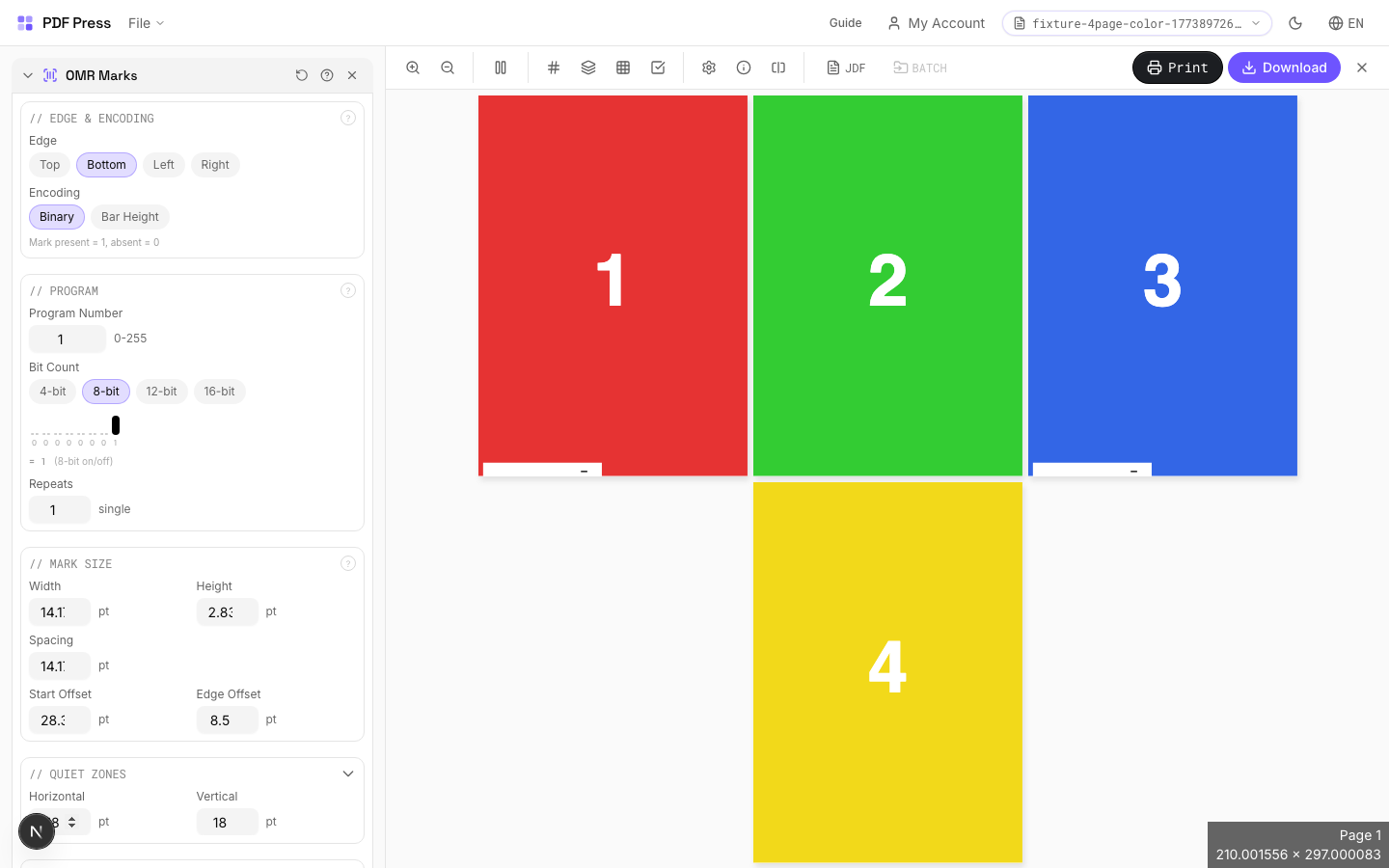
Direct answer
What is add OMR marks to PDF?
Adds optical machine-readable marks for automated finishing equipment: triggers fold, cut, collate, and stack operations.
OMR (Optical Mark Recognition) marks are printed along a sheet edge as a sequence of black bars that encode instructions for automated bindery equipment. As sheets pass through the machine at high speed, a sensor reads the mark pattern and triggers the correct finishing operation: fold, collate, trim, or divert. OMR patterns are manufacturer-specific and must match your bindery equipment's expected encoding.
How to use OMR Marks
Upload files
Start with your source PDF or image files. Processing happens locally in the browser.
Add OMR Marks
Configure Edge & Encoding, Program, Mark Size and any production settings that match the job.
Preview the result
Check page order, marks, scaling, and output geometry before committing the export.
Download output
Export the finished PDF for proofing, press, finishing, or another PDF Press step.
Best use cases
Key settings
Edge & Encoding
Select which sheet edge carries the OMR marks and which encoding standard to use.
Edge: choose left, right, top, or bottom: must match where your finishing machine's sensor reads. Most common: left edge for portrait sheets, top for landscape. Encoding: select the mark pattern standard matching your equipment. Common standards include: standard binary (most universal), Hunkeler, Müller Martini, Horizon, and Duplo. Each manufacturer expects a specific bar spacing, thickness, and interpretation scheme.
Program
Configure the operation sequence encoded in the OMR pattern: fold, collate, cut, stack signals.
Each mark position in the sequence encodes a specific instruction: start-of-set (beginning of a new finished product), collate (add this sheet to the current set), fold (trigger a fold operation), cut (trigger trimming), divert (send to a different output path). The program defines which operations fire at which sheet position in the production run. Match the program to your finishing equipment's setup.
Mark Size
Set the physical dimensions of each OMR bar: width, height, and spacing.
Bar width: typically 0.5–1mm: must be within your equipment sensor's detection range. Bar height (length of the printed bar): typically 5–10mm for reliable sensor reading. Spacing between bars: determined by the encoding standard. Consult your finishing equipment manual for exact specifications: incorrect dimensions will cause misreads or equipment errors.
Appearance
Configure mark color and print quality settings.
OMR marks must be solid black for reliable optical detection: colored or translucent marks will cause sensor failures. Mark density should be 100% (solid fill, no screening or halftone). Some equipment requires marks in a specific ink (e.g., process black K-only, not rich black) for consistent reflectance readings.
Pages
Specify which pages to process using a range expression.
Examples: 'all' = every page. '1-5' = pages 1 through 5. '1,3,5' = specific pages. '1-10 odd' = odd pages 1-9. '2-20 even' = even pages 2-20. 'last' = last page. 'last-2' = third from last. Ranges are 1-based. Combine with commas: '1-5, 8, 12-15'.
Expert tip
OMR (Optical Mark Recognition) marks drive automated inserting and finishing equipment. Match the mark pattern to your specific machine's protocol; most use a 3-channel system.
OMR marks are machine-specific. A pattern designed for one inserter model will not work on another. Confirm the spec with your finishing vendor before production.
Production recipes using OMR Marks
Perfect Bind Finishing Marks
Finishing marks for perfect binding operations with gathering verification.
Frequently asked questions
What is the OMR Marks tool used for?
Adds optical machine-readable marks for automated finishing equipment: triggers fold, cut, collate, and stack operations.
Who should use add OMR marks to PDF?
It is built for mailing, inserting, and high-volume finishing teams. Common use cases include Automated Bindery, High-Volume Production, Machine Finishing, Digital Print Workflows.
Do my PDF files upload to a server?
No. PDF Press runs the PDF processing workflow in your browser, so your files stay on your device.
Can I use OMR Marks with other PDF Press tools?
Yes. You can combine it with other PDF Press tools in a multi-step workflow, then preview and export the final PDF.