Sticker Sheet Prepress: Kiss-Cut, Die Lines & Nesting for Production
Complete guide to sticker sheet prepress for commercial printing. Learn sticker anatomy, kiss-cut vs thru-cut, die line setup, bleed requirements, nesting irregular shapes, material selection, and production workflows using browser-based tools.
Anatomy of a Sticker Sheet: Face Stock, Adhesive & Liner
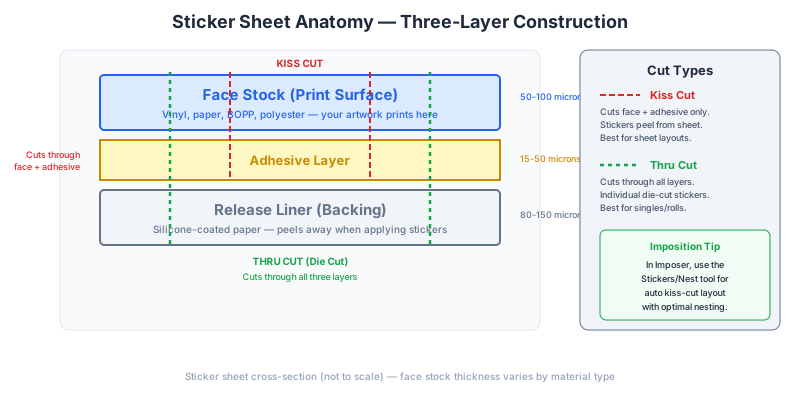
Before you impose a single sticker onto a press sheet, you need to understand what a sticker actually is from a manufacturing perspective. A sticker is not a single material -- it is a laminate of three distinct layers, each serving a specific function. Getting prepress right means understanding how the cutting, printing, and finishing processes interact with these layers.
Face stock is the top layer -- the printable surface that carries your artwork, branding, or messaging. Face stock is where ink, toner, or UV-curable inks are deposited during printing. The material can be paper (matte, gloss, kraft, or textured), vinyl (calendered or cast), BOPP (biaxially oriented polypropylene), polyester, or specialty films like holographic or metallic stock. The choice of face stock determines the sticker's appearance, durability, flexibility, and printability. Paper face stocks are cheap and easy to print but are not waterproof. Vinyl and BOPP are durable and weather-resistant but require compatible inks and may need surface treatment (corona treatment or primer) for adhesion.
Adhesive is the middle layer -- a pressure-sensitive adhesive (PSA) that bonds the sticker to its target surface. Adhesives are classified by permanence (permanent, removable, repositionable), tack level (high tack for rough surfaces, low tack for delicate surfaces), and chemistry (acrylic, rubber, silicone). The adhesive layer is pre-applied to the face stock by the material manufacturer and is typically 15-25 microns thick. For prepress purposes, the adhesive layer is invisible -- it does not affect print layout. However, the adhesive type determines whether kiss-cutting (cutting through the face stock and adhesive but not the liner) will work cleanly. Aggressive adhesives on thin face stocks can cause die-cut edges to lift or tunnel.
Liner (also called the release liner, backing, or carrier) is the bottom layer -- a silicone-coated paper or film that the sticker sits on before application. The silicone coating allows the sticker to peel away cleanly. Liners are typically 60-90gsm glassine paper (translucent, smooth) or 80-120gsm kraft paper (opaque, textured). For sticker sheet products where the customer peels individual stickers from a sheet, the liner is the structural backbone that holds everything together -- the kiss-cut stickers remain attached to the liner until the customer peels them.
In sticker sheet prepress, you are arranging artwork on the face stock layer, defining cut paths that penetrate through the face stock and adhesive (kiss-cut) or through all three layers (thru-cut), and accounting for the sheet size of the liner material that goes through the press. The three-layer structure is what makes sticker prepress fundamentally different from imposing business cards or flyers, where you are working with a single sheet of paper that gets cut all the way through.
Kiss-Cut vs Thru-Cut: When to Use Each Cutting Method
The single most important decision in sticker sheet production is the cutting method. Kiss-cut and thru-cut (also called full-cut or die-cut) serve different purposes, produce different products, and impose very different requirements on your layout.
Kiss-cut cuts through the face stock and adhesive but leaves the liner intact. The blade pressure is carefully calibrated so it penetrates exactly through the top two layers and stops at the silicone-coated surface of the liner. After kiss-cutting, the sticker remains attached to the liner sheet. The customer peels individual stickers from the backing. This is how sticker sheets, planner stickers, laptop sticker packs, and retail sticker products are made. Kiss-cutting requires precise blade depth control -- too shallow and the face stock does not separate cleanly; too deep and the liner is compromised, causing stickers to fall off during shipping or handling.
Thru-cut cuts through all three layers -- face stock, adhesive, and liner -- completely separating each sticker from the sheet. The result is individual die-cut stickers with no backing sheet connecting them. Thru-cut stickers are used for individual sticker products (peel-and-stick labels, bumper stickers, single vinyl decals) and for items that will be hand-applied one at a time. Thru-cut stickers are typically stacked and packaged individually or in counted bundles.
Choosing between kiss-cut and thru-cut depends on the end product:
- Sticker sheets (multiple designs on one sheet, customer peels individually): Kiss-cut
- Sticker packs (individual stickers bundled in a bag or sleeve): Thru-cut
- Product labels (applied by hand or machine to bottles, boxes, bags): Kiss-cut on rolls, thru-cut on sheets
- Bumper stickers, window decals (single large stickers): Thru-cut
- Planner stickers (multiple small stickers on a backing): Kiss-cut
- Packaging seals (individual seal stickers dispensed from a roll): Kiss-cut on rolls
Prepress implications: Kiss-cut layouts must account for a peeling margin around each sticker -- a border of exposed liner (typically 3-5mm) that gives the user something to grip when peeling. This margin area is part of the finished product and should be clean (no stray ink). Thru-cut layouts do not need peeling margins because the entire sticker is separated from the sheet, but they do need gutters between stickers for the die rule clearance (typically 2-3mm minimum). Kiss-cut stickers can be packed more tightly because the cutting does not fully separate them -- you can place kiss-cut stickers with as little as 1-2mm between cut paths. Thru-cut stickers need wider spacing because each sticker must be physically separated from its neighbors.
Die Line Creation: Spot Colors, Stroke Weight & Best Practices
A die line is the vector path that defines the cut boundary of a sticker. In production, the die line is the template that the die-cutting machine (flatbed, rotary, or laser) follows. Getting die lines right is critical -- an incorrectly specified die line can cause the entire production run to be scrapped. Die lines are not printed; they are used as cutting instructions only.
Spot color specification: Die lines must be placed on a dedicated spot color channel, separate from all print artwork. The industry standard is to create a spot color swatch named "Die Line," "CutContour," "Thru-Cut," or "Kiss-Cut" (the exact name depends on your production vendor). The color is typically set to a bright, visible hue -- magenta, cyan, or a bright green -- so it is clearly distinguishable from the artwork in proofs and previews. In your PDF, the die line appears as a visible colored path during design but is stripped out during RIP (raster image processing) and sent to the cutting system as a separate instruction layer.
Stroke weight: Die lines should be set to 0.25pt (0.088mm) stroke weight. This is thin enough to precisely define the cut path without adding visual bulk to proofs, but thick enough to be visible on screen and in printed proofs. Some production houses accept 0.5pt, but 0.25pt is the most universally accepted standard. The stroke must be centered on the intended cut path -- in most vector software, this means "align stroke to center" rather than inside or outside alignment.
Path requirements:
- Closed paths only. Every die line must be a closed vector path with no gaps. Open paths cause cutting errors because the die or laser does not know where to reconnect.
- No overlapping paths. Die lines must not cross over themselves or overlap with adjacent die lines. Overlapping cut paths cause double cuts, material tearing, and blade damage.
- Minimum radius for corners. Sharp interior corners (less than 1mm radius) are difficult to die-cut cleanly. Round all corners to at least 1mm radius for kiss-cut and 2mm radius for thru-cut. Laser cutters can handle sharper corners than mechanical dies.
- Minimum feature size. Fine details in die line shapes (narrow peninsulas, thin bridges) will not cut cleanly if they are smaller than 3mm. The physical die rule has width and cannot create features smaller than its own dimension.
- Overprint on. Set the die line spot color to overprint so it does not knock out underlying artwork in separations. This ensures the die line is purely instructional and does not create white gaps in the printed output.
Common die line shapes: Rectangular stickers use simple rounded-corner rectangles. Contour-cut stickers follow the outline of the artwork with a uniform offset (typically 1-2mm). Circle stickers use perfect circles. Custom shapes can be any closed vector path as long as they respect the minimum radius and feature size rules. For contour cuts, most designers trace the artwork outline using the offset path tool in Illustrator or Inkscape, then simplify the path to reduce node count (fewer nodes = smoother cuts).
Die line placement in your source PDF: The die line path should be in the same PDF as the artwork, on its designated spot color layer. When you import this PDF into PDF Press for prepress, the die line travels with the artwork through the nesting or grid layout process. PDF Press preserves all layers, spot colors, and vector paths during prepress, so your die lines remain intact and correctly positioned relative to the artwork in the output PDF.
Bleed Requirements for Sticker Printing
Bleed for stickers follows the same principle as bleed for any printed product -- extending artwork beyond the cut line to prevent white edges if the cut shifts slightly. However, sticker bleed has unique considerations that differ from standard paper printing.
Standard sticker bleed: 1-2mm. Unlike business cards and brochures that typically use 3mm bleed, stickers generally need only 1-2mm of bleed beyond the die line. The reason is precision: die-cutting (both kiss-cut and thru-cut) is more accurate than guillotine cutting. A rotary die cutter or flatbed digital cutter achieves positioning accuracy of 0.1-0.3mm, compared to 0.5-1mm for a guillotine cutter. With tighter cutting tolerances, less bleed is needed. That said, some vendors still request 3mm bleed for stickers, particularly for large-format or hand-cut jobs. Always confirm with your production vendor.
Bleed beyond the die line, not the trim box. For rectangular stickers, the die line and the trim box may coincide, making this distinction moot. But for contour-cut stickers (stickers cut to a custom shape following the artwork outline), the die line is an irregular path, and bleed must extend beyond this irregular path -- not beyond a rectangular trim box. This means your artwork must extend 1-2mm beyond the die line in every direction, following the contour of the die line shape. In practice, this means filling the bleed zone with extended background color or pattern.
Handling bleed for white-border stickers. Many sticker designs intentionally include a white border between the artwork and the die line -- the classic "sticker with a white outline" look. In this case, the white border itself acts as the bleed zone. The die line is offset 2-3mm outside the artwork edge, and the white space between artwork and die line provides tolerance for cutting variation. No separate bleed extension is needed because any cut shift lands in the white border area, which looks intentional.
Bleed for clear stickers. Clear (transparent) stickers printed on clear vinyl or BOPP present a special bleed challenge. On clear material, the "background" is whatever surface the sticker is applied to. If the artwork has a defined shape (e.g., a logo on a clear background), the die line follows the logo outline, and bleed means extending the logo artwork 1-2mm beyond the die line. Any white ink layer (used to add opacity behind the artwork on clear material) must also extend to the bleed edge, or the edge of the sticker will show a translucent fringe where the white ink stops short of the cut.
Bleed between adjacent stickers. On a sticker sheet with multiple kiss-cut stickers, the bleed zones of adjacent stickers may overlap in the space between die lines. This is acceptable and expected -- the material between die lines is the peeling margin (exposed liner) and will never be seen as a finished surface. However, if the sticker sheet itself is thru-cut to its final sheet size (a rectangular sheet of kiss-cut stickers), the outer stickers need bleed extending to the sheet edge, same as any other printed product.
When setting up sticker prepress in PDF Press, configure the bleed values in the Bleeds section of the Stickers/Nest tool or Grid tool. For contour-cut stickers with die lines embedded in the PDF, use "pull from document" to respect the PDF's built-in bleed box, or set a fixed bleed value of 1-2mm.
Sheet Layout Optimization: Grid vs Nesting
Sticker sheet layout is where material cost is won or lost. The difference between a naive grid arrangement and an optimized nested layout can be 15-30% in material savings -- significant when you are producing thousands of sheets on premium vinyl or specialty film. There are two fundamental approaches to arranging stickers on a sheet: grid layout and nesting.
Grid layout places stickers in uniform rows and columns. Each sticker occupies a rectangular cell, and the cells are evenly spaced across the sheet. Grid layout is simple, predictable, and works perfectly for rectangular stickers of uniform size. It is the standard method for product labels, address labels, and any sticker product where all stickers are identical rectangles. Grid layout is what the PDF Press Grid tool produces: you specify rows, columns, gutters, and paper size, and the tool tiles your sticker design across the sheet.
Nesting is an optimization technique for irregular shapes. Instead of placing stickers in a rigid grid, nesting algorithms rotate and interlock sticker shapes to minimize the wasted space between them. Think of it like a jigsaw puzzle -- circular stickers, for example, waste about 21% of material in a grid layout (the space in the corners between circles), but can waste as little as 9% in a hexagonal close-packed arrangement. For highly irregular shapes (animal silhouettes, complex logos, organic forms), nesting can dramatically improve material utilization.
When to use grid layout:
- All stickers are the same rectangular shape and size
- Stickers will be guillotine-cut (straight cuts only)
- Speed and simplicity are priorities over material optimization
- The sticker sheet is the finished product (customer-facing layout matters)
When to use nesting:
- Stickers are circular, oval, or irregularly shaped
- Multiple different sticker shapes and sizes are being placed on the same sheet
- Material cost is significant (premium vinyl, holographic film, specialty substrates)
- Production uses die-cutting or laser cutting that can follow arbitrary paths
- The sticker sheet is not customer-facing (stickers will be peeled and the sheet discarded)
Nesting with PDF Press: The Stickers/Nest tool in PDF Press provides automatic nesting for irregular sticker shapes. Upload your sticker PDF (with die lines on a spot color layer), configure the sheet size and spacing, and PDF Press's WASM-powered nesting engine calculates an optimized arrangement. The nesting algorithm considers rotation (0, 90, 180, 270 degrees by default, with optional arbitrary rotation), spacing between cut paths, and sheet margins. The result is a press-ready PDF with stickers nested for maximum material utilization. For complex shapes, nesting can fit 20-40% more stickers per sheet compared to a grid layout.
Mixed-size nesting: Many sticker sheet products contain stickers of different sizes and shapes -- a typical planner sticker sheet might have 15-30 unique sticker designs ranging from 10mm circles to 50mm illustrated stickers. Nesting these efficiently requires the algorithm to consider all shapes simultaneously, fitting small stickers into the gaps between large ones. This is a computationally intensive two-dimensional bin-packing problem, and it is where automated nesting tools provide the most value over manual layout.
Nesting Irregular Shapes: How the Algorithm Works
Nesting irregular shapes for sticker production is one of the most computationally challenging problems in prepress. The mathematical foundation is a variant of the two-dimensional irregular bin-packing problem, which is NP-hard -- meaning there is no known algorithm that guarantees finding the absolute best solution in reasonable time. Instead, nesting algorithms use heuristics and optimization strategies to find very good solutions quickly.
The no-fit polygon (NFP) approach: Most modern nesting algorithms, including the one used in PDF Press's Stickers/Nest tool, work by computing no-fit polygons. For any two shapes A and B, the no-fit polygon defines all positions where B can be placed relative to A without overlapping. By precomputing NFPs for all pairs of sticker shapes, the algorithm can rapidly test placement positions without performing expensive intersection checks on every iteration. NFP computation is done once as a preprocessing step and reused throughout the optimization.
Bottom-left fill heuristic: The most common placement strategy starts by sorting stickers from largest to smallest (by bounding box area or longest dimension). The algorithm places the first sticker at the bottom-left corner of the sheet, then places each subsequent sticker at the lowest, leftmost position that does not overlap any previously placed sticker (as determined by the NFP). This simple greedy approach produces surprisingly good results for most real-world sticker shapes and is fast enough for interactive preview.
Rotation optimization: Allowing stickers to rotate (typically in 90-degree increments) significantly improves nesting efficiency. A long, narrow sticker that wastes space in one orientation might fit perfectly in a gap when rotated 90 degrees. Some sticker designs can be rotated freely (abstract patterns, symmetrical logos), while others have a fixed orientation (text-heavy designs, designs with a clear "up" direction). PDF Press's nesting tool lets you specify which rotation angles are permitted.
Spacing and tool clearance: The nesting algorithm must maintain a minimum distance between adjacent cut paths. This spacing serves multiple purposes: die rule clearance (the physical width of the cutting blade or die), weeding clearance (space for removing waste material between stickers), and kiss-cut integrity (preventing adjacent cuts from weakening the liner). Typical minimum spacing is 2-3mm for die-cutting, 1-2mm for laser cutting, and 3-5mm for hand-weeding. The spacing is applied as a uniform buffer around each sticker's die line before nesting computation.
Sheet utilization metrics: After nesting, the key metric is sheet utilization percentage -- the total area of placed stickers divided by the total sheet area. For rectangular stickers in a grid, utilization typically ranges from 50-70%. For circular stickers in a grid, utilization is about 78% (pi/4). With nesting optimization, irregular shapes can achieve 70-85% utilization depending on shape complexity and the variety of sizes. Utilization above 85% is exceptional and usually only achievable with highly complementary shapes (concave shapes that interlock with convex shapes).
Practical nesting workflow in PDF Press:
- Prepare each sticker design as a separate page in a multi-page PDF, or as individual PDF files.
- Upload to PDF Press and select the Stickers/Nest tool.
- Set the sheet size (typically the press sheet or roll width for roll-fed production).
- Configure spacing (2-3mm for standard die-cutting).
- Set allowed rotations (0/90/180/270 for asymmetric designs, or all angles for symmetric designs).
- Set the number of copies needed for each sticker design.
- Review the nested preview -- PDF Press renders the layout in real time.
- Download the production-ready PDF with all stickers nested on the minimum number of sheets.
Material Selection: Vinyl, Paper, BOPP, Clear & Specialty Stocks
The choice of sticker material affects every aspect of the production workflow -- from printing method and ink selection to die-cutting parameters and prepress sheet sizes. Here is a comprehensive overview of the materials used in commercial sticker production and how each affects your prepress decisions.
Paper stickers are the most affordable and widely available option. Matte paper, gloss paper, and kraft paper are all used for stickers. Paper stickers accept all common printing methods (offset, digital toner, digital inkjet, screen print) and are easy to die-cut with standard tooling. They are not waterproof, UV-resistant, or particularly durable, making them suitable for indoor use, short-term applications, and products where cost matters more than longevity. Typical paper sticker weights range from 60gsm (thin, flexible) to 120gsm (thick, rigid). For prepress, paper sticker sheets use the same sheet sizes as standard paper printing -- A4, A3, SRA3, Letter, Tabloid.
Vinyl stickers are the workhorse of durable sticker production. Calendered vinyl (3-5 year outdoor durability) is the standard choice for most commercial stickers -- die-cut decals, bumper stickers, laptop stickers, and product labels. Cast vinyl (7-10 year durability, thinner, more conformable) is used for vehicle wraps, outdoor signage, and applications requiring the film to stretch over curves. Vinyl stickers are printed using eco-solvent, UV, or latex inks, which bond to the PVC substrate. For prepress, vinyl is typically available in roll form (widths from 13" to 64") or flat sheets (up to SRA3 or 13x19"). Roll-fed production uses a different prepress approach: stickers are arranged in a strip layout optimized for the roll width, rather than a sheet layout.
BOPP (biaxially oriented polypropylene) is increasingly popular as an alternative to vinyl. BOPP offers good durability, water resistance, and tear resistance at a lower cost than vinyl. It is available in white, clear, metallic silver, and metallic gold. BOPP is the preferred material for food and beverage labels, cosmetic labels, and health and beauty product stickers because it is FDA-compliant and resistant to oils and moisture. BOPP typically comes in roll form for label production or flat sheets for sheet-fed sticker printing.
Clear stickers (transparent vinyl or clear BOPP) require special prepress considerations. Because the background is transparent, any artwork that should be opaque needs a white ink layer printed behind it. This white layer is defined as a spot color channel in your PDF (typically named "White" or "RDG_White") and must be included in your source file before prepress. The prepress process must preserve this spot color layer through the layout -- PDF Press handles this correctly, maintaining all spot colors and layers during Grid or Nest operations. Clear stickers also require careful die line specification: the die line should follow the visible artwork boundary, not a rectangular bounding box, since the clear material outside the die line would be visible and aesthetically undesirable if thru-cut.
Specialty stocks:
- Holographic -- prismatic film that produces rainbow light effects. Printed with UV inks over the holographic surface. Available in patterns (dots, lines, stars) and plain (pillar of light). Expensive, used for premium branding and anti-counterfeiting.
- Metallic -- silver or gold brushed/mirror finish film. Creates a metallic appearance without foil stamping. Printed with UV or digital inks.
- Textured -- felt, linen, or eggshell surface textures. Used for luxury branding and artisanal products. Paper-based, not waterproof.
- Removable -- any face stock with removable adhesive. The adhesive peels cleanly without leaving residue. Used for temporary promotions, rental equipment labels, and any application where the sticker needs to be removed later.
- Fluorescent / neon -- bright colored stocks (yellow, orange, green, pink) used for attention-grabbing sale stickers and warning labels.
For prepress, the key consideration with specialty stocks is sheet size availability. Standard paper and vinyl are available in a wide range of sheet sizes, but holographic, metallic, and textured stocks may only be available in specific dimensions. Confirm your material supplier's sheet sizes before designing your prepress layout, and configure PDF Press with the exact available sheet dimensions.
White Ink Layers for Clear and Dark-Substrate Stickers
White ink is one of the most misunderstood aspects of sticker production, and getting it wrong at the prepress stage causes expensive reprints. Here is everything you need to know about setting up white ink for sticker sheets.
Why white ink is needed: Standard CMYK printing assumes a white substrate. Cyan, magenta, yellow, and black inks are transparent -- they absorb specific wavelengths of light and rely on the white paper beneath them to reflect the remaining light back to the viewer. On clear or dark-colored substrates, there is no white surface to reflect light, so CMYK inks appear dull, muddy, or invisible. A white ink layer printed beneath the CMYK artwork provides the opaque white base that CMYK inks need to reproduce colors accurately.
Types of white ink application:
- Flood white -- a solid white layer covering the entire sticker area behind all artwork. This makes the entire sticker opaque, as if it were printed on white material. Flood white is used when you want the sticker to look the same regardless of what surface it is applied to.
- Spot white -- white ink applied only behind specific elements (text, logos, key graphics) while leaving other areas transparent. This creates a mixed opacity effect where some parts of the sticker are opaque and others are see-through. Spot white is used for window decals, glass bottle labels, and designs that intentionally use transparency as a design element.
- No white -- for designs that are intentionally transparent or semi-transparent. The substrate color shows through and becomes part of the design. This works for simple shapes, bold graphics, and designs where the application surface is known and consistent.
Setting up white in your PDF: Create a spot color swatch named "White" (some vendors require "RDG_White," "SpotWhite," or a specific Pantone white). Place all white ink artwork on this spot color. The white artwork should be 0.1-0.2mm smaller than the CMYK artwork it sits behind (a slight inset called choke or trap) to prevent a visible white halo around the sticker if the white layer shifts slightly during printing. Set the white spot color to overprint in your PDF settings.
Print order matters: On most digital wide-format printers (Roland, Mimaki, Epson), white is printed first (under CMYK), and the print head makes two passes -- white first, then CMYK on top. On some UV flatbed printers, white can be printed first, last, or sandwiched. The print order affects how the white layer interacts with clear substrates and must be specified in the print RIP, not in the prepress layout. However, the prepress file must correctly include the white spot color channel so the RIP can extract and sequence it.
Prepress and white ink: When you impose sticker sheets containing white ink in PDF Press, the white spot color channel is preserved through the prepress process -- Grid, Nest, and all other tools maintain spot colors and their overprint settings. You do not need to do anything special in PDF Press for white ink; just ensure your source PDF has the white layer correctly defined as a spot color before importing.
Sheet Sizes and Roll Widths for Sticker Production
Choosing the right sheet size (or roll width) for your sticker production is a balance between material efficiency, press compatibility, and finishing equipment constraints. Different production methods work with different size ranges.
Sheet-fed digital printing (HP Indigo, Konica Minolta, Xerox iGen) typically handles sheets up to SRA3 (320 x 450mm / 12.6 x 17.7"). For sticker sheets that are the final product (retail sticker sheets sold as-is), common finished sizes are A4 (210 x 297mm), US Letter (215.9 x 279.4mm), or custom sizes like 4" x 6" for small sticker packs. The prepress sheet size should match the press's maximum sheet size, with the finished sticker sheets imposed on that press sheet, then cut apart.
Roll-fed digital printing (wide-format printers: Roland TrueVIS, Mimaki CJV, HP Latex) uses roll material in standard widths: 13" (330mm), 24" (610mm), 30" (762mm), 36" (914mm), 48" (1219mm), and 54" (1372mm). Stickers are arranged across the roll width, and the roll feeds continuously through the printer. Prepress for roll-fed production is linear -- stickers are arranged in rows that fill the roll width, and the roll length is determined by the total number of stickers. PDF Press's sheet width setting corresponds to the roll width, and the sheet height can be set to the desired cut length (how long each panel of the roll should be before cross-cutting).
Offset printing for high-volume sticker production uses standard press sheet sizes: B3 (353 x 500mm), B2 (500 x 707mm), B1 (707 x 1000mm), or North American equivalents (20 x 26", 23 x 35", 25 x 38"). Offset is cost-effective for runs of 5,000+ sheets and produces exceptional color quality, but requires plates and make-ready, making it uneconomical for short runs. The prepress layout must account for the press's gripper margin (typically 10-12mm on the leading edge) and color bar space (10-15mm along one edge).
Common sticker sheet sizes for retail products:
- 4" x 6" (102 x 152mm) -- small sticker sheets, peel-and-stick packs, shipping label inserts
- A5 (148 x 210mm) -- compact planner sticker sheets, journal stickers
- US Letter / A4 -- standard sticker sheets for retail, Etsy shops, planner stickers
- 8.5 x 5.5" (half Letter) -- common for sticker sheet packs inserted in packaging
- A3 / Tabloid -- large sticker sheets for craft projects, wall decal sheets
Prepress math: When imposing finished sticker sheets onto a press sheet, the calculation is the same as any step-and-repeat product. For example, if your finished sticker sheet is A5 (148 x 210mm) and your press sheet is SRA3 (320 x 450mm), you can fit 4 A5 sticker sheets per press sheet (2 columns x 2 rows) with adequate margins and gutters. This two-level prepress -- stickers imposed onto sticker sheets, then sticker sheets imposed onto press sheets -- is standard for retail sticker products.
Production Workflows: From Design to Finished Sticker Sheet
A complete sticker sheet production workflow has multiple stages, each with specific file requirements and quality checkpoints. Understanding the full workflow helps you prepare files correctly and avoid production delays.
Stage 1: Design and artwork preparation. Create sticker designs at 100% scale, at the exact trim size plus bleed. Include die lines on a spot color layer. Include white ink on a spot color layer if printing on clear or dark stock. Embed all fonts. Convert text to outlines if fonts cannot be embedded. Set color mode to CMYK for process printing, or CMYK plus spot colors if Pantone matching is required. Export as PDF/X-4 (the preferred standard for modern digital and offset workflows) at 300 DPI minimum for raster content.
Stage 2: Preflight and proofing. Run preflight checks on the source PDF: verify correct page dimensions, bleed presence, color mode, image resolution, font embedding, and spot color naming. Print a physical proof on plain paper to verify scale, color intent, and die line positioning. For production runs, request a press proof (wet proof for offset, printed sample for digital) on the actual sticker material.
Stage 3: Prepress. This is where PDF Press fits into the workflow. Arrange the sticker designs on the press sheet or roll width. For simple rectangular stickers, use the Grid tool for step-and-repeat layout. For irregular shapes or mixed sizes, use the Stickers/Nest tool for optimized nesting. Add Cutter Marks if the finishing equipment requires printed registration marks for the cutter. Configure bleed handling, gutter spacing, and sheet margins. Download the imposed PDF.
Stage 4: RIP and print. The imposed PDF is loaded into the printer's RIP (Raster Image Processor), which separates the file into print channels (CMYK + white + spot colors), generates halftone screens or renders at the printer's native resolution, and extracts die line data for the cutter. The RIP operator verifies the separation is correct (white under CMYK, die line on separate channel, no die line in the print channels) before sending to the printer.
Stage 5: Lamination (optional). After printing, sticker sheets may be laminated for protection, texture, and durability. Common laminates include gloss (high shine), matte (satin finish), and soft-touch (velvety texture). Lamination is applied as a clear film over the printed surface using heat and pressure. Lamination must be applied before die-cutting, as the laminate film must be cut along with the face stock. The laminate adds 10-25 microns to the total thickness, which may affect kiss-cut blade depth settings.
Stage 6: Die-cutting. The printed (and optionally laminated) sheets are fed through the die-cutting machine. For kiss-cut sticker sheets, the machine cuts through the face stock and adhesive but stops at the liner. For thru-cut individual stickers, the machine cuts through all layers. Digital flatbed cutters (Zund, Kongsberg) read printed registration marks to align the cut path with the printed artwork -- this is why cutter marks in your prepress are critical. Rotary die cutters use a cylindrical die that cuts as the material passes through, suitable for high-volume roll-fed production.
Stage 7: Weeding (for thru-cut). After thru-cut die-cutting, the waste material between stickers must be removed -- a process called weeding. For vinyl stickers, weeding is typically done by hand, peeling away the waste film and leaving the stickers on the liner. For paper stickers, waste may fall away during die-cutting if the die has ejection springs. Tight spacing between stickers makes weeding difficult; generous spacing (3-5mm) speeds up the weeding process significantly. This is a direct trade-off with material utilization.
Stage 8: Quality control and finishing. Inspect finished sticker sheets for print defects (color shifts, banding, missing ink), cutting accuracy (die line centered on artwork, no offset), adhesive quality (stickers peel cleanly, adhesive does not ooze at cut edges), and laminate adhesion (no bubbles, peeling, or delamination). Package sticker sheets in protective bags or rigid mailers to prevent damage during shipping.
Setting Up Sticker Sheets in PDF Press: Step-by-Step
Here is a complete walkthrough for creating production-ready sticker sheet layouts using PDF Press, covering both the Grid tool (for rectangular stickers) and the Stickers/Nest tool (for irregular shapes).
Rectangular stickers with the Grid tool:
- Upload your sticker PDF. Drag your single-page sticker design onto PDF Press. The PDF should be at the trim size plus bleed (e.g., a 2" x 2" square sticker with 2mm bleed would be a 53.1 x 53.1mm PDF).
- Select the Grid tool from the tool panel.
- Set rows and columns. For example, 5 rows x 4 columns = 20 stickers per sheet.
- Set the paper size. Choose your press sheet or finished sheet size. For retail sticker sheets, choose US Letter or A4. For press sheet prepress, choose your press's sheet size (SRA3, Tabloid, etc.).
- Configure gutters. Set horizontal and vertical gutters to your die-cutting clearance (typically 2-4mm for kiss-cut, 3-5mm for thru-cut).
- Set bleed mode. Choose "Pull from document" if your PDF includes bleed, or "Fixed" and enter your bleed distance (1-2mm).
- Preview and verify. The real-time preview shows exactly how stickers will be arranged on the sheet. Verify that stickers fit within the printable area with adequate margins.
- Add Cutter Marks (optional). Add a Cutter Marks step if your cutter requires printed registration marks.
- Download. Export the imposed PDF. The file is ready for RIP and printing.
Irregular stickers with the Stickers/Nest tool:
- Upload your sticker PDFs. Each sticker design should be a separate page in a multi-page PDF, or upload multiple single-page PDFs. Die lines should be included as spot color paths in each PDF.
- Select the Stickers/Nest tool.
- Set the sheet size. Enter the dimensions of your press sheet or roll width.
- Configure spacing. Set the minimum distance between sticker cut paths (2-3mm for standard production).
- Set copy counts. Specify how many copies of each sticker design you need.
- Choose rotation options. Enable 90-degree rotation for asymmetric designs, or allow all rotations for symmetric designs.
- Review the nested layout. PDF Press renders the optimized nesting arrangement in real time. Check material utilization, sticker count, and overall fit.
- Download. Export the nested PDF. Each sheet in the output contains the maximum number of stickers that fit the sheet dimensions.
Both workflows produce PDF output that preserves all layers, spot colors (including die line and white ink channels), and vector paths. The output is compatible with standard prepress RIPs and can be sent directly to digital printers with integrated cutting systems. For more detailed guidance on setting up specific sticker products, see the sticker sheet setup guide.
Tips, Tricks & Best Practices for Sticker Prepress
After years of sticker production experience, these are the practices that consistently prevent problems and save time.
1. Always include a proof sheet. Add one extra sheet to your production run that includes every sticker design at 100% scale with die lines visible. This proof sheet is your quality control reference -- the press operator and die-cutter operator can verify artwork, positioning, and cut accuracy against it.
2. Oversize your bleed slightly. If the vendor spec says 2mm bleed, add 3mm. The extra millimeter costs nothing (it is trim waste) but provides insurance against cutting drift, material stretch, and registration variation. There is no downside to excess bleed; there is significant downside to insufficient bleed.
3. Test kiss-cut depth on scrap first. Before running the full production, cut a test sheet on the same material at the same blade pressure settings. Verify that stickers peel cleanly, the liner is not scored, and the adhesive does not ooze at the cut edge. Kiss-cut depth varies with material thickness, liner type, and even ambient humidity -- always test.
4. Account for material shrinkage. Some vinyl and BOPP films shrink slightly during printing (heat from UV curing or lamination). If your production run is large and precision matters, print a registration target at the corners of the sheet and measure actual vs. expected dimensions after printing. Adjust prepress dimensions if needed.
5. Use back-slitting for easy peeling. Back-slitting (also called crack-back or split-back) cuts the liner material in a line behind the sticker, making it easier for the customer to peel. If your sticker sheets will include back-slitting, the slit positions must be defined in the prepress layout -- add slit lines as a separate spot color in your source PDF.
6. Mind the grain direction on paper stickers. Paper sticker material has a grain direction. Kiss-cut stickers cut against the grain may lift at the edges. If possible, orient elongated stickers parallel to the grain direction in your prepress layout.
7. Consider weeding time in your costing. For thru-cut stickers, weeding (removing waste between stickers) is a labor-intensive manual process. Tighter nesting saves material but increases weeding time. Factor in labor cost when optimizing material utilization -- sometimes 80% utilization with easy weeding is more economical than 90% utilization with tedious, slow weeding.
8. Use a dedicated sticker template for repeat orders. If you produce the same sticker sheet regularly (monthly subscription boxes, ongoing product labels), save the prepress layout as a recipe in PDF Press. Update only the artwork for each run, keeping the prepress settings constant. This eliminates setup errors on repeat orders.
Try it yourself
PDF Press runs entirely in your browser. Upload a PDF, pick a tool, and download the result — fast and private.
Open PDF Press22 Professional Imposition Tools
Every tool runs locally in your browser — fast, private, and professional-grade.
Frequently Asked Questions
Related Articles
Ready to try professional PDF imposition?
PDF Press is a browser-based imposition tool with 22 professional tools. No installation required.
Open PDF Press