Cut and Stack Imposition: Automatic Collation Through Smart Layout
Learn how cut and stack imposition arranges pages so that cutting the printed sheets produces pre-collated stacks. Covers the math, setup, common products like NCR forms and numbered tickets, and step-by-step PDF Press configuration.
What Is Cut and Stack Imposition?
Cut and stack imposition is an imposition technique where pages are arranged on press sheets so that when the printed sheets are stacked in order and then cut apart, the resulting piles are automatically in the correct sequential order -- no manual collation required. The cutting and stacking process itself performs the collation, which is why this method is sometimes called cut-stack-collate or automatic collation through layout.
Consider a simple example: you need to print 1,000 sequentially numbered raffle tickets, 4-up on a sheet. With standard step-and-repeat imposition, you would place tickets 1, 2, 3, 4 on every sheet, print 250 sheets, then cut them -- but each stack of 250 cut pieces would contain only one ticket number repeated 250 times. You would then need to manually interleave the four stacks to get a sequential run of 1-2-3-4-5-6-... etc.
With cut and stack imposition, the ticket numbering is distributed across sheets differently. Sheet 1 carries tickets 1, 251, 501, 751. Sheet 2 carries tickets 2, 252, 502, 752. Sheet 250 carries tickets 250, 500, 750, 1000. When you stack all 250 sheets in order and cut them into four piles, each pile contains 250 tickets in perfect sequential order: pile 1 is 1-250, pile 2 is 251-500, pile 3 is 501-750, pile 4 is 751-1000. Stack the four piles and you have tickets 1 through 1000 in order, with zero manual sorting.
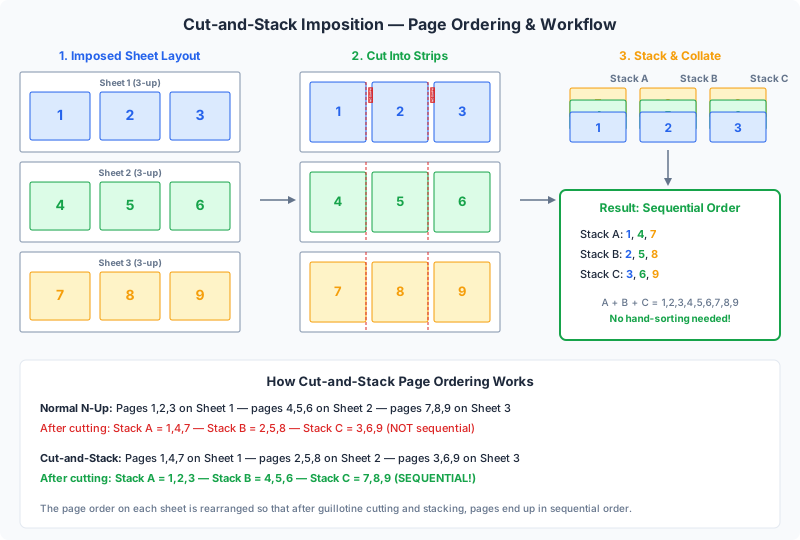
This technique saves enormous amounts of finishing time on jobs with sequential content. Without it, a 10,000-ticket job printed 8-up would require interleaving 8 stacks of 1,250 tickets each -- a tedious, error-prone process that can take hours. With cut and stack, the same job is sequentially ordered the moment the guillotine cutter completes its cuts.
How Cut and Stack Works: Step-by-Step Visual Walkthrough
Understanding cut and stack requires tracing the journey of a single page through the entire production process. Let us walk through a concrete example: 12 sequentially numbered coupons, printed 3-up on a sheet.
Step 1: Determine the layout. We are printing 3-up (3 items per sheet). With 12 total items, we need 12 / 3 = 4 sheets.
Step 2: Calculate the page placement. In cut and stack, the page numbers assigned to each position on a sheet follow a specific pattern. The items in each row (or column) are offset by the number of sheets:
| Sheet | Position 1 | Position 2 | Position 3 |
|---|---|---|---|
| Sheet 1 | 1 | 5 | 9 |
| Sheet 2 | 2 | 6 | 10 |
| Sheet 3 | 3 | 7 | 11 |
| Sheet 4 | 4 | 8 | 12 |
Step 3: Print. Print sheets 1 through 4 in order. The sheets come off the press already stacked in order (sheet 1 on top, sheet 4 on bottom).
Step 4: Cut. Make two cuts to separate the three positions. After cutting, you have three stacks:
- Stack 1 (left position): 1, 2, 3, 4 (top to bottom)
- Stack 2 (center position): 5, 6, 7, 8 (top to bottom)
- Stack 3 (right position): 9, 10, 11, 12 (top to bottom)
Step 5: Stack. Place Stack 2 on top of Stack 1 (or below, depending on reading direction), then Stack 3 on top of Stack 2. The combined stack reads 1 through 12 from top to bottom. No sorting required.
The key insight is that each position on the sheet represents a different "chapter" of the sequence, and the sheets within each position are in order because the press printed them in order. The cut-and-stack operation is essentially a physical implementation of the mathematical operation of interleaving multiple sorted subsequences.
The Math Behind Cut and Stack Page Placement
The page placement formula for cut and stack imposition is precise and predictable. Once you understand it, you can verify any cut-and-stack layout by inspection.
Variables:
- N = total number of items (e.g., 1000 tickets)
- U = number of items per sheet (n-up count, e.g., 4-up)
- S = number of sheets = N / U (e.g., 1000 / 4 = 250 sheets)
Page placement formula: For sheet number s (1-indexed) and position p (1-indexed), the page number assigned to that slot is:
page(s, p) = s + (p - 1) * S
Where s ranges from 1 to S, and p ranges from 1 to U.
Example verification: For 1000 tickets, 4-up, S = 250:
- Sheet 1, Position 1: 1 + (1-1) * 250 = 1
- Sheet 1, Position 2: 1 + (2-1) * 250 = 251
- Sheet 1, Position 3: 1 + (3-1) * 250 = 501
- Sheet 1, Position 4: 1 + (4-1) * 250 = 751
- Sheet 250, Position 1: 250 + (1-1) * 250 = 250
- Sheet 250, Position 2: 250 + (2-1) * 250 = 500
- Sheet 250, Position 3: 250 + (3-1) * 250 = 750
- Sheet 250, Position 4: 250 + (4-1) * 250 = 1000
After cutting, Stack 1 contains pages 1-250 (sheets 1-250, position 1), Stack 2 contains 251-500 (sheets 1-250, position 2), and so on. Each stack is in perfect sequential order because the sheets were printed in order.
Non-divisible totals: When N is not evenly divisible by U, the last sheet has empty positions. For 1003 tickets 4-up, you need ceil(1003/4) = 251 sheets. The last sheet (251) has tickets 251, 502, 753 in positions 1-3, and position 4 is empty (there is no ticket 1004). This means one cut stack has 251 items and the other three have 250 or 251, depending on where the empty position falls. Most imposition software fills the remaining positions with blank pages or repeated pages.
Two-dimensional grids: For 2D layouts (e.g., 2 columns x 3 rows = 6-up), the position numbering follows a consistent scan order -- typically left-to-right, top-to-bottom. The formula remains the same; only the physical position mapping changes. The stacking order after cutting depends on the cut sequence: horizontal cuts first, then vertical cuts, or vice versa. The imposition layout must match the intended cut sequence for the stacks to be in the correct order.
When to Use Cut and Stack Imposition
Cut and stack is not appropriate for every n-up job. It is specifically designed for jobs where the sequential order of the finished pieces matters and where manual collation would be impractical. Here are the primary use cases:
Sequentially numbered tickets. Raffle tickets, event admission tickets, parking permits, coat check tags -- any product with sequential numbering is a prime candidate for cut and stack. A 10,000-ticket job printed 8-up with standard step-and-repeat would produce 8 stacks of 1,250 tickets that must be manually interleaved. With cut and stack, the 8 stacks are each internally sequential and combine into a single sequential run.
NCR (carbonless) forms. Multi-part carbonless forms (2-part, 3-part, 4-part) require each set of parts to stay together. A 3-part NCR form printed 4-up on three different paper stocks (white top, canary middle, pink bottom) uses cut and stack to ensure that after cutting, each stack position has all three parts in order for collating into padded sets. For detailed ticket printing workflows, see our ticket printing guide.
Variable data with sequential numbering. Invoices, packing slips, and work orders with sequential numbering benefit from cut and stack when printed digitally. The variable data system assigns numbers according to the cut-and-stack formula so that the finished stacks are in order without post-print sorting.
Business cards with sequential codes. QR codes, unique URLs, or employee ID numbers on business cards can use cut and stack to keep the numbered cards in order after cutting. This matters for quality control and distribution -- it is much easier to verify sequential completeness (no missing cards) when the stack is in numerical order.
Playing cards and trading cards. Card games with numbered cards or specific deck orders use cut and stack to ensure that each cut stack corresponds to a contiguous range of the deck, simplifying assembly into complete decks.
Educational materials. Test answer sheets, numbered worksheets, and exam booklets with sequential identifiers use cut and stack when printed n-up to maintain numerical order for distribution and tracking.
When NOT to use cut and stack: If all copies on the sheet are identical (e.g., 500 copies of the same business card design), cut and stack adds no value -- standard step-and-repeat is simpler and produces the same result. Cut and stack is only meaningful when the content varies between items (typically by sequential number) and the output order matters.
Cut and Stack vs Manual Collation: Time and Cost Comparison
The value proposition of cut and stack becomes obvious when you compare it to the alternative: printing with standard n-up layout and then manually collating the cut stacks into sequential order.
Manual collation process (without cut and stack):
- Print all sheets with standard step-and-repeat (identical numbering per sheet position)
- Cut sheets into individual items
- Separate cut items into stacks by position (each stack has the same number repeated)
- Fan or interleave stacks to produce sequential order
- Verify sequential order (spot-check at minimum)
Cut and stack process:
- Print all sheets with cut-and-stack imposition
- Cut sheets into individual items
- Stack the cut piles -- they are already sequential
Time comparison for a 10,000-ticket job, 8-up:
| Step | Manual Collation | Cut and Stack |
|---|---|---|
| Printing | Same (1,250 sheets) | Same (1,250 sheets) |
| Cutting | Same (~15 min) | Same (~15 min) |
| Collation/sorting | 2-4 hours (manual) | 5 minutes (stacking) |
| Verification | 30-60 min (spot checks) | 5 min (check first/last) |
| Total finishing time | 3-5+ hours | ~25 minutes |
The collation step is where the dramatic savings occur. Manual interleaving of 8 stacks of 1,250 items requires handling each item individually -- picking one from each stack and placing them in a new combined stack. At a rate of approximately 500 items per hour (a realistic pace for careful hand collation with verification), this takes 2.5 hours for a single pass, plus additional time for error correction and spot-checking.
Error rate: Manual collation has a measurable error rate. In production environments, hand-collated jobs typically have a 1-3% error rate (items out of sequence) even with quality checks. Cut and stack has a 0% error rate for sequencing -- the math guarantees correct order as long as the imposition is set up correctly and the printed sheets are in order. The only point of failure is if sheets are shuffled out of order during printing, which is a press management issue rather than a collation issue.
Cost impact: At a bindery labor rate of $25-40/hour, the 3-5 hours saved on a 10,000-item job represents $75-200 in direct labor cost savings. For a commercial print shop running multiple such jobs per day, the annual savings are substantial. Additionally, eliminating manual collation errors avoids costly reprints and customer complaints.
Setting Up Cut and Stack in PDF Press (Monkey Tool)
In PDF Press, cut and stack imposition is handled by the Monkey tool -- named for the traditional printing term "monkey" which refers to the shingled, interleaved page arrangement that makes cut-and-stack collation possible. Here is how to set it up:
Step 1: Upload your PDF. Upload the PDF containing all sequentially numbered pages. For a 1,000-ticket job, this should be a 1,000-page PDF with one ticket per page. If you are using variable data software to generate the sequential numbering, export the complete sequence as a single PDF.
Step 2: Add the Monkey tool. From the tool panel, select Monkey (listed under Layout tools). The Monkey tool arranges pages in cut-and-stack order on the output sheets.
Step 3: Configure the layout.
- Columns and rows: Set the number of columns and rows for your n-up layout. For 4-up in a 2x2 grid, set columns=2, rows=2. For 8-up in a 2x4 grid, set columns=2, rows=4.
- Paper size: Select the press sheet size. The tool will show you whether your items fit on the selected sheet with the given grid configuration.
- Page order direction: Choose the reading order -- left-to-right and top-to-bottom is standard. This determines the position numbering for the cut-and-stack formula and must match your intended cut sequence.
Step 4: Verify in preview. The preview shows each output sheet with page numbers in each position. Verify the pattern: Sheet 1 should show pages that are evenly spaced (e.g., 1, 251, 501, 751 for a 4-up layout of 1000 pages). The spacing between position values should equal the total number of sheets.
Step 5: Add finishing marks. Optionally add the Cutter Marks tool after the Monkey tool to add cut marks, registration marks, and trim guides. These marks guide the guillotine cutter operator in making precise cuts that align with the grid positions.
Step 6: Download and print. Download the imposed PDF. Each page of the output PDF is one press sheet. Print the sheets in order (page 1 first, last page last) and keep them stacked in print order. After cutting, the stacks will be in sequential order.
Pro tips:
- Always print a short proof run (first 5-10 sheets) and physically cut them to verify the sequence before committing to the full run.
- If your press reverses the sheet order (some printers output face-down, putting the last sheet on top), reverse the stack before cutting, or adjust the Monkey tool's sheet ordering to compensate.
- For double-sided items, ensure the front and back pages are correctly paired -- the Monkey tool handles this when your input PDF alternates front/back pages.
Paper Savings and Efficiency Gains
Cut and stack imposition does not inherently save paper compared to standard n-up -- both techniques use the same number of sheets for the same n-up count. However, cut and stack enables workflow optimizations that indirectly reduce waste and cost:
Elimination of make-ready waste from collation. Manual collation operations generate waste from mis-collated stacks that must be discarded or re-sorted. A typical waste rate of 1-3% on a 10,000-item job means 100-300 wasted items. Cut and stack eliminates this waste entirely because sequencing is guaranteed by the layout math.
Reduced overrun requirements. Print shops typically add 3-5% overruns to account for finishing waste. When manual collation is part of the finishing process, this overrun percentage is higher (often 5-8%) because collation errors consume items. With cut and stack, the overrun can be reduced to the base cutting and handling waste (2-3%), saving paper on every job.
Faster throughput enables tighter scheduling. When finishing time drops from 3-5 hours to 25 minutes, the press and cutter can move to the next job sooner. This does not save paper on the individual job, but it improves overall shop throughput and reduces the per-job overhead cost.
Higher n-up counts become practical. Without cut and stack, very high n-up counts (12-up, 16-up) create a collation nightmare -- interleaving 16 stacks manually is extremely time-consuming and error-prone. With cut and stack, 16-up is no harder to collate than 4-up (just more stacks to combine). This means you can confidently choose higher n-up counts to maximize paper utilization, reducing the total number of sheets and the per-item paper cost.
Quantified paper savings example: Consider a 5,000-ticket job. At 4-up, you need 1,250 sheets. At 8-up, you need 625 sheets -- a 50% reduction in paper. Without cut and stack, 8-up might be avoided because collating 8 stacks is too labor-intensive. With cut and stack, 8-up is just as easy to finish as 4-up, so the shop confidently chooses the higher n-up count and saves 625 sheets. On 100-job annual volume, that is 62,500 sheets saved -- approximately 12.5 reams of paper.
Common Products That Use Cut and Stack
Cut and stack is a workhorse technique across many product categories. Here are the most common applications with specific production notes for each:
Raffle tickets and event admission tickets. The classic cut-and-stack product. Tickets are sequentially numbered, often with matching stubs, and printed 4-up to 10-up depending on ticket size. After cutting, the stacks combine into sequential rolls or pads. Many ticket jobs also require perforation between the stub and the ticket body -- ensure the perforation line aligns with the imposition grid. For a complete ticket production walkthrough, see our ticket printing guide.
NCR (carbonless copy) forms. Multi-part forms (2-part, 3-part, 4-part) printed on carbonless paper. Each part is a different paper color (white, canary, pink, gold). Cut and stack ensures that when all parts are cut and stacked, each form set has all its parts in order. NCR forms are typically padded after collation -- glued at one edge into pads of 25-100 sets. The cut-and-stack sequence must account for the multiple paper stocks, with each stock's sheets maintaining their internal cut-and-stack order.
Numbered exam booklets and answer sheets. Educational institutions print sequentially numbered test materials for tracking and security. Cut and stack ensures booklets or sheets can be distributed in numerical order, simplifying attendance verification and anti-cheating measures. Typical layout: 2-up on tabloid (11x17 in) or A3 sheets.
Parking permits and hang tags. Sequentially numbered for tracking and auditing. Printed 4-up to 8-up on heavy stock (200+ gsm), often with sequential barcodes or QR codes in addition to visible numbers. Cut and stack keeps the sequential order intact for packaging and distribution to parking lot operators.
Coupons and vouchers. When coupons have unique codes or sequential numbers for redemption tracking, cut and stack maintains code order after cutting. This is critical for distribution to different retail locations -- sequential ranges can be assigned to specific stores for tracking purposes.
Playing cards and trading cards. Each card in a deck has a unique identity. Printing cards n-up with cut and stack ensures that cut stacks correspond to contiguous ranges of the card set, simplifying assembly into complete decks. A standard 52-card deck printed 10-up on 6 sheets (with 8 blanks on the last sheet) uses cut and stack to produce 10 stacks that combine into deck order.
Lottery and scratch-off tickets. These require strict sequential control for regulatory compliance. Cut and stack with sequential numbering ensures that every ticket in a printed batch is accounted for, in order, with no gaps. Security printing adds additional requirements (UV ink, microtext, tamper-evident features) but the imposition logic is standard cut and stack.
Labels with sequential identifiers. Asset tags, inventory labels, and tracking labels with sequential numbers or barcodes. Printed on adhesive stock 8-up to 30-up, cut and stacked so that each label stack is sequential for easy application during inventory cataloging or product labeling.
Cut and Stack with Double-Sided Printing
Double-sided (duplex) cut and stack adds a layer of complexity because the front and back of each item must remain aligned through the cutting process. The page placement formula extends naturally, but registration between front and back becomes critical.
Page pairing: For a double-sided ticket with a front and back, the input PDF should have pages in alternating order: page 1 (ticket 1 front), page 2 (ticket 1 back), page 3 (ticket 2 front), page 4 (ticket 2 back), etc. The Monkey tool in PDF Press pairs fronts and backs automatically when given this input format.
Work-and-turn vs. sheetwise: Double-sided cut-and-stack jobs can use either work-and-turn or sheetwise printing:
- Sheetwise: Side A and side B of the press sheet are printed from two different plates (or two different digital impressions). Each side has its own cut-and-stack layout, and the front/back items must align when the sheet is flipped. This is the standard approach for digital printing.
- Work-and-turn: Both sides are printed on the same large sheet, which is then flipped end-for-end and printed again. After cutting the sheet in half, each half has the same content on both sides. This technique halves the number of plates needed on offset but requires the imposition to account for the flip axis.
Registration: Front-to-back registration must be precise for double-sided cut and stack. If the front and back are even slightly misaligned, the cut line (which is set based on the front) will be off-center on the back. A 1 mm front-to-back registration error is common on sheet-fed offset and acceptable for most products. For tighter registration requirements (e.g., cards with border designs on both sides), consider using thicker gripper margins and individual cut marks on both sides of the sheet.
Numbering alignment: On double-sided numbered items, the sequential number typically appears on both the front and back. The cut-and-stack formula ensures the same number appears on both sides of the same item as long as the input PDF pages are correctly paired. Verify this in the PDF Press preview by checking that the front and back page numbers for each grid position form a correct pair (e.g., front page 1 + back page 2 = ticket 1, front page 3 + back page 4 = ticket 2).
Troubleshooting Cut and Stack Jobs
Even with correct imposition, cut-and-stack jobs can go wrong during production. Here are the most common problems and their solutions:
Problem: Stacks are in reverse order after cutting.
- Cause: The printer output the sheets face-down, reversing the stack order. Many laser printers and digital presses output pages face-down into the output tray, which means the last sheet printed is on the bottom.
- Solution: Either reverse the physical stack before cutting, or enable "reverse page order" in the print dialog so that the last sheet prints first and ends up on the bottom of the face-down stack (making the first sheet end up on top). In PDF Press, you can also reverse the output sheet order before downloading.
Problem: Sequence is correct within stacks but stacks combine in the wrong order.
- Cause: The stacking direction after cutting does not match the position numbering in the imposition layout. If the imposition numbers positions left-to-right but the operator stacks cut piles right-to-left, the sequence will be scrambled.
- Solution: Document the stacking order on the job ticket. Include a diagram showing which cut pile goes on top of which. Better yet, number the positions on the cut marks (e.g., "Stack 1", "Stack 2") so the cutter operator knows the combining order.
Problem: Sheets were shuffled during printing or handling.
- Cause: A paper jam caused sheets to be re-fed out of order, or the printed stack was accidentally dropped and reassembled out of order.
- Solution: The easiest prevention is to print sequential sheet marks (small numbers or barcodes outside the trim area on each sheet). If sheets are shuffled, these marks allow re-ordering before cutting. Without sheet marks, a shuffled stack produces scrambled sequences in every cut pile -- there is no easy fix other than reprinting.
Problem: Last sheet has blank positions, causing uneven stack heights.
- Cause: The total item count is not evenly divisible by the n-up count, so the last sheet has empty positions.
- Solution: This is normal and expected. The stacks from positions that have items on every sheet will be one item taller than stacks from positions that are empty on the last sheet. Account for this when combining stacks -- the shorter stacks go at the end of the sequence.
Problem: Front-to-back alignment is off on double-sided items.
- Cause: Poor front-to-back registration on the press, or incorrect page pairing in the input PDF.
- Solution: Verify page pairing in PDF Press's preview. For registration issues, increase the gripper margin and add back-side cut marks. If registration cannot be improved, increase the item bleed area so that minor misalignment does not show as a visible shift.
Advanced Cut and Stack Techniques
Beyond basic sequential numbering, cut and stack supports several advanced production scenarios:
Multi-part collation (NCR padded sets). For a 3-part NCR form printed 4-up, the workflow involves three separate paper stocks, each with its own cut-and-stack imposition. The key is that all three stocks use the same cut-and-stack formula, so after cutting, Stack 1 from the white sheet, Stack 1 from the canary sheet, and Stack 1 from the pink sheet all contain the same form numbers in the same order. Interleaving these three stacks by color (one white, one canary, one pink, repeated) produces correctly collated 3-part sets ready for padding.
Gang cut and stack (multiple different items). When you need several different sequentially numbered products on the same press sheet (e.g., admission tickets and drink tickets for the same event), you can assign different grid positions to different products. Positions 1-2 carry admission tickets 1-500 in cut-and-stack order, and positions 3-4 carry drink tickets 1-500 in cut-and-stack order. After cutting, you have two sets of sequential stacks -- one for each product -- from a single print run.
Versioned cut and stack. For jobs with multiple versions (e.g., an exam with Version A and Version B), alternating versions can be integrated into the cut-and-stack layout. Odd-numbered items are Version A, even-numbered items are Version B. After cut and stack, the combined sequence alternates A-B-A-B, which can be useful for distributing alternating versions to adjacent seats in an exam hall.
Roll-to-sheet conversion. For products that ultimately go onto rolls (ticket rolls, label rolls), cut-and-stack imposition on sheets can be an intermediate step. After cut and stack produces sequential stacks, the stacks are fed into a roll winding machine that applies them to a roll in sequential order. This is an alternative to direct roll-fed printing for shops that do not have roll-fed equipment.
Integration with signature printing: In booklet production, cut and stack principles apply when printing multiple booklet covers on a single sheet. If each booklet has a unique cover (personalized, numbered, or versioned), the covers are imposed in cut-and-stack order so that after cutting, each stack of covers is in the correct sequence to pair with the corresponding booklet bodies coming off the gathering machine.
Quality control numbering. Even for non-sequential products, some shops apply a cut-and-stack layout with invisible (UV or infrared) sequential numbers outside the trim area. These hidden numbers allow quality control personnel to trace any defective item back to its exact position on the original press sheet and the specific sheet number in the run, identifying whether the defect is position-specific (a plate issue) or sheet-specific (a paper or ink issue).
Try it yourself
PDF Press runs entirely in your browser. Upload a PDF, pick a tool, and download the result — fast and private.
Open PDF Press22 Professional Imposition Tools
Every tool runs locally in your browser — fast, private, and professional-grade.
Frequently Asked Questions
Related Articles
Ready to try professional PDF imposition?
PDF Press is a browser-based imposition tool with 22 professional tools. No installation required.
Open PDF Press