How to Add Crop Marks to a PDF: Step-by-Step for Any Tool
Learn how to add crop marks (trim marks) to a PDF for professional printing. Covers mark specifications, setup in InDesign, Illustrator, and Acrobat, plus PDF Press's automatic mark generation with full customization.
What Are Crop Marks and Why Do You Need Them?
Crop marks (also called trim marks) are short lines printed at the corners of a page that indicate exactly where the paper should be cut to produce the finished size. They are the most fundamental type of printer's mark -- the physical bridge between the digital design on screen and the cut piece in hand.
When a print job is produced, the content is typically printed on a sheet larger than the finished piece. A business card designed at 89 x 51mm might be printed on an A4 sheet (210 x 297mm), with multiple cards per sheet or a single card centered with wide margins. The guillotine operator needs to know precisely where to make each cut -- and that's what crop marks provide. Without them, the operator must guess or measure, introducing human error into every cut.
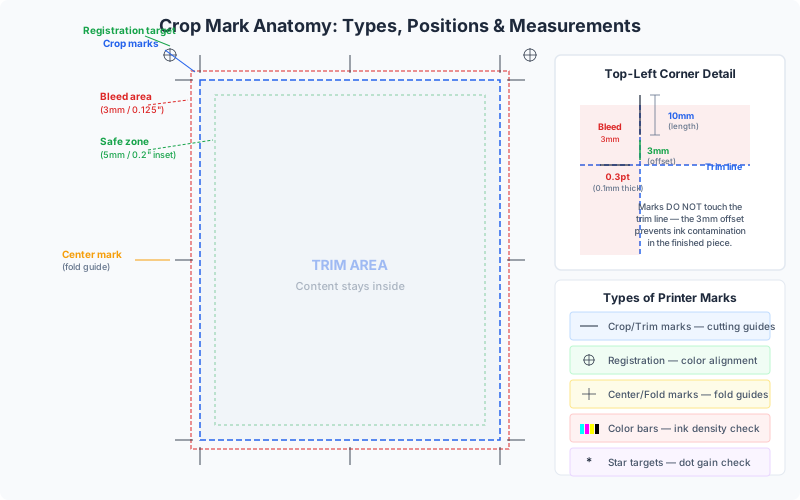
When crop marks are required:
- Commercial print jobs: Virtually every job sent to a commercial printer needs crop marks. The printer's prepress department uses them during imposition, and the finishing department uses them for trimming.
- Multi-up layouts: When multiple copies of a design are printed on a single sheet (e.g., 10-up business cards), crop marks between each item guide the cutter.
- Booklets and signatures: After printing and folding, signatures are trimmed on three sides (head, foot, and face). Crop marks indicate the trim positions.
- Large-format prints: Posters and banners printed with extra material for finishing (hemming, mounting, framing) need marks to show the final visible area.
When crop marks are NOT needed:
- Direct-to-size desktop printing: If you're printing an A4 document on A4 paper with no trimming, crop marks would print on the page itself and are unnecessary.
- Digital proofing: Screen proofs and digital review PDFs don't need marks (though some workflows include them for reference).
- Print-on-demand services: Most POD platforms (Amazon KDP, Lulu, Blurb) handle marks internally during their automated imposition -- you submit files without marks, and their system adds them.
Understanding when and why crop marks are needed helps you avoid two common errors: forgetting marks on files that need them (causing misaligned trims) and including marks on files that don't need them (causing marks to print in the visible area of your piece).
Crop Mark Specifications: Dimensions and Standards
Crop marks follow industry conventions that have been refined over decades of commercial printing. While there is no single global standard enforced by a standards body, the specifications are remarkably consistent across the industry:
Standard crop mark specifications:
| Property | Standard Value | Acceptable Range |
|---|---|---|
| Line weight (stroke) | 0.3pt (0.1mm) | 0.25-0.5pt |
| Offset from trim | 3mm (8.5pt) | 2-5mm |
| Line length | 5mm (14pt) | 3-10mm |
| Color | Registration black | 100% K or Registration |
Line weight (0.3pt): Crop mark lines must be thin enough to provide a precise cutting guide but thick enough to be visible to the operator. A 0.3pt (approximately 0.1mm) line is the sweet spot -- visible under production lighting, but thin enough that a 0.1mm cutting variance doesn't leave a visible mark remnant on the finished piece. Thicker lines (above 0.5pt) create ambiguity about the exact cut position and can leave ink traces after trimming.
Offset from trim (3mm): Crop marks must not be printed inside the bleed zone. If they were, a trim that lands slightly inside the intended line would leave a crop mark fragment visible on the finished piece. The 3mm offset places the start of each mark line outside the standard 3mm bleed zone. For jobs with 5mm bleed (large format), the offset should be increased to 5mm or more.
Line length (5mm): The mark must be long enough to be easily located by the operator and to guide the blade, but not so long that it interferes with adjacent marks or content. Five millimeters provides clear visibility without cluttering the sheet.
Registration black vs process black: Crop marks should be printed in registration color (100% of all CMYK inks), not process black (100% K only). Registration color ensures the marks appear on every separation plate, which is critical for multi-color offset printing where each plate must be aligned. On a digital press, the distinction is less important since all colors are applied in a single pass, but using registration color is still best practice for compatibility.
Corner mark anatomy: Each corner of the trim area has two mark lines -- one horizontal and one vertical. The lines extend outward from the corner, perpendicular to the edges they indicate. The lines do NOT cross (they have a gap at the corner equal to the offset distance). This gap prevents ink buildup at the corner and avoids ambiguity about the exact corner position.
These specifications apply to the most common mark style, known as Western-style crop marks or standard trim marks. Some Japanese and Asian printing workflows use a different mark style with circles at the corners instead of lines. PDF Press supports multiple mark styles including line, circle, and cross marks.
Types of Printer Marks: Beyond Crop Marks
Crop marks are the most common type of printer mark, but they are part of a larger family of marks used in professional print production. Understanding each type helps you communicate with printers and configure your imposition software correctly.
1. Crop marks (trim marks): Short lines at the four corners of the page indicating where to cut. These are the subject of this guide. They answer the question: "Where should I trim?"
2. Registration marks: Small crosshair targets (typically a circle with a crosshair) printed on each separation plate. During printing, the press operator aligns all plates by superimposing these marks -- if the crosshairs from all four CMYK plates overlap perfectly, the job is in register. Registration marks are placed outside the trim area, usually on all four sides of the sheet. They answer the question: "Are my color plates aligned?"
3. Color bars (control strips): Rows of small color patches printed along the edge of the sheet. They contain solid patches (100% C, 100% M, 100% Y, 100% K), overprint patches (C+M, C+Y, M+Y, C+M+Y), tint patches (25%, 50%, 75%), and gray balance patches. The press operator and quality control team use a densitometer to measure these patches and verify that ink density and color balance are within specification throughout the press run. They answer the question: "Is my color accurate and consistent?"
4. Fold marks: Short dashed or dotted lines that indicate where the paper should be folded. Used for brochures, booklets, greeting cards, and any product that requires folding after printing. Fold marks are placed at the head and foot of the sheet, at the fold position. They answer the question: "Where should I fold?"
5. Center marks (bull's-eye marks): Small crosshair marks at the center of each edge of the sheet. They are used to verify sheet centering during printing and finishing. On a folding machine, center marks help the operator align the sheet for accurate folding. They answer the question: "Is the content centered on the sheet?"
6. Bleed marks: Similar to crop marks but positioned at the bleed boundary instead of the trim boundary. Less commonly used than crop marks, they indicate the extent of the bleed zone. Some workflows include both crop marks (at the trim) and bleed marks (at the bleed edge) for maximum clarity.
7. Slug marks / job information: Text printed in the slug area (beyond the bleed) containing job metadata -- file name, date, time, plate name, color profile, operator notes. Not technically "marks" but part of the marks-and-slug ecosystem. They answer the question: "What job is this, and what are its specifications?"
Which marks do you need? For most commercial print jobs, you need crop marks and registration marks at minimum. Color bars are standard for offset printing and recommended for long digital runs. Fold marks are needed only for folded products. Center marks and bleed marks are optional but helpful for complex finishing workflows. When in doubt, include all marks -- the printer can ignore what they don't need, but they cannot add marks that are missing from your PDF.
Adding Crop Marks in Adobe InDesign
InDesign provides two ways to include crop marks: during PDF export (the standard method) and during direct printing. Both produce standards-compliant marks positioned correctly relative to the TrimBox.
Method 1: Include crop marks in exported PDF (recommended).
- Go to File > Export and choose Adobe PDF (Print).
- Select a press-quality preset (e.g., "Press Quality" or "PDF/X-1a").
- In the left panel, click "Marks and Bleeds."
- Under "Marks," check "Crop Marks". You can also enable other mark types:
- Bleed Marks: Shows the bleed boundary (optional).
- Registration Marks: Adds crosshair targets for plate alignment.
- Colour Bars: Adds a CMYK control strip.
- Page Information: Adds filename, date, and plate info in the slug.
- Set the Offset value (default 2.117mm in InDesign -- consider increasing to 3mm to clear the standard bleed zone).
- Under "Bleed and Slug," ensure bleed is set correctly (check "Use Document Bleed Settings" or enter values manually).
- Click Export.
Critical detail -- mark offset vs bleed: InDesign's default mark offset (2.117mm) is smaller than the standard 3mm bleed. This means that with 3mm bleed and default offset, the crop marks will overlap the bleed zone -- the inner portion of the mark line will be printed on top of bleed content. While this is generally acceptable (the marks are in the waste area), some prepress workflows prefer marks fully outside the bleed. Increase the offset to 3mm or more if your printer requires marks outside the bleed zone.
Method 2: Include crop marks during direct printing.
- Go to File > Print.
- In the left panel, click "Marks and Bleed."
- Check "Crop Marks" and any other desired marks.
- Set the mark offset and bleed values.
- Ensure the paper size is large enough to accommodate the page content, bleed, marks, and their offset. InDesign will warn you if marks will be clipped by the paper edge.
- Click Print.
InDesign mark style: InDesign uses the standard Western-style crop marks: two perpendicular lines at each corner, 0.25pt weight, with a gap at the corner equal to the offset distance. The mark length is fixed at approximately 6mm. These specifications are not user-configurable in InDesign -- for custom mark dimensions, use a dedicated imposition tool like PDF Press.
Tip for multi-page documents: When exporting a multi-page InDesign document with crop marks, the marks are applied to every page individually. Each page gets its own set of corner marks. This is correct for single-page products (flyers, posters), but for booklets and signatures, you typically want marks applied to the imposed sheet, not to individual pages. For booklet work, export your pages without marks and let the imposition software add marks to the imposed layout.
Adding Crop Marks in Adobe Illustrator
Illustrator offers crop marks through its PDF export dialog (similar to InDesign) and also through a legacy "Create Trim Marks" feature that creates mark objects directly on the artboard.
Method 1: Include marks in PDF export (recommended).
- Go to File > Save As (or Save a Copy) and choose Adobe PDF (.pdf).
- In the Save Adobe PDF dialog, click "Marks and Bleeds" in the left panel.
- Under "Marks," check "Trim Marks". (Illustrator uses "Trim Marks" instead of InDesign's "Crop Marks" -- they are the same thing.)
- Configure additional marks as needed: Registration Marks, Colour Bars, Page Information.
- Set the Trim Mark Weight (default 0.25pt -- the standard range is 0.25-0.5pt).
- Set the Offset (distance from trim to start of mark).
- Under "Bleeds," ensure bleed is included by checking "Use Document Bleed Settings" or entering values manually.
- Click Save PDF.
Method 2: Create trim marks as objects (legacy method).
- Draw a rectangle exactly at the trim size and position it where the trim should occur.
- Select the rectangle.
- Go to Object > Create Trim Marks.
- Illustrator creates trim mark objects as path strokes at the corners of the selected rectangle.
- The original rectangle can be deleted (keep the marks).
This legacy method creates physical mark objects that become part of your artwork. The advantage is that you can see the marks in your working file. The disadvantage is that the marks are fixed objects -- if you resize the artboard, the marks don't move. And the marks will be included in the PDF content stream rather than being metadata-driven, which can confuse automated prepress tools. Use Method 1 (export-time marks) for professional workflows.
Illustrator vs InDesign marks: Illustrator's export-time trim marks are functionally identical to InDesign's crop marks. They use the same line weight (0.25pt), same positioning (offset from artboard edge), and same registration color. The only practical difference is the terminology: Illustrator says "Trim Marks," InDesign says "Crop Marks." Both produce standards-compliant marks in the output PDF.
Adding Crop Marks in Adobe Acrobat (Limited)
Adobe Acrobat Pro can add limited crop mark functionality to existing PDFs, but with significant constraints compared to design applications and dedicated imposition tools.
Method: Add printer marks via Print Production.
- Open your PDF in Acrobat Pro.
- Go to Tools > Print Production > Add Printer Marks.
- In the Add Printer Marks dialog, select the mark types to add:
- Trim Marks (corner crop marks)
- Bleed Marks
- Registration Marks
- Color Bars
- Page Information
- Configure the style (Default, InDesign Style, or Illustrator Style).
- Set the line weight and offset distance.
- Select the page range (all pages or specific pages).
- Click OK.
Critical limitations of Acrobat's crop marks:
- Marks are added as page content. Acrobat places the marks directly into the page's content stream as drawn paths. They become permanent, non-removable artwork on the page. Unlike marks generated by InDesign or Illustrator during export (which exist in a predictable relationship to the page boxes), Acrobat's marks are just lines drawn on the page -- they have no semantic meaning to automated prepress tools.
- Page boxes may not be updated. Adding marks to a PDF does not automatically resize the MediaBox or adjust the TrimBox. If your PDF's MediaBox equals its TrimBox (common for PDFs without bleed), there may not be enough space on the page to place marks. Acrobat may clip the marks or produce unexpected results.
- No bleed awareness. Acrobat's mark placement does not account for bleed zones. If your PDF has bleed, the marks may overlap bleed content without any intelligent offset calculation.
- No undo after save. Once you save the PDF with marks, they are permanently embedded. The only way to remove them is to recreate the PDF from the source file.
When Acrobat's marks are acceptable: Acrobat's Add Printer Marks is useful for quick one-off jobs where you need to add basic trim marks to a PDF that was exported without them and you don't have access to the source file. For production workflows, use marks generated during export from your design application, or use imposition software like PDF Press that generates marks as part of the layout process.
A better Acrobat workflow -- Set Page Boxes: Instead of adding visual marks, you can use Acrobat's Set Page Boxes (under Print Production) to properly define the TrimBox and BleedBox on your PDF. This doesn't add visible marks, but it gives imposition software and RIPs the metadata they need to generate their own marks correctly. This is often more useful than Acrobat's visual marks because the downstream tools (your imposition software, your printer's RIP) will generate marks according to their own standards and preferences.
How PDF Press Adds Crop Marks Automatically
PDF Press's Cutter Marks tool provides the most comprehensive crop mark solution available in a browser-based tool. Unlike design applications that offer basic mark types with fixed specifications, PDF Press gives you full control over every mark parameter -- and generates marks automatically based on your imposed layout.
Adding Cutter Marks in PDF Press:
- Upload your PDF to PDF Press.
- Apply your desired imposition layout (Cards, Grid, Booklet, etc.).
- Add the Cutter Marks tool from the toolbox. It can be stacked after any layout tool.
- Configure mark properties in the settings panel (see below for all options).
- The preview updates in real-time, showing marks exactly as they will appear in the output.
- Download the imposed PDF. Marks are rendered as vector paths in the output.
Full mark customization options:
- Mark shape: Choose between line (standard Western-style corner marks), circle (Asian/Japanese-style registration circles), or cross (full crosshair marks at each corner).
- Line length: The length of each mark line, in your chosen unit (inches, mm, or points). Default: 5mm.
- Line thickness: The stroke weight of the mark lines. Default: 0.3pt. Adjustable for large-format jobs that need thicker, more visible marks.
- Distance from trim: The offset between the trim edge and the start of the mark line. Default: 3mm. This ensures marks don't overlap the bleed zone.
- Four-color black: When enabled, marks are drawn in registration color (100% C, M, Y, and K). When disabled, marks use 100% K (process black) only. Registration color is standard for offset printing; K-only is sometimes preferred for digital printing.
- Knockout: When enabled, a white (paper-color) border is applied around each mark line. This improves mark visibility when marks are printed on or near a dark background. The knockout width is typically 0.5-1pt larger than the mark line on each side.
- Center marks: Toggle crosshair marks at the center of each edge. Used for sheet centering and folding alignment.
- Key mark location: Position of the primary registration key mark. Eight positions available: top-left, top-center, top-right, center-left, center-right, bottom-left, bottom-center, bottom-right.
Marks in imposed layouts: When PDF Press generates crop marks for an imposed layout (e.g., 4-up business cards on a Letter sheet), it places marks at every trim boundary -- both the outer edges and the interior cut lines between adjacent pages. This means a 2x2 grid of business cards gets marks at the four outer corners plus marks along the internal cut lines. Each mark is precisely positioned relative to the page's TrimBox, accounting for gutters, bleeds, and spacing.
Custom Mark Presets: Thru-Cut, Kiss-Cut, Crease, and Perf
Not all printed products are cut the same way. Labels, stickers, packaging, and folded products use different cutting and scoring techniques, each with its own mark conventions. PDF Press includes presets for the most common finishing operations.
Thru-cut (die-cut): A full cut through the entire material stack -- paper, adhesive, and backing (for stickers) or just the paper (for cards and boxes). This is the standard cutting operation for most printed products. Thru-cut marks use solid, continuous lines and are the default mark style in PDF Press and most other software.
Kiss-cut: A partial cut that penetrates the top layer (the sticker face stock) but does not cut through the backing (liner). Used for peel-off stickers and labels where the individual stickers must be easy to peel from the sheet while the backing remains intact. Kiss-cut marks typically use dashed lines or a distinct color to differentiate them from thru-cut marks on the same sheet. In a sticker sheet layout, the outer boundary is thru-cut (to separate sheets) while the individual sticker outlines are kiss-cut.
Crease (score): A compressed line in the paper that creates a clean fold axis. Used for greeting cards, packaging cartons, folder spines, tent cards, and any product that needs a precise, clean fold. Crease marks use short dashes with wider spacing (or a distinct line style) to distinguish them from cut marks. The crease operation does not remove any material -- it compresses the paper fibers along a line so the fold is crisp rather than cracked. This is especially important for heavy paper stocks (above 170 gsm) and coated stocks, which crack visibly when folded without scoring.
Perf (perforation): A line of closely spaced small cuts that allows the paper to be torn along the line by hand. Used for tear-off coupons, ticket stubs, response cards, and any product where the user needs to separate parts cleanly without scissors. Perf marks use dotted lines to indicate the perforation path. The mark style mirrors the physical operation: a series of dots representing the series of holes. Perforation specifications include the cut length, tie (uncut) length, and total teeth per inch (TPI).
Using presets in PDF Press: PDF Press's Cutter Marks tool includes preset configurations for each of these finishing operations. When you select a preset, the line style, weight, dash pattern, and other properties are configured to match industry conventions for that operation. You can further customize any preset to match your specific finishing equipment's requirements.
Combining mark types on one sheet: Production sheets often require multiple mark types. A packaging flat might have thru-cut marks at the outer boundary, crease marks at fold lines, and a perf mark for a tear-open tab -- all on the same sheet. In PDF Press, you can apply the Cutter Marks tool multiple times with different presets and page ranges to create mixed-mark layouts. The marks are rendered in the correct positions with visually distinct line styles so the finishing operator can immediately identify each operation.
Crop Marks in Imposition Workflows
When individual pages are imposed onto a press sheet, crop marks play a different role than on single-page PDFs. Understanding how marks work in imposition prevents common errors and produces better results.
Who should add the marks? In a professional workflow, the imposition software adds the marks, not the design application. Here's why:
- The imposition tool knows the exact position of every page on the press sheet and can place marks at every trim boundary, including interior cut lines between adjacent pages.
- Marks from the design application are positioned relative to the individual page, not the press sheet. When pages are imposed, these per-page marks may overlap adjacent pages, land in the wrong position, or be clipped by the sheet edge.
- The imposition tool generates marks that are consistent in style, weight, and positioning across all pages on the sheet.
The correct workflow:
- Export your pages from InDesign/Illustrator without marks but with bleed. The bleed content must be present in the PDF, but marks should not.
- Import the PDF into your imposition software (PDF Press, commercial RIP, etc.).
- Configure the imposition layout (page arrangement, gutters, margins).
- Enable crop marks in the imposition tool's mark settings. The tool generates marks at every trim boundary on the imposed sheet.
- Export or RIP the imposed file with marks included.
Interior marks vs perimeter marks: On an imposed sheet with multiple pages, there are two categories of marks:
- Perimeter marks: Marks at the outer edges of the sheet's print area. These guide the initial rough trim that removes the sheet margins.
- Interior marks: Marks between adjacent imposed pages. These guide the cuts that separate individual pieces. Interior marks are particularly important for multi-up layouts like business cards, postcards, and labels where precision is critical.
When two adjacent pages both have bleed, their bleed zones may overlap in the gutter between them. PDF Press handles this by clipping the bleed at the midpoint of the gutter and placing interior crop marks at the cut position. The resulting layout has clean, non-overlapping bleed with marks precisely at the cut boundaries.
Marks and work styles: The work style (also called the printing method) affects mark placement:
- Sheetwise: Each side of the sheet has its own set of marks. Front and back marks are independent.
- Work-and-turn: The sheet is printed on one side, then turned (flipped horizontally) and printed on the back. Marks must be symmetric about the vertical center axis of the sheet so they align after turning.
- Work-and-tumble: Like work-and-turn but the sheet is tumbled (flipped vertically). Marks must be symmetric about the horizontal center axis.
- Perfecting: The sheet is printed simultaneously on both sides. Marks on front and back must align perfectly.
PDF Press automatically generates marks that are compatible with the selected work style, ensuring correct alignment after the sheet is turned, tumbled, or perfected.
Troubleshooting Common Crop Mark Problems
Crop marks seem simple, but they're a frequent source of prepress problems. Here are the issues we see most often and how to fix them:
Problem: Crop marks are printing inside the trim area.
The marks appear on the finished piece after trimming.
- Cause: The PDF was designed at the trim size with no bleed or extra space, and marks were added inside the page area. Or the page was printed at "fit to page" scaling, shrinking the content and bringing marks into the trim zone.
- Fix: Ensure the PDF's MediaBox is larger than the TrimBox by at least the mark offset + mark length (typically 8mm minimum) on each side. Print at 100% scale (no "fit to page" or "shrink to fit").
Problem: Crop marks are missing from the output.
The exported PDF has no visible marks even though they were enabled during export.
- Cause: The paper size in the export/print dialog is the same as the document size. Marks need space outside the document area -- if the paper matches the page, there's nowhere to place marks. The application silently omits marks rather than clipping them.
- Fix: Set the output page size larger than the document page size. For an A4 document with 3mm bleed and marks, the output page should be at least A4 + 6mm bleed + 16mm marks (offset + length on each side) = approximately 232 x 319mm. Many designers use the next standard paper size up (e.g., A3 for A4 documents) or a custom page size.
Problem: Marks from the design file conflict with imposition marks.
The imposed sheet shows two overlapping sets of marks at different positions -- one from the original PDF and one from the imposition software.
- Cause: The designer included marks when exporting from InDesign/Illustrator, and then the imposition software added its own marks.
- Fix: Re-export the source PDF without marks. Keep bleed but disable all marks in the export dialog. Let the imposition software generate marks on the imposed layout. This is the correct professional workflow.
Problem: Marks overlap bleed content.
The crop mark lines are drawn on top of the bleed artwork, making them hard to see against a dark background.
- Cause: The mark offset is smaller than the bleed distance. With 3mm bleed and 2mm offset, the inner 1mm of each mark line lands in the bleed zone.
- Fix: Increase the mark offset to be equal to or greater than the bleed distance (e.g., 3mm offset for 3mm bleed). In PDF Press, enable knockout to add a white outline around marks, making them visible against any background regardless of offset.
Problem: Interior marks between imposed pages are inconsistent or missing.
A multi-up layout has marks at the outer edges but no marks (or misaligned marks) between adjacent pages.
- Cause: The marks were added per-page before imposition rather than to the imposed layout. Per-page marks only define the outer edges of each individual page and don't create interior cut marks in a multi-up layout.
- Fix: Remove per-page marks from the source PDF and use the imposition software's mark generation. PDF Press's Cutter Marks tool generates both perimeter and interior marks automatically based on the imposed layout geometry.
Best Practices for Crop Marks in Production
Follow these guidelines to ensure your crop marks work correctly across all printing and finishing workflows:
- Let the imposition tool generate marks. Export pages from your design application with bleed but without marks. The imposition software (PDF Press, your printer's RIP, or a standalone tool) will generate marks positioned correctly for the imposed layout. This is the single most important best practice -- it eliminates mark conflicts, positioning errors, and interior mark gaps.
- Match offset to bleed. Set the mark offset distance equal to or greater than the bleed distance. For standard 3mm bleed, use a 3mm offset. This prevents marks from overlapping bleed content and ensures a clean visual separation between the design area and the marks.
- Use registration color for offset printing. Marks must appear on every separation plate for accurate plate alignment. Registration color (100% of all CMYK inks) ensures this. For digital-only workflows, 100% K is acceptable and produces thinner, cleaner marks because there's no risk of registration-induced dot gain.
- Enable knockout for dark backgrounds. If your design has a dark background that extends into the bleed zone, standard black marks will be invisible against it. Enable knockout (white outline) to make marks visible against any background. This adds a thin white buffer around each mark line.
- Include center marks for folded products. For any product that will be folded (brochures, booklets, greeting cards, packaging), include center marks at the fold positions. These guide the folding machine operator and improve fold accuracy.
- Verify marks in the preview. Before sending files to print, open the final PDF and zoom to 300% or higher on each corner mark. Verify that marks are at the correct position (intersecting at the trim corner), at the correct offset (outside the bleed), with the correct weight (thin, typically 0.3pt), and in registration color (zoom to see all four CMYK components). PDF Press's real-time preview shows marks at full resolution, making verification easy before download.
- Communicate mark preferences to your printer. Different printers and finishing houses have preferred mark styles, weights, and positions. Ask your printer if they have specific mark requirements. Some printers prefer marks at 5mm offset; others prefer specific colors; some want fold marks included while others add their own. A 30-second conversation prevents misalignment between your marks and their finishing equipment.
- Remove marks for direct-to-size printing. If you're printing to the final trim size (e.g., A4 on A4 paper) with no trimming, remove all marks. Marks on a direct-to-size print will be visible on the finished piece, and there's nowhere for the cutter to trim them away. This is a common mistake when repurposing a commercial print PDF for desktop proofing.
By following these practices, your crop marks will serve their purpose -- guiding accurate, consistent trimming -- without causing prepress headaches or finishing errors.
Crop Mark Checklist Before Sending to Print
Run through this checklist before finalizing any PDF with crop marks for commercial or professional printing:
- Source PDF exported without marks. Your design files should include bleed content but no printer marks. Marks are added during imposition, not during design export.
- Bleed is present and extends to the bleed boundary. Verify that edge-touching artwork extends at least 3mm beyond the trim line. Crop marks without bleed create a false sense of precision -- the trim will still produce white slivers. See our bleed guide for setup instructions.
- Mark offset clears the bleed zone. The distance from trim to the start of the crop mark line should be at least equal to the bleed distance (3mm offset for 3mm bleed).
- Page has sufficient margin for marks. The MediaBox must be large enough to contain the TrimBox + bleed + marks without clipping. Minimum extra space per side = bleed + offset + mark length (typically 3 + 3 + 5 = 11mm).
- Marks are in registration color. For CMYK offset printing, marks should be 100% of all inks. For digital-only, 100% K is acceptable.
- Interior marks are present for multi-up layouts. If the sheet contains multiple imposed pages, verify that crop marks exist at every cut boundary, including between adjacent pages.
- No duplicate marks. Check that marks from the design application are not present alongside marks from the imposition software. Double marks confuse cutting operators and can shift the perceived trim position.
- Marks are appropriate for the finishing method. Thru-cut marks for die-cutting, kiss-cut marks for peel-off stickers, crease marks for folds, perf marks for tear-offs. Using the wrong mark type sends incorrect instructions to the finishing operator.
A properly marked PDF is the first step toward a cleanly finished print product. Combined with correct bleed and accurate imposition, crop marks ensure that the final trimmed piece matches your design intent precisely.
Try it yourself
PDF Press runs entirely in your browser. Upload a PDF, pick a tool, and download the result — fast and private.
Open PDF Press22 Professional Imposition Tools
Every tool runs locally in your browser — fast, private, and professional-grade.
Frequently Asked Questions
Related Articles
Ready to try professional PDF imposition?
PDF Press is a browser-based imposition tool with 22 professional tools. No installation required.
Open PDF Press