Can You Print Booklets in Adobe Reader? What Free Users Need to Know
Adobe Reader doesn't have a booklet printing feature. Learn what Reader can and can't do, workarounds users, and how to print booklets without Acrobat Pro using PDF Press.
Can Adobe Reader Print Booklets? The Short Answer
No, Adobe Reader cannot print booklets. The free version of Adobe's PDF viewer — whether you call it Adobe Reader, Acrobat Reader, or Acrobat Reader DC — does not include a "Booklet" option in its print dialog. The booklet printing feature is exclusive to Adobe Acrobat Pro, which requires a paid subscription starting at $23 per month ($276 per year).
This is one of the most common sources of confusion in the PDF world. Millions of people download Adobe Reader expecting full PDF manipulation capabilities, only to discover that it's a viewer first and foremost. While Reader can open, read, annotate, and print PDFs, it cannot perform layout-changing operations like rearranging pages into booklet order. That kind of page manipulation — called imposition — requires either Acrobat Pro, a third-party plugin, or a standalone imposition tool.
If you've been searching for "print booklet pdf adobe reader" and hitting dead ends, you're not alone. This article explains exactly what Reader's print dialog offers, why the booklet option is missing, what workarounds exist (and their limitations), and how you can print professional-quality booklets using PDF Press — without installing any software or paying for Acrobat Pro.
What Adobe Reader's Print Dialog Actually Offers
To understand the limitation, let's look at what Adobe Reader's print dialog does provide. When you open a PDF in Reader and go to File → Print, you'll see a "Page Sizing & Handling" section with these options:
- Size — prints each page at actual size, or scales to fit the paper. This is straightforward single-page printing with optional scaling.
- Poster — tiles a single large page across multiple sheets of paper. This is for printing oversized pages (like A0 posters) on standard paper, not for booklets.
- Multiple — places 2, 4, 6, 9, or 16 pages per sheet in a grid layout. This is n-up printing, and it's the closest Reader gets to any kind of imposition. However, it simply tiles pages in sequential order — it does not reorder them for booklet folding.
What's missing: the "Booklet" option. In Acrobat Pro, there's a fourth button in this section labeled "Booklet." This option rearranges pages so that when printed double-sided and folded, they form a booklet with pages in the correct reading order. Reader simply does not have this button. It's not hidden in a menu, not available through a keyboard shortcut, and not accessible through any settings change. It's a feature that Adobe reserves for paying customers.
The "Multiple" option in Reader might seem like a potential workaround — after all, printing two pages per sheet sounds similar to a booklet. But there's a critical difference: a booklet requires pages to be reordered into signature order, not just placed side by side sequentially. For example, in a simple 8-page booklet printed on 2 sheets, the first sheet has pages 8 and 1 on the front and pages 2 and 7 on the back. Reader's "Multiple" option would just put pages 1 and 2 on the first sheet, which won't fold into a readable booklet.
This distinction between n-up printing (sequential page tiling) and booklet imposition (signature-based page reordering) is fundamental, and it's the reason you can't fake booklet printing with Reader's built-in features.
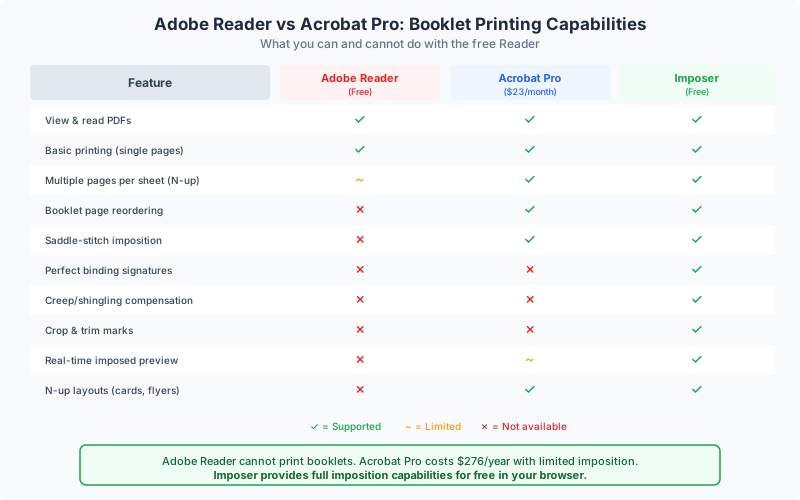
Adobe Reader vs Acrobat Pro: Feature Comparison for Booklets
Here's a direct comparison of what each Adobe product offers for booklet and imposition tasks:
| Feature | Adobe Reader | Acrobat Pro ($23/mo) | PDF Press |
|---|---|---|---|
| Open & view PDFs | Yes | Yes | Yes |
| Print single pages | Yes | Yes | Yes (after imposition) |
| N-up / Multiple pages per sheet | Yes (basic) | Yes (basic) | Yes (advanced: custom grids, gutters, marks) |
| Booklet page reordering | No | Yes | Yes |
| Real-time booklet preview | No | Tiny thumbnail only | Full interactive preview |
| Creep compensation | No | No | Yes |
| Crop / trim marks | No | No | Yes |
| Saddle-stitch imposition | No | Yes (basic) | Yes (with creep, marks) |
| Perfect binding signatures | No | No | Yes |
| Save imposed PDF file | No | No (print only) | Yes |
| Works offline / in browser | Desktop app required | Desktop app required | Browser-based, works offline |
| Cost | Free | $276/year | Free |
The comparison makes it clear that even Acrobat Pro's booklet printing is limited — it's a print-dialog-only feature with no real preview, no creep compensation, and no ability to save the imposed result as a new PDF file. You can only send it directly to a printer. PDF Press fills every gap in both Reader and Acrobat Pro, and it does so without cost or installation.
Workaround 1: Manual Page Reordering
The most technically accurate workaround for Reader's missing booklet feature is to manually reorder the pages of your PDF before printing. If the pages are already in booklet (signature) order, then Reader's "Multiple" option (2 pages per sheet) will produce a printable booklet layout.
How booklet page order works: For a simple saddle-stitch booklet, pages must be arranged so that when sheets are printed double-sided, stacked, folded in half, and stapled, the pages read in the correct sequence. For an 8-page booklet (2 sheets), the order is:
- Sheet 1 front: pages 8, 1 (left, right)
- Sheet 1 back: pages 2, 7 (left, right)
- Sheet 2 front: pages 6, 3 (left, right)
- Sheet 2 back: pages 4, 5 (left, right)
So the page sequence in the rearranged PDF would be: 8, 1, 2, 7, 6, 3, 4, 5. For a 16-page booklet (4 sheets), the sequence becomes: 16, 1, 2, 15, 14, 3, 4, 13, 12, 5, 6, 11, 10, 7, 8, 9.
The problems with this approach:
- Reader can't reorder pages. You need a separate tool to rearrange pages in the first place — but if you have access to such a tool, it almost certainly has built-in booklet imposition that makes manual reordering unnecessary.
- The math gets complicated. For documents longer than 8-12 pages, calculating the correct page sequence by hand is tedious and error-prone. For perfect binding with multiple signatures, it becomes extremely complex.
- No creep correction. Even if you get the order right, you can't adjust for paper thickness-induced creep, which causes inner pages to shift outward after trimming.
- Rotation issues. When printing double-sided, the back of each sheet needs to be rotated relative to the front depending on whether the printer flips along the long or short edge. Manual reordering doesn't address this.
Verdict: This workaround is theoretically possible but practically unworkable for most users. The effort required to manually calculate page order, find a tool to rearrange pages (which Reader can't do), and handle duplex rotation makes it far harder than just using a proper imposition tool in the first place.
Workaround 2: OS-Level Print Dialog Tricks
Some operating systems offer print features beyond what the application provides. Users have tried leveraging macOS and Windows print dialogs to compensate for Reader's missing booklet option. Here's what works — and what doesn't.
macOS: "Layout" in the Print Dialog
macOS has a system-level print feature under the "Layout" dropdown in any application's print dialog. It offers "Pages per Sheet" options (1, 2, 4, 6, 9, 16) and layout direction. However, this is simple n-up tiling — it places pages sequentially in a grid, the same as Reader's built-in "Multiple" option. It does not reorder pages for booklet folding. Some users have also tried the "Two-Sided" checkbox with "Short-Edge binding," but this only controls duplex behavior — it doesn't rearrange pages into booklet order.
macOS: Save to PDF and Re-Print
A more creative approach is to use macOS's "Save as PDF" to create an n-up version, then attempt to use that in another application. But this still doesn't solve the fundamental problem of page reordering. You end up with a PDF where pages 1 and 2 are side by side — not pages 8 and 1 as a booklet requires.
Windows: Printer Properties
Some Windows printer drivers include their own booklet printing feature, independent of the application. For example, certain HP, Canon, and Brother printer drivers have a "Booklet Printing" or "Booklet Creation" option in their properties dialog. If your printer driver supports this, you can potentially print a booklet from any application — including Reader. However:
- Not all printer drivers include this feature — it varies by manufacturer and model
- The quality and reliability of driver-level booklet printing varies significantly
- There's no preview, no creep compensation, and no crop marks
- The feature may conflict with Reader's own print settings
Linux: CUPS Booklet Printing
Linux users with CUPS (the Common Unix Printing System) can sometimes use the psnup or pdfjam command-line tools to create booklet layouts. While powerful, these tools require command-line comfort and don't provide visual preview. They're a viable option for technical users but not a mainstream solution.
Verdict: OS-level workarounds occasionally work for basic cases, but they're unreliable, vary by platform and printer, and lack the preview and quality features of proper imposition. If your printer driver happens to include booklet printing, it's worth trying — but test with a few sheets first before committing to a full print run.
Why Adobe Reader Can't Do Imposition (By Design)
Adobe Reader's inability to print booklets isn't a bug or oversight — it's a deliberate product decision that has been in place since Reader's inception. Understanding Adobe's product strategy explains why this limitation exists and why it's unlikely to change.
Reader is a viewer, Acrobat is an editor. Adobe's PDF product line is split into two tiers: Reader for viewing and basic interaction, and Acrobat Pro (paid) for creation, editing, and advanced features. Booklet printing falls into the "advanced features" category because it involves page manipulation — rearranging page order and adjusting layout. From Adobe's perspective, this is an editing operation, not a viewing operation.
The business model depends on this division. Adobe's Creative Cloud subscription revenue relies partly on the gap between Reader and Acrobat Pro. If Reader could do everything Acrobat Pro does, there would be less reason to pay $23/month. Booklet printing, page reordering, form creation, redaction, and other editing features are the "upsell" that justifies the subscription.
This matters for print shops. Print shops that receive PDFs from clients can't assume those clients have Acrobat Pro. If a client needs to create a booklet from their PDF, telling them to "use Acrobat's booklet feature" won't help if they only have Reader. This is a real-world workflow gap that dedicated imposition tools fill.
The trend toward free alternatives. Adobe's freemium model worked well when Acrobat was the only serious PDF tool. Today, free and open-source alternatives can handle most PDF operations that Acrobat charges for. For imposition specifically, browser-based tools like PDF Press provide capabilities that exceed even Acrobat Pro's booklet feature — including real-time preview, creep compensation, crop marks, and the ability to save imposed PDFs — all available.
The practical takeaway: don't wait for Adobe to add booklet printing to Reader. It won't happen. Instead, use a purpose-built tool that handles imposition properly and doesn't depend on Adobe's product tier system.
Free Alternatives That Actually Print Booklets
If you're a Reader user who needs to print booklets, you have several free options. Here's an honest assessment of each:
1. PDF Press (Recommended)
PDF Press is a browser-based PDF imposition tool that handles booklet creation with full visual preview. It processes your files entirely on your device (no uploads to servers), works on any platform with a modern browser, and requires zero installation. For booklet printing, it offers:
- Saddle-stitch and perfect binding layouts
- Real-time preview showing every sheet in the imposed layout
- Automatic creep compensation for professional trim quality
- Crop marks and registration marks
- Custom paper sizes, gutters, and margins
- Download the imposed PDF and print it as a normal double-sided document on any printer
Because PDF Press outputs a standard PDF file, you can print the result from Adobe Reader itself — or any other PDF viewer. The imposition is baked into the file, so you don't need any special print settings.
2. BookletCreator
A free desktop application (Windows/Mac) that reorders PDF pages for booklet printing. It's simple and functional for basic saddle-stitch booklets but lacks preview, creep compensation, and crop marks. It also requires downloading and installing software.
3. pdfjam / pdfbook2 (Linux/macOS)
Command-line tools available on Linux and macOS that can create booklet layouts from PDFs. The pdfbook2 wrapper around pdfjam handles the page reordering and 2-up layout in one command. Powerful for technical users but has no graphical interface and no preview.
4. LibreOffice Draw
LibreOffice can open and print PDFs, and its print dialog has a "Brochure" option that creates booklet layouts. However, opening PDFs in LibreOffice Draw often distorts formatting, especially for complex layouts with embedded fonts. It works adequately for simple text documents but is unreliable for designed PDFs.
5. Online PDF Tools (Use with Caution)
Several online services claim to offer booklet imposition. Be cautious: most require uploading your PDF to their servers, which raises privacy and confidentiality concerns. Many also impose file size limits, add watermarks to free outputs, or require registration. PDF Press is the notable exception — it processes everything client-side, so your files never leave your device.
Step-by-Step: Print a Booklet from Adobe Reader Using PDF Press
Here's the complete workflow for creating a booklet when you only have Adobe Reader. The process takes about two minutes and produces a ready-to-print imposed PDF.
Step 1: Open PDF Press
Navigate to pdfpress.app in any modern browser (Chrome, Firefox, Safari, Edge). or software installation is needed.
Step 2: Upload Your PDF
Click the upload area or drag and drop your PDF file. PDF Press loads the file entirely in your browser — nothing is sent to a server. You'll see a preview of your document's pages within seconds.
Step 3: Select the Booklet Tool
From the tool panel, select Booklet. This is PDF Press's dedicated booklet imposition tool.
Step 4: Configure Your Booklet
- Paper size — choose the paper you'll be printing on (Letter, A4, Tabloid, etc.). For a standard letter-size booklet, the output pages will be letter-size with two document pages arranged side by side.
- Binding — select "Saddle Stitch" for a simple folded-and-stapled booklet, or "Perfect" for a glued-spine binding with multiple signatures.
- Creep compensation — enable this for booklets with more than 8 pages to account for paper thickness pushing inner pages outward.
- Crop marks — add these if you plan to trim the booklet to a finished size.
Step 5: Preview and Verify
PDF Press shows a real-time preview of every imposed sheet. You can flip through sheets to verify that pages are in the correct order and position. Check that content isn't getting clipped at the edges and that the gutter margin is adequate.
Step 6: Download the Imposed PDF
Click the download button to save the imposed PDF to your computer. This new PDF has pages already arranged in booklet order.
Step 7: Print from Adobe Reader
Open the downloaded imposed PDF in Adobe Reader. Go to File → Print and configure these settings:
- Paper size: match the paper size you chose in PDF Press
- Scaling: Actual Size (the imposed PDF is already sized correctly)
- Two-sided/Duplex: enable, with Flip on Short Edge (for landscape-oriented booklet sheets)
- Orientation: match the imposed PDF's orientation (usually landscape for booklets)
Print the document. Fold the printed sheets in half, nest them together, and staple along the spine. You have a finished booklet — printed entirely with free tools.
For a more detailed walkthrough with additional binding options, see our complete booklet printing guide.
Common Mistakes When Trying to Print Booklets from Reader
After helping thousands of users create booklets, we've identified the most frequent mistakes people make when trying to use Reader for booklet printing. Avoiding these will save you paper, ink, and frustration.
Mistake 1: Using "Multiple" and Assuming It's a Booklet
Reader's "Multiple" option (2 pages per sheet) places pages sequentially — 1-2 on the first sheet, 3-4 on the second, and so on. This is not a booklet. When folded, the pages will be in the wrong order. A booklet requires a specific page sequence based on the total page count.
Mistake 2: Not Accounting for Page Count
Booklet imposition requires a page count divisible by 4. If your document has 10 pages, you need 12 pages (with 2 blanks) to form complete booklet sheets. Proper imposition tools add these automatically; manual attempts often forget this step, resulting in incorrect page placement.
Mistake 3: Wrong Duplex Flip Direction
Booklet sheets printed in landscape orientation typically need short-edge binding (flip on short edge). Using the default long-edge binding will cause every back-side page to appear upside down when folded. This is the #1 booklet printing complaint even among Acrobat Pro users.
Mistake 4: Scaling the Imposed PDF
If you've created a properly imposed PDF using PDF Press, print it at Actual Size — not "Fit" or "Shrink to Printable Area." The imposition tool has already sized pages correctly for your chosen paper size. Letting Reader rescale the output will shift all page positions and potentially cause content clipping.
Mistake 5: Printing Before Testing
Always print 2-3 sheets first and fold them to verify that pages are in the correct order and orientation. This is true whether you're using Acrobat Pro's booklet feature, a third-party tool, or an imposed PDF. A quick test with a few sheets can save you from wasting an entire ream of paper.
Beyond Basic Booklets: What Else You Can Do Without Acrobat
If you're discovering that Reader limits your print production capabilities, booklets are just the beginning of what free tools can handle. PDF Press provides a complete imposition toolkit that goes far beyond what even Acrobat Pro offers:
- N-up printing — place 2, 4, 8, 16, or any custom grid of pages per sheet, with control over page order, gutters, and scaling. See our n-up printing guide.
- Step-and-repeat — duplicate a single page across a sheet for items like business cards, labels, or tickets.
- Perfect binding signatures — create multi-signature impositions for glued-spine books, with configurable pages per signature and proper creep handling.
- Cut-and-stack — arrange pages so that after cutting, stacking the piles produces correctly sequenced sets (essential for numbered tickets and forms).
- Crop marks and color bars — add professional trim marks, registration marks, and color quality bars for production printing.
- Gang-up layouts — efficiently pack multiple different or same-sized items onto press sheets to minimize waste.
- Custom grid imposition — full control over column and row placement, gutters, offsets, and rotation for any layout you can imagine.
All of these operations produce standard PDF files that you can print from Reader or any other PDF viewer. The imposition logic is embedded in the output file, so the printing step is always simple — just "print at actual size, double-sided." The complexity is handled by the imposition tool, not by the printer or the print dialog.
For a comprehensive overview of imposition capabilities and when to use each tool, see our Adobe Acrobat imposition guide, which covers what Acrobat can and can't do and how PDF Press fills the gaps.
When Do You Actually Need Acrobat Pro?
This article has focused on booklet printing, but it's worth clarifying when Acrobat Pro is the right tool — and when it isn't worth the subscription cost.
You probably need Acrobat Pro if:
- You need to edit PDF content — change text, modify images, or restructure pages within existing PDFs. This is Acrobat's core strength and an area where free alternatives are limited.
- You need to create and manage fillable forms with calculated fields, validation, and data export. While other tools can create basic forms, Acrobat's form capabilities are the most comprehensive.
- You work in a legal or compliance environment that requires certified digital signatures, redaction, or Bates numbering. These are specialized features with limited free alternatives.
- You need preflight and PDF/X compliance checking for commercial print production. Acrobat's preflight tool is industry-standard.
You don't need Acrobat Pro for:
- Booklet printing — PDF Press does it better, , with preview and creep compensation.
- N-up printing — PDF Press provides more control than Acrobat's basic "Multiple" option.
- Any imposition task — Acrobat's imposition capabilities are minimal even in the Pro version. Dedicated imposition tools are superior in every way.
- Viewing and basic annotation — Reader handles this perfectly well.
- Merging PDFs — multiple free tools handle this, including various online services and open-source desktop applications.
For the specific task of printing booklets — which is what brings most people to the "Reader vs Acrobat" comparison — Acrobat Pro is an expensive solution to a problem that free tools solve better. Save your $276/year for the tasks where Acrobat genuinely has no equal.
Try it yourself
PDF Press runs entirely in your browser. Upload a PDF, pick a tool, and download the result — fast and private.
Open PDF Press22 Professional Imposition Tools
Every tool runs locally in your browser — fast, private, and professional-grade.
Frequently Asked Questions
Related Articles
Ready to try professional PDF imposition?
PDF Press is a browser-based imposition tool with 22 professional tools. No installation required.
Open PDF Press