How to Impose a PDF: Step-by-Step Guide for Print-Ready Output
Learn how to impose PDF files for professional printing. Step-by-step tutorial covering booklet, n-up, and gang imposition with free online tools.
What Does "Impose a PDF" Mean?
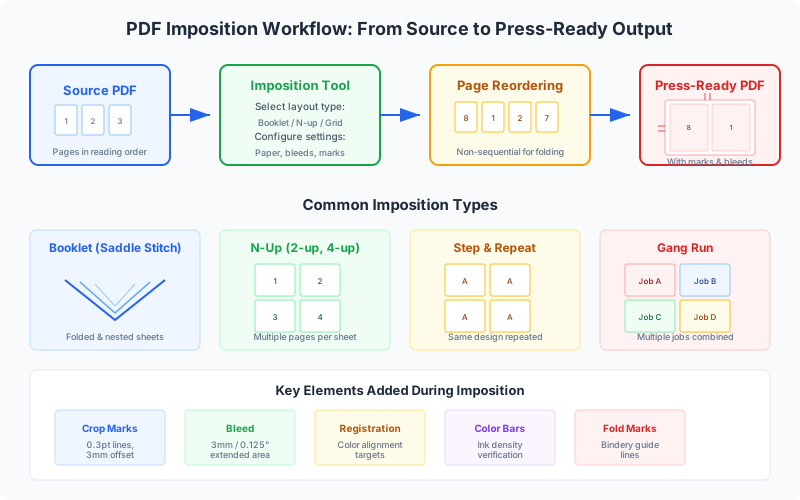
To impose a PDF is to rearrange the pages of a PDF document onto larger press sheets so that, after the sheets are printed, folded, cut, and bound, every page appears in the correct reading order. The term comes from the Latin imponere ("to place upon"), and it describes one of the oldest and most essential steps in the print production workflow.
Consider a real-world example: you have a 16-page A5 brochure to print. Rather than printing each A5 page on its own sheet (wasteful and impossible to bind), you place four A5 pages on each side of an A3 press sheet. After printing both sides, folding twice, and trimming, the brochure reads page 1 through page 16 in perfect order. That arrangement — deciding which page goes where, at what rotation, on which side of the sheet — is imposition.
PDF imposition is necessary whenever you need to:
- Print booklets or books — pages must be reordered into "printer spreads" rather than "reader spreads" so that folding produces the correct sequence.
- Print multiple copies per sheet — business cards, postcards, labels, and tickets are printed many-up on a single sheet, then cut apart.
- Minimize paper waste — fitting more content on each press sheet reduces both material cost and environmental impact.
- Add printer marks — crop marks, registration marks, color bars, and fold lines guide the finishing department.
Without imposition, commercial printing simply cannot happen. Even desktop printing benefits enormously: imposing a PDF before sending it to your office printer can cut paper use by 50-75% and eliminate hand-collation entirely. For a deeper dive into the theory, see our guide on what PDF imposition is.
Types of PDF Imposition
Before you impose a PDF, you need to know which kind of imposition your job requires. Each type serves a different finishing method and product format.
Booklet imposition (saddle stitch)
Pages are arranged so that after printing on both sides, folding the sheets, nesting them together, and stapling through the spine, the pages read in order. Best for thin publications up to about 64 pages — magazines, programs, zines. The page order on each sheet is non-sequential (e.g., pages 16 and 1 share a sheet front, pages 2 and 15 share the back), which is why software is essential. See our booklet printing tutorial.
Perfect binding imposition
Similar to saddle stitch, but pages are grouped into separate signatures (typically 16 or 32 pages each), folded independently, and then glued at the spine. Used for paperback books, thick catalogs, and annual reports — any publication too thick for stapling. Each signature requires its own imposition calculation. Learn more in our saddle stitch vs. perfect binding comparison.
N-up imposition
Multiple different pages are placed in a grid on a single sheet — 2-up, 4-up, 8-up, or 16-up. Each position holds a different page from your document. Common for proofing layouts, handouts, and printing small items like business cards where each card has a different design. Read our n-up printing guide.
Step-and-repeat imposition
A single page is duplicated identically across every position on the sheet. Used for labels, stickers, packaging blanks, and any product where every unit is identical. The difference from n-up: step-and-repeat repeats one design, while n-up tiles different pages.
Gang-run imposition
Multiple different jobs are combined onto a single press sheet to share setup costs. A commercial printer might gang three clients' business card orders onto one sheet, printing all of them in a single press run and then cutting them apart. This requires sophisticated nesting algorithms to minimize paper waste.
Cut-and-stack (monkey) imposition
Pages are arranged so that after the stack of printed sheets is cut into columns (or rows), each resulting sub-stack is already in the correct page order. This eliminates manual collation — you simply cut and stack. It is ideal for multi-page numbered documents like invoices, raffle tickets, or NCR forms.
Step-by-Step: Impose a PDF with PDF Press (Online)
PDF Press is a browser-based PDF imposition tool that runs entirely on your device — your files never leave your computer. It uses WebAssembly technology for near-native processing speed and supports 23 imposition and prepress tools. Here is a detailed, click-by-click walkthrough for imposing a PDF.
Step 1: Upload Your PDF
Open pdfpress.app in any modern browser (Chrome, Firefox, Safari, Edge). You will see a clean workspace with an upload area in the center.
- Drag and drop your PDF file directly onto the page, or click the upload area to open a file picker.
- PDF Press accepts standard PDF files of any size. It also accepts PNG and JPEG images, which are automatically converted to PDF internally.
- Privacy note: All processing happens locally in your browser via WebAssembly. Your PDF is never uploaded to any server — confidential documents are safe.
Once uploaded, PDF Press renders a full-fidelity preview of your original pages. You can scroll through the pages to verify the file is correct before proceeding.
Step 2: Choose an Imposition Tool
Click the "Add Step" button (or the tool panel on the left) to see the full tool library. PDF Press organizes its 23 tools into four categories: Layout, Transform, Enhance, and Advanced. For imposition, focus on the Layout category:
- Booklet — Saddle-stitch or perfect-binding imposition. Choose this for magazines, brochures, programs, and zines.
- Cards — N-up grid imposition with automatic paper sizing. Best for business cards, postcards, flyers, and labels.
- Grid — Flexible row/column grid with step-and-repeat option. Use this for sticker sheets, labels, and proofing layouts.
- N-up Book — Multiple pages per sheet arranged for book binding (2-up, 4-up, 8-up, 16-up, 32-up signatures).
- Monkey — Cut-and-stack imposition. Choose this for numbered tickets, invoices, and sequential documents.
- Shuffle — Custom page reordering for specialized press layouts.
Click the tool tile to add it as a step in your pipeline. PDF Press supports chaining multiple tools — for example, you can resize pages first, then impose them as a booklet, then add cutter marks. Each step processes the output of the previous step.
Step 3: Configure Imposition Settings
After selecting a tool, its settings panel opens on the left side. Settings vary by tool, but the most common ones include:
Paper size
Select the output sheet size from presets (Letter, Legal, Tabloid, A4, A3, A2, etc.) or enter a custom width and height. For booklet imposition, choose the unfolded sheet size — if you want an A5 booklet, select A4 paper. Toggle the Landscape checkbox to swap width and height. Dimensions can be entered in inches, millimeters, or points using the unit selector.
Margins and white space
Set the gap between the page content and the sheet edge. For commercial printing, leave room for the gripper edge (typically 10-12mm on the leading edge). For desktop printing, ensure margins are within your printer's printable area (most inkjets need at least 5mm on each side).
Bleeds
Three options: No bleeds (content stops at the trim line), Pull from document (uses bleed information embedded in the PDF by your design app), or Fixed (specify a uniform bleed amount — standard is 3mm / 0.125"). If your design has images or color extending to the edge, you need bleed enabled.
Rows and columns (Grid/Cards)
For n-up layouts, specify how many pages across (columns) and down (rows) to place on each sheet. PDF Press calculates the page scaling automatically based on the sheet size, margins, and grid dimensions.
Binding and creep (Booklet)
Choose saddle stitch or perfect binding. For saddle-stitch booklets over 20 pages, enable creep compensation — PDF Press automatically shifts inner pages inward to prevent content from being trimmed unevenly. Select the binding direction: left-to-right for English/European languages, right-to-left for Arabic, Hebrew, or manga.
Page range
Optionally restrict imposition to specific pages. Enter ranges like 1-10, 1,3,5-8, or odd/even. This is useful when you want to impose only part of a large document.
Step 4: Preview the Imposed Output
This is where PDF Press truly shines. Every time you change a setting, the preview updates in real time — you see the actual imposed output, not a schematic. The preview panel on the right shows:
- Full-page rendering of each imposed sheet, at your chosen quality level (High / Standard / Fast — adjustable in Settings).
- Page navigation — flip through imposed sheets using the toolbar arrows or by scrolling. For large jobs with 100+ sheets, use the fast-forward/backward buttons to jump through pages quickly.
- Zoom controls — zoom in (up to 16384px) to inspect crop marks, bleed edges, and page alignment at pixel level. Zoom out to see the full sheet layout.
- Page dimensions — the bottom-right overlay shows the current sheet number and dimensions in points (e.g., "Sheet 3 / 841.89 x 595.28 pt").
What to check in the preview:
- Pages are in the correct order — for booklets, mentally "fold" the sheet and verify the page sequence.
- Content is not being clipped by margins or bleed settings.
- Crop marks and registration marks are positioned correctly (if enabled via the Cutter Marks tool).
- Scaling looks correct — pages should fill their grid cells without excessive white space or overflow.
- For double-sided layouts, check both the front and back of each sheet.
This real-time preview eliminates the most expensive mistake in print production: discovering an imposition error after the job is printed. Verify everything on screen before committing paper and ink.
Step 5: Download and Print
Once the preview looks correct, click the Download button in the toolbar to generate and save the imposed PDF. The output file contains:
- All pages rearranged according to your imposition layout.
- Printer marks (crop marks, registration marks, color bars) if you added a Cutter Marks or Color Bar step.
- Bleed extensions, creep compensation, and margins baked into the page geometry.
You can also use the Print button to send the imposed output directly to your printer via the browser's print dialog.
Printing tips:
- For booklets, print double-sided (duplex). Use "Flip on short edge" for landscape sheets, "Flip on long edge" for portrait — test one sheet first.
- Set your printer to "Actual size" or "None" for page scaling. Never use "Fit to page" — it will rescale the carefully imposed layout and ruin the alignment.
- For commercial printing, send the imposed PDF directly to your print provider. The file is press-ready.
Power user tip: chaining tools. PDF Press's pipeline architecture lets you chain multiple operations. A professional workflow might look like: Crop (remove excess margins) → Booklet (impose for saddle stitch) → Cutter Marks (add trim and fold marks) → Color Bar (add color calibration strip). Each step processes the output of the previous one, giving you granular control over the entire prepress pipeline.
Step-by-Step: Impose a PDF with Adobe Acrobat
Adobe Acrobat Pro includes a basic booklet imposition feature accessible through the Print dialog. It is limited to saddle-stitch booklet printing and cannot produce n-up, gang, or cut-and-stack layouts. Here is how to use it:
Step 1: Open your PDF in Adobe Acrobat Pro (not the free Reader — full imposition requires a Pro subscription at $23+/month).
Step 2: Go to File → Print to open the Print dialog.
Step 3: In the Page Sizing & Handling section, click "Booklet."
Step 4: Configure the settings:
- Booklet subset: "Both sides" for auto-duplex printers. If your printer is single-sided, print "Front side only" first, flip the stack, then print "Back side only."
- Binding: "Left" for left-to-right languages, "Right" for right-to-left.
- Sheets from/to: Leave as "All" for the complete document.
Step 5: Click Print. Acrobat sends the imposed pages directly to your printer.
Limitations of Acrobat's imposition:
- No imposed PDF output — Acrobat prints directly; it does not create a reusable imposed PDF file. You cannot review, save, or send the imposed layout to a commercial printer.
- No real-time preview — you cannot see the imposed arrangement before printing. Errors are only discovered after wasting paper.
- No printer marks — no crop marks, fold marks, registration marks, or color bars.
- No creep compensation — thick booklets will have uneven margins on inner pages.
- No n-up, gang, or cut-and-stack — booklet-only functionality.
- Duplex bugs — many users report upside-down pages. See our Adobe Acrobat booklet printing fix for troubleshooting.
For anything beyond basic desktop booklet printing, a dedicated tool like PDF Press is significantly more capable — and free.
Step-by-Step: Impose a PDF with Adobe InDesign
Adobe InDesign does not have a built-in imposition feature, but you can create an imposed layout manually or use a plugin. Here are the two approaches:
Method A: Manual imposition (labor-intensive)
- Create a new document with the press sheet dimensions (e.g., A3 for an A5-folded booklet).
- Calculate the page order for your binding method. For a 16-page saddle-stitch booklet: Sheet 1 front = pages 16, 1; Sheet 1 back = pages 2, 15; Sheet 2 front = pages 14, 3; and so on.
- Place each page using File → Place, positioning it precisely on the press sheet using X/Y coordinates. Account for bleed, margins, creep, and page rotation.
- Add printer marks manually — draw crop marks, fold lines, and registration targets using InDesign's line tools.
- Export to PDF using File → Export with "Press Quality" settings.
This method is time-consuming (30-60 minutes per job), error-prone, and impractical for anything beyond occasional use.
Method B: InDesign plugin (e.g., Imposition Studio)
- Install a third-party imposition plugin like Imposition Studio or INposition.
- Open your document in InDesign.
- Launch the plugin from the InDesign menu, select your imposition type, and configure settings.
- The plugin rearranges pages and generates the imposed output.
Plugins add $100-$500 to the cost on top of the InDesign subscription ($23+/month). They are useful for shops already embedded in the Adobe ecosystem, but represent significant cost for occasional use.
The faster alternative: Export your InDesign document to PDF, then impose it with PDF Press in seconds, with real-time preview, and no plugin installation. This approach also decouples your design tool from your imposition tool, giving you flexibility to switch between InDesign, Affinity Publisher, or any other application without changing your imposition workflow.
Common Imposition Settings Explained
Regardless of which tool you use to impose a PDF, you will encounter a core set of settings. Understanding each one prevents costly mistakes.
Paper / sheet size
The physical dimensions of the sheet you will print on. Standard sizes include Letter (8.5 x 11", 612 x 792 pt), Tabloid (11 x 17", 792 x 1224 pt), A4 (210 x 297 mm, 595.28 x 841.89 pt), and A3 (297 x 420 mm). For booklet imposition, the sheet size is twice the finished page size — an A5 booklet requires A4 sheets. Always confirm that your printer or press can handle the selected sheet size.
Margins (white space)
The unprintable or reserved area around the edge of the sheet. For commercial offset printing, the gripper edge (the edge the press grabs to feed the sheet) typically needs 10-12 mm of clear space. Desktop printers have their own non-printable margins, usually 5-6 mm. Set your imposition margins to at least match these minimums, or your content will be clipped.
Bleed
Extra image or color that extends 3 mm (0.125") beyond the final trim line. Bleed ensures that after the sheet is trimmed, there are no white slivers at the edges — even if the trim is slightly off-center. Your source PDF must include bleed in its design (set up in InDesign, Illustrator, etc.) for the imposition software to use it. In PDF Press, choose "Pull from document" to honor embedded bleed, or "Fixed" to specify a uniform amount.
Creep (shingling / push-out)
In a saddle-stitched booklet, inner sheets are pushed outward when nested inside outer sheets. This causes the content on inner pages to shift toward the outer edge. After trimming, inner pages have narrower outer margins than outer pages. Creep compensation counteracts this by progressively shifting inner-page content inward. The amount depends on paper thickness and page count — for a 48-page booklet on 100 gsm stock, creep can be 2-3 mm. PDF Press calculates this automatically.
Crop marks and registration marks
Crop marks (also called trim marks) are short lines printed at the corners of each page indicating where to cut. Registration marks are crosshair targets used to verify that all color separations (CMYK) are aligned. Color bars show ink density for press calibration. In PDF Press, add these by including a Cutter Marks step in your pipeline — it supports crop marks, center marks, configurable line length/thickness, four-color black, and knockout options.
Page scaling
How the source page is resized to fit the target cell in the imposed layout. Options typically include "fit" (scale to fill without cropping), "fill" (scale to cover the entire cell, potentially cropping edges), and "none" (place at 100% scale, clipping anything that overflows). For most imposition jobs, "fit" with aspect ratio preserved is the correct choice.
Checking Your Imposed Output
Imposing a PDF is not complete until you have verified the output. Print errors caused by bad imposition are among the most expensive in the industry — an entire press run can be ruined by a single misplaced page. Here is a systematic checklist:
1. Verify page order
For booklets, mentally "fold" each imposed sheet and confirm that the pages read in sequence. Better yet: print a single copy on cheap paper, fold it, and flip through the pages. This five-minute test can save hundreds of dollars in reprints. In PDF Press, use the real-time preview to flip through every sheet before downloading.
2. Check page orientation
Every page should be right-side up in the final folded product. It is surprisingly easy to end up with upside-down backs in a booklet if the duplex flip direction or page rotation is wrong. Pay special attention to the back side of each sheet.
3. Inspect bleed and trim
Zoom into the crop marks in the imposed PDF. Content that is designed to bleed (extend to the edge) should extend past the crop mark by 3 mm. Content that should stay within the safe zone should be at least 5 mm inside the crop mark. If content is being clipped, your source file may not have sufficient bleed or margins.
4. Measure margins and gutters
Use a PDF viewer's measurement tool to verify that margins match your specifications. For n-up layouts, check that gutters (the space between adjacent pages) are consistent and wide enough for cutting — typically at least 3 mm, or more if using a manual paper cutter.
5. Validate printer marks
Crop marks should appear at all four corners of each page position. Registration marks should be present in the margins. Color bars (if used) should be outside the trim area. Fold lines (if used) should align precisely with the intended fold.
6. Test duplex alignment
Print one or two sheets double-sided and hold them up to a light. The content on the front and back should align precisely. Misalignment indicates a problem with your printer's duplex registration, not the imposition — but it is important to catch it before running the full job.
7. Confirm file dimensions
Open the imposed PDF's properties and verify that the page dimensions match your intended sheet size. A common mistake is imposing onto the wrong paper size — for example, selecting A4 when you meant Letter, or forgetting to enable Landscape mode for a landscape layout.
Common Mistakes and How to Avoid Them
After helping thousands of users impose PDFs, we have seen the same mistakes come up repeatedly. Here are the most common ones and how to prevent them:
Mistake 1: Using "Fit to Page" when printing the imposed PDF
This is the number-one cause of ruined imposition. Your imposed PDF has been precisely calculated — crop marks, bleeds, page positions are all exact. When your printer's "Fit to Page" option rescales the entire sheet by even 2%, all those measurements are wrong. Fix: Always print at 100% / "Actual Size" / "None" for scaling.
Mistake 2: Wrong duplex flip direction
Printing a booklet double-sided with the wrong flip setting produces backs that are upside down relative to the fronts. Fix: For landscape-oriented imposed sheets, use "Flip on short edge." For portrait, use "Flip on long edge." When in doubt, print a single test sheet, fold it, and check.
Mistake 3: No bleed in the source file
Enabling bleed in your imposition software does nothing if your source PDF does not contain bleed — you will just get white slivers at the trim edges. Fix: Set up 3 mm bleed in your design application (InDesign: File → Document Setup → Bleed; Illustrator: File → Document Setup → Bleeds) before exporting to PDF.
Mistake 4: Choosing the wrong paper size
Selecting A4 when you need Letter (or vice versa) is a surprisingly common error that throws off the entire layout. The two sizes differ by about 6 mm in width and 18 mm in height — enough to clip content or create asymmetric margins. Fix: Double-check the paper size in both the imposition settings and your printer settings. For more on paper sizes, see our paper sizes for print reference.
Mistake 5: Page count not a multiple of 4 for booklets
A saddle-stitched booklet requires a page count that is a multiple of 4 (each sheet produces 4 pages). If your document has 14 pages, the imposition software will pad it to 16 with blank pages — which usually appear at the end. This is expected behavior, not an error. Fix: Design your document with a multiple-of-4 page count, or accept the blank pages and position them intentionally (e.g., use them for notes or advertising).
Mistake 6: Ignoring creep on thick booklets
A 48-page saddle-stitched booklet on standard 100 gsm paper can accumulate 2-3 mm of creep. Without compensation, the innermost pages will have visibly narrower outer margins after trimming — or worse, content will be trimmed off. Fix: Always enable creep compensation for booklets over 20 pages. PDF Press applies graduated creep automatically.
Mistake 7: Forgetting the gripper edge
Offset presses grab the paper along one edge (the gripper edge), which cannot be printed. If your imposition places content in the gripper area, it will not print. Fix: Set the leading-edge margin to at least 10-12 mm for offset printing. Desktop printers have their own non-printable margins — check your printer's spec sheet.
Mistake 8: Not testing with a dummy print
The fastest way to catch all of the above mistakes is to print a single test copy on inexpensive paper, fold and cut it, and verify the result. Five minutes of testing prevents hours of reprinting. Fix: Make this a mandatory step in your workflow, every time, no matter how confident you are.
Choosing the Right Imposition Method for Your Job
With multiple imposition types available, choosing the wrong one wastes time and materials. Use this decision guide:
| Your product | Imposition type | PDF Press tool |
|---|---|---|
| Magazine, brochure, zine (up to ~64 pages) | Saddle-stitch booklet | Booklet |
| Paperback book, thick catalog (64+ pages) | Perfect binding | N-up Book |
| Business cards, postcards, flyers | N-up grid | Cards or Grid |
| Labels, stickers (identical copies) | Step-and-repeat | Grid (repeat mode) |
| Numbered tickets, invoices, NCR forms | Cut-and-stack | Monkey |
| Multiple different jobs on one sheet | Gang run | Gang Sheet |
| Stickers with irregular shapes | Nesting | Stickers |
| Custom signature layouts | Expert imposition | Expert Grid |
If you are unsure, start with the Booklet tool for bound publications or the Cards tool for items that will be cut apart. Both provide sensible defaults that work for the vast majority of jobs. You can always add additional steps — Cutter Marks for trim lines, Color Bar for press calibration, Resize or Crop for page adjustments — to build a complete prepress pipeline.
For a full comparison of imposition tools, including desktop apps and plugins, see our best imposition software in 2026 roundup.
Try it yourself
PDF Press runs entirely in your browser. Upload a PDF, pick a tool, and download the result — fast and private.
Open PDF Press22 Professional Imposition Tools
Every tool runs locally in your browser — fast, private, and professional-grade.
Frequently Asked Questions
Related Articles
Ready to try professional PDF imposition?
PDF Press is a browser-based imposition tool with 22 professional tools. No installation required.
Open PDF Press