Modern Prepress Workflow Guide: Every Step from File Receipt to Print-Ready Output
Master the complete prepress workflow with this in-depth guide. Learn every step of the prepress process — preflight, color management, trapping, imposition, proofing, and plate output — plus automation tips and a printable checklist.
What Is Prepress? The Bridge Between Design and Print
Prepress is every production step that happens between the moment a finished design file leaves the designer's computer and the moment ink hits paper (or substrate) on the press. It is the critical quality-control bridge that transforms creative output into mechanically reproducible print-ready data.
In a world of instant digital communication, the prepress stage is what separates professional printed products — crisp colors, sharp text, perfectly aligned pages — from amateurish output marred by color shifts, font substitutions, misregistration, and trimming errors. Whether you are producing 500 business cards on a digital press or 500,000 magazines on a heat-set web offset press, the prepress workflow determines whether the final product matches the designer's intent.
The modern prepress pipeline has evolved dramatically from the days of manual film stripping and photomechanical color separation. Today it is overwhelmingly digital, PDF-centric, and increasingly automated. But the fundamental goals remain unchanged: verify the input, optimize it for the target output device, arrange it efficiently on the press sheet, and prove it correct before committing to a production run.
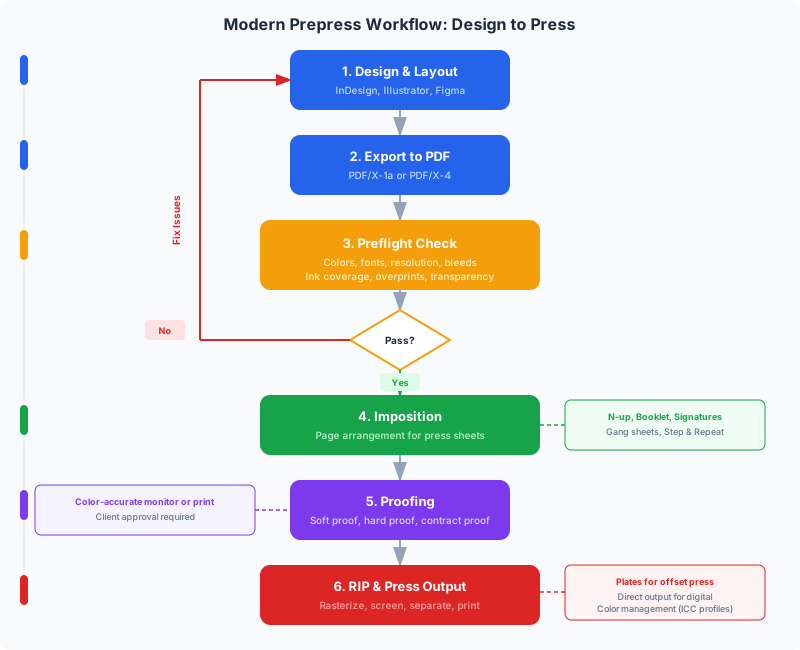
This guide walks through every major stage of a modern prepress workflow, explains the purpose of each step, highlights the most common errors, and shows you how automation tools — including browser-based imposition software — can collapse hours of manual work into minutes.
The Modern Prepress Pipeline at a Glance
Before diving into detail, here is the high-level sequence that virtually every print job follows. Some jobs skip a step (a single-color letterhead does not need trapping, for example), and some add extra steps (variable data, die-line creation, versioning), but the backbone is consistent:
- File receipt & job ticketing — gather artwork, specifications, and production instructions.
- Preflight — verify that the file meets technical requirements (resolution, fonts, color spaces, bleed, trim).
- File correction & normalization — fix preflight issues; convert to PDF/X; normalize page geometry.
- Color management — map colors from the source profile to the target press profile using ICC-based transforms.
- Trapping — add controlled overlaps between abutting colors to prevent white gaps caused by press misregistration.
- Imposition — arrange pages onto press sheets in the correct layout for printing, folding, cutting, and binding.
- Proofing — produce a proof (soft or hard) that represents the expected press output for client and operator approval.
- Plate / output — generate final CTP (computer-to-plate) data, direct-to-press RIP streams, or digital press-ready files.
Each stage feeds the next. Errors that pass through early stages compound downstream — a wrong color profile not caught in preflight will produce a bad proof, which will either be caught late (wasting time) or not caught at all (wasting an entire press run). This is why a disciplined, checklist-driven prepress workflow is so valuable. For a quick-reference version, see our print production checklist.
Step 1: File Receipt and Job Ticketing
Every prepress workflow begins when artwork arrives. This step is deceptively simple — receive files, log the job — but sloppy intake is the root cause of a staggering number of production errors. A structured intake process catches problems before they cost time and materials.
What happens at this stage:
- File collection: Artwork is received as PDF (preferred), native application files (InDesign, Illustrator, QuarkXPress), or sometimes image files (TIFF, PSD). PDF/X variants (PDF/X-1a, PDF/X-4) are strongly preferred because they embed all fonts and specify color intent, reducing downstream ambiguity.
- Job ticket creation: A job ticket (physical or digital) captures every production specification: quantity, stock, finish, coating, binding method, folding scheme, trim size, bleed, spot colors, numbering, versioning, and delivery date. The JDF (Job Definition Format) and XJDF standards allow this ticket to travel with the job electronically through every workflow stage.
- Version control: The incoming file is archived as-received before any prepress modification begins. This ensures the original can always be referenced or returned to if corrections go wrong.
Common pitfalls:
- Receiving native files without packaged fonts and linked images — InDesign "Package" or Illustrator "Collect for Output" is essential.
- Missing or ambiguous bleed specifications — does the designer expect 3mm bleed on all sides, or no bleed at all?
- Receiving RGB-only artwork for an offset CMYK job — flagged here, corrected later in color management.
- No die-line or folding template for complex finishing (gatefolds, pocket folders, packaging).
A well-designed intake form or automated upload portal (many web-to-print systems include this) eliminates most of these issues by requiring the customer to confirm specifications before the file enters the prepress queue.
Step 2: Preflight — Catching Errors Before They Cost Money
Preflight is the systematic inspection of a print file against a set of technical rules. The name comes from aviation — just as pilots run through a checklist before takeoff, prepress operators run through a checklist before committing a file to production. It is arguably the most important single step in the entire prepress process, because errors caught here cost almost nothing to fix, while the same errors caught on press cost hundreds or thousands of dollars.
What a comprehensive preflight checks:
- Resolution: All raster images must meet the minimum effective resolution for the output process — typically 300 DPI for commercial offset printing, 150 DPI for large-format, and 72+ DPI for screen/web proofs. Images below threshold will appear pixelated in print.
- Fonts: All fonts must be embedded (or outlined). Missing fonts cause text reflow or substitution — one of the most common and most visible prepress errors.
- Color spaces: Colors should be in the correct space for the target output: CMYK for process color printing, spot (Pantone/HKS) for spot color jobs, and DeviceN for mixed workflows. Unexpected RGB objects will not separate correctly.
- Bleed: Page content that extends to the trim edge must extend beyond it by the required bleed amount (typically 3mm / 0.125in). Insufficient bleed produces white slivers after trimming.
- Trim & media box: PDF page geometry (TrimBox, BleedBox, MediaBox, CropBox) must be correctly defined. Many downstream tools — including imposition software — depend on TrimBox to position pages accurately.
- Transparency & overprinting: Live transparency must be compatible with the output process. Overprint settings (especially on white or black objects) must be intentional, not accidental.
- Ink coverage: Total area coverage (TAC) — the sum of CMYK percentages in the darkest areas — must not exceed the press and stock limit (typically 280–340% for coated stock, 260–300% for uncoated). Excessive TAC causes drying problems, set-off, and ink trapping failures.
- Page count & trim size: The file must contain the correct number of pages at the correct dimensions, matching the job ticket.
Preflight tools: Adobe Acrobat Pro's built-in preflight engine, Enfocus PitStop, Callas pdfToolbox, and various RIP-integrated preflight modules are industry standards. Many of these tools can not only detect problems but auto-correct them — converting RGB to CMYK, embedding missing fonts, extending bleed by cloning edge pixels, and flattening transparency. For a deep dive, see our PDF preflight guide.
Preflight results should be logged and communicated back to the originator when issues require design changes (e.g., a low-resolution hero image that cannot be upscaled).
Step 3: Color Management — From Screen to Sheet
Color management is the science — and art — of ensuring that colors in the final printed product match the designer's intent as closely as the physics of ink on paper allow. It is built on ICC profiles, which describe the color behavior of input devices (monitors, cameras), output devices (printers, presses), and intermediate color spaces (working CMYK).
Why color management matters: A designer's monitor displays colors using light (RGB additive color), while a press reproduces colors using ink (CMYK subtractive color). These two gamuts (ranges of reproducible color) do not overlap perfectly — some vivid screen colors simply cannot be reproduced in CMYK, and some deep CMYK colors look different on screen. Without ICC-based color management, the translation from screen to press is unpredictable, and colors shift — sometimes dramatically.
The ICC-based workflow:
- Source profile assignment: Each object in the PDF is tagged with (or assumed to use) a source ICC profile describing the color space the designer worked in — typically sRGB or Adobe RGB for images, and a standard CMYK working space (e.g., ISO Coated v2, SWOP) for process-color artwork.
- Rendering intent selection: A rendering intent (Perceptual, Relative Colorimetric, Saturation, or Absolute Colorimetric) determines how out-of-gamut source colors are mapped into the smaller output gamut. Perceptual compresses the entire gamut proportionally; Relative Colorimetric clips out-of-gamut colors to the nearest in-gamut equivalent.
- Output profile conversion: Colors are converted from the source profile through the Profile Connection Space (PCS, usually CIE Lab) to the output profile — which describes the specific press, ink set, and substrate. For example, a sheet-fed offset press on coated stock uses a very different profile than a flexo press on kraft paper.
- Spot color handling: Spot colors (Pantone, HKS) are either preserved for dedicated ink stations or converted to their closest CMYK process equivalent, depending on the job specification.
Common color management errors:
- Double-converting CMYK — a file already in FOGRA39 CMYK is re-converted through an RGB intermediary, shifting all colors.
- Missing or mismatched ICC profiles — the file uses "untagged CMYK" and the RIP assumes a default that does not match the designer's intent.
- Incorrect rendering intent — using Saturation intent on photographic content, producing unnatural color shifts.
- Ignoring paper white — the substrate color affects all printed colors; an uncoated warm-white stock shifts every color warm.
For a thorough treatment of profiles, proofing, and practical troubleshooting, see our color management for print guide.
Step 4: Trapping — Eliminating White Gaps on Press
Trapping (also called spreading and choking) is the prepress technique of adding tiny overlaps between adjacent areas of different colors to prevent white gaps — known as misregistration artifacts — that appear when the press cannot perfectly align every color separation.
On a multi-color press, each ink (Cyan, Magenta, Yellow, Black, plus any spot colors) is applied by a separate unit. Mechanical tolerances, paper stretch, and humidity cause slight positional shifts between colors — typically 0.05mm to 0.2mm on a well-maintained press. Where two distinct colors share a border, this shift creates a visible sliver of unprinted paper. Trapping prevents this by ensuring that one color slightly overlaps (or "spreads into") the adjacent color.
Trapping rules of thumb:
- Lighter color spreads into darker color. The lighter ink is expanded slightly so it underlaps the darker ink. This minimizes the visual impact because the human eye perceives the darker color as the dominant edge.
- Trap width is typically 0.05mm–0.3mm (0.15–0.85pt) depending on press quality and substrate. Wider traps on flexo/newspaper; narrower traps on sheet-fed offset.
- Black overprints: Rich black or 100% K text is usually set to overprint rather than knockout, providing a built-in trap. This is the single most common trapping rule and catches the most visible errors (black text on a colored background).
- Abutting spot colors require manual trapping decisions because automatic trappers cannot always determine which color should dominate.
- Images generally do not need trapping because the tonal gradations in photographs naturally blend across color boundaries.
Automatic vs manual trapping: Modern RIPs (Raster Image Processors) and prepress applications like Adobe InDesign, Kodak Prinergy, and Esko Automation Engine include auto-trapping engines that analyze the file and apply traps according to configurable rules. Manual trapping in a design application is rarely necessary for standard jobs but may be required for complex packaging with tight registration demands.
Trapping is one of those prepress steps that is invisible when done correctly and glaringly obvious when skipped. It is most critical for offset lithography, flexography, and screen printing, and less of a concern for toner-based digital presses (which typically align all "colors" in a single pass).
Step 5: Imposition — Arranging Pages for Print, Fold, and Bind
Imposition is the process of arranging individual pages onto press sheets so that, after printing, folding, and trimming, the pages appear in the correct reading order. It is the step that connects the digital file to the physical mechanics of the press and the bindery, and it has a direct impact on paper consumption, press makeready, and finishing efficiency.
Imposition is often the most visible step in the prepress workflow because its output — the imposed flat — is what actually goes to the press or plate-setter. Every other prepress step modifies the content of individual pages; imposition arranges those pages in physical space.
What imposition determines:
- Page position and rotation on each press sheet — which pages share a sheet, which are front-vs-back, and which need to be rotated 180 degrees for head-to-head or head-to-foot printing.
- Sheet work style: Sheetwise (different front/back plates), work-and-turn (same plate, turned along the long edge), or work-and-tumble (same plate, tumbled along the short edge).
- Creep compensation: For saddle-stitched booklets, inner pages shift outward during folding. Imposition software applies graduated page position adjustments to compensate.
- Printer marks: Trim marks, fold marks, registration marks, color bars, signature marks, and collation marks are added during imposition.
- Bleed extension and gutters: Bleed dimensions are confirmed, and gutter spacing between pages (for cutting) is set.
Types of imposition layouts:
- Saddle stitch — sheets are nested and stapled through the spine (booklets, magazines up to ~64 pages).
- Perfect binding — signatures are folded individually and glued at the spine (paperback books, thick catalogs).
- N-up — multiple pages arranged in a grid for cutting (business cards, postcards, labels).
- Step and repeat — one design repeated across the sheet (stickers, packaging blanks).
- Gang run — multiple different jobs combined on one sheet to share press costs.
- Cut and stack — pages arranged so that cutting and stacking produces collated sets.
Historically, imposition required specialized desktop software costing hundreds or thousands of dollars. Today, browser-based tools like PDF Press perform imposition entirely in the browser using WebAssembly — no installation, no uploads, no recurring license fees. The tool handles saddle stitch, perfect binding, n-up, step-and-repeat, gang-up, and dozens of other layouts with real-time preview and automatic mark placement. For a full explanation of imposition concepts, see our guide to what is PDF imposition.
Step 6: Proofing — The Last Line of Defense
Proofing is the quality-assurance step where a representation of the final printed output is reviewed and approved before committing to a production run. It is the last — and often most expensive — chance to catch errors. A proof that reveals a wrong image, a typo, or a color mismatch costs pennies to fix. The same error discovered on press costs hundreds or thousands of dollars in wasted materials and lost press time.
Types of proofs:
- Soft proofs: On-screen proofs viewed on a calibrated monitor. They are fast, free, and suitable for layout and content verification. However, they depend entirely on the quality of monitor calibration and ICC profiling — an uncalibrated monitor is worse than no proof at all because it provides false confidence. Soft proofing in Adobe Acrobat or a dedicated proofing application with the correct output profile loaded is standard practice for remote client approval.
- Inkjet contract proofs: Produced on a high-quality inkjet proofer (e.g., Epson with EFI Fiery XF or GMG ColorProof) that simulates the press output using ICC profiles. These are the industry standard for color-critical work and serve as a contract between the customer and the printer: "the press output will match this proof within measurable tolerance." A contract proof costs $5–$50 depending on size.
- Digital press proofs: For digital print runs, a small sample is printed on the production device itself. This is the most accurate proof possible because it uses the actual press, inks, and substrate.
- Imposed proofs: A proof of the full imposed flat — showing page positions, marks, and gutters on the actual press-sheet layout. This is essential for complex jobs (booklets, packaging) where page order, rotation, and fold alignment must be verified visually.
- Blueprint / plot proofs: Low-cost, single-color proofs used to verify page position, trim, and fold — not color accuracy. These are used alongside (not instead of) color proofs for multi-page work.
What to check on a proof:
- Content accuracy — correct images, text, version, and page count.
- Color appearance — does it match the design intent and fall within the agreed gamut?
- Trim and bleed — are all bleeds sufficient? Does critical content respect safe margins?
- Page order and orientation — especially for booklets and multi-signature work.
- Marks and finishing guides — correct trim marks, fold marks, and die-lines.
- Overprints and knockouts — especially black text on colored backgrounds.
The proof approval workflow should be documented: who approves, when, and with what authority. A signed-off proof protects both the printer and the customer if a dispute arises about the final output.
Step 7: Plate Making and Final Output
Once the proof is approved, the prepress workflow produces its final deliverable: the data that drives the printing device. For offset lithography, this means aluminum printing plates exposed by a CTP (computer-to-plate) system. For digital presses, it means a RIP-processed data stream sent directly to the press engine. For large-format inkjet, it means a RIP file queued to the printer.
CTP (Computer-to-Plate): The dominant plate-making technology since the early 2000s, CTP replaced film-based workflows entirely in most commercial print shops. A CTP system takes the final imposed, trapped, color-managed PostScript or PDF data, rasters it at the output resolution (typically 2400–4000 DPI), and exposes the image directly onto a photosensitive aluminum plate using laser or thermal imaging. One plate is made per color separation (four for CMYK, plus one per spot color). CTP plates deliver sharper halftone dots, more consistent registration, and faster turnaround than film-based platemaking.
RIP (Raster Image Processor): The RIP is the engine that converts the vector/raster PDF into a device-specific bitmap at the output resolution. It handles screening (AM, FM, or hybrid halftone patterns), color separation, overprint simulation, and page buffering. Major RIP platforms include Harlequin (Global Graphics), Adobe APPE (Adobe PDF Print Engine), Esko FlexRip, and EFI Fiery. The RIP's screening and color handling settings have a profound impact on print quality — they should be validated against the proof.
Digital press output: For toner-based (Xerox iGen, HP Indigo, Konica Minolta) and inkjet-based (Canon Colorado, Fujifilm Jet Press) digital presses, the RIP sends data directly to the press engine in real time. There are no physical plates, so makeready is essentially zero. This makes digital ideal for short runs, variable data, and versioned jobs. The prepress workflow is identical up through imposition; the only difference is the final output target.
Quality checks at output:
- Plate inspection — visual and densitometric check for defects, exposure consistency, and registration targets.
- RIP log review — confirm that no errors or warnings were generated during rasterization.
- Separation verification — each plate carries the correct color and all expected content.
- Registration test — plates are mounted on press and a registration test sheet is pulled before the production run begins.
Digital vs Offset Prepress: Key Differences
While the core prepress workflow — preflight, color management, imposition, proofing — applies to both digital and offset printing, there are meaningful differences in how each step is executed and where the emphasis falls.
| Aspect | Offset Lithography | Digital Press |
|---|---|---|
| Color management | ICC profile for specific press + stock + ink combination. Press runs are matched to the contract proof. | Built-in color management in the DFE (Digital Front End). Profiles are device-specific and calibrated automatically or semi-automatically. |
| Trapping | Essential — separate plate impressions require trapping to avoid misregistration gaps. | Usually unnecessary — toner/inkjet lays all colors in a single pass with sub-pixel alignment. |
| Imposition | Critical — multiple pages per large press sheet; work style (sheetwise, work-and-turn) directly affects plate count and cost. | Still important for booklets and n-up, but sheet sizes are smaller (SRA3/12x18" typical) and single-sided imposition is common. |
| Proofing | Inkjet contract proof is standard; color matching is non-trivial because the proof device differs from the production press. | Proof is often a sample print on the production device itself — the most accurate proof possible. |
| Plate output | CTP plates — one per color per side — represent a significant cost and time investment. | No plates. The RIP streams data directly to the press. Makeready is near-zero. |
| Turnaround | Longer — plate-making and press makeready add hours. Economical for runs above ~500–1,000 copies. | Shorter — press-ready in minutes. Economical for runs below ~500–1,000 copies or for variable data. |
| Variable data | Not practical — each variation would require new plates. | Native capability — every impression can be unique (personalized mail, sequential numbering, versioning). |
In practice, many modern print shops operate a hybrid workflow: short runs and personalized jobs go to digital, while long runs go to offset, and the prepress pipeline is shared (often using the same RIP and imposition software) up to the point of output.
Prepress Automation: Tools That Save Hours
Manual prepress is expensive, slow, and error-prone. The industry has responded with a broad ecosystem of automation tools that can handle much of the workflow unattended — from file intake to plate output. Here are the major categories:
Preflight automation: Tools like Enfocus Switch, Callas pdfToolbox Server, and Esko Automation Engine can watch a hot folder, preflight every incoming PDF against a configurable profile, auto-correct common issues (embed fonts, convert RGB to CMYK, extend bleed), and route the file to the next stage — all without operator intervention. Some systems can even email the customer a preflight report and request corrected files automatically.
Imposition automation: Many imposition tools support hot-folder and JDF/XJDF-driven automation. A job ticket specifies the layout type, paper size, binding method, and marks, and the software imposes the file automatically. Browser-based tools like PDF Press bring this power to individual users — upload a PDF, select a template, and the imposition is calculated instantly using WebAssembly, entirely on your device. For shops processing hundreds of jobs per day, server-based imposition (Ultimate Impostrip, Kodak Preps, Heidelberg Prinect) integrates directly into the MIS (Management Information System) and CTP workflow.
Color management automation: Server-based color engines (CGS ORIS, GMG ColorServer, EFI Fiery) apply ICC conversions to every file in a queue, ensuring consistent color across jobs without per-file operator intervention.
End-to-end workflow systems: Platforms like Heidelberg Prinect, Kodak Prinergy, Agfa Apogee, and Esko Automation Engine integrate preflight, trapping, imposition, proofing, and CTP output into a single managed pipeline. These systems are the backbone of large commercial printers and represent the ultimate in prepress automation — a job enters as a PDF and exits as exposed plates with minimal human intervention.
The ROI of automation: A mid-size commercial printer processing 50 jobs per day can save 2–4 operator-hours per day by automating preflight and imposition alone. At a loaded labor cost of $40–$60/hour, that is $30,000–$60,000 per year — more than enough to justify the investment in automation tools.
Common Prepress Errors and How to Avoid Them
Even experienced prepress operators encounter recurring errors. Here are the most common — and costliest — mistakes, along with prevention strategies:
- Low-resolution images: A 72 DPI web image placed at 100% in a print layout produces visible pixelation. Prevention: Enforce minimum 300 DPI effective resolution in your preflight profile. Flag, do not auto-upscale.
- Missing or substituted fonts: Fonts not embedded in the PDF are substituted by the RIP, causing text reflow, wrong characters, or missing glyphs. Prevention: Require PDF/X submission (which mandates font embedding) and verify with preflight.
- Insufficient bleed: Content that extends to the trim edge without bleed will show white slivers after trimming. Prevention: Require minimum 3mm (0.125in) bleed in submission guidelines and check in preflight. Some tools can auto-extend bleed by mirroring edge content.
- RGB images in a CMYK workflow: RGB objects in a CMYK-only file produce unpredictable color when the RIP converts them using a default (possibly wrong) profile. Prevention: Require PDF/X-1a (which prohibits RGB) or ensure ICC-based conversion with a verified profile.
- Wrong page count or trim size: A 32-page booklet file arrives with 31 pages, or the trim size is 8.5x11" instead of the specified 6x9". Prevention: Automated preflight rule that checks page count and dimensions against the job ticket.
- Overprint errors: White objects set to overprint disappear; colored objects set to knockout on a colored background show trapping gaps. Prevention: Overprint preview in proofing; explicit overprint rules in the preflight profile.
- Excessive ink coverage: Total area coverage (TAC) exceeding the press/stock limit causes wet ink problems, set-off, and poor drying. Prevention: Preflight TAC check (typically max 300–340% for coated, 260–280% for uncoated). GCR (Gray Component Replacement) during color conversion reduces TAC.
- Imposition errors: Wrong page order, missing pages, incorrect rotation, or wrong work style. Prevention: Use reliable imposition software with visual preview. Always produce an imposed proof for booklet and signature work.
- Spot color name mismatches: "PANTONE 485 C" vs "PANTONE 485 CVC" vs "Red" — the RIP treats each as a different separation. Prevention: Normalize spot color names in preflight; use a Pantone library reference.
- Transparency flattening artifacts: Complex transparency in older PDF versions (pre-PDF 1.6) can produce stitching lines, white hairlines, or rasterized text when flattened by the RIP. Prevention: Use PDF/X-4 (which supports live transparency) or flatten carefully in Acrobat before submission.
The common thread in all these errors is that they are detectable before production. A comprehensive preflight profile, enforced consistently, catches the vast majority. The rest are caught by visual proofing — which is why proofing is non-negotiable, even under deadline pressure.
Quality Control Checkpoints Across the Workflow
A production-grade prepress workflow includes explicit quality control (QC) gates — points where the job is inspected before advancing to the next stage. These checkpoints create a layered defense against errors, ensuring that each stage only processes verified input.
Checkpoint 1 — Post-intake: Verify file opens correctly, page count matches job ticket, trim size is correct, and all linked assets are present. This is a quick sanity check before investing preflight time.
Checkpoint 2 — Post-preflight: Review the preflight report. All critical errors must be resolved before the file advances. Warnings (e.g., an image at 280 DPI instead of 300 DPI) are assessed on a case-by-case basis. The approved preflight report is attached to the job ticket.
Checkpoint 3 — Post-color conversion: Soft-proof the color-converted file on a calibrated monitor. Verify that no unexpected color shifts occurred, that spot colors are preserved or correctly converted, and that TAC limits are respected. Compare against the original RGB/source file if necessary.
Checkpoint 4 — Post-imposition: Review the imposed flat on screen (or as a low-res print). Verify page order, rotation, front-back alignment, marks placement, and gutter spacing. For booklets, fold a dummy sheet and check page sequence. Tools like PDF Press provide real-time visual preview of the imposed layout, making this checkpoint fast and intuitive.
Checkpoint 5 — Proof approval: The proof (soft or hard) is reviewed by the customer or an authorized approver. Approval is documented — digitally signed, emailed with an explicit "approved" statement, or physically signed on a hard proof. No job goes to press without proof approval.
Checkpoint 6 — Post-output / on-press: The first sheets off the press are inspected for color match (against the proof), registration, marks alignment, and content correctness. Any deviation is corrected before the full run continues.
These checkpoints are not bureaucratic overhead — they are the difference between a shop that routinely delivers on spec and one that constantly reprints. The cost of a checkpoint is minutes; the cost of skipping it is hours, materials, and customer trust.
The Ultimate Prepress Checklist
Use this checklist as a quick-reference companion to the detailed workflow above. Print it out and keep it at your prepress workstation, or integrate it into your job-tracking system as a mandatory sign-off at each stage.
File receipt:
- All files received and verified (PDF/X preferred).
- Job ticket complete — quantity, stock, finish, binding, trim size, bleed, spot colors, special finishing.
- Original file archived before any modifications.
Preflight:
- All images at or above minimum resolution (300 DPI for commercial print).
- All fonts embedded or outlined.
- Correct color spaces (CMYK + spot as specified; no unexpected RGB).
- Bleed present and sufficient (minimum 3mm / 0.125in all sides).
- TrimBox, BleedBox, MediaBox correctly defined.
- Total ink coverage within press/stock limit.
- Transparency compatible with output process.
- Overprints intentional and verified.
- Page count and trim size match job ticket.
Color management:
- Source ICC profiles assigned or verified.
- Output ICC profile matches press + stock + ink.
- Rendering intent appropriate for content type.
- Spot colors preserved or correctly converted.
- TAC within limit after conversion.
Trapping:
- Auto-trapping applied where required (offset, flexo).
- Black text set to overprint.
- Trap width appropriate for press and substrate.
Imposition:
- Correct layout type selected (saddle stitch, perfect, n-up, etc.).
- Page order verified — fold a dummy if in doubt.
- Creep compensation applied for saddle stitch.
- Printer marks present and correctly positioned (trim, fold, registration, color bar).
- Bleed and gutter dimensions correct.
- Work style correct (sheetwise, work-and-turn, work-and-tumble).
Proofing:
- Proof produced on calibrated device with correct ICC profile.
- Content, color, trim, bleed, page order, marks verified.
- Customer approval documented.
Output:
- Plates exposed / RIP data queued without errors.
- Separations verified — correct colors, no extra or missing separations.
- First press sheet matches proof within tolerance.
For a downloadable version of this checklist with additional notes, visit our print production checklist page.
Try it yourself
PDF Press runs entirely in your browser. Upload a PDF, pick a tool, and download the result — fast and private.
Open PDF Press22 Professional Imposition Tools
Every tool runs locally in your browser — fast, private, and professional-grade.
Frequently Asked Questions
Related Articles
Ready to try professional PDF imposition?
PDF Press is a browser-based imposition tool with 22 professional tools. No installation required.
Open PDF Press