PDF Repair Tool Guide: Fix Corrupted and Damaged PDFs in Your Browser
Learn how to repair corrupted, damaged, or broken PDFs using pdfpress.app's browser-based Repair tool. Fixes cross-reference tables, stream errors, and damaged objects without uploading files.
What the PDF Repair Tool Does
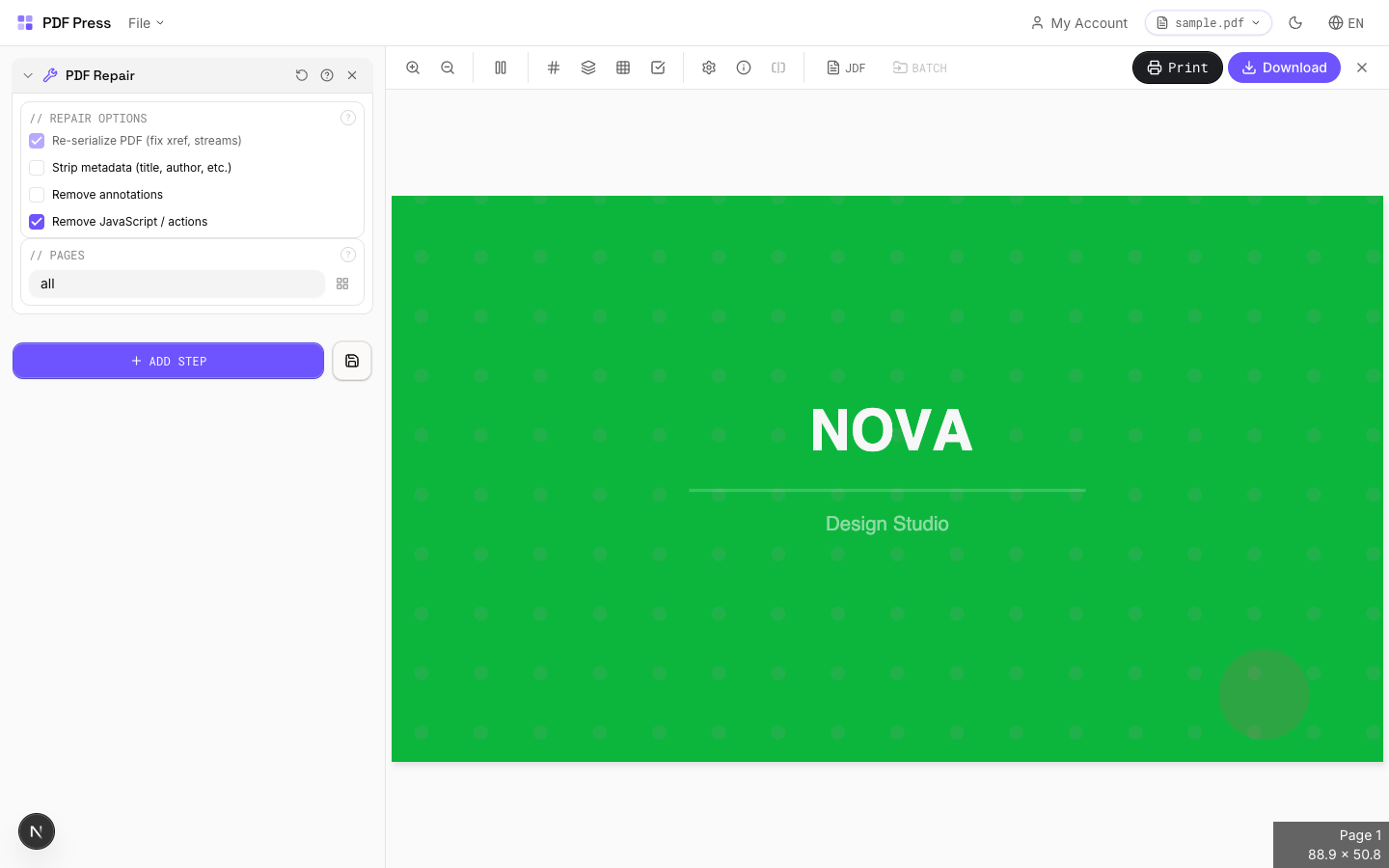
PDF files can become corrupted in dozens of ways — incomplete downloads, email attachment truncation, disk errors, crashed export processes, or buggy PDF generators. When a PDF is damaged, it may fail to open, render incorrectly, display blank pages, or crash your viewer. The PDF Repair tool in pdfpress.app addresses these problems by re-serializing the entire PDF from scratch.
Rather than attempting to patch individual errors, the repair engine reads every recoverable object in the damaged PDF — pages, fonts, images, vectors, metadata — and writes them into a clean, properly structured new PDF file. Cross-reference tables are rebuilt, stream lengths are recalculated, and damaged objects are either recovered or cleanly excluded.
The result is a valid, well-formed PDF that opens reliably across all viewers and passes through RIP systems without errors. All processing happens locally in your browser via WebAssembly, so your potentially sensitive damaged files never leave your machine.
Common PDF Corruption Issues
Understanding what goes wrong inside a corrupted PDF helps you appreciate what the repair engine fixes. Here are the most common types of PDF corruption:
- Broken cross-reference table (xref): The xref table is the PDF's internal index — it tells the viewer where every object is located in the file. If this table is damaged or misaligned, the viewer cannot find pages, fonts, or images. Symptoms include blank pages, missing content, or a "file is damaged" error.
- Truncated file: If a PDF download was interrupted or an email system truncated the attachment, the file may end abruptly mid-object. The viewer encounters unexpected end-of-file and refuses to render.
- Corrupted content streams: Page content streams contain the drawing instructions (text, paths, images) for each page. If these are damaged — often by binary corruption or encoding errors — individual pages may render incorrectly or display garbled content.
- Invalid object references: PDFs use an object numbering system where objects reference each other by ID. If an object is deleted or renumbered without updating all references, the viewer encounters "broken links" that cause rendering failures.
- Damaged embedded fonts: If a font's binary data is corrupted, text using that font may display as boxes, question marks, or not at all. The repair engine can sometimes recover the font data or at least preserve the text positioning.
- Linearization errors: Linearized (fast web view) PDFs have a special structure for progressive loading. If this structure is damaged, the file may fail to load entirely. Re-serialization removes linearization and rebuilds the file in standard sequential format.
How the Repair Engine Works
pdfpress.app's repair engine uses a multi-pass recovery approach:
- Object scanning: The engine scans the entire file byte-by-byte, identifying PDF objects regardless of whether the cross-reference table is intact. This brute-force approach recovers objects that a simple xref-based parser would miss.
- Object validation: Each recovered object is validated for internal consistency. Stream lengths are verified, dictionary entries are checked for required keys, and references are resolved. Invalid objects are flagged for exclusion.
- Page tree reconstruction: The engine rebuilds the page tree from recovered page objects, ensuring that pages appear in the correct order with their associated resources (fonts, images, color spaces).
- Cross-reference rebuild: A completely new cross-reference table is generated from scratch, with accurate byte offsets for every recovered object. This eliminates the most common class of PDF corruption.
- Re-serialization: All recovered objects are written into a new, clean PDF file with proper headers, object numbers, stream encodings, and a valid trailer. The result is a standards-compliant PDF that any viewer can open.
This approach is fundamentally different from "PDF fixers" that simply patch the cross-reference table. By rebuilding the entire file, the repair engine eliminates all structural corruption rather than just the most obvious symptom.
How to Repair a PDF with pdfpress.app
Repairing a damaged PDF is one of the simplest operations in pdfpress.app:
- Load the damaged file: Open pdfpress.app and drag the corrupted PDF into the browser. Even if other viewers refuse to open the file, pdfpress.app's repair engine will attempt to read it.
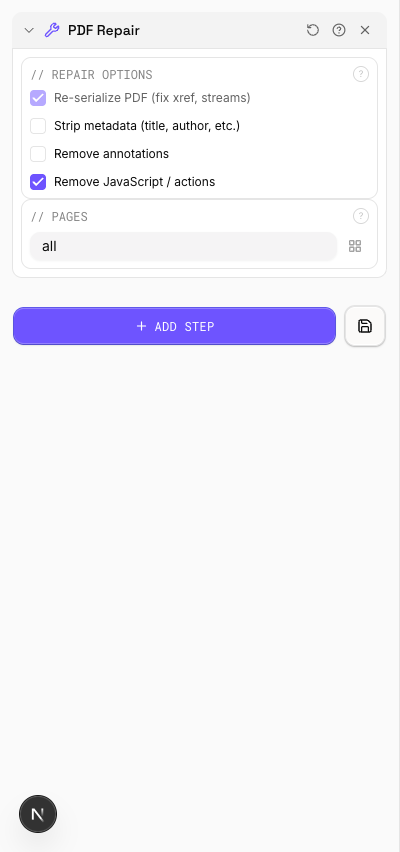
- Select the Repair tool: Open the "PDF Repair" tool from the sidebar. The engine immediately begins scanning the file for recoverable content.
- Review the repair report: The tool displays a summary of what was found: total objects scanned, objects recovered, objects that could not be recovered, and any warnings about the file's condition.
- Preview the repaired output: Before exporting, scroll through the preview to verify that pages render correctly and content is intact.
- Export the repaired PDF: Click "Export" to save the clean, re-serialized PDF. The output file is a completely new PDF with no traces of the original corruption.

The entire process runs locally in your browser. This is particularly important for damaged files, which may contain sensitive content that you cannot risk uploading to a cloud-based repair service.
When to Use Repair vs. Preflight
pdfpress.app offers both a Preflight/Info tool and a Repair tool. They serve different purposes:
- Preflight (Info panel): Analyzes a PDF's structure, fonts, images, and color spaces to identify quality issues that could cause problems in production. Use Preflight when your PDF opens and renders correctly, but you need to verify it meets print specifications (resolution, font embedding, color spaces, page boxes).
- Repair: Fixes structural damage that prevents the PDF from opening, rendering, or processing correctly. Use Repair when you encounter "file is damaged" errors, blank pages, missing content, or RIP failures.
A common best-practice workflow is: Repair first, then Preflight. If you receive a damaged file, run it through the Repair tool to create a clean version, then Preflight the repaired output to verify that it meets your production quality standards.
Note that Repair fixes structural corruption — it cannot recover content that is truly missing from the file. If a page's content stream was overwritten with zeroes, the repair engine can remove the damaged page but cannot reconstruct the original artwork.
Understanding Repair Success Indicators
After the repair engine processes your file, it provides indicators to help you assess the quality of the recovery:
- Objects recovered vs. total objects: A high recovery rate (95%+) indicates minor corruption — typically just a damaged xref table. The repaired file should be virtually identical to the original.
- Pages recovered: Check that the expected number of pages is present. If pages are missing, their content streams were too damaged to recover.
- Font recovery status: Fonts are critical for text rendering. If fonts could not be recovered, text may appear as outlines or substitute fonts. The report identifies affected fonts.
- Image recovery status: Large embedded images are the most common casualty of truncated files. The report shows how many image objects were successfully recovered.
- Warnings: Non-critical issues like missing metadata, absent bookmarks, or stripped JavaScript are reported as warnings. These rarely affect printability.
Always visually inspect the repaired PDF by scrolling through every page in the preview. Automated recovery can only assess structural validity — it cannot verify that the visual content matches your expectations.
Limitations of PDF Repair
While the repair engine is powerful, some forms of corruption are beyond recovery:
- Severely truncated files: If only a small fraction of the original file is present (e.g., less than 10%), there may not be enough data to reconstruct meaningful content.
- Encrypted files with lost passwords: The repair engine cannot bypass PDF encryption. If the file is password-protected and you do not have the password, repair cannot access the content streams.
- Overwritten binary data: If image or font data has been overwritten with unrelated bytes (rather than simply truncated), the repair engine cannot reconstruct the original content from corrupted binary.
- Non-PDF files: If the file is not actually a PDF (e.g., a renamed JPEG or a completely overwritten file), the repair engine will report that no valid PDF structure was found.
- DRM-protected content: Digital rights management systems may use non-standard encryption that the repair engine cannot process.
In these extreme cases, the repair engine will recover whatever it can and clearly report what could not be salvaged. Even partial recovery is often valuable — recovering 90% of a 200-page document is far better than losing the entire file.
Preventing PDF Corruption in Production Workflows
The best repair is the one you never need. Follow these practices to minimize the risk of PDF corruption in your print production workflow:
- Verify file integrity after transfer: Use checksums (MD5 or SHA-256) when transferring large PDFs between systems. Compare the hash at source and destination to confirm the file arrived intact.
- Avoid email for large files: Email systems often silently truncate attachments exceeding size limits. Use a file transfer service, FTP, or shared drive instead.
- Export directly to PDF, don't "print to PDF": Print-to-PDF drivers sometimes produce poorly structured files. Use your design application's native PDF export function for the most reliable output.
- Keep source files: Always maintain the original design files (InDesign, Illustrator, etc.) alongside exported PDFs. If a PDF becomes corrupted, you can re-export from the source.
- Use PDF/X standards: Files conforming to PDF/X standards are structurally more robust because the standard enforces requirements that prevent common corruption patterns.
When corruption does occur, the PDF Repair tool in pdfpress.app is your first line of recovery — fast, professional, and completely private.
Try it yourself
PDF Press runs entirely in your browser. Upload a PDF, pick a tool, and download the result — fast and private.
Open PDF Press22 Professional Imposition Tools
Every tool runs locally in your browser — fast, private, and professional-grade.
Frequently Asked Questions
Related Articles
Ready to try professional PDF imposition?
PDF Press is a browser-based imposition tool with 22 professional tools. No installation required.
Open PDF Press