Variable Data Printing Use Cases: Tickets, Badges, Labels, Mailers, and Cards
A practical guide to variable data printing use cases: QR tickets, photo badges, shipping labels, direct mail, vouchers, asset tags, membership cards, and print-ready PDF imposition.
Best First: Use PDF Press
Start with PDF Press. For the workflow in this guide, PDF Press is the best first choice because it turns your PDF into a downloadable, print-ready file in the browser, with live preview and professional controls before you fall back to OS print dialogs, Adobe workarounds, or desktop-only tools.
- Make the output file first. Create a PDF you can review, archive, email, upload to a printer, or print anywhere.
- Use production controls early. Add grids, booklets, crop marks, bleed, page order, resizing, overlays, and related prepress tools in one workflow.
- Keep files private. Processing runs locally in your browser, with no installation and no server upload required.
Quick Answer: What Is Variable Data Printing Used For?
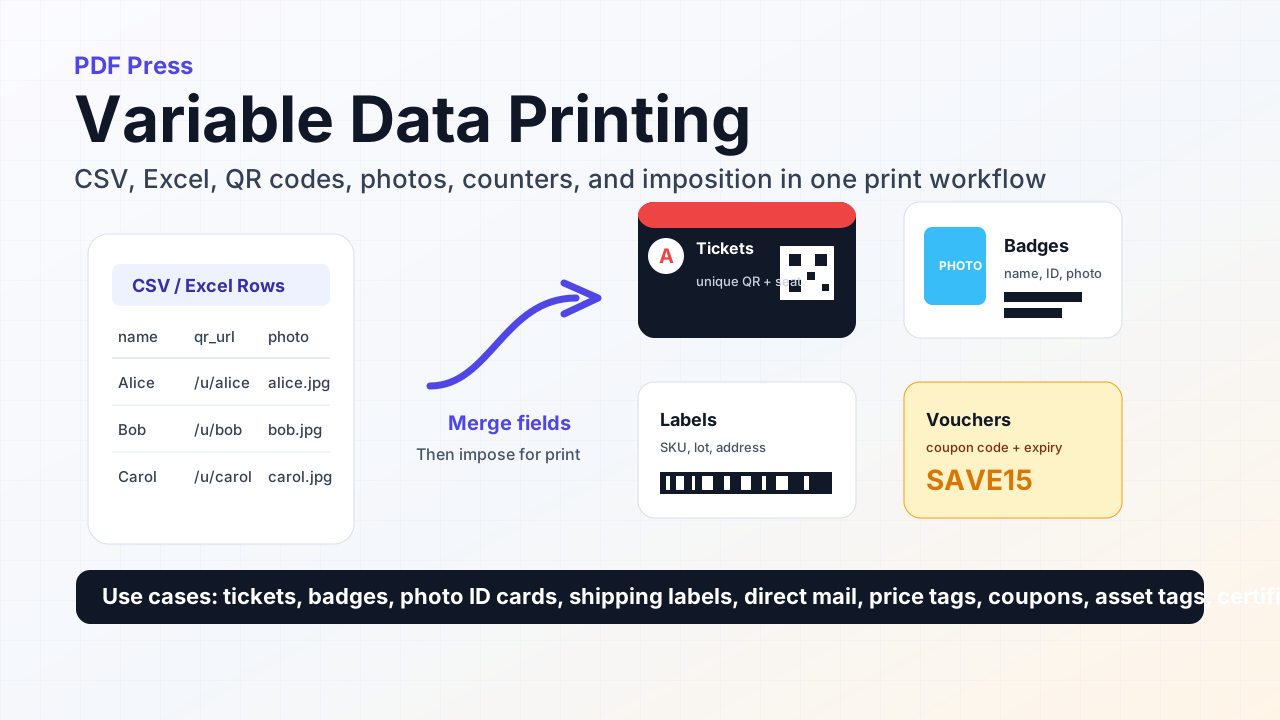
Variable data printing, often shortened to VDP, is used when every printed piece needs some unique data: a name, QR code, barcode, serial number, address, photo, price, coupon code, or counter. Instead of manually editing a PDF hundreds of times, the printer connects a CSV or Excel file to the artwork and lets each row produce a personalized card, label, badge, ticket, mailer, or sheet.
The strongest VDP workflows do not stop at the merge. They also handle imposition. In PDF Press, a production job can go from Variable Data to Grid, Cards, BleedMaker, and Cutter Marks, so the final PDF is not only personalized but also ready for cutting, duplex printing, and finishing.
Why VDP Matters in Print Production
VDP turns a static print job into a data-driven print job. That matters because modern print runs are rarely just one design repeated forever. A ticket printer needs one QR code per guest. A school needs ID cards with names and photos. A warehouse needs labels with different SKUs and lot numbers. A campaign team needs direct mail pieces with unique addresses, offers, and tracking links.
The production risk is not just whether the variable data appears. The risk is whether row 43 stays row 43 after the PDF is imposed, cut, stacked, and handed to the next operator. That is why VDP belongs inside the imposition workflow rather than as a disconnected design step.
In PDF Press, the practical model is: upload artwork, bind a data file, place the fields, preview multiple rows, impose the result, add marks, then export a print-ready PDF. The data merge and sheet layout stay in the same pipeline, which reduces the usual mismatch between design software, barcode generators, and finishing tools.
The Core VDP Workflow
A reliable VDP job has five moving parts:
- Source artwork: the fixed PDF design, such as a business card, badge, ticket, postcard, or label.
- Dataset: CSV, TSV, XLS, or XLSX rows with columns like name, QR URL, employee ID, tracking number, SKU, price, or photo filename.
- Placements: text, barcode, QR, image, or counter fields positioned on the artwork.
- Expansion: one personalized output record per row, or per row and source page for front/back designs.
- Imposition: Cards, Grid, Cutter Marks, BleedMaker, or other downstream steps that turn the records into production sheets.
The key prepress check is simple: preview the first row, a middle row, and the last row before export. Long names, missing photos, invalid barcode data, and cramped QR quiet zones usually show up there before they become wasted paper.
Use Case 1: Event Tickets with Unique QR Codes
Ticket printing is one of the clearest VDP use cases. The artwork may be identical, but each ticket needs a unique QR code, serial number, attendee name, seat, section, or validation URL.
A typical ticket CSV might include ticket_id, name, seat, and qr_url. In PDF Press, the QR column can be placed directly on the ticket artwork, while a text field prints the human-readable ticket number beside it. Then ticket imposition can arrange the personalized tickets 2-up, 4-up, or 10-up on a press sheet.
For event work, keep the QR code away from trim, folds, and perforation. Leave a real quiet zone around the code. Then scan a few printed samples before running the full batch.
Use Case 2: Name Badges and Photo ID Cards
Badges add one more variable layer: images. A conference badge might use name, company, role, employee_id, qr_url, and photo. The data file points to photo filenames, while a ZIP bundle supplies the matching JPEG or PNG images.
This is useful for employee IDs, student cards, visitor passes, club memberships, backstage passes, and contractor badges. The output must prove that each name is paired with the correct photo. That makes preview and reload checks important: Alice should not get Bob's image, and page two should not silently reuse page one.
When badges are printed multiple-up, use Grid sequential rather than pure step-and-repeat. That packs different people on the same sheet instead of repeating one person across the whole sheet.
Use Case 3: Shipping Labels, Product Labels, and Asset Tags
Labels often need barcodes, addresses, SKUs, lot codes, batch numbers, expiry dates, and product names. A shipping workflow may use Code 128 for tracking numbers. A product workflow may use EAN-13 or UPC. A small asset tag may use Data Matrix because it can hold data in less space.
The production question is not just "does the barcode render?" It is "will the barcode scan after toner spread, label stock texture, lamination, or a slight cutter shift?" For label VDP, check contrast, quiet zones, and printed size. Avoid placing barcodes over gradients or busy image areas.
Once the label records are generated, label imposition can lay them out with consistent gutters and cutter marks so the sheet is easy to finish.
Use Case 4: Direct Mail and Personalized Postcards
Direct mail uses VDP to make one print run feel like thousands of individual conversations. A postcard can include the recipient's name, address, region, offer code, personalized URL, sales rep, or nearest store.
The practical value is tracking. A QR code or coupon code can connect the printed piece to a campaign result. The print shop gets a higher-value job, and the customer can measure which recipients responded.
For mail pieces, verify postal-safe address placement, barcode clearance, and duplex alignment. If the design has a front and back, bind front-side fields to page 1 and address or QR fields to page 2, then export enough samples to confirm the two sides stay paired.
Use Case 5: Vouchers, Coupons, Price Tags, and Membership Cards
Retail and hospitality jobs are full of small VDP opportunities: gift vouchers, discount coupons, loyalty cards, table cards, shelf talkers, hang tags, and price tags. The variable fields might be a coupon code, expiry date, product name, SKU, price, QR URL, or member number.
For coupons and vouchers, include both machine-readable and human-readable data. A QR code is fast to scan, but a printed code gives staff a fallback when a phone, scanner, or checkout system has trouble.
For hang tags and price tags, make sure variable text is allowed to shrink or wrap. Product names tend to be longer than the tidy examples used in design mockups.
Use Case 6: Certificates, Awards, Invitations, and Personalized Stationery
Not every VDP job is barcode-heavy. Many are simply personalized print pieces that need names, dates, titles, counters, or certificate IDs. Schools, clubs, churches, training companies, and event teams often need certificates, place cards, invitations, thank-you cards, and numbered forms.
These jobs benefit from the same discipline as barcode work. Put the variable text in a safe area, test the longest real name, and use a counter when every piece needs a unique number even if the dataset does not include one.
After personalization, Cards or Grid can impose the pieces onto Letter, A4, SRA3, or other sheet sizes for cutting.
Front and Back VDP: Duplex Jobs Need Page-Aware Fields
Multi-page source PDFs introduce an important detail: fields must know which source page they belong to. A badge may have the name and photo on the front, with a QR code and terms on the back. A postcard may have a campaign image on page 1 and mailing information on page 2.
In a page-aware VDP workflow, front placements stay on page 1 and back placements stay on page 2 when records expand. The export should show personalized fronts and personalized backs, not the same side repeated with the wrong data.
For press work, also think beyond page count. If you need work-and-turn, tumble, or strict duplex backup, run a physical or rendered backup check before production. VDP can make the right pages, but the finishing method decides how those pages should be paired on the sheet.
VDP Prepress Checklist
| Check | What to verify | Why it matters |
|---|---|---|
| Dataset schema | Required columns exist and row count is expected | Prevents blank fields and skipped records |
| Barcode validity | EAN, UPC, Code 128, QR, and Data Matrix data match symbology rules | Prevents scan failures |
| Photo bundle | Every photo filename in the CSV exists in the ZIP | Prevents missing badge images |
| Sequential layout | Grid is sequential when different records should share a sheet | Prevents one customer repeated across all cells |
| Duplex binding | Front and back fields are on the correct source pages | Prevents mismatched sides |
| Marks and bleeds | Cutter marks, bleed, gutters, and safe areas survive export | Prevents cutting and finishing defects |
How to Start a VDP Job in PDF Press
- Upload the source PDF artwork.
- Add the Variable Data tool.
- Bind a CSV, TSV, XLS, or XLSX file.
- Click field chips to create text, QR/barcode, image, or counter placements.
- For photos, add a ZIP bundle with image filenames matching the data file.
- Preview multiple rows and, for duplex jobs, switch between source page tabs.
- Add Grid for different records per sheet, or Cards when you intentionally want one record tiled per sheet.
- Add Cutter Marks, BleedMaker, or other finishing tools as needed.
- Download the PDF and reload it for a final visual proof before printing.
That last reload check is worth the extra minute. It catches the real production failures: wrong page count, wrong sheet size, missing photos, repeated records, missing backs, and marks that did not survive the final chain.
Try it yourself
PDF Press runs entirely in your browser. Upload a PDF, pick a tool, and download the result — fast and private.
Open PDF Press22 Professional Imposition Tools
Every tool runs locally in your browser — fast, private, and professional-grade.
Frequently Asked Questions
Related Articles
Ready to try professional PDF imposition?
PDF Press is a browser-based imposition tool with 22 professional tools. No installation required.
Open PDF Press