PDF Optimizer Tool Guide: Reduce Size, Encrypt, Linearize & Repair
Learn how to use pdfpress.app's PDF Optimizer tool to compress file size, add password protection, enable fast web view, and repair corrupted PDFs — all client-side with qpdf-wasm.
What the PDF Optimizer Tool Does
The PDF Optimizer in pdfpress.app is a Swiss-army-knife for PDF processing, powered by qpdf compiled to WebAssembly. It handles five distinct operations that cover the most common post-production PDF tasks: file size optimization, linearization (fast web view), encryption, decryption, and structural repair.
Every operation runs entirely in your browser via a Web Worker. Your files never leave the machine — there is no upload, no server-side processing, and no file size limits beyond your available memory. This makes it ideal for sensitive documents where security and privacy are paramount.
Unlike dedicated "compress PDF" services that rasterize or downsample images, PDF Optimizer works at the structural level — recompressing streams, purging unused objects, and reorganizing byte order — preserving full vector quality and font embedding throughout.
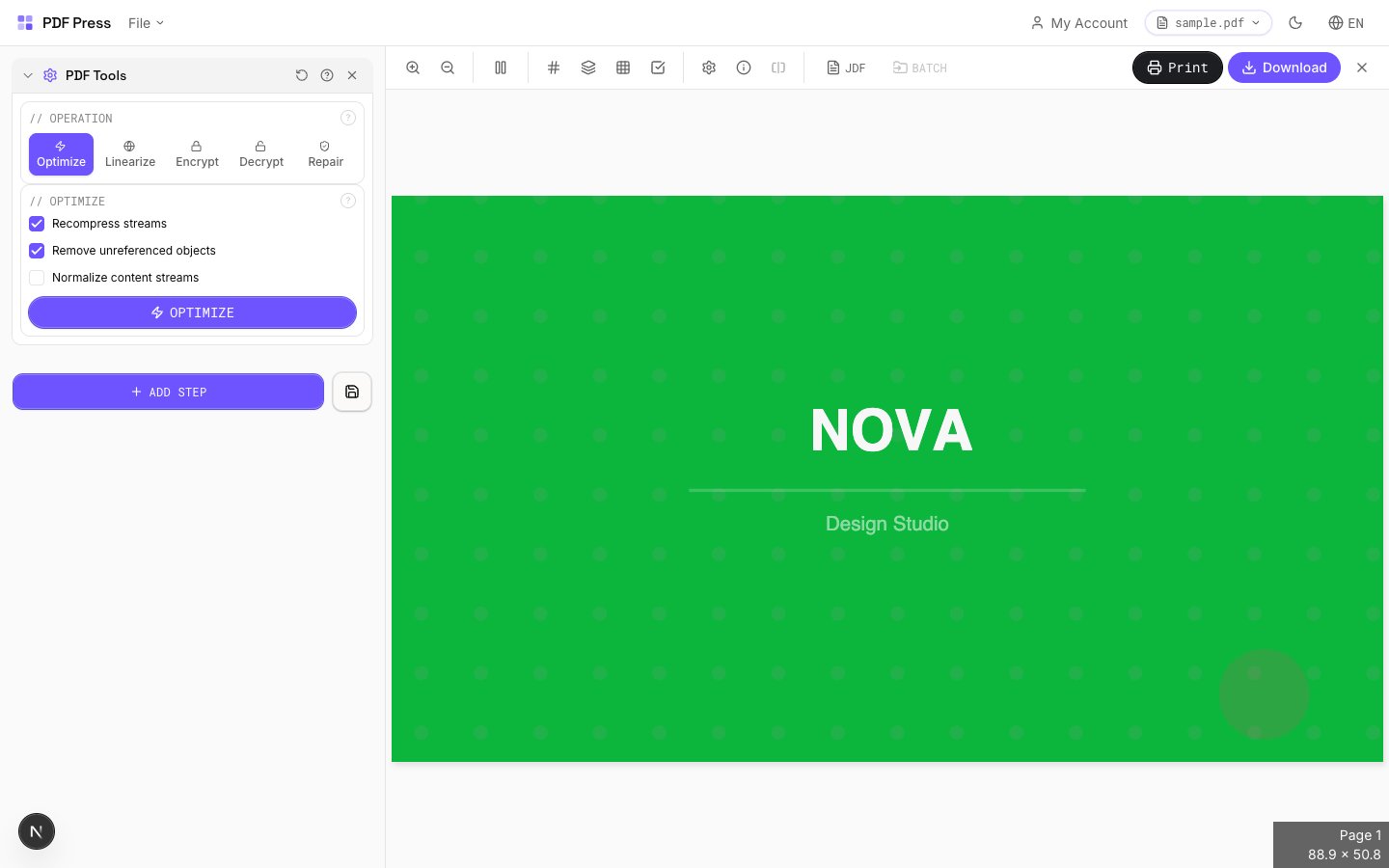
Optimize: Reduce PDF File Size
The Optimize tab is the most frequently used operation. It reduces file size by addressing three sources of bloat that accumulate in PDFs over their lifecycle:
- Recompress streams: Re-encodes all content streams with optimal Flate (zlib) compression. PDFs saved with poor or no compression — common in files exported from older applications — can shrink by 20–40%.
- Remove unreferenced objects: Purges orphaned objects that are no longer linked from the page tree. These leftover objects appear in PDFs that have been repeatedly edited, merged, or had pages deleted. Removing them reclaims dead space.
- Normalize content streams: Standardizes the internal drawing commands for consistency. This is optional and primarily useful for debugging or preparing files for downstream automated processing.
Typical savings range from 10–40% on unoptimized files. Already-lean PDFs (e.g., files exported directly from InDesign with "Optimize for Fast Web View" checked) will see smaller reductions since they are already well-compressed.
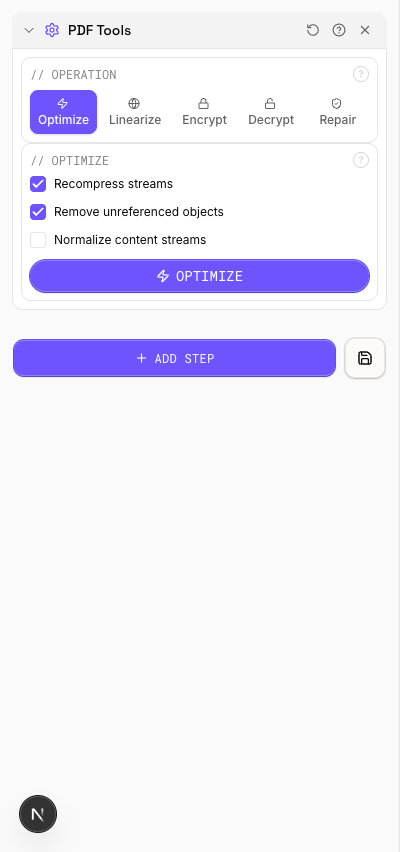
To optimize: open pdfpress.app, load your PDF, select the PDF Optimizer tool, ensure the Optimize tab is active, toggle the desired options, and click Export. The result is a smaller PDF with identical visual content.
Linearize: Enable Fast Web View
Linearization — also called "fast web view" or "optimized for web" — restructures the PDF's internal byte order so that the first page's data appears at the beginning of the file. This allows web browsers and PDF viewers to render Page 1 immediately while the remainder of the file continues downloading in the background.
This operation is essential for large PDFs served from websites, intranets, or document management systems. Without linearization, the viewer must download the entire file before displaying any content — a poor user experience for multi-megabyte catalogs, reports, or technical manuals.
To linearize a PDF: load it into pdfpress.app, open the PDF Optimizer tool, switch to the Linearize tab, and export. Note that linearization may slightly increase file size due to the additional cross-reference structures it inserts. For the best results, combine with Optimize — reduce the file first, then linearize the leaner output.
Encrypt: Add Password Protection
The Encrypt tab lets you add password protection and granular permission controls to any PDF. pdfpress.app supports both 128-bit and 256-bit AES encryption — the same standards used by Adobe Acrobat.
There are two password types:
- User password: Required to open the PDF. Leave this empty if the document should be viewable by anyone but still restricted in other ways (e.g., no printing).
- Owner password: Required to change security settings or remove restrictions. This is always required when encrypting.
You can set four independent permissions:
- Print: Allow or deny printing the document.
- Copy: Allow or deny text and image extraction.
- Modify: Allow or deny page editing and content changes.
- Annotate: Allow or deny adding comments and filling form fields.
For maximum compatibility, use 128-bit AES. For maximum security, use 256-bit AES (requires Acrobat X or later to open). All encryption is performed client-side — your passwords are never transmitted over the network.
Decrypt: Remove Password Protection
The Decrypt tab removes password protection from an encrypted PDF. Enter the owner or user password, and pdfpress.app will produce an unprotected output with all restrictions lifted.
This is useful when you have a legitimate password but need to remove protection for internal workflows — for example, sending files to a RIP that does not handle encrypted PDFs, or archiving documents without access restrictions.
Important: this tool requires a valid password. It cannot crack or bypass unknown passwords. If you do not have the correct password, you will need to contact the document's creator.
Repair: Fix Corrupted PDF Structure
The Repair tab re-reads and re-writes the entire PDF structure, fixing common corruption issues:
- Broken cross-reference (xref) tables
- Invalid stream lengths
- Mismatched object numbers
- Truncated or incomplete file trailers
- Other structural inconsistencies
Use Repair when PDFs fail to open in other software, show "file damaged" warnings, or crash RIPs during processing. The qpdf engine is exceptionally tolerant of malformed files and can salvage content that other tools reject.
The Repair tab also includes a Check function that validates PDF structure without modifying the file. This is useful for preflight validation — verifying that a file is structurally sound before sending it to press.

Practical Workflows with PDF Optimizer
The PDF Optimizer's five operations cover distinct needs, but they combine naturally in production workflows:
- Web publishing pipeline: Optimize to reduce size → Linearize for fast web view → Upload to your CMS. This produces the smallest, fastest-loading PDF possible.
- Secure document distribution: Optimize → Encrypt with user password and restricted permissions → Distribute. Recipients can view but not edit or copy.
- Prepress file rescue: Receive a corrupted PDF → Repair → Optimize → Send to RIP. The Repair step salvages the structure; Optimize cleans up any bloat introduced by the repair process.
- Archive preparation: Decrypt legacy password-protected files → Optimize → Archive without access restrictions.
Since pdfpress.app supports tool chaining, you can apply these operations in sequence without leaving the browser. Combine PDF Optimizer with other tools — add crop marks, apply resizing, or run overlays — for a complete prepress workflow.
Tips and Best Practices
Get the most from PDF Optimizer with these guidelines:
- Optimize before linearizing: Always reduce file size first. Linearization adds cross-reference overhead, so a leaner input produces a leaner linearized output.
- Use 256-bit AES for sensitive documents: 128-bit AES is broadly compatible, but 256-bit provides stronger security for confidential files.
- Check before repairing: Use the Check function first to diagnose the issue. If the check passes, the file is structurally valid and repair is unnecessary.
- Keep originals: PDF Optimizer is non-destructive in terms of visual content, but always retain the original file when performing encryption or structural modifications.
- Test after optimization: Open the optimized PDF in multiple viewers (Acrobat, Preview, a browser) to verify rendering. Rare edge cases with unusual font subsetting or transparency can occasionally be affected by aggressive optimization.
- Batch processing: For multiple files, pdfpress.app's batch mode lets you apply the same optimization settings across an entire folder of PDFs.
Try it yourself
PDF Press runs entirely in your browser. Upload a PDF, pick a tool, and download the result — fast and private.
Open PDF Press22 Professional Imposition Tools
Every tool runs locally in your browser — fast, private, and professional-grade.
Frequently Asked Questions
Related Articles
Ready to try professional PDF imposition?
PDF Press is a browser-based imposition tool with 22 professional tools. No installation required.
Open PDF Press