How to Print Business Cards: Layout, Imposition & Production Guide
Complete guide to printing business cards from PDF. Covers standard sizes (US, EU, Japan), bleed setup, 8-up and 10-up imposition layouts, paper stock selection, duplex printing, crop marks, and step-by-step instructions using free tools.
Why Print Your Own Business Cards?
Business cards remain one of the most exchanged pieces of print collateral in professional settings. Whether you are a freelancer, a startup founder, or a marketing manager ordering a run of 5,000 cards for a sales team, understanding the production process gives you better control over quality, cost, and turnaround time. Printing business cards yourself -- or preparing print-ready files for a commercial printer -- requires knowledge of standard sizes, bleed setup, imposition layout, paper stock, and finishing options.
There are two broad scenarios for business card printing:
- On-demand home or office printing -- ideal for small quantities (10--100 cards), prototyping designs, or last-minute needs before a meeting. You print on heavyweight inkjet or laser card stock and cut by hand or with a paper trimmer.
- Commercial print production -- for quantities of 250 or more, you prepare a print-ready PDF with proper bleeds, crop marks, and imposition, then send it to a digital or offset printer. The printer gang-runs your cards alongside other jobs on a large press sheet and die-cuts or guillotine-trims to final size.
In both cases, the critical step is imposition -- arranging multiple copies of your business card design on a single sheet so that paper usage is maximized and cutting is straightforward. This guide walks you through every aspect of the process, from choosing the right card size to downloading a finished, imposed PDF ready for printing. All of the imposition steps can be done using PDF Press, which runs entirely in your browser and never uploads your files to any server.
Standard Business Card Sizes Around the World
Before designing or imposing a business card, you need to know the finished trim size. Business card dimensions vary by region, and using the wrong size can make your card feel awkward or prevent it from fitting standard cardholders and wallets.
| Region | Dimensions (mm) | Dimensions (inches) | PDF Points | Notes |
|---|---|---|---|---|
| United States / Canada | 88.9 x 50.8 | 3.5 x 2 | 252 x 144 | Most common worldwide due to US business influence |
| Europe (ISO 7810 ID-1) | 85.6 x 53.98 | 3.370 x 2.125 | 242.6 x 153 | Same dimensions as a credit card |
| Europe (common practice) | 85 x 55 | 3.346 x 2.165 | 240.9 x 155.9 | Rounded version widely used by European printers |
| Japan | 91 x 55 | 3.582 x 2.165 | 257.9 x 155.9 | Slightly wider than Western cards; fits Japanese meishi holders |
| China | 90 x 54 | 3.543 x 2.126 | 255.1 x 153.1 | Similar to European sizing |
| Australia / New Zealand | 90 x 55 | 3.543 x 2.165 | 255.1 x 155.9 | Matches common European size |
The US 3.5 x 2 inch size is by far the most commonly used globally, especially for international business. If you are unsure which size to choose, the US standard is the safest bet -- it fits virtually all business card holders and wallet card slots, and every commercial printer worldwide can produce it.
For specialty cards -- such as square cards (2.5 x 2.5 inches), mini cards (3.5 x 1 inch), or folded tent cards (3.5 x 4 inches folding to 3.5 x 2 inches) -- the imposition process is the same, but you will need to set a custom trim size in your layout.
Understanding Bleed Requirements
Bleed is the single most important concept in business card production. It refers to artwork that extends beyond the trim line -- the extra area that gets cut away during finishing. Without bleed, any slight misalignment during cutting results in an unprinted white edge on one or more sides of the card, which looks unprofessional.
Standard bleed allowance for business cards: 3mm (0.125 inches / 9 points) on each side.
This means your actual design file dimensions, including bleed, should be:
- US card: 3.75 x 2.25 inches (95.25 x 57.15 mm) -- that is 3.5 + 0.125 + 0.125 by 2 + 0.125 + 0.125
- EU card: 91 x 61 mm (3.583 x 2.402 inches) -- that is 85 + 3 + 3 by 55 + 3 + 3
- Japanese card: 97 x 61 mm (3.819 x 2.402 inches) -- that is 91 + 3 + 3 by 55 + 3 + 3
When designing your card, follow these bleed rules:
- Extend backgrounds and images to the bleed edge. Any color, pattern, or photograph that touches the trim line must extend a full 3mm beyond it.
- Keep text and logos inside the safe zone. The safe zone is typically 3--5mm inside the trim line. Text or critical elements placed too close to the edge risk being partially cut off.
- Do not place thin borders at the trim line. A thin border frame around a business card is extremely difficult to cut evenly -- any cutting variance makes the border appear uneven. If you want a border effect, make it thick enough (at least 3mm) that slight trimming variation is not noticeable.
In PDF Press, you can handle bleeds in two ways: select "Pull from Document" if your PDF already includes bleed (the extra area beyond the trim box), or enter fixed bleed values if you need the tool to account for them during imposition. Most design applications (Adobe InDesign, Illustrator, Canva Pro, Affinity Publisher) let you set bleed when exporting to PDF.
Business Card Imposition Layouts: 8-Up, 10-Up, and 12-Up
Imposition is the process of arranging multiple copies of your card design on a single larger sheet for efficient printing and cutting. The number of cards per sheet depends on the card size, the sheet size, and the bleed/margin configuration.
8-Up on US Letter (8.5 x 11 inches / 612 x 792 points)
The most common layout for home and small-office printing. Eight cards arranged in a 4-row by 2-column grid. With standard US 3.5 x 2 inch cards, this leaves comfortable margins of approximately 0.75 inches on each side and 0.5 inches top and bottom. The generous margins make this layout forgiving of printer alignment issues and easy to trim. This is the layout you will find in most business card templates sold at office supply stores.
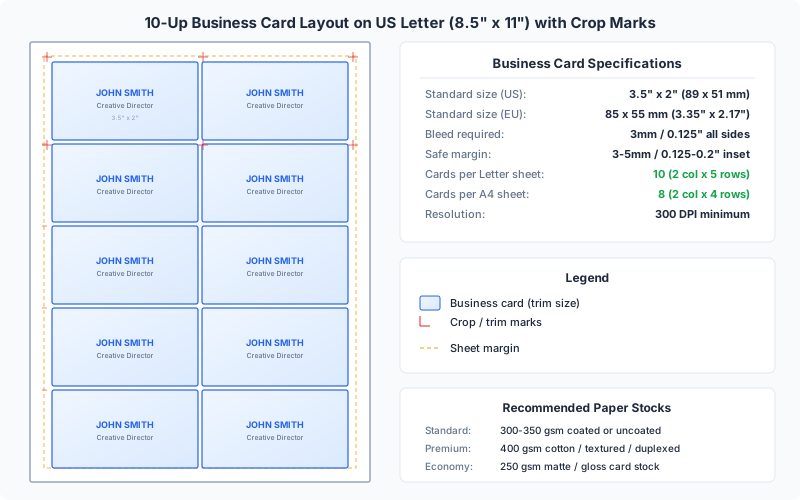
10-Up on US Letter
A tighter layout that fits 10 cards in a 5-row by 2-column grid. The total card area (without bleed) is 7 x 10 inches, leaving only 0.75 inches on each side and 0.5 inches top and bottom. This layout maximizes paper usage but requires more precise cutting and a printer capable of printing close to the sheet edges. Ten-up is the standard for Avery 5371 and similar pre-perforated business card sheets, which are designed for inkjet and laser printers.
10-Up on A4 (210 x 297 mm / 595 x 842 points)
For European 85 x 55 mm cards on A4 paper, a 2-column by 5-row grid fits 10 cards with approximately 20mm side margins and 21mm top/bottom margins. This is the standard layout used by European business card template sheets (such as Sigel or Avery Zweckform).
12-Up on Tabloid (11 x 17 inches / 792 x 1224 points)
For commercial digital printing or print shops with tabloid-capable printers. Twelve US-standard cards arranged in a 4-row by 3-column grid, or 6 rows by 2 columns, depending on orientation. Tabloid sheets provide more efficient paper utilization and fewer sheets to feed through the printer for large quantities. With US cards at 3.5 x 2 inches, a 3-column by 4-row layout uses 10.5 x 8 inches of the 11 x 17 sheet, leaving ample room for crop marks and gripper margins.
16-Up on A3 (297 x 420 mm / 842 x 1191 points)
Sixteen European 85 x 55 mm cards arranged in a 4-column by 4-row grid on A3. This is common for commercial digital output. Total card area is 340 x 220 mm, fitting comfortably within the A3 sheet with sufficient margins for crop marks and gripper edge allowance.
The right layout depends on your equipment and quantity. For home printing, 8-up on Letter is the most forgiving. For professional output, the higher-up counts on larger sheets reduce per-card cost and cutting time.
Step-by-Step: Imposing Business Cards with PDF Press
PDF Press is a browser-based imposition tool that processes your PDF entirely on your device -- your files are never uploaded to any server. Here is how to create a print-ready business card layout:
Step 1: Design Your Business Card
Create your business card at the correct trim size (e.g., 3.5 x 2 inches for US standard) with 3mm bleed on all sides in your design application. Export as a high-resolution PDF. If your card is double-sided, export the front and back as separate pages in the same PDF, or as two separate PDF files.
Step 2: Open PDF Press and Upload
Navigate to PDF Press in Chrome, Firefox, Safari, or Edge. Drag and drop your business card PDF onto the upload area. PDF Press will display a preview of your card immediately.
Step 3: Select the Cards Tool
From the tool panel, select Cards. This tool is specifically designed for step-and-repeat layouts like business cards, where the same design is repeated in a grid across the sheet. It handles all the math for you -- calculating how many cards fit on your chosen paper size with the margins and gaps you specify.
Step 4: Choose Your Paper Size
Select your target sheet size from the dropdown: US Letter, A4, Tabloid, A3, or enter a custom size. For home printing, Letter or A4 is standard. For commercial output, Tabloid or A3 gives you more cards per sheet.
Step 5: Configure Bleeds
If your PDF was exported with bleed (artwork extending beyond the trim box), select "Pull from Document" to let PDF Press use the existing bleed. If your PDF does not include bleed, you can select "No Bleeds" for a simpler layout, though the cards will not have edge-to-edge coverage after trimming.
Step 6: Set Margins and Spacing
Adjust the outer margins (space between the card grid and the sheet edge) and the gap between cards. For cards that will be cut with a guillotine cutter, zero gap between cards is ideal -- the crop marks serve as the only cutting guide. For hand-cutting with scissors, a 2--3mm gap between cards can make alignment easier to judge visually.
Step 7: Enable Crop Marks
Turn on crop marks to add precise cutting guides at every card boundary. You can also enable the Cutter Marks tool as a subsequent step in the pipeline for finer control over mark style, length, thickness, and offset distance from the trim line.
Step 8: Preview and Download
PDF Press renders a real-time preview of the imposed sheet. Check that cards are properly positioned, bleed areas overlap correctly between adjacent cards, and crop marks are visible. When satisfied, click Download to save the print-ready PDF. This file is ready to send to your printer or print directly.
Double-Sided Business Cards: Duplex Printing Considerations
Most business cards are double-sided -- contact information on the front and a logo, tagline, QR code, or social media handles on the back. Printing double-sided cards introduces additional alignment challenges that you need to plan for.
Front-to-Back Registration
The front and back of each card must align precisely when the sheet is printed on both sides. Any misalignment means that when cards are cut, the front design does not match the back. Professional printers use registration marks and pin systems to ensure front-to-back accuracy within 0.5mm. Home duplex printers are less precise -- expect 1--3mm of registration variance, which is why generous safe zones are important for home-printed double-sided cards.
Imposition for Duplex
When imposing double-sided cards, the back side must be arranged as a mirror image of the front layout so that each front card aligns with its corresponding back when the sheet is flipped. There are two common duplex methods:
- Work and Turn (short-edge flip) -- the sheet is flipped along its short edge for the second side. The back layout is a vertical mirror of the front.
- Work and Tumble (long-edge flip) -- the sheet is flipped along its long edge. The back layout is a horizontal mirror of the front.
In PDF Press, you handle this by creating a two-page PDF (page 1 = front, page 2 = back). The Cards tool places the front page on the first output sheet and the back page on the second output sheet, already arranged for correct duplex alignment. When you print duplex (or print page 1, flip the sheet, and print page 2 on the back), the fronts and backs will align.
Single-Sided Alternative
If precise front-to-back registration is critical and you are printing at home, consider printing front and back as separate sheets and gluing them together with spray adhesive before cutting. This eliminates duplex alignment issues entirely, though it doubles the card thickness and adds a production step.
Tip for Home Duplex Printers
Before printing your full batch, print a single test sheet double-sided and hold it up to a light source. Check how well the front and back grids align. If they are offset, adjust your margins to compensate -- many printers have a consistent directional bias that you can correct by shifting one side by 1--2mm.
Choosing Paper Stock for Business Cards
Paper choice dramatically affects how a business card feels and is perceived. A flimsy card signals low quality, while a thick, textured card communicates professionalism and attention to detail. Here is what you need to know about paper stock for business cards.
Paper Weight and Thickness
Business card paper is measured in either GSM (grams per square meter) or point thickness (thousandths of an inch). Standard ranges:
| Weight | Thickness | Feel | Suitability |
|---|---|---|---|
| 250--300 gsm | 10--12 pt | Sturdy but flexible | Budget cards, short-term use, prototyping |
| 300--350 gsm | 12--14 pt | Substantial, professional | Standard commercial business cards |
| 350--400 gsm | 14--16 pt | Thick and rigid | Premium cards, luxury brands |
| 400+ gsm / duplex | 16--32 pt | Very rigid, board-like | Ultra-premium, letterpress, multilayer |
The industry standard for professional business cards is 14pt (approximately 350 gsm). This weight feels substantial in the hand and survives being carried in a wallet or cardholder without bending.
Paper Finish
- Matte / Uncoated -- smooth, non-reflective surface. Easy to write on (useful if recipients will jot notes on the back). Professional, understated appearance. Works well with letterpress and embossing.
- Gloss Coated -- shiny, reflective surface that makes colors pop and photographs look vibrant. Resists fingerprints less well than matte. Harder to write on. Best for cards with photographic imagery or vivid color work.
- Silk / Satin -- a middle ground between matte and gloss. Low sheen, smooth to the touch, with good color reproduction. The most popular finish for business cards in the US market.
- Textured / Felt / Linen -- papers with a tactile surface texture. Commands attention through touch. Excellent for minimal, type-driven designs. Can cause issues with very fine detail or small text due to the uneven surface.
- Cotton / Rag -- premium paper made from cotton fibers rather than wood pulp. Exceptionally smooth, durable, and tear-resistant. Used for high-end cards, often paired with letterpress printing.
Coatings and Laminates
After printing, cards can receive additional coatings:
- UV Coating -- a liquid coating cured with ultraviolet light, adding high gloss and scuff resistance. Can be applied selectively (spot UV) to highlight specific design elements like a logo.
- Aqueous Coating -- a water-based coating that adds moderate protection and a slight sheen. More environmentally friendly than UV.
- Soft-Touch Laminate -- a matte film laminate that gives a velvety, almost rubbery feel. Extremely popular for premium cards. Adds thickness and durability.
For Home Printing
When printing at home, look for card stock specifically designed for your printer type. Inkjet card stock has a coating that absorbs ink properly; laser card stock handles heat without warping. Common options available at office supply stores include pre-scored or pre-perforated business card sheets (like Avery 5371 for inkjet or Avery 5911 for laser), which eliminate the need for cutting entirely -- you simply snap cards apart along the perforations.
Cutting, Trimming, and Finishing
Cutting is where many DIY business card projects go wrong. Precise, clean cuts are essential for a professional result -- uneven edges or slightly different card sizes are immediately noticeable and undermine the impression your card makes.
Cutting Tools for Home Production
- Rotary paper trimmer -- the best option for home use. A sharp rotary blade guided along a rail produces clean, straight cuts. Look for a trimmer with a grid and measurement marks for accurate positioning. Fiskars, Dahle, and Swingline make reliable models in the $25--60 range.
- Guillotine paper cutter -- a lever-action blade that cuts through multiple sheets at once. More powerful than rotary trimmers, but less precise for single-sheet work. Useful if you are cutting stacks of cards.
- Craft knife and metal ruler -- the most precise method for small quantities. Use a sharp blade, a metal straightedge (not plastic), and a self-healing cutting mat. Score the cut line first with light pressure, then cut through with firmer strokes.
- Corner rounder punch -- if your design calls for rounded corners, a corner rounder (available in various radii from 1/8" to 1/4") cleans up the look significantly. Round corners also prevent dogearing when cards are stored in wallets.
Cutting Tips for Clean Results
- Use crop marks. Always impose your cards with crop marks enabled. These thin lines at each card boundary give you an exact cutting target. Without crop marks, you are guessing, and guesses accumulate into visible errors across a sheet of 10 cards.
- Cut in straight lines, not individual cards. Make your horizontal cuts first (cutting the sheet into rows), then make vertical cuts to separate individual cards. This produces straighter edges than trying to cut around each card individually.
- Replace blades frequently. A dull blade tears paper fibers instead of cutting cleanly, leaving fuzzy edges. Replace trimmer blades or snap off craft knife segments regularly.
- Stack only a few sheets. Cutting 2--3 sheets at a time produces cleaner results than trying to cut a thick stack, where the bottom sheets can shift during cutting.
- Check dimensions after cutting. Measure a few finished cards with a ruler or calipers. They should all be within 0.5mm of the target size. If they are not, adjust your cutting technique.
Professional Cutting
Commercial print shops use industrial guillotine cutters with hydraulic clamps and programmable backstops that can cut a stack of 500+ sheets at once with sub-0.5mm accuracy. Die cutting uses a custom steel rule die to cut cards to exact shape, including non-rectangular shapes like rounded rectangles or custom contours. For standard rectangular business cards, guillotine cutting is the norm.
Home Printing vs Professional Print Services
Both approaches have their place, and the right choice depends on quantity, quality requirements, timeline, and budget.
Home / Office Printing
| Advantage | Limitation |
|---|---|
| Instant turnaround -- print right now | Lower paper stock options (most home printers handle up to 300gsm) |
| No minimum order quantity | Inkjet colors can smear if not coated; laser toner can crack on folds |
| Easy to iterate on design | Duplex registration is imprecise (1--3mm variance) |
| Complete privacy -- files never leave your device | Manual cutting is time-consuming and less precise |
| Cost-effective for very small quantities (under 50) | No special finishes (foil, embossing, spot UV, edge coloring) |
Professional Print Services
| Advantage | Limitation |
|---|---|
| Premium paper stocks (14pt, 16pt, 32pt, cotton) | 2--7 day turnaround (longer for specialty finishes) |
| Precise duplex registration (within 0.5mm) | Minimum order quantities (typically 100--250) |
| Special finishes available (foil, emboss, spot UV) | Higher per-card cost at low quantities |
| Industrial cutting with sub-0.5mm accuracy | Less flexibility to make last-minute changes |
| Consistent color across large runs | Files must be prepared correctly -- mistakes are costly to reprint |
Cost Comparison (approximate, US market 2026)
- Home printing: $0.15--0.40 per card (paper + ink cost), plus $0 for software if you use PDF Press .
- Online print services (Vistaprint, MOO, GotPrint): $0.02--0.15 per card for standard options at quantities of 250+. Premium options (thick stock, special finishes) run $0.10--0.50 per card.
- Local print shop: $0.05--0.25 per card, with the advantage of seeing and approving a proof in person.
The crossover point is typically around 50--100 cards: below that, home printing is cheaper and faster. Above that, professional printing is more cost-effective and produces better results. For prototype or test runs, always print at home first to verify the design before committing to a commercial order.
Business Card Design Best Practices for Print
Good design and good print production go hand in hand. Here are design practices that directly impact print quality and the imposition process:
Color Mode: CMYK, Not RGB
Screens display color in RGB (red, green, blue). Printers reproduce color in CMYK (cyan, magenta, yellow, black). If you design in RGB and do not convert to CMYK before printing, colors will shift -- particularly vivid blues, greens, and reds, which often appear duller when converted. Design in CMYK from the start, or convert carefully and verify the result. Note: home inkjet printers accept both RGB and CMYK PDFs, but the driver does its own conversion, so what you see on screen may not match exactly.
Resolution: 300 DPI Minimum
All images and graphics should be at least 300 DPI (dots per inch) at the final print size. A photograph that looks sharp on screen at 72 DPI will appear pixelated when printed. For a standard 3.5 x 2 inch business card, any image should be at least 1050 x 600 pixels. Vector graphics (logos, icons, text) should remain as vectors in the PDF -- they are resolution-independent and will print sharply at any size.
Typography
- Minimum body text size: 7pt. Anything smaller than 7pt becomes difficult to read on a business card, especially for older recipients or in low-light conditions. Name and title at 9--12pt is standard.
- Avoid very thin fonts below 8pt. Hairline weights can break up during printing, especially on textured stock. Use regular or medium weights for small text.
- Embed all fonts. When exporting to PDF, ensure fonts are embedded (not subsetted, not referenced). Missing fonts will cause the printer's RIP to substitute a default font, ruining your design.
- Convert text to outlines if you are unsure about font embedding. This converts text to vector paths, eliminating font dependency entirely. However, outlined text cannot be edited later, so keep your source file with live text.
White Space
Business cards have very limited real estate. Resist the urge to fill every square millimeter. Generous white space (or "breathing room") around text and graphic elements makes a card feel clean, professional, and easier to read. A card with too much information crammed into a small space communicates disorganization, not thoroughness.
QR Codes
QR codes are increasingly common on business cards, linking to a website, vCard, or LinkedIn profile. For reliable scanning, QR codes should be at least 20 x 20 mm (0.8 x 0.8 inches). Use high error correction (Level Q or H) to ensure the code scans even with slight printing imperfections. Always test-scan a printed QR code before committing to a full production run.
Print-Ready File Checklist
Before sending your business card to a printer -- or imposing it for home printing -- run through this checklist to catch common problems:
- Correct trim size. Verify your PDF page dimensions match your intended card size (e.g., 3.5 x 2 inches, 85 x 55 mm).
- Bleed present. Open your PDF and confirm that background elements extend at least 3mm (0.125 inches) beyond the trim boundary on all four sides.
- Safe zone respected. No text or critical content is closer than 3mm to the trim edge.
- CMYK color mode. Check your PDF color space -- it should be CMYK for commercial printing. For home printing, RGB is acceptable but CMYK is preferred.
- Resolution check. Zoom into any raster images at 300% or more. If they look blocky or pixelated, the resolution is too low for print.
- Fonts embedded. Open the PDF properties and check the fonts tab. Every font should show "Embedded" or "Embedded Subset."
- Correct page count. For single-sided cards: 1 page. For double-sided: 2 pages (front, then back) in a single PDF.
- No printer marks in the source. Your business card PDF should be a clean card design -- no crop marks, marks. Those will be added by the imposition tool (PDF Press) or the printer's RIP.
- Flat PDF (no layers). Flatten any layers in your design application before exporting, unless your printer specifically requests layered files.
- Spot colors defined correctly. If using Pantone or other spot colors, verify they are defined as spot (not converted to CMYK process) in the PDF.
If you are using PDF Press, the tool will display your card in the preview exactly as it will appear in the output PDF. Use this preview to visually verify all of the above before downloading the imposed file.
Advanced Techniques: Gang Runs, Variable Data, and Specialty Cards
Beyond basic step-and-repeat imposition, there are several advanced techniques used in business card production:
Gang Run Printing
A gang run combines multiple different card designs on the same press sheet. If you have five employees who each need 200 cards with different names and titles (but the same back design), gang running places all five front designs on a single sheet. This reduces makeready costs and print time compared to running each design separately. PDF Press's N-Up and Grid tools can arrange different source pages on the same sheet for gang run layouts.
Variable Data Printing (VDP)
Variable data printing personalizes each card in a print run -- different names, titles, phone numbers, email addresses, or even photographs, all printed in a single continuous run without stopping the press. VDP requires a data-driven workflow where a master template is merged with a database of contact information. This is typically handled by the printer's RIP software or a prepress tool like HP SmartStream or XMPie.
Specialty Shapes and Finishes
- Rounded corners: Standard radius is 1/8 inch (3.175mm) or 1/4 inch (6.35mm). Requires die cutting rather than guillotine trimming.
- Folded cards: A 3.5 x 4 inch card that folds to standard 3.5 x 2 inch size. Provides double the surface area for information or creative design. Imposes as a single 3.5 x 4 inch page with a score line at the center.
- Edge coloring (painting): The cut edges of the card stock are painted with color -- a striking visual effect on thick stock (32pt or heavier). Applied after cutting, so it does not affect the imposition layout.
- Foil stamping: Metallic or holographic foil applied to specific areas of the card using a heated die. Requires a separate foil plate, so your design must include a foil mask layer.
- Letterpress: Printing under pressure that creates a debossed (indented) impression in the paper. Works best on soft, thick stock (cotton or duplex). The deboss is part of the appeal, so designs should be relatively simple with large, bold elements.
For specialty cards, always consult with your printer before finalizing the imposition layout, as die-cutting, foil, and letterpress each have specific mechanical requirements that may affect how cards are arranged on the press sheet.
Try it yourself
PDF Press runs entirely in your browser. Upload a PDF, pick a tool, and download the result — fast and private.
Open PDF Press22 Professional Imposition Tools
Every tool runs locally in your browser — fast, private, and professional-grade.
Frequently Asked Questions
Related Articles
Ready to try professional PDF imposition?
PDF Press is a browser-based imposition tool with 22 professional tools. No installation required.
Open PDF Press