Collate Printing Explained: What Does Collate Mean When Printing?
Learn what collate means in printing, when to use collated vs uncollated output, and how collation works in booklet printing, n-up layouts, and commercial print runs.
What Does Collate Mean in Printing?
Collate in printing means to assemble printed pages in their correct sequential order to form complete sets. When you print multiple copies of a multi-page document with collation enabled, the printer outputs each complete copy in page order before starting the next copy. Without collation, the printer outputs all copies of page 1, then all copies of page 2, and so on — leaving you with stacks of individual pages that must be manually sorted into sets.
The word "collate" comes from the Latin collatus, meaning "brought together." In the printing world, it has been used since the earliest days of bookbinding, when human collators would physically gather printed sheets (called signatures) into the correct order for binding. Today, the concept applies at every scale — from a home printer producing five copies of a meeting agenda to a commercial press outputting 10,000 copies of a 48-page catalog.
The collation setting appears in virtually every print dialog, yet it is one of the most frequently misunderstood options. Choosing the wrong setting doesn't produce an error — it simply produces output that requires manual re-sorting, which can waste significant time on large print runs. For booklet printing and imposition workflows, understanding collation is especially important because the page order is already non-sequential, and incorrect collation can make assembly nearly impossible.
Collated vs Uncollated: Visual Comparison
The difference between collated and uncollated printing becomes clear when you visualize the output. Consider printing 3 copies of a 4-page document:
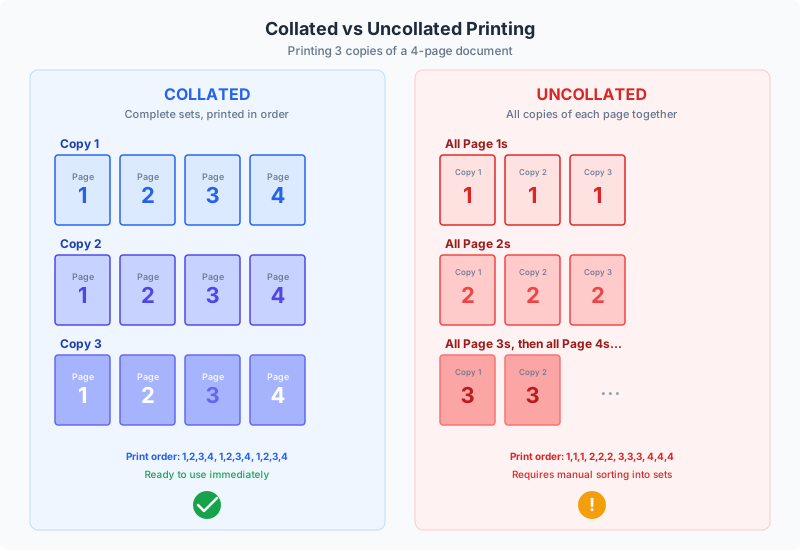
Collated output (recommended for most uses):
- Copy 1: Page 1, Page 2, Page 3, Page 4
- Copy 2: Page 1, Page 2, Page 3, Page 4
- Copy 3: Page 1, Page 2, Page 3, Page 4
The printer produces 12 sheets total, and each set of 4 consecutive sheets is a complete document ready to staple or distribute. No sorting required.
Uncollated output:
- 3 copies of Page 1
- 3 copies of Page 2
- 3 copies of Page 3
- 3 copies of Page 4
The printer still produces 12 sheets, but they are grouped by page number. To assemble a complete document, you must take one sheet from each stack — a process called hand collation or gathering. For 3 copies, this is trivial. For 500 copies of a 20-page document, it becomes a serious logistics challenge.
The key distinction: collation does not change what is printed — the same number of sheets with the same content is produced either way. It changes only the order in which sheets come out of the printer, which determines how much manual sorting is needed afterward.
When to Use Collated Printing
Collated printing is the right choice in the majority of scenarios. Here are the situations where you should always enable collation:
Multi-page documents for distribution. Reports, proposals, meeting agendas, training manuals, handouts — any document where each recipient needs a complete copy. Collated output means each copy comes off the printer ready to hand out or staple. This is the default use case and the reason collation is enabled by default in most printer drivers.
Booklet printing. When printing imposed booklets (pages rearranged for folding), collation ensures each set of sheets forms one complete booklet. An uncollated booklet print run would give you stacks of the same imposed sheet, requiring manual gathering before folding — a tedious and error-prone process. For the booklet printing workflow, always keep collation enabled.
Any document over 2 pages being printed in multiple copies. Even if you are only printing 3 copies of a 3-page document, collation saves you the annoyance of sorting pages. The time savings scale dramatically with copy count and page count: 50 copies of a 10-page report means sorting 500 individual sheets without collation.
Digital printing and print-on-demand. Digital presses (laser and inkjet) can collate electronically with no speed penalty. Since there is no setup cost for changing pages (unlike offset), there is essentially no reason to disable collation on a digital printer producing standard documents.
Legal and compliance documents. Contracts, regulatory filings, and audit documents that must be assembled in a specific order should always be collated to prevent pages from different copies getting mixed up, which could create legal or compliance issues.
When to Use Uncollated Printing
While collation is the default choice, there are legitimate reasons to print uncollated in specific workflows. Understanding when uncollated output is advantageous can save time and cost in certain production scenarios:
Single-page documents. If your document has only one page, collation is irrelevant — there is nothing to collate. The setting makes no difference. This includes single-page flyers, individual certificates, or one-page forms.
Offset printing plate runs. In offset lithography, each page is burned onto a separate printing plate. The press runs all copies from one plate before changing to the next. The output is inherently uncollated — hundreds or thousands of copies of page 1, then page 2, and so on. A mechanical collation step (gathering) happens after printing, either by machine or by hand. This is normal for offset and not a setting you change; it is an inherent characteristic of the press technology.
Gang printing (multiple different items). When printing different items on the same sheet — for example, 4 different business card designs imposed together — uncollated output gives you stacks of identical sheets, which is what you want for cutting. Each sheet is cut into 4 cards, and the cards are then sorted by design. Collation would interleave sheets in a way that makes cutting and sorting less efficient.
Cut-and-stack workflows. In n-up printing with a cut-and-stack finishing approach, uncollated output ensures that after cutting, each stack of cut pieces is already in the same order. This is used for numbered tickets, sequential forms, and multi-part documents where the cutting and stacking sequence matters.
Selective page re-runs. If a specific page had a printing error (e.g., a color shift on page 3 of a 12-page document), you might want to reprint only that page across all copies. This is effectively an uncollated run of a single page, which you then manually insert into the existing copies.
Speed optimization on certain printers. Some older laser printers with limited memory process collated jobs significantly slower because they must store the entire document in memory to produce it repeatedly. On these printers, uncollated printing can be noticeably faster, though modern printers with adequate RAM handle collation without speed penalties.
Finding the Collate Setting in Your Print Dialog
The collate setting is located in different places depending on your operating system and application. Here is where to find it in the most common environments:
Windows (any application):
- Open the Print dialog (Ctrl+P)
- Look for the "Copies" section — the collate checkbox is typically right next to the number of copies field
- It may appear as "Collate" with a checkbox, or as a toggle icon showing either stacked pages (collated) or fanned pages (uncollated)
- In some printer drivers, it is under Properties → Finishing or Layout tab
macOS (any application):
- Open the Print dialog (Cmd+P)
- The "Collated" checkbox appears in the Copies & Pages section
- If you don't see it, click "Show Details" to expand the print dialog
- macOS enables collation by default
Adobe Acrobat / Reader:
- File → Print → look for the "Copies" section at the top of the dialog
- The "Collate" checkbox is directly under the copies count
- Note: Acrobat's collation works in addition to your printer driver's collation — don't enable both, or you may get double-collation behavior on some printers
Microsoft Word / Office:
- File → Print → the collation option is next to the copies count
- Word shows a small visual preview: "1,2,3 1,2,3" (collated) vs "1,1,1 2,2,2" (uncollated)
- This is one of the clearest collation interfaces in any application
Google Chrome / Web browsers:
- Ctrl+P (Cmd+P on Mac) → More settings → look for "Collate" checkbox
- Chrome enables collation by default
- Note: some browser print dialogs defer to the system print dialog, which has its own collation control
Pro tip: if you are printing an already-imposed PDF from PDF Press, ensure collation is enabled in your print dialog. Since imposition rearranges pages into a non-intuitive order, uncollated output of an imposed file would be extremely difficult to sort manually.
Collation in Imposition and Booklet Workflows
Collation takes on special significance in imposition workflows, where the relationship between page order and physical assembly is more complex than standard printing.
Saddle-stitch booklets. In a saddle-stitched booklet, the imposed page order is non-sequential — for example, an 8-page booklet has the print order 8,1 / 2,7 / 6,3 / 4,5. When printing multiple copies, collation ensures each group of 2 sheets (4 printed sides) forms one complete booklet. Without collation, you would get all copies of Sheet 1 together, then all copies of Sheet 2 — requiring you to interleave them before folding and stapling. For a 20-copy run, this is manageable but annoying. For a 500-copy run, it is a significant manual operation.
Perfect binding signatures. In perfect binding, a book is composed of multiple signatures, each imposed independently. Collation at the signature level means each complete set of signatures comes out together, ready for gathering and binding. Most commercial binderies have automated gathering machines (called collators or gathering machines) that handle this step mechanically, taking one signature from each pile and assembling them into book blocks.
N-up / step-and-repeat layouts. When printing multiple copies of the same item on a single sheet (e.g., 8-up business cards), collation is typically irrelevant because every sheet is identical. The concept of "collation" only applies when sheets have different content. However, if you are doing a gang run with different items on different sheets, collation determines whether you get complete sets of all items or stacks of identical sheets.
Variable data printing (VDP). In VDP workflows — where each printed piece has unique content (personalized mailers, addressed invoices, sequential numbering) — collation is critical. Each "copy" is actually a unique document, and the output order determines whether mailing, binding, or packaging workflows function correctly. Incorrect collation in VDP can result in the wrong insert going into the wrong envelope, or sequential numbers being out of order.
Using PDF Press with collation. When you download an imposed PDF from PDF Press, the file contains sheets in their correct imposed order for a single copy. When printing multiple copies from this file, enable collation in your print dialog so that each complete set of imposed sheets stays together. This is especially important for booklet layouts, where mixing up sheets between copies results in booklets with missing or duplicated pages.
Collation in Commercial Print Production
In commercial printing environments, collation is a distinct production step — often involving dedicated machinery and specific workflow considerations that go far beyond a checkbox in a print dialog.
Sheet-fed offset. A sheet-fed offset press prints one side of a sheet at a time. For a 16-page booklet (4 sheets, each printed on both sides), the press runs all copies of Side A of Sheet 1, then all copies of Side B of Sheet 1 (or all sheets of one side, depending on the press configuration). The output is inherently uncollated. After printing and drying, the sheets go through a gathering station — a machine with multiple feeders, each holding a stack of one sheet type. The gatherer takes one sheet from each feeder and assembles them into complete sets for binding.
Web offset. Web presses print from continuous rolls of paper rather than individual sheets. The paper runs through the press at high speed (up to 15 m/s or 50 ft/s), gets printed, folded, and cut into signatures in one continuous operation. Each signature comes off the press already folded, and an inline gatherer assembles signatures into book blocks. The collation is essentially built into the press configuration — each printing unit applies a different plate, so the output is a continuous stream of complete signatures.
Digital production printing. High-volume digital presses (like HP Indigo, Konica Minolta AccurioPress, or Xerox iGen) handle collation electronically, similar to desktop printers but at production speed (80-150+ pages per minute). Digital presses have a significant advantage for collated output: since there are no plates to change, switching between pages is instantaneous. This makes collated digital printing just as fast as uncollated, which is one reason digital presses dominate short-run book production.
Bindery collation equipment. For offset-printed jobs, dedicated collation machines (also called collators, gathering machines, or assemblers) are standard bindery equipment. These machines range from simple tower collators with 10-20 stations (for small booklets) to high-speed gathering lines with 30+ stations that can handle thick books. Each station holds a stack of one signature or sheet, and the machine picks one from each station as the collection travels down the line. Sensors detect double-feeds and missing sheets to maintain quality.
Inline finishing. Modern production lines increasingly combine printing, collation, folding, stitching or binding, and trimming into a single inline workflow. For saddle-stitched booklets, the sequence is: print sheets → fold → gather on saddle → stitch → trim three sides. For perfect-bound books: print signatures → fold → gather → mill spine → apply adhesive → apply cover → trim. In these inline workflows, collation happens mechanically as part of the continuous production flow.
Common Collation Problems and Solutions
Even with the collation setting enabled, several issues can produce incorrect or confusing output. Here are the most common collation problems and how to fix them:
Problem: Pages are collated but in the wrong order.
Each copy has all its pages, but the page sequence within each copy is incorrect.
- Cause: The source PDF has pages in the wrong order, or the page range in the print dialog is set incorrectly.
- Solution: Open the PDF and verify page order before printing. If using PDF Press, check the preview to confirm page arrangement. In the print dialog, ensure "All pages" is selected unless you specifically need a subset.
Problem: Collation seems to have no effect — output is uncollated.
- Cause: Some printers ignore the software collation setting and use their own driver-level collation control. The software checkbox may be enabled while the driver setting is disabled (or vice versa).
- Solution: Check both the application's collation setting and the printer driver's collation setting (under Properties → Finishing). Ensure they agree. If unsure, disable collation in the application and enable it in the printer driver — hardware-level collation is generally more reliable.
Problem: Printing multiple copies is extremely slow.
- Cause: Collated printing on a printer with limited memory requires the printer to process the entire document for each copy, rather than processing each page once and printing it multiple times.
- Solution: On memory-constrained printers, disable collation and sort manually — or reduce print quality to use less memory per page. Alternatively, print one copy and use a photocopier for the remaining copies. Modern printers with 512MB+ RAM handle collated printing without significant slowdown.
Problem: Duplex (double-sided) collated prints have pages on the wrong side.
- Cause: Duplex printing + collation can interact unpredictably with certain printer drivers, especially when the page count is odd (producing a blank back on the last sheet of each copy).
- Solution: Add a blank page to the end of documents with an odd page count so each copy has an even number of pages. This ensures clean duplex pairs and prevents page bleed between copies. In PDF Press, booklet imposition automatically produces even page counts (multiples of 4).
Problem: First copy is correct, but subsequent copies are missing pages.
- Cause: A PostScript or PDF error on a specific page causes the printer to abort that page on subsequent copies after the first successful render. This is rare but occurs with complex graphics or corrupt fonts.
- Solution: Flatten the PDF (print to a new PDF, or use Acrobat's Preflight → Flatten tool) to simplify complex page elements. Re-embed fonts or convert text to outlines for problematic pages.
Collation Terminology in the Print Industry
The print industry uses several related terms that are often confused with collation. Understanding these distinctions helps you communicate clearly with print shops, binderies, and prepress operators:
Collating — The act of assembling pages or signatures into the correct sequence. This is the gathering step, whether done electronically (in a digital printer) or mechanically (in a bindery gathering machine).
Gathering — In bookbinding, gathering specifically refers to collecting individual signatures into a book block. Each signature is a group of pages printed and folded together. The gatherer takes one signature from each pile and assembles them into the sequence that forms the complete book. Gathering is a type of collation specific to signature-based production.
Sorting — Arranging finished pieces into groups, typically by destination (mailing address, department, recipient). Sorting happens after collation. For example, personalized letters are first collated (each letter assembled from its pages), then sorted by ZIP code for mailing.
Jog / Jogging — Vibrating or tapping a stack of printed sheets to align their edges. Jogging happens before collation to ensure sheets feed cleanly from the stack. A jogging table or paper jogger is standard bindery equipment.
Inserting — Placing one printed piece inside another. For example, inserting a reply card into a folded letter, or inserting a saddle-stitched booklet into an envelope. Inserting is a finishing step that occurs after collation and binding.
Shingling — In saddle stitch binding, shingling (also called creep compensation) is the progressive inward shift of content on inner pages to compensate for paper thickness. Despite the name similarity, shingling is an imposition adjustment, not a collation process.
Imposition — The arrangement of pages on a press sheet for correct reading order after folding. Imposition determines the page layout before printing; collation determines the assembly order after printing. Both are essential for producing correctly assembled printed products, and they must work in coordination.
Best Practices for Collated Printing
Follow these professional practices to ensure your collated printing runs smoothly, whether you are printing 5 copies on a desktop printer or 5,000 copies on a commercial press:
1. Always do a single-copy test first. Before printing 100 collated copies, print one complete copy and verify the page order, duplex alignment, and content accuracy. This single-copy test catches most problems before they multiply. For imposed booklets, fold and staple the test copy to verify it reads correctly.
2. Use even page counts for duplex printing. When printing double-sided with collation, odd page counts can cause the last page of one copy to share a sheet with the first page of the next copy (on some printers). Add a blank page at the end to prevent this. Imposition tools like PDF Press handle this automatically for booklet layouts.
3. Verify collation at the printer level, not just the application level. If your prints are coming out uncollated despite the application checkbox being enabled, check the printer driver settings separately. Printer Properties → Finishing (or Layout) → Collation. The driver-level setting overrides the application setting on many printers.
4. For large runs, consider the total sheet count. Collated printing of 200 copies of a 50-page document means the printer outputs 10,000 sheets with constant page changes. Uncollated printing of the same job means 50 runs of 200 identical sheets each. On some printers (particularly older laser printers), the uncollated approach is significantly faster because each page is processed once. Weigh the time savings of machine-level uncollation against the manual effort of hand-collation.
5. Label and separate copies during production. For large collated runs on desktop printers, place a colored separator sheet between copies so you can quickly verify that each set is complete. Many print dialogs have a "Separator page" or "Banner page" option that can automate this.
6. Mind paper capacity. Collated printing of many copies can exceed the printer's output tray capacity mid-copy, potentially mixing pages between copies. Check your printer's output capacity and remove completed copies periodically to prevent overflow and mixing.
7. For commercial printing, specify collation in your print specs. When sending a job to a commercial print shop, include explicit collation instructions in your job ticket: "Collate into sets of [N] sheets per copy" or "Gather signatures in order 1 through [N] for perfect binding." Don't assume the printer will collate — it is a separate finishing step that needs to be specified and quoted.
Try it yourself
PDF Press runs entirely in your browser. Upload a PDF, pick a tool, and download the result — fast and private.
Open PDF Press22 Professional Imposition Tools
Every tool runs locally in your browser — fast, private, and professional-grade.
Frequently Asked Questions
Related Articles
Ready to try professional PDF imposition?
PDF Press is a browser-based imposition tool with 22 professional tools. No installation required.
Open PDF Press